
Linksys Velop Manual
PDF manual · 35 Pages
English



Quick check
Incorrect answer, please try again.
Chat with your Linksys Velop manual using AI
Get instant AI answers from your Linksys Velop manual
Ask anything about the Linksys Velop. Answers come from this manual, with the pages they are based on.
Ask a Question
Do you recommend Velop?
Yes NoFrequently Asked Questions
Press and hold the Reset button on the bottom of the node until the light turns red and flashes. Do not release until it goes out and turns bright red again.
Is this answer helpful?
You can log in directly with admin password if offline, but remote access requires the app and internet connection to cloud account.
Is this answer helpful?
It allows up to three devices to always have access to internet connection over others, ensuring best performance for priority devices during congestion.
Is this answer helpful?
Yes, it supports both 2.4GHz and 5GHz radio frequencies for versatility and better speed on compatible devices.
Is this answer helpful?
Use the app to allow guests online while restricting access to other resources. You can send passwords via text or email.
Is this answer helpful?
Use CAT5e or higher rated cables for best performance on Ethernet ports to ensure Gigabit speeds.
Is this answer helpful?
Advantages and Disadvantages
Advantages

- Mesh technology eliminates dead zones for whole home coverage automatically.
- Easy setup via Linksys app for iOS and Android devices.
- Advanced parental controls and guest access networks available.
- Device prioritization ensures gaming and work get best bandwidth.
- Channel Finder technology optimizes Wi-Fi channels for speed.
Disadvantages

- Reset process erases all settings and requires reconfiguration of network.
- Requires smartphone app to manage system settings efficiently.
- Reset button requires hold time and can disrupt all connections.
Product Specification
Modem
N/A
LAN
2x 1000Base-T (Router, 2 Devices)
Wireless
Wi-Fi 802.11a/b/g/n/ac/h (Wi-Fi 5), simultaneous
Data Rate
400Mbps (2.4GHz), 867Mbps (5GHz)
Security
WPA2
Antennas
Internal
Connections
N/A
Power Consumption
Not specified (max. adapter power)
Dimensions
7.28 x 3.11 x 3.11 inches
Features
Bluetooth 4.0, Bluetooth LE, TPC/DFS, MU-MIMO, DLNA, Roaming (Qualcomm Wi-Fi SON), Mesh (separate band, 867Mbps)
Band Capability
Tri Band (Dual Band simultaneous + separate Mesh Band), Mesh (separate band, 867Mbps)
Set Contents
2x Router (2x 1000Base-T LAN)
Mesh Base
1x Router, Total base connections: 2x 1000Base-T LAN
Mesh Clients
1x Router, Total client connections: 2x 1000Base-T LAN
Manufacturer Warranty
3 years
Product Description
Experience Seamless Whole Home Connectivity
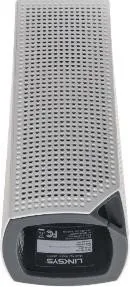
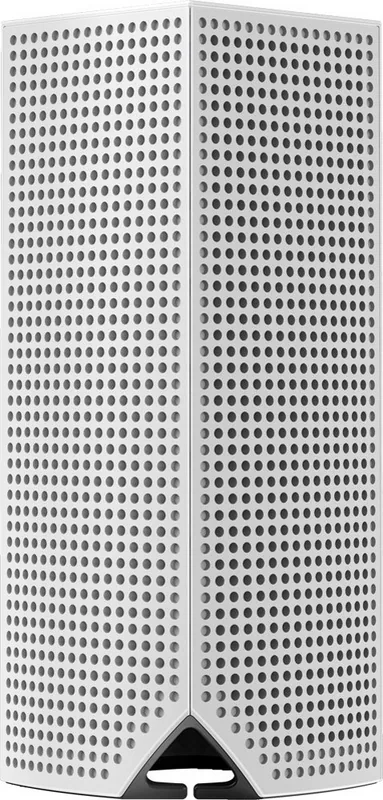
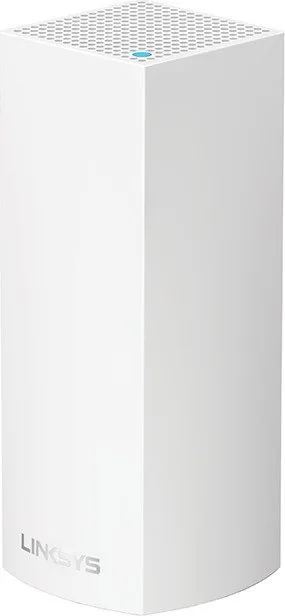
The Linksys Velop Set 2-Pack delivers intelligent mesh Wi-Fi designed to eliminate dead zones in your home. This system replaces traditional routers with sleek nodes that blend into your decor while providing powerful performance across every room. Unlike standard routers, Velop uses a single intelligent network that automatically directs data to the node with the strongest connection to your device. It creates a unified network name so phones and tablets switch to the best signal without dropping calls.
Effortless Setup and Control
Setting up your network is simple with the Linksys app available for iOS and Android devices. During the configuration process, you create a Linksys Smart Wi-Fi cloud account which allows remote management. You can view connected devices, change network names, and adjust passwords from anywhere with internet access. The app guides you through placing nodes correctly within range of each other. Once connected, the dashboard provides a snapshot of your Wi-Fi status instantly. You can see how many devices are connected and manage them individually.
Advanced Security and Parental Features
Security is a priority with WPA2 encryption protecting your data. Parental controls allow you to block internet access to specific devices to keep children safe online. You can schedule times for internet access to ensure balanced usage throughout the week. The Speed Test feature verifies your connection speeds against your service plan. This helps in Device Prioritization because results determine how Wi-Fi is distributed to prioritized devices. Advanced users can change default security type and Wi-Fi mode if experienced.
Guest Access and Performance Optimization
Hosting visitors is easy with the Guest Access feature. You can send passwords via text or email without compromising your main network security. Device Prioritization lets you choose up to three devices for guaranteed bandwidth, perfect for work-from-home needs. The system automatically uses Channel Finder technology to select the most open Wi-Fi channels for optimal speed. If you have more than one node, it finds the best channel for each one. Wi-Fi Protected Setup allows you to connect devices without manually entering long security codes.
Hardware Specifications and Power
Each node features Gigabit Ethernet ports and connects via power outlets using a 12V adapter. The radio frequency supports both 2.4 GHz and 5 GHz bands for versatility. It includes six antennas to boost signal strength. If issues arise, a reset button on the bottom restores factory defaults. Environmental conditions allow operation between 32 to 104 degrees Fahrenheit. This system ensures reliable coverage whether you are streaming video or browsing the web. You can access administration settings directly to change admin passwords. Check serial numbers and IP details for all nodes in your Wi-Fi.
Notes on Installation
Place the first node near your modem. Wire it to your modem and power it on. The app will tell you where to place the second node for best coverage. Use CAT5e cables for best performance on Ethernet ports. Store your settings in a safe place as reference for future changes. Do not release the reset button until light goes out and turns bright red.
Search for 67,706 Manuals online


Type-in Brand or Model
Lars Vogel
6 months ago
Is the app reliable, and how many nodes are best for coverage in a multi-story home?
Manual.ly
6 months ago
Based on feedback, 3 to 4 units are recommended for full coverage in three-floor homes. The setup is designed to be easy via the mobile application. Please note that some users experienced issues where the app did not start on the first try, requiring a phone reboot to resolve. After a week of operation, the network remains stable. Be aware that reconnection times may increase if a device loses power. We recommend creating your user account prior to installation for a smoother process.