
Linksys Atlas Pro 6 MX5500 Manual
How many stars do you give the Atlas Pro 6 MX5500 manual?
PDF manual · 1183 Pages
English



/ 1183

Quick check
Incorrect answer, please try again.
Chat with your Linksys Atlas Pro 6 MX5500 manual using AI
Get instant AI answers from your Linksys Atlas Pro 6 MX5500 manual
Ask anything about the Linksys Atlas Pro 6 MX5500. Answers come from this manual, with the pages they are based on.
Ask a Question
Do you recommend Atlas Pro 6 MX5500?
Yes NoFrequently Asked Questions
Connect the primary node to your modem using an Ethernet cable and power it on. Download the Linksys app, create an account, and follow the on-screen instructions to link the node to your network.
Is this answer helpful?
Yes, you can add child nodes wirelessly or via Ethernet. If adding a new parent node to an existing system, you must factory reset all nodes and rebuild the system after setting up the new one.
Is this answer helpful?
WPA3 offers enhanced security features compared to WPA2, including stronger encryption and better protection against brute-force attacks, ensuring safer data transmission on your network.
Is this answer helpful?
You can select up to three devices for priority usage. The system runs a speed check to allocate more bandwidth to these devices, ensuring they have the best access when multiple devices are active.
Is this answer helpful?
A blinking red light means the node is disconnected or too far from the parent. A solid red light indicates no internet from the modem. Check your cabling and modem connection immediately.
Is this answer helpful?
Yes, you can access the Velop administration screen using the admin password while connected to your local Wi-Fi network, even if the internet connection is down.
Is this answer helpful?
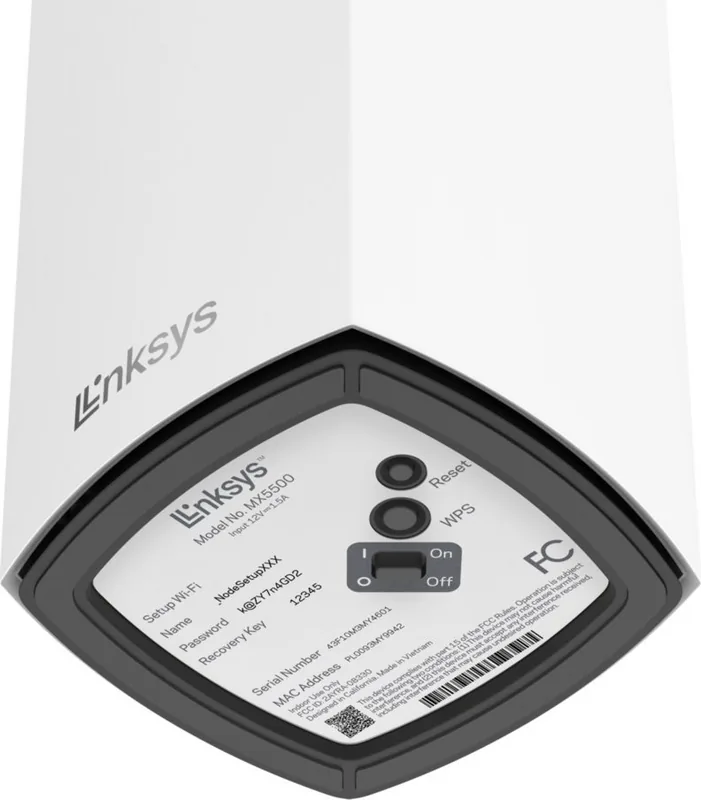
Press and hold the Reset button on the bottom of the node until the light turns red, fades, and flashes bright red again. This erases all custom settings and requires re-setup.
Is this answer helpful?
Advantages and Disadvantages
Advantages

- Seamless whole-home coverage with WiFi 6 AX5400 speeds
- Intuitive Linksys app for remote management and monitoring
- WPA3 security ensures high-level protection for connected devices
- Channel Finder automatically optimizes network performance
- Flexible setup with both wired and wireless node connections
Disadvantages

- Factory reset requires complete reconfiguration of the entire system
- No USB ports available on standard nodes for storage sharing
- Advanced settings may be overwhelming for non-technical users
- Secondary nodes rely on wireless backhaul which can reduce speed slightly
- Requires iOS 11.4+ or Android 6+ for full app functionality
Product Specification
Modem
N/A
WAN
1x 1000Base-T
LAN
3x 1000Base-T
Wireless
WLAN 802.11a/b/g/n/ac/ax (Wi-Fi 6), simultaneous
Transfer Rate
574Mbps (2.4GHz), 4804Mbps (5GHz)
Security
WPA2, WPA3
Antennas
internal
Connections
N/A
Power Consumption
not specified, not specified (max. power supply rating)
Dimensions
7.30x3.39x3.39 in
Features
Bluetooth, Bluetooth LE, MU-MIMO, Roaming (Qualcomm Wi-Fi SON), Mesh (split band)
Band Capability
Dual Band (simultaneous), Mesh (split band)
Manufacturer Warranty
three years
Transfer Rate 802.11ax (Wi-Fi 6 / Wi-Fi 6E) 2.4GHz
574Mbps (Spatial Streams: 2x2, Bandwidth: 40MHz, Modulation: 1024-QAM)
Transfer Rate 802.11ax (Wi-Fi 6 / Wi-Fi 6E) 5GHz
4804Mbps (Spatial Streams: 4x4, Bandwidth: 160MHz, Modulation: 1024-QAM)
Note
Specification of transfer rate for 802.11ax at 2.4GHz and 5GHz. (802.11ax (2.4GHz) 2x2 40MHz 1024-QAM: 574Mbps, 802.11ax (5GHz) 4x4 160MHz 1024-QAM: 4804Mbps)
Product Description
Linksys Velop MX5500 Series: The Future of Whole Home Wi-Fi
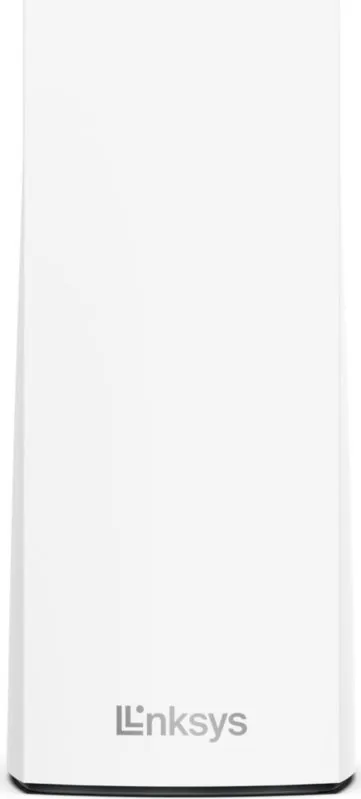
The Linksys Velop MX5500 series represents a significant leap in home networking technology, designed to eliminate dead zones and provide seamless coverage throughout your entire living space. This AX5400 WiFi 6 system utilizes advanced mesh technology to ensure that every corner of your home enjoys high-speed internet connectivity. Whether you are streaming 4K video, gaming online, or working from home, the Velop system adapts to your usage patterns dynamically.
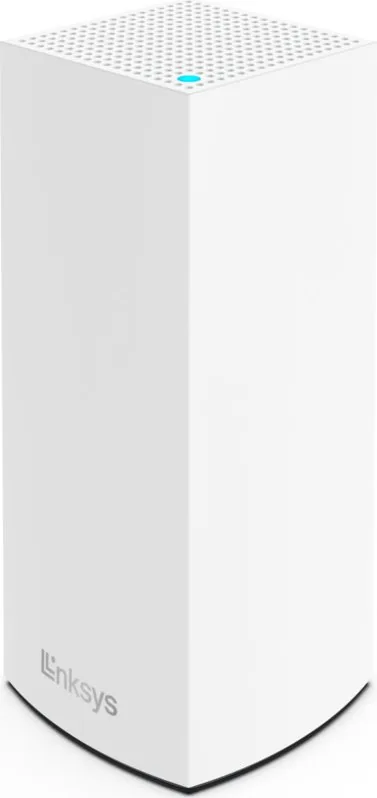
At the heart of this system is intelligent node management. Each unit features a multicolored LED indicator that provides real-time status updates, making troubleshooting intuitive. A solid blue light confirms a stable connection, while blinking purple indicates setup in progress. The system supports both wired and wireless backhaul options, allowing for flexible deployment. You can connect the primary node directly to your modem via Ethernet or daisy-chain secondary nodes wirelessly for maximum convenience.
Managing your network has never been easier thanks to the dedicated Linksys app. This mobile application serves as a central command center, allowing you to customize your Wi-Fi name and password, set up guest access, and implement robust parental controls from anywhere in the world. The app also includes a speed check feature to verify your internet performance and a device prioritization tool that ensures critical devices like gaming consoles or work laptops receive the bandwidth they need first.
Security is paramount with the inclusion of WPA3-Personal encryption alongside WPA2 standards. The system automatically scans for the least congested channels using its Channel Finder feature, optimizing performance even in dense neighborhoods. For advanced users, there are options to configure port forwarding, manage MAC filters, and clone MAC addresses if required by specific ISPs. The physical design is sleek and unobtrusive, fitting perfectly into any home decor with dimensions of just over 3 inches wide and 7 inches tall.
Important Notes
- Always use CAT5e or higher cables for optimal Gigabit Ethernet performance.
- Factory resetting the system will erase all custom settings and require a full re-setup process.
- Notifications for offline secondary nodes must be enabled in your mobile device settings.
Search for 67,706 Manuals online


-
No results found.
Type-in Brand or Model