
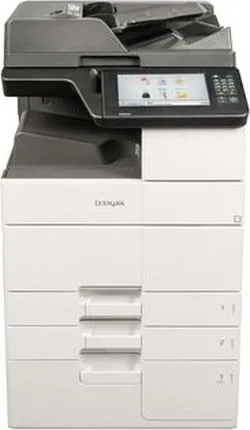
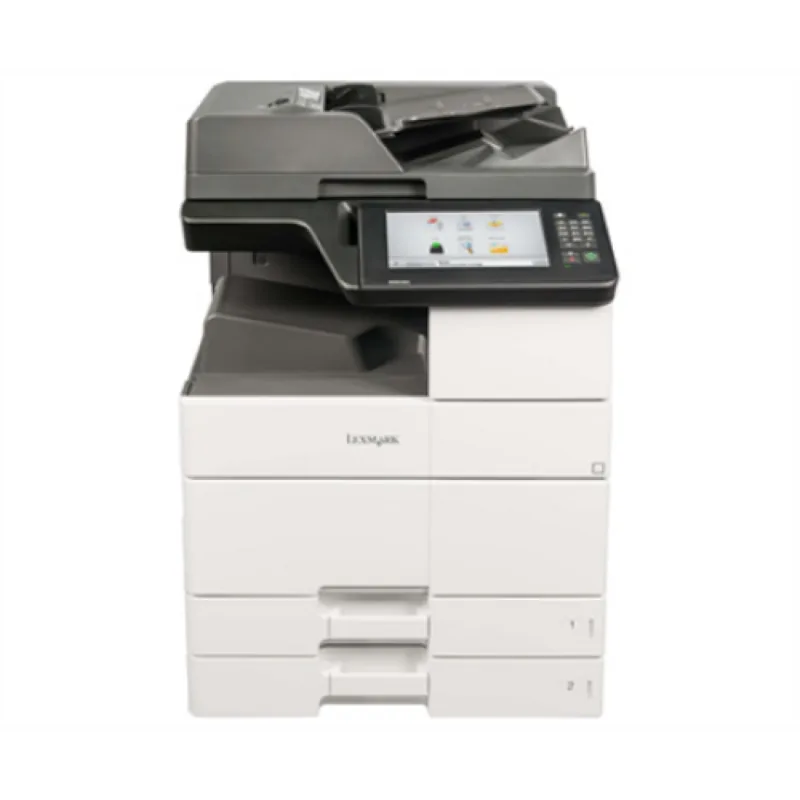
Lexmark MX910dxe Manual
PDF manual · 366 Pages
English



Quick check
Incorrect answer, please try again.
Chat with your Lexmark MX910dxe manual using AI
Get instant AI answers from your Lexmark MX910dxe manual
Ask anything about the Lexmark MX910dxe. Answers come from this manual, with the pages they are based on.
MX910dxe Maintenance Schedule
Replace the exhaust and ozone filters, pickup/transport/separation rollers, transfer module, and transfer roller.
Wipe the glass with a soft cloth if copy or scan quality issues like streaks occur.
Remove dust and paper debris with a soft brush or vacuum and wipe the exterior with a damp cloth.
Ask a Question
Do you recommend MX910dxe?
Yes NoFrequently Asked Questions
It is best for busy offices that need reliable monochrome printing, copying, scanning, faxing, and centralized document handling. Its design suits high-volume environments where speed, durability, and workflow control matter.
Is this answer helpful?
Yes. It supports many formats, including letter, legal, A3, A4, envelopes, and custom sizes. Some sizes are limited to specific trays or orientations, so paper settings should match the loaded media.
Is this answer helpful?
Yes. The device supports scan-to-network, scan-to-e-mail, scan-to-FTP, and scan-to-computer functions. These options help teams distribute documents quickly without relying on separate scanners.
Is this answer helpful?
Wireless support is possible with an optional compatible network adapter. The printer can also connect through Ethernet, which is the most common setup for office networks.
Is this answer helpful?
Paper type, size, weight, and tray settings should always match the media loaded in the printer. This helps prevent jams, improves print quality, and keeps the fuser operating safely.
Is this answer helpful?
Because the printer is large, hot during operation, and designed for professional environments. Safe lifting, proper power connections, ventilation, and routine maintenance help protect users and keep the printer running reliably.
Is this answer helpful?
Advantages and Disadvantages
Advantages

- Built for high-volume monochrome output with multifunction support.
- Wide media compatibility, including trays, envelopes, labels, and card stock.
- Strong network, security, and remote management features.
- Useful scanning and workflow tools such as ADF, USB, FTP, and network scan.
Disadvantages

- Large and heavy, so installation and moving require multiple people.
- Setup can be complex because of trays, network settings, and optional hardware.
- Specialty media and envelopes print at reduced speed.
- Best results depend on careful paper matching and regular maintenance.
Product Specification
Format
A3 (Printing), A3 (Scanning)
Type
Printer/Scanner/Copier/Fax
Color system
1-color, 1x single toner
Consumables
640H
Printing
2400x1200dpi - 45 ppm (A4) (ISO)
Scanning
600x600dpi (CCD) - 80 ppm
Copying
600x600dpi - 45 ppm (A4) (ISO)
Paper feed
3650 sheets (2x 500 sheets + 1x 2500 sheets + 1x 150 sheets), DADF (100 sheets), Duplex unit
Memory
1GB (RAM)
Connections
1x USB-B 2.0, 3x USB-A 2.0 (Host), 1x Fax (RJ-11)
Network
Gb LAN, AirPrint
Display
color, 9.8", Touchscreen
Power consumption
880W (maximum), 220W (standby), 3.6W (sleep)
Sound pressure level
56.0dB(A)
Emulation
PCL 6, PCL 5e, PostScript 3, PPDS, PDF 1.7, xHTML, XML
Housing color
white, black
Dimensions
24.21x45.35x27.44in
Weight
264.55lbs
Special features
Direct Print, Blue Angel
Manufacturer warranty
1 year
Product Description
Lexmark MX910dxe: A Heavy-Duty Monochrome Laser Workhorse
The Lexmark MX910dxe is designed for busy offices that need fast, dependable black-and-white output without constant interruptions. As a monochrome laser multifunction device, it brings printing, copying, scanning, faxing, and e-mail workflows together in one platform, making it a practical fit for departments that handle large document volumes every day. The Lexmark MX910dxe, Laser, monochrome Manual reflects just how much this machine can do when it is set up correctly and maintained with care.
What stands out most is its flexibility. The printer supports a wide range of paper sizes, trays, and specialty media, from standard office sheets to envelopes, labels, card stock, and oversized formats. That makes it useful for teams that print forms, reports, legal-size materials, or routed documents that need finishing options. The control panel and home screen applications also help simplify everyday tasks, whether you are sending a scan to e-mail, pushing a file to a network folder, or printing from a USB drive.
The MX910dxe also puts a strong focus on business infrastructure. Network setup, IP-based management, remote access through the Embedded Web Server, and optional wireless support give administrators plenty of room to adapt the device to different office environments. Security tools, hard-disk options, memory expansion, and configuration export/import features make it easier to standardize setups across multiple printers.
From a workflow perspective, this model is built for volume and control. The ADF supports multi-page jobs, while the scanner glass is ideal for books, ID cards, or delicate originals. Tray linking, paper type assignment, and custom media names help reduce mistakes and improve consistency. The manual also stresses proper paper storage, ventilation, and safe handling, which is a reminder that this is a serious office machine rather than a casual desktop printer.
Like many enterprise-class printers, it rewards preparation. Correct tray settings, suitable media, and regular maintenance all contribute to smoother operation. In return, you get a monochrome device that can anchor a demanding print environment with confidence.
Notes
- Best suited for high-volume office printing.
- Choose paper settings carefully to avoid jams and quality issues.
- Optional trays and finishers expand productivity.
- Maintenance and safe placement matter because of its size and weight.
Search for 67,706 Manuals online


Type-in Brand or Model