
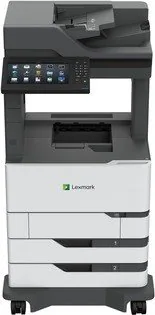
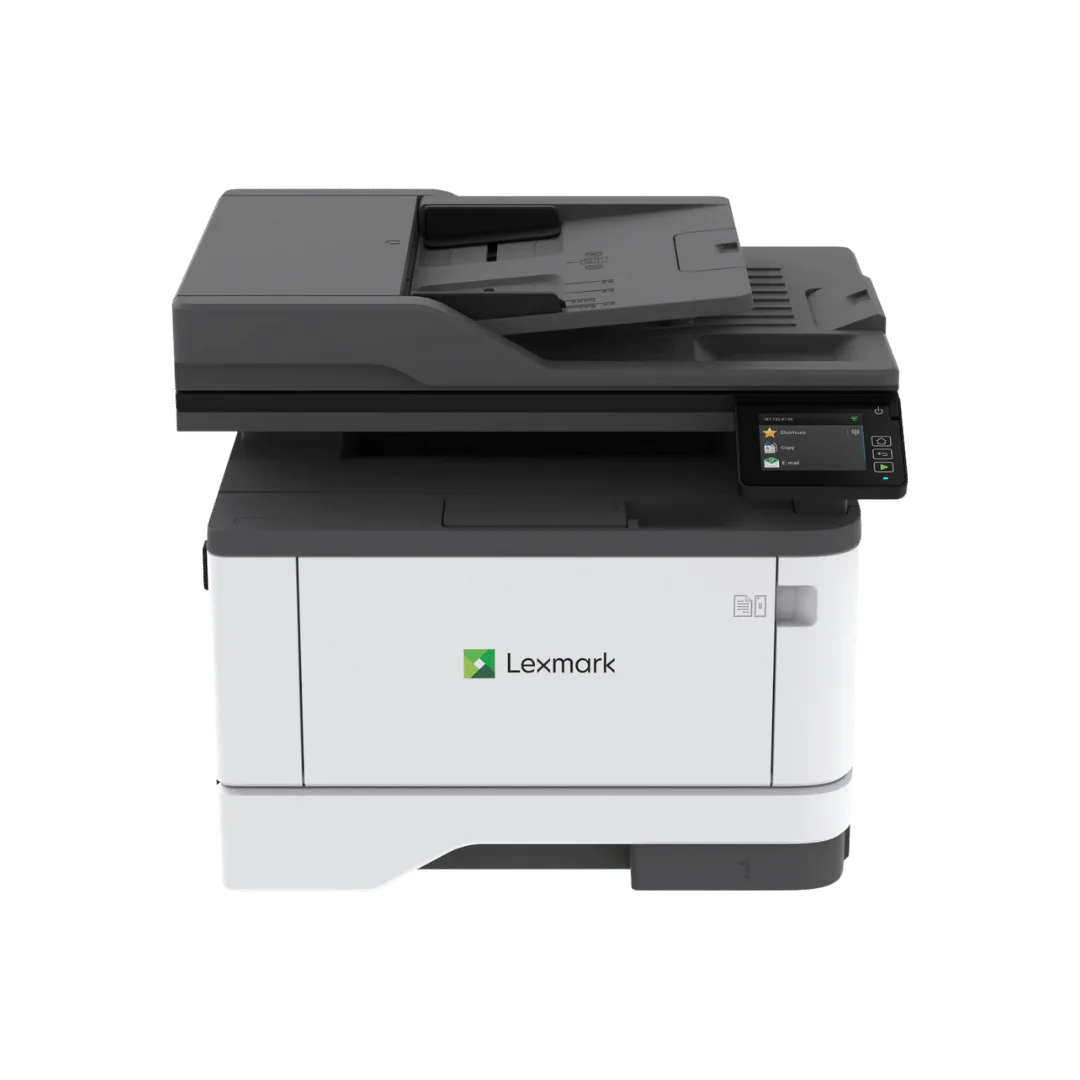
Lexmark MX822ade Manual
PDF manual · 341 Pages
English



Quick check
Incorrect answer, please try again.
Chat with your Lexmark MX822ade manual using AI
Get instant AI answers from your Lexmark MX822ade manual
Ask anything about the Lexmark MX822ade. Answers come from this manual, with the pages they are based on.
MX822ade Maintenance Schedule
Remove dust and paper debris with a soft brush or vacuum. Wipe the outside with a damp, lint-free cloth. Do not use cleaning agents.
Open the scanner cover and clean the ADF glass, ADF glass pad, scanner glass, and scanner glass pad with a damp, lint-free cloth.
Reset the ADF maintenance kit counter after replacing the kit to ensure proper operation of the automatic document feeder.
Free maintenance reminders
Timed to your purchase date. Always free, unsubscribe anytime.
Ask a Question
Do you recommend MX822ade?
Yes NoFrequently Asked Questions
The Lexmark MX822ade is a monochrome laser multifunction printer that can print, copy, scan, email, fax, and send scans to FTP servers, network folders, computers, or USB flash drives.
Is this answer helpful?
Yes. It includes a standard 550-sheet tray and supports optional 550-sheet or 2,100-sheet input trays. Optional output equipment can provide sorting, offset stacking, stapling, or hole punching.
Is this answer helpful?
Depending on network configuration, supported mobile workflows include Lexmark Mobile Print, AirPrint, Mopria Print Service, Google Cloud Print, and Wi-Fi Direct.
Is this answer helpful?
Users can submit confidential jobs with a four-digit PIN. The job remains held until the user selects it at the printer and enters the correct PIN. Administrators can also set PIN attempt limits and job expiration periods.
Is this answer helpful?
The printer supports common office paper sizes, envelopes, labels, card stock, transparencies, letterhead, preprinted paper, and selected specialty media. Paper size and type settings should match the loaded media.
Is this answer helpful?
Yes. Features include voice guidance, touchscreen gesture navigation, magnification mode, adjustable speech speed, on-screen keyboard support, and optional spoken passwords or PINs.
Is this answer helpful?
Advantages and Disadvantages
Advantages

- Combines monochrome laser printing, copying, scanning, email, fax, and FTP workflows in one multifunction system.
- Expandable paper handling supports optional 550-sheet or 2,100-sheet trays and finishing accessories.
- Supports mobile printing through AirPrint, Mopria, Lexmark Mobile Print, Google Cloud Print, and Wi-Fi Direct.
- Includes confidential print controls, PIN release, job retention settings, memory management, and encryption options.
- Accessibility features include voice guidance, magnification, gestures, and adjustable speech speed.
Disadvantages

- Monochrome output is not suitable for color documents, graphics, or color-coded business materials.
- Optional trays, mailbox, stapling, and hole-punch finishing equipment can add complexity and space requirements.
- Fax, email, FTP, and network scanning require configuration of network, SMTP, or telephone settings.
- The unit and expanded configurations require careful placement, ventilation, stability planning, and safe moving procedures.
Product Specification
Format
A4 (printing), A4 (scanning)
Type
Printer/scanner/copier/fax
Color system
Monochrome, 1x individual toner
Printing
1200 x 1200 dpi - 52 ppm (A4) (ISO)
Scanning
600 x 600 dpi (CCD) - 72/72 ppm (A4)
Copying
600 x 600 dpi - 52 ppm (A4) (ISO)
Paper input
1,200 sheets (2x 550 sheets + 1x 100 sheets), DADF (200 sheets), duplex unit
Memory
2 GB (RAM)
Connections
1x USB-B 2.0, 3x USB-A 2.0 (host), 1x fax (RJ-11)
Network
Gb LAN, AirPrint, Universal Print (Azure Cloud Print), PIN printing
Display
Color, 9.8 in, touchscreen
Power consumption
750 W (typical), 58 W (standby), 3.1 W (sleep)
Sound pressure level
58.0 dB(A)
Emulation
PCL 6, PCL 5e, PostScript 3, PPDS, PDF 1.7, XML
Case color
White, black
Dimensions
27.01 x 45.31 x 27.28 in
Weight
147.71 lb
Special features
Direct Print
Manufacturer warranty
1 year
Product Description
Lexmark MX822ade Laser Monochrome Manual
The Lexmark MX822ade is a high-performance monochrome laser multifunction printer designed for busy offices that need dependable printing, copying, scanning, emailing, and faxing from one central device. The Lexmark MX822ade, Laser, monochrome Manual highlights a versatile system built to manage demanding document workflows while giving users clear controls and extensive configuration options.
Built for productive office workflows
This model combines fast black-and-white laser output with a large touchscreen control panel, numeric keypad, automatic document feeder, and standard 550-sheet paper tray. The automatic document feeder supports efficient handling of multi-page originals, while the scanner glass is suitable for photos, book pages, and smaller or delicate items. Users can create copies, scan to email, save scans to network locations, send files to FTP servers, and transmit faxes directly from the device.
Paper handling can be expanded to suit higher-volume environments. Optional 550-sheet and 2,100-sheet trays help reduce refilling interruptions, while output accessories can add mailboxing, offset stacking, stapling, or hole punching. The printer supports common office sizes including A4, Letter, Legal, Folio, and envelopes, as well as specialty media such as labels, card stock, transparencies, letterhead, and preprinted sheets.
Flexible connectivity and secure operation
The MX822ade supports USB and Ethernet connections, with mobile printing options such as Lexmark Mobile Print, Mopria, AirPrint, Google Cloud Print, and Wi-Fi Direct where configured. A USB port also allows compatible files to be printed from flash drives and scanned files to be saved directly to removable storage.
Security-focused features include confidential print jobs protected by a four-digit PIN, held-job controls, configurable job expiration periods, printer memory management, hard drive encryption options, and settings for deleting temporary data. Administrators can manage contacts, shortcuts, bookmarks, home-screen icons, network settings, and application profiles through the touchscreen or web-based controls.
Designed for accessible, manageable use
Accessibility tools include voice guidance, gesture navigation, magnification mode, adjustable speech speed, and spoken password or PIN support. The device also provides status lights and on-screen alerts to help users identify conditions that require attention.
Notes
- Configure paper size and paper type whenever specialty media is loaded.
- Keep trays closed when not in use and load one tray at a time for stability.
- Use a grounded wall outlet and provide adequate ventilation around the printer.
- Allow internal components to cool before clearing jams or performing maintenance.
Search for 67,706 Manuals online


Type-in Brand or Model