
Lexmark MX632adwe Manual
PDF manual · 308 Pages
English



Quick check
Incorrect answer, please try again.
Chat with your Lexmark MX632adwe manual using AI
Get instant AI answers from your Lexmark MX632adwe manual
Ask anything about the Lexmark MX632adwe. Answers come from this manual, with the pages they are based on.
Ask a Question
Do you recommend MX632adwe?
Yes NoFrequently Asked Questions
It supports monochrome printing, copying, scanning, email delivery, and fax workflows. Scan destinations can include a computer, FTP server, network folder, email address, or USB flash drive.
Is this answer helpful?
Yes. Automatic duplex printing is supported for compatible paper sizes and weights. Using duplex mode can help reduce paper consumption for everyday office printing.
Is this answer helpful?
The available connections include Ethernet, USB, and network-based setup. It can also support printing from computers, mobile devices, and compatible USB flash drives.
Is this answer helpful?
Yes. In addition to the standard 550-sheet tray, the printer can be configured with up to three optional 250-sheet or 550-sheet trays, depending on the required setup.
Is this answer helpful?
Users can create shortcuts for recurring tasks and configure destinations for scan-to-computer, email, FTP, network folders, and other supported workflows. Contact and bookmark tools can further streamline frequent jobs.
Is this answer helpful?
Yes. The device includes voice guidance, gesture navigation, magnification, adjustable speech speed, and volume controls. These settings can make touchscreen operation easier for more users.
Is this answer helpful?
Advantages and Disadvantages
Advantages

- Multifunction workflow includes monochrome printing, copying, scanning, email, and fax options.
- Automatic document feeder and scanner glass support flexible handling of single-page and multi-page originals.
- Standard 550-sheet tray, multipurpose feeder, duplex printing, and optional extra trays support varied workloads.
- Network, USB, mobile printing, FTP, email, and network-folder features provide versatile connectivity.
- Accessibility controls, security settings, browser-based administration, and maintenance alerts improve usability.
Disadvantages

- Monochrome-only output is not suitable for teams that require color printing.
- Optional paper trays and some advanced functions may require additional hardware, services, or licenses.
- Fax configuration can be complex when using shared lines, VoIP, adapters, or hosted fax services.
- Correct media selection and tray configuration are important to avoid jams and print-quality issues.
Product Specification
Format
A4 (printing), A4 (scanning)
Type
Printer/Scanner/Copier/Fax
Color system
Monochrome, 1x single toner
Consumables
66S0XA0, 66S0Z00, 66S0ZA0, 66S2000, 66S2X00
Printing
1200 x 1200 dpi - 47/24 ppm (A4) (ISO)
Scanning
600 x 600 dpi (CIS) - 49/40 ppm (ISO) (A4)
Copying
600 x 600 dpi - 47 ppm (A4) (ISO)
Paper input
650 sheets (1x 550 sheets + 1x 100 sheets), DADF (100 sheets), duplex unit
Memory
2 GB (RAM)
Connections
1x USB-B 2.0, 1x USB-A 2.0 (host), 1x fax (RJ-11)
Network
Gigabit LAN, Wi-Fi 5 (WLAN 802.11a/b/g/n/ac), Bluetooth LE, Wi-Fi Direct, AirPrint, Universal Print (Azure Cloud Print), PIN printing
Display
Color, 7 in, touchscreen
Power consumption
662 W (typical), 15.3 W (standby), 1.1 W (sleep), 0.1 W (off), TEC: 0.64 kWh/week
Sound pressure level
55.0 dB(A)
Emulation
PCL 6, PCL 5, PostScript 3, PPDS, PDF 1.7, Direct Image
Case color
White, black
Dimensions
18.86 x 20.22 x 17.8 in
Weight
46.96 lb
Manufacturer warranty
1 year (on-site, next day)
Product Description
Lexmark MX632adwe Laser Monochrome - Read, Download & Print Free
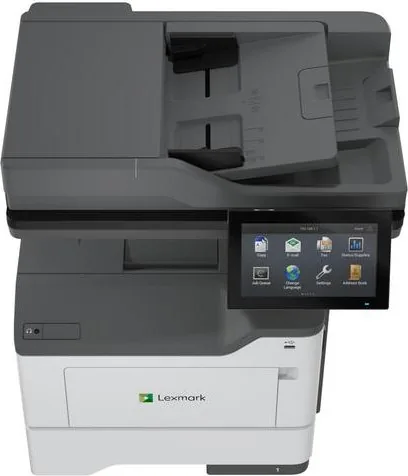
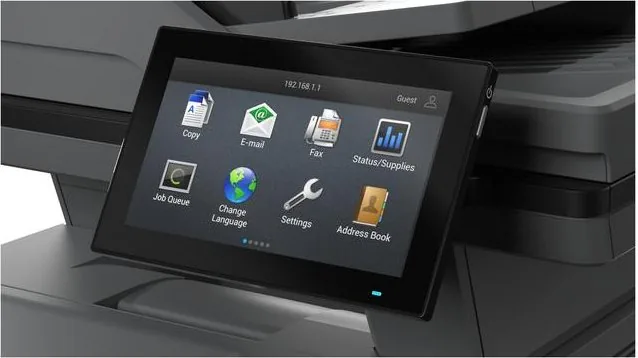
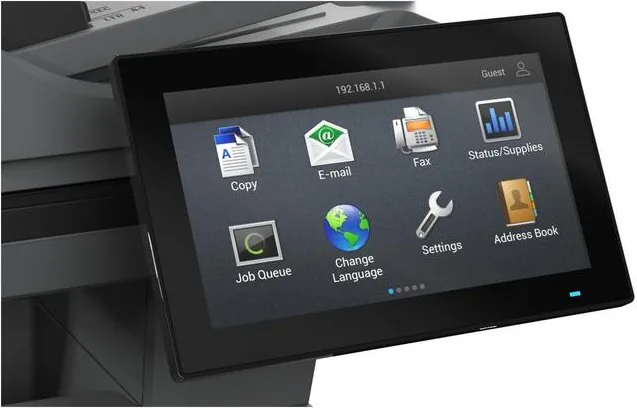
The Lexmark MX632adwe Laser Monochrome is a multifunction printer designed for teams that need dependable black-and-white output alongside practical copying, scanning, email, and fax capabilities. Its straightforward touchscreen controls and configurable home screen help users reach common tasks quickly, while the automatic document feeder supports efficient handling of multi-page originals.
Connected productivity for busy workplaces
This Lexmark model can be connected through Ethernet, USB, or a compatible network setup, making it suitable for shared office environments. Users can print from computers, mobile devices, and supported USB flash drives. The control panel also provides direct access to copy, scan profiles, email, fax, FTP, network folders, bookmarks, and queued jobs, helping keep everyday workflows in one place.
For scanning tasks, the printer supports destinations such as a computer, FTP server, network folder, email address, or flash drive. Shortcut features can reduce repeated setup work for regular jobs, and address book tools simplify contact management. Businesses that rely on paper records can use the automatic document feeder or scanner glass according to the original material and task.
Flexible paper handling and useful options
The standard 550-sheet tray and multipurpose feeder support a broad range of paper sizes and media types, including plain paper, letterhead, recycled paper, labels, cards, and envelopes within the stated guidelines. Optional 250-sheet or 550-sheet trays can expand capacity, with support for up to three additional trays. Automatic duplex printing helps reduce paper usage for compatible jobs.
The MX632adwe is built for controlled, secure operation. Available settings cover held and confidential print jobs, printer memory management, factory resets, network controls, and security menus. Administrators can access configuration tools through the embedded web server, allowing them to adjust settings, customize the home screen, configure email delivery, and manage supported applications from a browser.
Accessibility, maintenance, and support
Accessibility features include voice guidance, gesture navigation, magnification, adjustable speech speed, and headphone volume controls. These options make the touchscreen more adaptable for a wider range of users. Maintenance functions provide supply and parts status, notifications, reports, cleaning guidance, energy-saving settings, and troubleshooting help for paper jams, print quality, connectivity, scanning, email, and fax issues.
Notes
- Use recommended media types and correct tray settings to help prevent jams and maintain print quality.
- Keep firmware current to improve performance and address known issues.
- Fax support may require an analog line, compatible service, or an applicable license depending on the selected setup.
Search for 67,706 Manuals online


Type-in Brand or Model