
Lexmark MX622ade Manual
PDF manual · 267 Pages
English



Quick check
Incorrect answer, please try again.
Chat with your Lexmark MX622ade manual using AI
Get instant AI answers from your Lexmark MX622ade manual
Ask anything about the Lexmark MX622ade. Answers come from this manual, with the pages they are based on.
MX622ade Maintenance Schedule
Remove dust and debris with a soft brush or vacuum. Wipe the outside with a damp, lint-free cloth. Do not use cleaning agents.
The maintenance kit includes the fuser and pickup rollers. Only an authorized service technician can replace this kit.
Open the front door, remove the old cartridge, shake the new one three times, and insert it carefully.
Remove the toner cartridge and the old imaging unit. Shake the new unit three times before installing. Avoid exposing the drum to light for more than ten minutes.
Free maintenance reminders
Timed to your purchase date. Always free, unsubscribe anytime.
Ask a Question
Do you recommend MX622ade?
Yes NoFrequently Asked Questions
It is best suited for office teams that need a reliable monochrome multifunction printer for printing, copying, scanning, faxing, and e-mailing in one device.
Is this answer helpful?
Yes. The device supports several mobile printing options, including Lexmark Mobile Print, Mopria, AirPrint, and other network-based printing workflows depending on setup.
Is this answer helpful?
Yes. The printer supports confidential and held jobs with PIN protection, so sensitive documents can stay stored until the correct user releases them.
Is this answer helpful?
It supports plain paper, labels, card stock, envelopes, recycled paper, letterhead, and other specialty media, depending on tray and size settings.
Is this answer helpful?
Yes. It includes accessibility tools such as magnification mode, voice guidance, adjustable speech rate, keyboard support, and spoken password or PIN options.
Is this answer helpful?
Load paper correctly, fan the stack before inserting it, keep the tray settings matched to the media type, and avoid overfilling the trays or feeder.
Is this answer helpful?
Advantages and Disadvantages
Advantages

- Fast monochrome laser performance for high-volume office workflows.
- Strong multifunction support: print, copy, scan, fax, and e-mail.
- Flexible paper handling with trays, duplexing, and specialty media.
- Useful security, accessibility, and shortcut features for shared use.
Disadvantages

- Monochrome output only, so it is not ideal for color-rich documents.
- Advanced setup for cloud, fax, and security features may take time.
- Some functions depend on model options, administrator rights, or network setup.
- Paper settings must be matched carefully to avoid jams and quality issues.
Product Specification
Format
A4 (Printing), A4 (Scanning)
Type
Printer/Scanner/Copier/Fax
Color system
1-color, 1x single toner
Consumables
56F2000, 56F2X00, 56F2U00
Printing
1200x1200dpi - 47 ppm (A4) (ISO)
Scanning
1200x600dpi (Dual CIS) - 47/30 ppm (A4)
Copying
1200x600dpi - 47 ppm (A4) (ISO)
Paper feed
650 sheets (1x 550 sheets + 1x 100 sheets), DADF (100 sheets), Duplex unit
Memory
2GB (RAM)
Connections
1x USB-B 2.0, 2x USB-A 2.0 (Host), 1x Fax (RJ-11)
Network
Gb LAN, AirPrint, Universal Print (Azure Cloud Print), PIN Printing
Display
color, 7", Touchscreen
Power consumption
680W (typical), 16.5W (standby), 2.5W (sleep)
Sound pressure level
56.0dB(A)
Emulation
PCL 6, PCL 5e, PostScript 3, PPDS, PDF 1.7, XML
Housing color
gray, black
Dimensions
19.25x21.46x18.76in
Weight
49.16lb
Features
Direct Print
Manufacturer warranty
1 year
Product Description
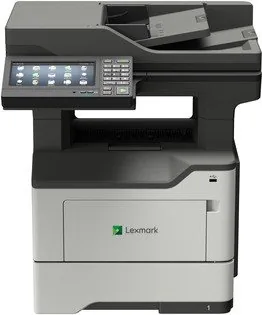
Lexmark MX622ade: Monochrome Laser Power for Everyday Office Work
The Lexmark MX622ade is built for teams that want a dependable black-and-white laser multifunction printer with a strong focus on speed, control, and flexibility. It brings together printing, copying, scanning, faxing, and e-mail workflows in one compact workhorse, making it a practical fit for busy departments that need consistent output without unnecessary complexity.
What stands out most is how much the device can do from the control panel and home screen. Users can launch common tasks, create shortcuts, manage held jobs, access address books, and even connect cloud or FTP workflows when the environment calls for it. That makes everyday document handling feel smoother, especially when repeat jobs, confidential prints, or scan-to-destination routines are part of the routine.
Paper handling is another strong point. The MX622ade supports a range of tray configurations, a multipurpose feeder, duplex printing, and multiple paper sizes and types, including envelopes, labels, and card stock. That versatility helps it adapt to reports, forms, letters, and special jobs without forcing the user to switch devices. For offices that print many short-run or mixed-format jobs, this kind of flexibility matters.
Security and control are clearly part of the design. The system supports confidential print jobs, PIN-based access, disk and memory cleanup, and other administrative safeguards that help protect sensitive information. At the same time, accessibility features such as magnification mode, voice guidance, spoken PINs, and keyboard support make the printer easier to use for a wider range of users.
The MX622ade also reflects a practical office mindset. It supports mobile printing options, scanning to USB or network destinations, and energy-saving features that help reduce waste over time. With its monochrome laser engine, it is best suited to text-heavy workflows where clarity, reliability, and operational efficiency are more important than color output.
Notes
- Match paper size and type settings carefully to avoid jams and print-quality issues.
- Use shortcuts and held-job functions to speed up repeat tasks.
- Keep the printer in a ventilated, stable location with enough clearance for trays and doors.
Search for 67,706 Manuals online


Type-in Brand or Model