
Lexmark MX521de Manual
PDF manual · 265 Pages
English



Quick check
Incorrect answer, please try again.
Chat with your Lexmark MX521de manual using AI
Get instant AI answers from your Lexmark MX521de manual
Ask anything about the Lexmark MX521de. Answers come from this manual, with the pages they are based on.
MX521de Maintenance Schedule
Remove dust, lint, and paper parts with a soft brush or vacuum. Wipe the outside with a damp, soft, lint-free cloth. Do not use cleaning agents.
The maintenance kit includes the fuser station, pickup rollers, separation pads, and transfer roller. Replace every 200,000 pages for MX521 models.
Free maintenance reminders
Timed to your purchase date. Always free, unsubscribe anytime.
Ask a Question
Do you recommend MX521de?
Yes NoFrequently Asked Questions
It is a monochrome multifunction laser printer designed for office document workflows. It handles printing, copying, scanning, faxing, and e-mail tasks while supporting network and mobile use.
Is this answer helpful?
Yes. It is built for shared business environments that need reliable black-and-white output, flexible paper handling, shortcuts, and security features for everyday document processing.
Is this answer helpful?
Yes. The text mentions mobile printing options such as Lexmark Mobile Print, Mopria Print Service, AirPrint, and Wi-Fi Direct, depending on the device and setup.
Is this answer helpful?
It supports many office media types, including plain paper, labels, envelopes, letterhead, cardstock, recycled paper, and some specialty formats. Tray settings should match the loaded media.
Is this answer helpful?
Yes. It includes Voice Guidance, magnification mode, gesture navigation, speech rate controls, and spoken password or PIN options to improve accessibility.
Is this answer helpful?
Yes. You can scan to a computer, FTP server, flash drive, or cloud profile. The printer also supports shortcuts and scan profiles for repeated tasks.
Is this answer helpful?
Advantages and Disadvantages
Advantages

- Multifunction design covers print, copy, scan, fax, and e-mail tasks in one device.
- Supports shortcuts, apps, and home screen customization for faster daily use.
- Offers strong paper flexibility, including envelopes, labels, cardstock, and specialty media.
- Includes security tools such as confidential print, encryption, and data erasing options.
Disadvantages

- Monochrome output limits use for color-dependent documents and presentations.
- Some apps and features are only available on selected models or regions.
- Fax setup and network configuration may take extra steps in complex environments.
- Paper handling and security options can feel advanced for very basic home use.
Product Specification
Format
A4 (Printing), A4 (Scanning)
Type
Printer/Scanner/Copier
Color system
1-color, 1x single toner
Consumables
56F2U00, 56F2X00, 56F2H00, 56F2000
Printing
1200x1200dpi - 44 ppm (A4) (ISO)
Scanning
1200x600dpi (CIS) - 42/20 ppm (A4)
Copying
600x600dpi - 44 ppm (A4) (ISO)
Paper input
350 sheets (1x 250 sheets + 1x 100 sheets), RADF (50 sheets), Duplex unit
Memory
1GB (RAM)
Connections
1x USB-B 2.0, 2x USB-A 2.0 (Host)
Network
Gb LAN, AirPrint, Universal Print (Azure Cloud Print), PIN Printing
Display
color, 4.3", Touchscreen
Power consumption
630W (maximum), 14.5W (standby), 0.1W (sleep)
Sound pressure level
55.0dB(A)
Emulation
PCL 6, PCL 5e, PostScript 3, PPDS, PDF 1.7, XML
Housing color
grey, black
Dimensions
19.25x18.78x16.91in
Weight
45.41 lb
Manufacturer warranty
1 year
Product Description
Lexmark MX521de Laser, Monochrome
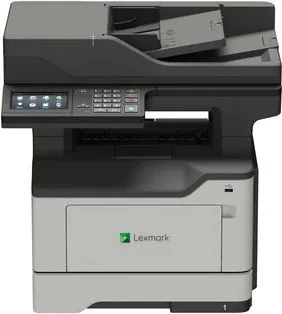
The Lexmark MX521de Laser, monochrome model is built for busy work environments that need dependable black-and-white performance in a compact multifunction device. It combines printing, copying, scanning, faxing, and e-mail workflows in one machine, making it a practical fit for offices that want fewer devices on the desk and more control over daily document handling.
What makes this model especially appealing is its balance of speed, security, and usability. The control panel is designed for straightforward navigation, while the home screen can be customized with shortcuts, apps, and common tasks. That means users can move quickly from printing to scanning or sending a fax without digging through complicated menus. The user guide also highlights accessibility options such as Voice Guidance, magnification, and keyboard support, which helps make the device easier to use in shared environments.
Paper handling is another strong point. The MX521de supports a range of paper sizes and types, including letter, legal, envelopes, labels, cardstock, and specialty media. With tray linking, multipurpose feeding, and optional trays, it can adapt to different print volumes and job types. For teams that regularly switch between standard office pages and more specific media, that flexibility can save time and reduce interruptions.
On the connectivity side, the printer is ready for modern office workflows. It supports computer printing, mobile printing options, flash drive output, cloud connector features, and network setup tools. Security-focused functions such as confidential print, disk encryption, temporary data clearing, and factory reset options add another layer of confidence for organizations that handle sensitive information. Fax and scan features are equally practical, with shortcuts, scheduling, server setup, and destination management available for streamlined use.
For maintenance and reliability, the MX521de includes guidance on clearing jams, replacing supplies, conserving energy, and securing the device. The manual also covers location requirements, ventilation, temperature ranges, and safe handling, showing that Lexmark designed this printer with long-term office use in mind.
Notes
- Best suited for monochrome document workflows.
- Strong fit for small to mid-size teams that value multifunction convenience.
- Custom shortcuts and home screen tools can speed up repetitive tasks.
- Security and accessibility features make it more versatile in shared workplaces.
Search for 67,706 Manuals online


Type-in Brand or Model