
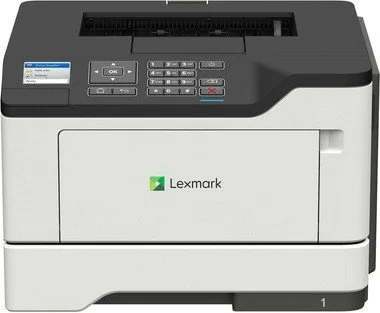
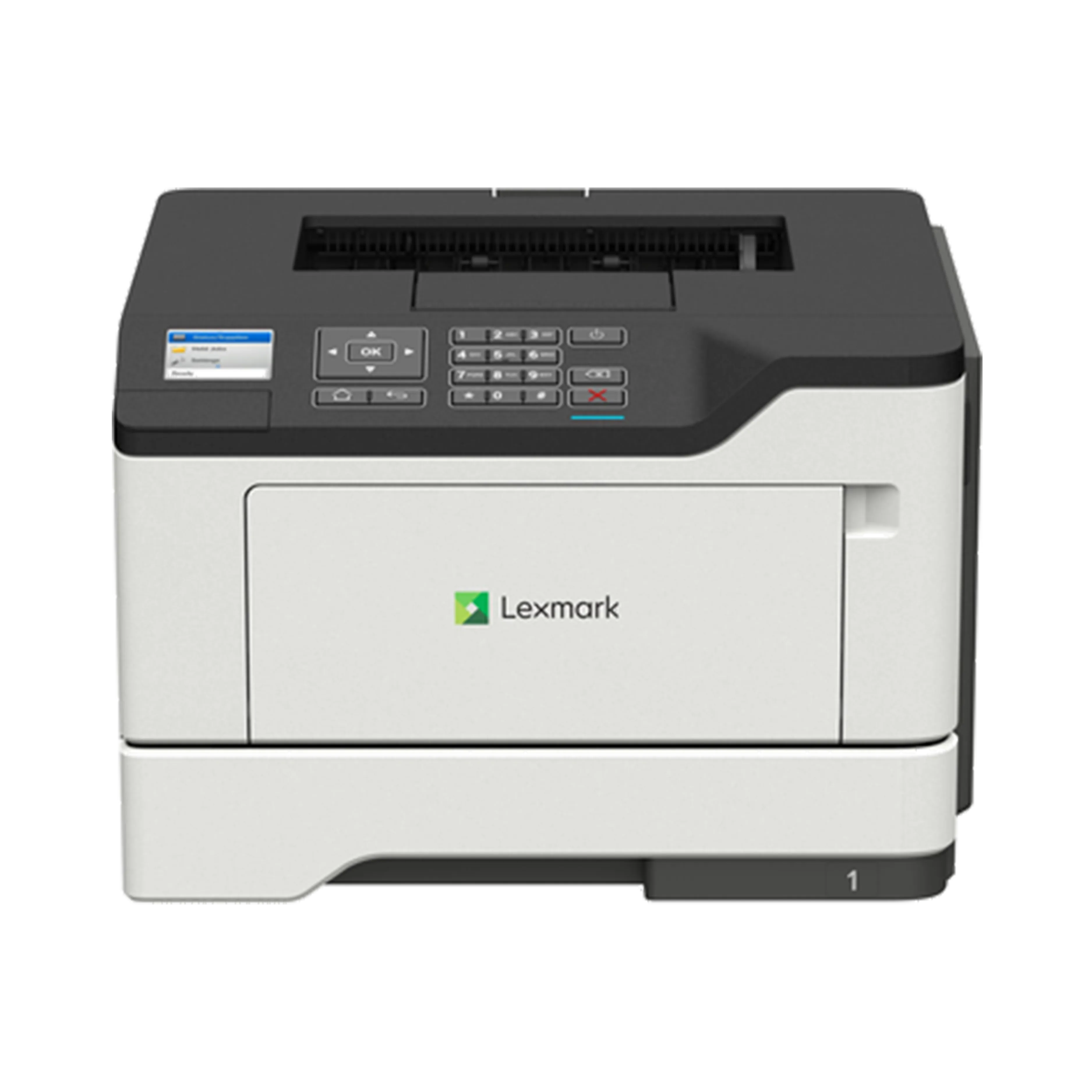
Lexmark MS521dn Manual
PDF manual · 150 Pages
English



Quick check
Incorrect answer, please try again.
Chat with your Lexmark MS521dn manual using AI
Get instant AI answers from your Lexmark MS521dn manual
Ask anything about the Lexmark MS521dn. Answers come from this manual, with the pages they are based on.
MS521dn Maintenance Schedule
Remove dust and lint with a soft brush or vacuum. Wipe outside with a damp, lint-free cloth. Unplug power before cleaning.
Includes fuser, pick rollers, separator pads, and transfer roller. Only an authorized service technician can replace it.
Free maintenance reminders
Timed to your purchase date. Always free, unsubscribe anytime.
Ask a Question
Do you recommend MS521dn?
Yes NoFrequently Asked Questions
It is designed for black-and-white laser printing in office environments. It is a practical choice for reports, forms, invoices, letters, and other text-focused business output.
Is this answer helpful?
Yes. The printer supports automatic duplex printing on compatible media. Users can choose long-edge or short-edge binding to match the intended page orientation.
Is this answer helpful?
The printer supports USB and Ethernet connections. Depending on the installed configuration, mobile printing services and wireless-related options may also be available.
Is this answer helpful?
Yes. The multipurpose feeder supports envelopes, labels, card stock, letterhead, and other supported specialty media. Set the correct media type and size before printing.
Is this answer helpful?
Fan and align paper before loading, adjust guides closely, avoid overfilling trays, and confirm that tray media settings match the loaded paper. Do not remove a tray while the printer is busy.
Is this answer helpful?
Available controls include audit logging, login restrictions, confidential-print PIN limits, password settings, protocol configuration, and options to clear stored information from printer memory.
Is this answer helpful?
Advantages and Disadvantages
Advantages

- Automatic duplex printing helps reduce paper use for routine office documents.
- Flexible media support includes common paper sizes, envelopes, labels, card stock, and letterhead.
- USB and Ethernet connectivity support local printing and shared network deployment.
- Detailed security and network settings help administrators manage access and monitor device activity.
- Optional 250-sheet and 550-sheet trays can expand paper capacity for higher-volume workflows.
Disadvantages

- This is a monochrome printer, so it is not intended for color graphics or photo printing.
- Wireless connectivity and USB flash-drive printing depend on the exact model and configuration.
- Specialty media requires careful tray settings to avoid print-quality issues or jams.
- Quiet mode can reduce operating noise but may also reduce printer performance.
- Some advanced accounting and confidential-job features require an installed hard disk.
Product Specification
Format
A4
Type
Laser printer
Color system
Monochrome
Consumables
56F0Z00, 56F0ZA0, 56F0HA0
Printing
1200 x 1200 dpi - 46 ppm (A4)
Paper input
350 sheets (1 x 250 sheets + 1 x 100 sheets), duplex unit
Memory
512 MB (RAM)
Ports
1 x USB-B 2.0
Network
Gigabit LAN, AirPrint, Universal Print (Azure Cloud Print), PIN printing
Display
Color, 2.4 in
Power consumption
570 W (maximum), 7.5 W (standby), 1.9 W (sleep)
Sound pressure level
56.0 dB(A)
Emulation
XPS, PCL 6, PCL 5e, PostScript 3, PPDS, PDF 1.7, Direct Image
Dimensions
15.71 x 10.20 x 14.69 in
Weight
31.11 lb
Manufacturer warranty
1 year (four years after registration)
Product Description
Lexmark MS521dn Laser Monochrome Manual: Efficient Office Printing
The Lexmark MS521dn laser monochrome printer is built for workplaces that need dependable black-and-white output, flexible paper handling, and practical network control. This model suits busy teams that print reports, invoices, forms, correspondence, and other everyday business materials where sharp text and consistent results matter more than color.
The Lexmark MS521dn Laser monochrome Manual highlights a straightforward design centered on productive operation. Its control panel provides status messages, menu navigation, job controls, and access to paper and device settings. Users can configure paper sources, choose print layouts, adjust image quality, review reports, and manage energy-saving behavior directly from the printer.
Flexible Media Handling
The standard paper tray supports common office formats, while the multipurpose feeder adds useful flexibility for envelopes, labels, card stock, letterhead, and other specialty media. Optional 250-sheet or 550-sheet trays can expand capacity for offices that handle multiple paper sizes or larger print volumes. Tray linking can also be configured when sources use the same paper type and size, helping reduce interruptions during long jobs.
Automatic duplex printing supports more economical document production by printing on both sides of compatible paper. The printer also includes layout options such as multiple pages per sheet, collation, separator pages, and blank-page handling. These controls make it easier to tailor output for internal handouts, reference materials, and organized print sets.
Connected Printing and Administration
The MS521dn supports USB and Ethernet connections, making it suitable for local and shared office use. Depending on configuration, mobile printing can be available through Lexmark Mobile Print, Mopria, AirPrint, and Google Cloud Print. Some models also support direct printing from compatible USB flash drives, with support for PDF, XPS, and several common image formats.
Administrators can use the embedded web interface to configure paper settings, monitor the network, manage access, and review printer information. Network options include TCP/IP, IPv4, IPv6, SNMP, HTTP/HTTPS, IPsec, and 802.1x settings. Security features include audit logging, login limits, confidential job controls, password rules, and options for clearing stored information.
Quality, Maintenance, and Daily Reliability
Print settings include selectable resolution, toner density, brightness, contrast, gray adjustment, and font enhancement controls. The printer can also provide menu-setting, network, device, and font reports to simplify troubleshooting. A jam-assistance function and clear guidance for trays, the rear area, the duplex unit, and the multipurpose feeder help users respond methodically when paper-feed issues occur.
Note: Match the paper type and size selected at the control panel with the media loaded in each source. Correct settings help prevent jams, improve print quality, and ensure the fuser uses the appropriate temperature.
Note: Place the printer on a stable, ventilated surface near a grounded outlet, leaving room to open trays and covers safely.
Search for 67,706 Manuals online


Type-in Brand or Model