
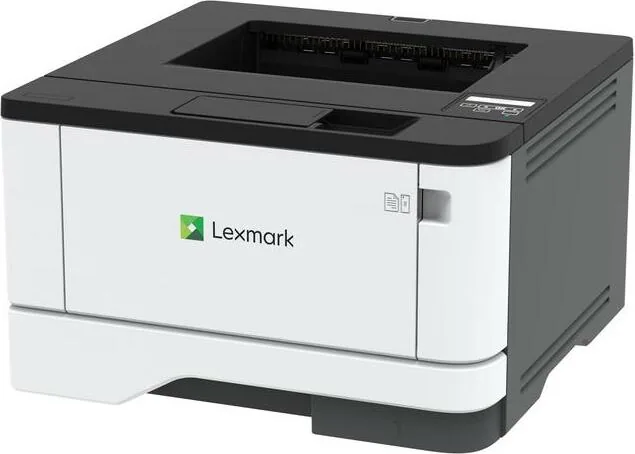
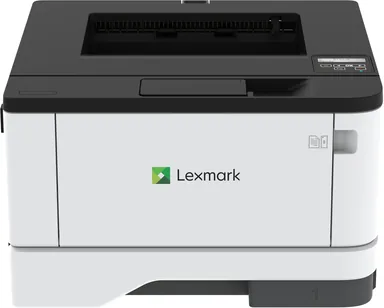
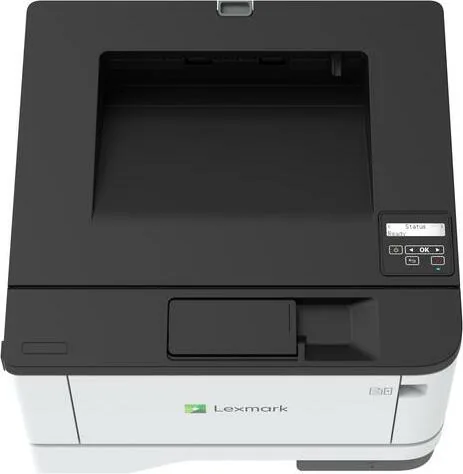
Lexmark MS331dn Manual
PDF manual · 150 Pages
English



Quick check
Incorrect answer, please try again.
Chat with your Lexmark MS331dn manual using AI
Get instant AI answers from your Lexmark MS331dn manual
Ask anything about the Lexmark MS331dn. Answers come from this manual, with the pages they are based on.
MS331dn Maintenance Schedule
Unplug the printer. Remove paper. Use a soft brush or vacuum to remove dust and lint. Wipe the outside with a damp, lint-free cloth.
Regularly inspect the power cord for signs of abrasion, stress, crushing, or twisting to avoid fire or electrical shock risks.
Free maintenance reminders
Timed to your purchase date. Always free, unsubscribe anytime.
Ask a Question
Do you recommend MS331dn?
Yes NoFrequently Asked Questions
Connect the Ethernet cable to your router. Navigate to network settings on the control panel. Follow the on-screen instructions to enter the Wi-Fi password or confirm the wired connection. Use the Embedded Web Server for advanced configuration if needed.
Is this answer helpful?
Yes, users can print directly using supported apps. Enable Wi-Fi Direct or connect to the same network as the printer. The Lexmark Mobile Print application allows easy sending of documents from Android or iOS devices.
Is this answer helpful?
Enable confidential print jobs in the security menu. Assign a user name and a four digit PIN before releasing the document. This ensures only authorized personnel can access sensitive information from the device tray.
Is this answer helpful?
Standard trays handle common sizes like Letter and Legal. A4 and Executive are also available. Envelopes require loading in the multipurpose feeder. Check the media configuration menu for specific settings on paper weight and type.
Is this answer helpful?
Check the error message on the display. Open the relevant cover or tray gently. Remove the jammed paper following the indicated path. Ensure no debris remains before closing the covers and restarting the job.
Is this answer helpful?
The machine enters sleep modes automatically to reduce power consumption during idle periods. Users can configure timeout settings in the power management menu. Energy-saving modes help lower operating costs significantly over time.
Is this answer helpful?
Browse to the printer IP address in a web browser. Click settings to find the update firmware option. Upload the latest flash file directly through the interface. This ensures optimal performance and security patches are applied.
Is this answer helpful?
Advantages and Disadvantages
Advantages

- Reliable high-volume monochrome printing suitable for busy offices
- Secure confidential print release feature protects sensitive information
- Flexible paper handling supports various sizes and media types
- Network connectivity enables easy collaboration across workstations
- Low maintenance frequency ensures continuous productivity without interruptions
Disadvantages

- Single function device lacks scanning or copying capabilities
- Control panel uses buttons instead of a touchscreen interface
- Monochrome limitation prevents color output for specific graphic needs
- Default paper tray capacity may not suit high volume demands initially
- Wireless features require optional adapter installation not included standard
Product Specification
Format
A4
Typ
Type
Farbsystem
Color System
Verbrauchsmaterial
Consumables
Papierzufuhr
Paper Capacity
Speicher
Memory
Anschlüsse
Ports
Netzwerk
Network
Display
Display
Leistungsaufnahme
Power Consumption
Schalldruckpegel
Sound Pressure Level
Emulation
Emulation
Abmessungen
Dimensions
Gewicht
Weight
Herstellergarantie
Manufacturer Warranty
Format
A4
Typ
Laser Printer
Farbsystem
Monochrome
Verbrauchsmaterial
55B2000, 55B2H00, 55B0HA0
600x600 dpi - 38 ppm (A4)
Papierzufuhr
350 sheets (1 x 250 sheets + 1 x 100 sheets), Duplex Unit
Speicher
256 MB (RAM)
Anschlüsse
1 x USB Type-B 2.0
Netzwerk
LAN, AirPrint
Display
Monochrome, 2-line
Leistungsaufnahme
550W (typical), 5.5W (standby), 0.9W (sleep)
Schalldruckpegel
53.0 dB(A)
Emulation
PCL 6, PCL 5e, PostScript 3, PPDS, PDF 1.7, Direct Image
Abmessungen
14.49 x 8.74 x 14.29 inches
Gewicht
20.50 lbs
Herstellergarantie
1 Year
Product Description
High Performance Printing Overview
Welcome to efficient printing with the Lexmark MS331dn Laser Monochrome. This reliable machine transforms office productivity by delivering high volume output without compromising quality. Designed for small to mid-sized businesses, it handles daily tasks with ease using advanced laser technology that ensures crisp text and sharp graphics every time. The printer integrates seamlessly into existing networks, allowing teams to share resources effortlessly across multiple workstations.
Users appreciate the intuitive control panel featuring clear indicator lights and straightforward buttons. Navigating settings becomes simple when accessing print options or adjusting paper configurations. For detailed operational guidance, the Lexmark MS331dn Laser Monochrome Manual provides comprehensive information regarding setup and maintenance. Security remains a priority with features like confidential print jobs requiring personal identification numbers before release. This ensures sensitive data stay private in shared office environments.
Paper handling versatility is another standout feature. The standard trays accommodate various sizes including letter and legal formats. Optional trays expand capacity significantly, reducing interruption for refills during busy periods. Connectivity options include wired Ethernet for stable connections and optional wireless capabilities for mobile access. Users can print directly from smartphones using supported applications without needing extra drivers installed on every device.
Maintenance tasks are straightforward with clear supply notifications appearing on the display. The toner levels inform users when replacements are necessary, preventing unexpected stoppages. Cleaning protocols are simple to follow, keeping the internal components running smoothly over time. Energy efficiency is built into the design, allowing the machine to enter sleep modes automatically to reduce power consumption during idle periods. Troubleshooting common issues like paper jams is facilitated by clear error messages and recovery steps available on the interface.
Security protocols allow administrators to restrict network access and manage login credentials effectively. Encrypting data ensures that information traveling over cables remains protected from unauthorized interception. The Embedded Web Server offers remote management capabilities so IT staff can configure settings from any computer on the network. This flexibility reduces the need for physical access to the hardware for routine adjustments.
Paper jams are minimized through intelligent feed mechanisms designed to handle different media types reliably. When issues arise, specific guidance helps users resolve them quickly without professional service calls. The fuser unit manages heat efficiently to bond toner permanently without scorching materials. Proper ventilation requirements ensure optimal operating temperatures for consistent results. Environmental considerations are addressed through energy-saving modes and recyclable packaging components.
Search for 67,706 Manuals online


Type-in Brand or Model