
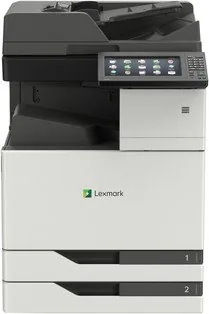
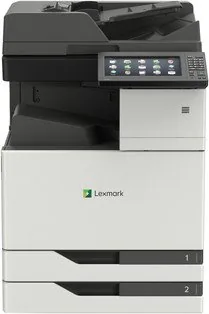
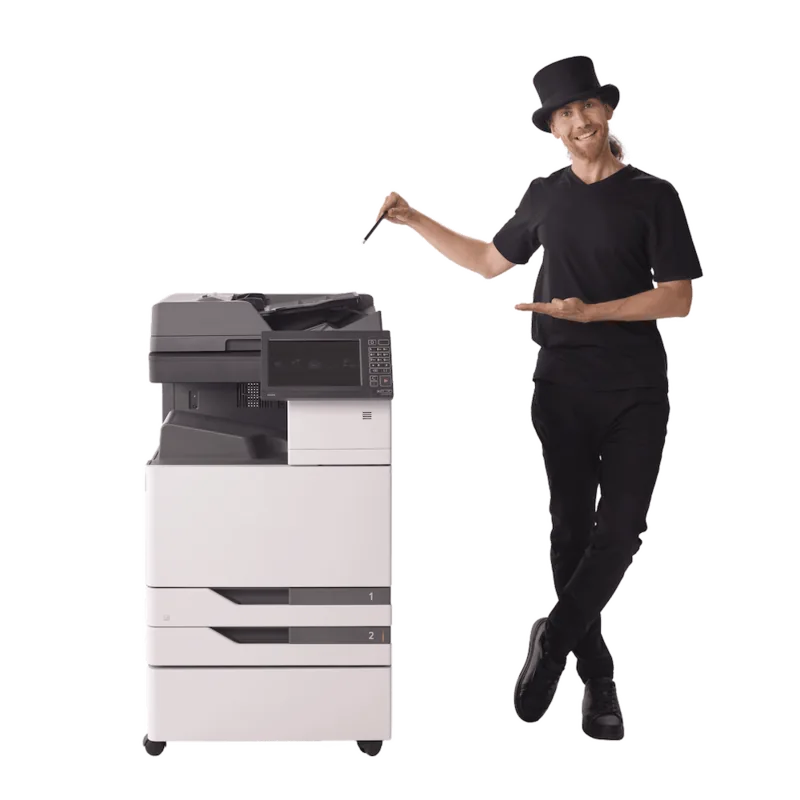
Lexmark CX921de Manual
PDF manual · 334 Pages
English



Quick check
Incorrect answer, please try again.
Chat with your Lexmark CX921de manual using AI
Get instant AI answers from your Lexmark CX921de manual
Ask anything about the Lexmark CX921de. Answers come from this manual, with the pages they are based on.
CX921de Maintenance Schedule
Perform this task after every few months. Turn off and unplug the printer before cleaning.
Replace the ADF maintenance kit at the specified page count to maintain scanner performance.
Replace the multipurpose feeder maintenance kit at the specified page count to ensure reliable paper feeding.
Replace the cyan, magenta, and yellow developer maintenance kit at the specified page count.
Replace the black developer maintenance kit at the specified page count.
Replace the transfer belt maintenance kit at the specified page count for models CX922, CX923, and CX924.
Replace the fuser maintenance kit at the specified page count depending on voltage requirements.
Free maintenance reminders
Timed to your purchase date. Always free, unsubscribe anytime.
Ask a Question
Do you recommend CX921de?
Yes NoFrequently Asked Questions
The printer supports a wide range of sizes including A4, A5, Letter, Legal, and various envelope sizes. You can also load specialized media like labels and cardstock into the trays with proper configuration settings.
Is this answer helpful?
Connect your mobile device to the same network as the printer. Use the Lexmark Mobile Print app or compatible services like AirPrint and Mopria to send documents directly to the printer from your iPhone or Android phone.
Is this answer helpful?
Yes, the device supports confidential print jobs that require a PIN to release at the control panel. This ensures sensitive documents remain protected until the authorized user prints them.
Is this answer helpful?
Yes, you can configure the fax function over a VoIP line by connecting the printer to the VoIP adapter. Ensure your provider supports fax protocols to avoid connectivity issues during transmission.
Is this answer helpful?
Regular maintenance includes cleaning internal parts and replacing toner. The system alerts you when supplies are low. Keep the device clean and ensure airflow to prevent overheating and jams.
Is this answer helpful?
Yes, it includes energy-saving modes that reduce power consumption during inactivity. This helps lower operating costs and aligns with corporate sustainability goals for reduced energy usage.
Is this answer helpful?
Turn off the printer and wait for hot components to cool before opening trays. Follow the manual instructions to gently remove jammed paper. Ensure no sharp edges are damaged to prevent future jams.
Is this answer helpful?
Advantages and Disadvantages
Advantages

- High capacity paper trays up to 3000 sheets reduce refill frequency
- Advanced security features including PIN and confidential printing modes
- Intuitive touchscreen interface simplifies device navigation for all users
- Flexible media handling supports various weights and special paper types
- Comprehensive mobile printing support for smartphones and tablets
Disadvantages

- Device weight exceeds 20 kg requiring two people for safe lifting
- Heat generation necessitates proper ventilation during installation for safety
- Setup requires specific grounded power cables to prevent electrical hazards
- Complex configuration might challenge users unfamiliar with advanced networking
- Large footprint requires significant desk space and stable surface support
Product Specification
Format
A3 (Print), A3 (Scan)
Type
Printer/Scanner/Copier/Fax
Color System
4-color, 4 x individual toners
1200 x 1200 dpi - 35/35 ppm (A4) (ISO)
Scan
600 x 600 dpi (CCD) - 80/80 ppm
Copy
600 x 600 dpi - 35/35 ppm (A4) (ISO)
Paper Supply
1150 sheets (2 x 500 sheets + 1 x 150 sheets), DADF (100 sheets), Duplex Unit
Memory
2 GB (RAM)
Interfaces
1 x USB-B 2.0, 4 x USB-A 2.0 (Host), 1 x Fax (RJ-11)
Network
Gb LAN, AirPrint, Universal Print (Azure Cloud Print), PIN Printing
Display
color, 10 in, Touchscreen
Power Consumption
700 W (typical), 220 W (standby), 2.9 W (sleep)
Sound Pressure Level
55.0 dB(A)
Emulation
PCL 6, PCL 5c, PostScript 3, PPDS, PDF 1.7, XML
Casing Color
white, black
Dimensions
24.21 x 36.34 x 27.40 in
Weight
239.20 lbs
Features
USB Direct Scan, Direct Print, Blue Angel
Manufacturer Warranty
1 Year (On-Site)
Product Description
Elevate Your Office Productivity
The Lexmark CX921de Laser multicolor stands as a pinnacle of modern business printing technology. Designed for high-volume environments, this device integrates color laser printing with multifunction capabilities to streamline daily operations. Its robust construction supports various paper types, ensuring versatility in document generation. It offers exceptional speed and clarity required for professional presentations and reports. This machine is designed to handle demanding workloads efficiently.
Core Capabilities
Users benefit from advanced connectivity options that allow seamless integration with existing network infrastructures. Mobile printing solutions enable staff to send documents directly from smartphones or tablets across the organization. The intuitive touchscreen interface simplifies navigation through complex settings. Security features are paramount, offering confidential print modes and secure data deletion protocols to protect sensitive information for enterprise clients. Voice and vision accessibility features further ensure inclusivity in the workplace environment for all employees. It supports various protocols for easy connection.
Paper Handling Excellence
This machine accommodates diverse media sizes and weights. From standard letter paper to heavy cardstock, the flexible trays adapt to specific needs. Large capacity options reduce the frequency of refilling, maintaining workflow without constant interruptions. Support for up to 3000 sheets ensures minimal downtime. Special attention is given to preventing jams, a common concern in busy offices. Support for envelopes and labels allows for specialized correspondence tasks within the same workflow efficiently. It handles various special media types well.
Connectivity and Setup
Connecting the device involves standard network protocols and direct USB options. The included Lexmark CX921de Laser multicolor Manual provides essential guidance for initial configuration and maintenance schedules. Installation is straightforward for IT professionals, while the embedded web server allows remote management of print queues. Fax and scan capabilities extend its utility beyond simple document output to digital archiving solutions and remote faxes from anywhere. Ethernet and phone connections are standard.
Maintenance and Reliability
Regular maintenance ensures longevity. The system alerts users when supplies run low, preventing unexpected downtime during critical projects. Component access is designed for efficiency during service intervals for quick resolution of issues. Energy-saving modes contribute to a lower carbon footprint, aligning with corporate sustainability goals. This multifunction printer ensures consistent performance, high quality output, and operational ease for growing teams seeking a reliable partner in their daily tasks. It represents a wise investment for organizations demanding precision and speed in their document production needs today.
Important Note
Please ensure proper ventilation when installing the device to manage heat output safely. Avoid placing it near water or moisture sources to prevent electrical hazards during operation. Also check for stable power connections. Safety warnings emphasize grounding and avoiding extension cords. Check specific paper weights for optimal laser performance.
Search for 67,706 Manuals online


Type-in Brand or Model