
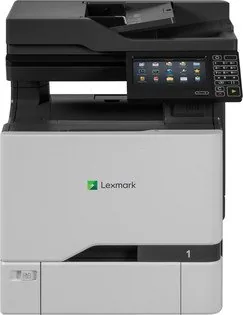
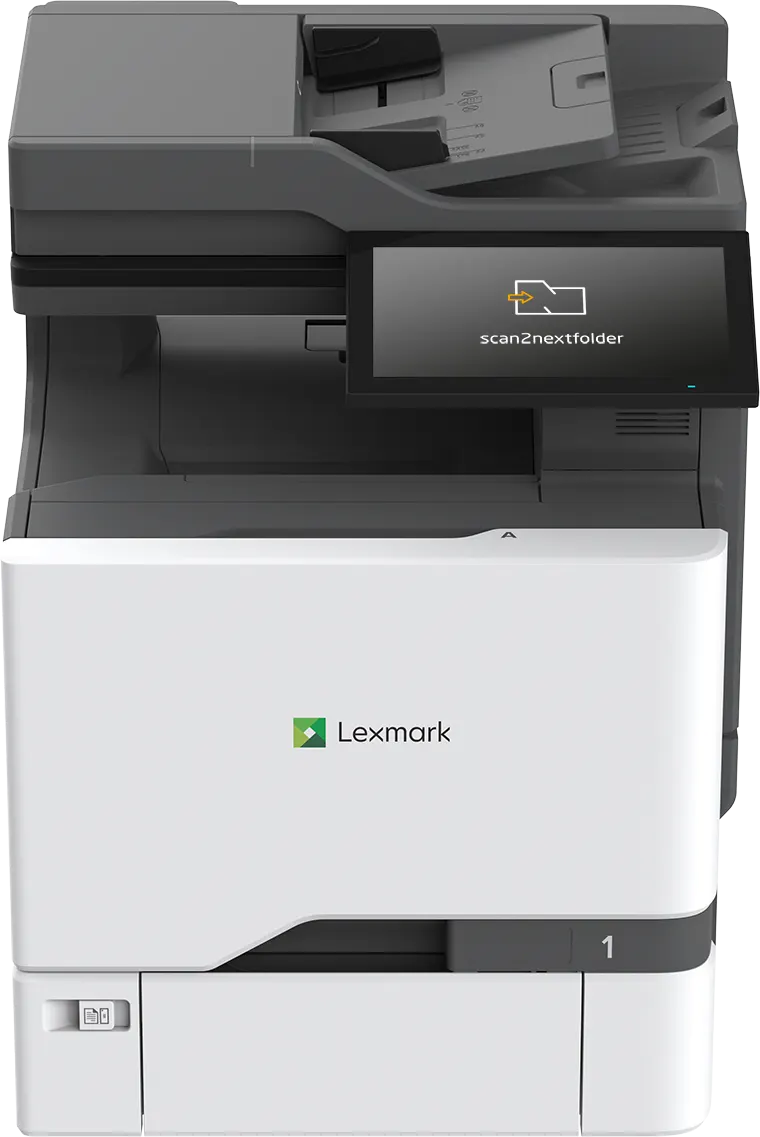
Lexmark CX725de Manual
PDF manual · 9 Pages
English



Quick check
Incorrect answer, please try again.
Chat with your Lexmark CX725de manual using AI
Get instant AI answers from your Lexmark CX725de manual
Ask anything about the Lexmark CX725de. Answers come from this manual, with the pages they are based on.
Ask a Question
Do you recommend CX725de?
Yes NoFrequently Asked Questions
Genuine Lexmark supplies are designed to work with the printer’s systems, helping maintain dependable print quality, accurate alerts, and stable long-term performance. They also reduce the risk of damage or warranty issues caused by incompatible parts.
Is this answer helpful?
The guide uses repeating defect patterns on printed pages. By matching the defect location to the marks on the reference lines, you can identify the likely component responsible, such as the developer unit, imaging kit, transfer module, or fuser.
Is this answer helpful?
They may physically fit, but they can affect reliability, output quality, and printer life. The text also notes that damage caused by non-genuine parts is not covered by warranty, so original supplies are the safer choice.
Is this answer helpful?
In the U.S., Lexmark provides ordering assistance through its support line and authorized supply dealers. This helps users find approved parts and consumables that match the printer’s requirements.
Is this answer helpful?
Outside the U.S., users are directed to the Lexmark website or to the retailer where the printer was purchased. That makes it easier to locate regional ordering options and approved product availability.
Is this answer helpful?
Advantages and Disadvantages
Advantages

- Genuine Lexmark supplies help maintain consistent print quality and reliable performance.
- Clear defect patterns make it easier to identify which component needs replacement.
- Life indicators are designed to work best with approved Lexmark parts.
- Using original supplies can help protect warranty coverage and printer longevity.
Disadvantages

- Third-party parts may reduce reliability and affect image quality.
- Non-genuine supplies can lead to unpredictable life indicator behavior.
- Warranty coverage may be limited if damage comes from third-party components.
- Incorrect supply choices can shorten the life of imaging components.
Product Specification
Format
A4 (Printing), A4 (Scanning)
Type
Printer/Scanner/Copier/Fax
Color system
4-color, 4x individual toner
Consumables
74C2SK0/C0/M0/Y0, 74C20K0/C0/M0/Y0
Printing
1200x1200dpi - 47/47 ppm (A4) (ISO)
Scanning
600x600dpi (CCD) - 56/56 ppm (A4)
Copying
600x600dpi - 47/47 ppm (A4) (ISO)
Paper feed
650 sheets (1x 550 sheets + 1x 100 sheets), RADF (50 sheets), Duplex unit
Memory
2GB (RAM)
Connections
1x USB-B 2.0, 1x USB-A 2.0 (Host), 1x Fax (RJ-11)
Network
Gb LAN, AirPrint, Universal Print (Azure Cloud Print), PIN Printing
Display
color, 7", Touchscreen
Power consumption
700W (typical), 100W (standby), 0.2W (sleep)
Sound pressure level
56.0dB(A)
Emulation
PCL 6, PCL 5c, PostScript 3, PPDS, PDF 1.7, XML
Housing color
gray, black
Dimensions
19.88x25.51x20.98in
Weight
98.99lb
Special features
USB direct scan, Direct Print, Blue Angel
Manufacturer warranty
1 year (On-site)
Product Description
Lexmark CX725de Laser mehrfarbig: Reliable Color Printing with the Right Supplies
The Lexmark CX725de Laser mehrfarbig is built for busy work environments that need sharp color output, dependable performance, and predictable maintenance. What makes this printer especially practical is not only its printing quality, but also the clear supply guidance that helps keep it running at its best. If you are searching for the Lexmark CX725de Laser mehrfarbig Manual, you will quickly notice that supply management is one of the most important topics covered for long-term stability.
A major strength of the CX725de is its focus on genuine Lexmark parts and supplies. Using original cartridges, imaging kits, fusers, transfer modules, and developer units helps preserve print quality and protects the lifespan of the machine. The guidance is straightforward: third-party components may seem convenient, but they can affect performance, reliability, and even warranty coverage. For teams that print frequently, that can make a real difference in cost, downtime, and output consistency.
Another useful aspect is the way the printer helps identify replacement needs. Repeating defects on a page can be matched to specific marks in the supply guide, making troubleshooting much easier. Instead of guessing which part is failing, users can inspect the printed pattern and narrow down the source of the issue. This practical method is especially valuable in offices where fast resolution matters.
The CX725de also supports a more organized approach to maintenance. Life indicators are designed to work best with genuine Lexmark supplies, which means alerts and replacement timing are more dependable when original parts are used. That helps reduce unexpected failures and supports smoother daily operation.
For users and businesses that want consistent results, the message is clear: choose approved supplies, follow the replacement guidance, and keep an eye on print-quality patterns. Whether you are managing a single device or multiple printers in a shared workspace, this approach helps the Lexmark CX725de deliver the color output it was designed for.
Notes
- Genuine Lexmark supplies support better reliability and print quality.
- Repeating print defects can help pinpoint the part that needs replacement.
- Third-party parts may impact warranty and long-term device health.
- Replacement timing is easier to manage when life indicators work as intended.
Search for 67,706 Manuals online


Type-in Brand or Model