

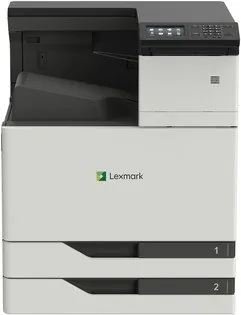
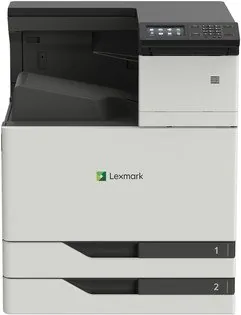
Lexmark CS921de Manual
PDF manual · 245 Pages
English



Quick check
Incorrect answer, please try again.
Chat with your Lexmark CS921de manual using AI
Get instant AI answers from your Lexmark CS921de manual
Ask anything about the Lexmark CS921de. Answers come from this manual, with the pages they are based on.
CS921de Maintenance Schedule
Perform after every few months. Turn off and unplug the printer, then remove dust with a soft brush or vacuum and wipe the outside with a damp cloth.
Replace the 200K MPF maintenance kit (part number 41X1977) when the scheduled maintenance message appears.
Replace the 600K CMY developer maintenance kit (part number 41X1594) when the scheduled maintenance message appears.
Replace the 300K transfer belt maintenance kit (part number 41X1593 or 41X2090 depending on model) when the scheduled maintenance message appears.
Replace the fuser maintenance kit when the Life Warning or Scheduled Maintenance message appears for the item.
Free maintenance reminders
Timed to your purchase date. Always free, unsubscribe anytime.
Ask a Question
Do you recommend CS921de?
Yes NoFrequently Asked Questions
The printer supports Lexmark Mobile Print, Google Cloud Print, AirPrint, and Mopria services. Wi-Fi Direct allows direct connection without a network.
Is this answer helpful?
Ensure the device is powered down and unplugged. Use a transport cart if possible. Always use side grip areas and keep the unit horizontal during movement.
Is this answer helpful?
Yes. Confidential jobs can be held in memory and released with a PIN. User authentication methods and encryption help protect sensitive data.
Is this answer helpful?
It supports standard Letter, Legal, A3, A4, and envelopes. Custom sizes can be configured in the universal feed settings.
Is this answer helpful?
Enable Eco Mode in the settings to optimize toner and power use. Set sleep timers to activate the device after inactivity.
Is this answer helpful?
Regular cleaning of parts is needed. Replace toner and fuser units when prompted. Keep the area dust-free and ventilated.
Is this answer helpful?
Advantages and Disadvantages
Advantages

- High capacity paper trays reduce downtime
- Secure confidential printing with PIN protection
- Mobile printing support via Wi-Fi Direct
- Intuitive touchscreen interface for ease of use
- Energy management modes lower consumption
Disadvantages

- Heavy unit requires two people for safe moving
- Internal components reach high temperatures
- Specific surge protector required for safety
- Configuration for network protocols can be complex
- Sensitive to paper jams in certain trays
Product Specification
Paper Size
A3
Type
Laser Printer
Color System
4-color
Consumables
76C00K0, 76C00C0, 76C00M0, 76C00Y0, 76C0HK0, 76C0HC0, 76C0HM0, 76C0HY0, 76C0PK0, 76C0PV0
Printing
1200x1200dpi - 35/35 ppm (ISO) (A4)
Paper Feed
1150 sheets (2x 500 sheets + 1x 150 sheets), Duplex Unit
Memory
1GB (RAM)
Connections
1x USB-B 2.0, 3x USB-A 2.0 (Host)
Network
Gigabit Ethernet, AirPrint
Display
Color, 4.3", Touchscreen
Power Consumption
575W (typical), 140W (standby), 2.2W (sleep)
Noise Level
53.0dB(A)
Emulation
PCL 6, PCL 5c, PostScript 3, PPDS, PDF 1.7, XML
Dimensions
24.21 x 30.71 x 29.61 inches
Weight
195.39 lbs
Features
Direct Print, Blue Angel
Manufacturer Warranty
1 Year (On-site)
Product Description
Lexmark CS921de Laser Overview
The Lexmark CS921de Laser printer stands as a robust solution for high-volume color printing environments. Designed for modern workgroups, this multicolor device ensures vibrant output suitable for marketing materials and professional documents. It delivers speed and reliability essential for busy offices. Users can navigate the system easily using the intuitive color touchscreen interface. This interface allows quick access to settings without needing a computer connection nearby. The display provides clear status updates on toner and paper availability. Connectivity options are extensive, including Wi-Fi Direct and Ethernet. Mobile users enjoy flexibility through Lexmark Mobile Print and Google Cloud Print. You can securely send jobs from smartphones or tablets directly to the machine. The system supports various paper formats from standard Letter to large A3 sizes. Multiple paper trays handle different media types efficiently. This flexibility reduces downtime when switching between job requirements. It manages complex jobs through dedicated storage buffers. Network administrators can monitor usage remotely via embedded web servers. This visibility helps track resources and manage budget effectively.
Versatile Printing Solution
Security is a priority with encrypted hard drives and user authentication. Confidential jobs can be held in the system until typed credentials are entered. This prevents sensitive documents from being wasted or accessed by unauthorised individuals. The printer also monitors toner levels closely to maintain consistent quality. Regular maintenance ensures longevity and optimal performance. Proper placement requires ventilation to prevent overheating during extended operation. Safety warnings emphasize electrical hazards and proper grounding. Following environmental guidelines helps maintain a healthy workspace. The device supports various finishers for stapling or hole punching tasks. You can configure eco modes to reduce energy consumption significantly. Paper handling is streamlined with automatic feeders that detect size. Troubleshooting guides assist in resolving jams quickly. High capacity options ensure continuous work flow. The hardware options allow for expansion with additional trays. Users should handle heavy components carefully during setup to avoid injury. The heating element in the printer reaches high temperatures. Always allow cooling before touching internal components. This device utilizes advanced laser technology for sharp text. Color registration is precise for graphics. The touchscreen also supports gesture navigation for accessibility. Voice control features aid visually impaired users. Audio feedback options keep users informed without visual cues. Firmware updates improve security and add features over time. This ensures the machine stays current with technology standards based on the Manual.
Search for 67,706 Manuals online


Type-in Brand or Model