
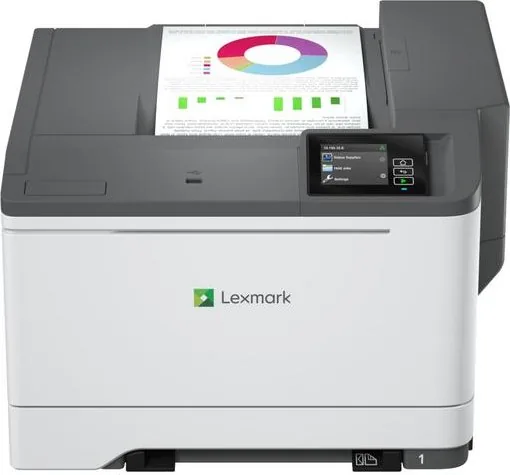
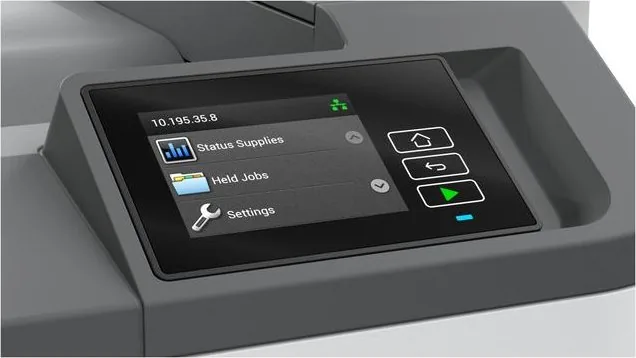
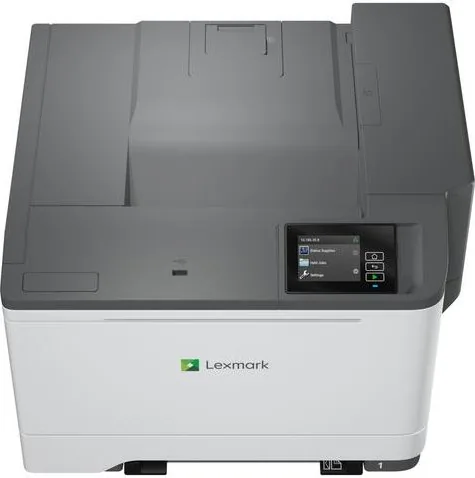
Lexmark CS531dw Manual
PDF manual · 219 Pages
English



Quick check
Incorrect answer, please try again.
Chat with your Lexmark CS531dw manual using AI
Get instant AI answers from your Lexmark CS531dw manual
Ask anything about the Lexmark CS531dw. Answers come from this manual, with the pages they are based on.
CS531dw Maintenance Schedule
Unplug the printer. Remove paper, then clean dust and lint with a soft brush or vacuum. Wipe the exterior with a damp, lint-free cloth.
Open flap B, remove the used cartridge, and insert the new one until it clicks into place.
Open flaps A and B, remove covers and toner, replace the imaging unit, and reinstall components. Avoid direct sunlight exposure.
Open flaps A and B, remove the old container holding it upright to prevent spills, and install the new one until it clicks.
Access internal units via flaps and covers. Replace the specific unit as indicated. Do not touch the photoconductor surface.
Power off and unplug the printer. Pull out the tray, remove old rollers, and install new ones ensuring edges face down.
Regularly check the power cord for cuts, bends, pinches, or abrasion. Unplug before inspection to avoid shock risk.
Free maintenance reminders
Timed to your purchase date. Always free, unsubscribe anytime.
Ask a Question
Do you recommend CS531dw?
Yes NoFrequently Asked Questions
Use the control panel to access network settings and select your Wi-Fi network. Enter the password to establish a connection. You can also use the Lexmark Mobile Assistant app for easier setup on compatible devices.
Is this answer helpful?
Yes, the printer works with Macintosh systems using AirPrint or the Lexmark print driver. You can add the device via System Preferences in the Printers and Scanners menu for seamless integration.
Is this answer helpful?
You can configure confidential jobs to require a PIN before printing. This ensures only authorized users can retrieve documents. Memory can also be sanitized completely to protect stored data.
Is this answer helpful?
Yes, the device handles duplex printing automatically. This feature saves paper and reduces waste by printing on both sides of the sheet efficiently.
Is this answer helpful?
Visit the official support website and search for your specific model number. Download the latest software package to ensure compatibility with your operating system.
Is this answer helpful?
Yes, you can connect a USB drive to the front port. The display allows you to browse files and send them to print without a computer attached.
Is this answer helpful?
The printer supports plain paper, card stock, labels, and envelopes. Ensure you adjust the tray settings to match the media type to avoid jams.
Is this answer helpful?
Advantages and Disadvantages
Advantages

- Dual-network connectivity including Wi-Fi and Ethernet for versatile setups.
- Secure memory erase features protect sensitive data during device decommissioning.
- Supports multiple paper sizes and types for diverse printing needs.
- Mobile printing capabilities allow staff to work from anywhere on devices.
- Automatic duplex printing reduces paper consumption and costs effectively.
Disadvantages

- Initial purchase price is higher than monochrome alternatives significantly.
- Setup process requires specific technical knowledge for secure network settings.
- Unit size may require dedicated space with ample airflow clearance.
- Proprietary toner cartridges can lead to higher operational expenses over time.
- Optional trays add complexity and weight when configuring the hardware.
Product Specification
Format
A4
Type
Laser Printer
Color System
4-color
Consumables
75M20K0 75M20C0 75M20M0 75M20Y0 75M2HK0 75M2HC0 75M2HM0 75M2HY0 75M0H10 75M0H20 75M0H30 75M0H40 75M0W00 75M0ZK0 75M0Z10 75M0ZV0 75M0Z50
1200x1200dpi - 33/33 ppm (A4)
Paper Supply
Duplex Unit
Memory
1GB (RAM)
Connections
1x USB-B 2.0, 1x USB-A 2.0 (Host)
Network
LAN, Wi-Fi 5 (WLAN 802.11a/b/g/n/ac), Wi-Fi Direct, Universal Print (Azure Cloud Print), PIN Printing
Display
Color, 2.8", Touchscreen
Power Consumption
514W (typical), 20.8W (standby), 1W (sleep), 0.2W (off), TEC: 0.43kWh/week
Sound Pressure Level
51.0dB(A)
Emulation
PCL 6, PCL 5, PostScript 3, PPDS, PDF 1.7, XML
Dimensions
17.91x12.52x16.65 in
Weight
45.30 lbs
Features
Direct Print, Blue Angel
Manufacturer Warranty
1 Year (On-site, Next Day)
Product Description
Experience Superior Printing with Lexmark CS531dw Laser Multi-color
Welcome to the future of office productivity. The Lexmark CS531dw Laser Multi-color delivers outstanding results for busy work environments. This device combines speed and reliability to keep your business moving forward. You will find that managing print jobs has never been simpler thanks to intuitive interfaces. Color output quality remains sharp and consistent across various document types.
Key Features That Stand Out
Connectivity options are at the heart of this model. Wireless networking allows you to connect from anywhere on your network securely. Mobile printing support means employees can share documents effortlessly using their smartphones. The control panel offers clear indicators so you know the status instantly. Paper handling is flexible with multiple tray sizes available for expansion. You can choose between standard loads or optional high-capacity trays to reduce refill frequency. Duplex printing saves paper by automatically printing on both sides of the sheet. You can also use flash drives directly to access files without a computer nearby. You will benefit from efficient color management settings. The toner cartridges provide high yield for reduced interruptions. Network protocols support secure transmission of sensitive data.
Security and Maintenance Matters
Protecting your data is a priority. The product includes robust security tools to safeguard sensitive information. You can erase memory securely before moving equipment to new locations. This ensures privacy compliance across your organization. Maintenance is straightforward with built-in monitoring tools that alert you when supplies run low. Cleaning routines are simple to perform on the exterior. Voice guidance helps users with accessibility needs navigate the screens easily. Security slot locks keep the hardware safe from theft in public areas. Hardware options allow for customized storage solutions.
Setup and Configuration
Getting started involves selecting a stable location first. Ensure there is enough airflow around the unit for proper ventilation. Connect cables according to safety guidelines to prevent electrical risks. Software installation guides are available online to assist you with drivers. Network configurations can be adjusted directly through the interface. Troubleshooting steps are available in the online resources if issues arise.
Conclusion
Investing in this system enhances your daily output significantly. The Lexmark CS531dw Laser, Multi-color Manual information helps you maximize potential usage. Whether you need color accuracy or fast turnaround times, this machine meets expectations consistently. Enjoy reliable performance without unnecessary downtime. Your team will appreciate the ease of use and strong build quality. Long-term reliability is assured with robust engineering standards.
Search for 67,706 Manuals online


Type-in Brand or Model