
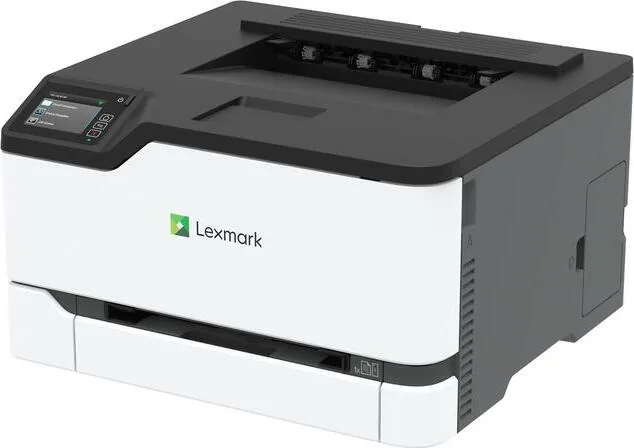
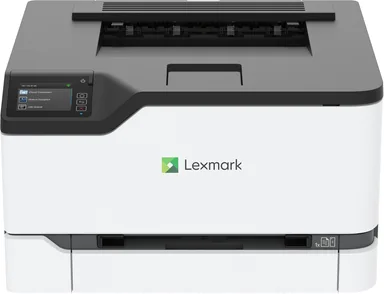
Lexmark CS431dw Manual
PDF manual · 164 Pages
English



Quick check
Incorrect answer, please try again.
Chat with your Lexmark CS431dw manual using AI
Get instant AI answers from your Lexmark CS431dw manual
Ask anything about the Lexmark CS431dw. Answers come from this manual, with the pages they are based on.
CS431dw Maintenance Schedule
Unplug the power cord. Remove dust and lint with a soft brush or vacuum. Wipe the outside with a damp, soft, lint-free cloth.
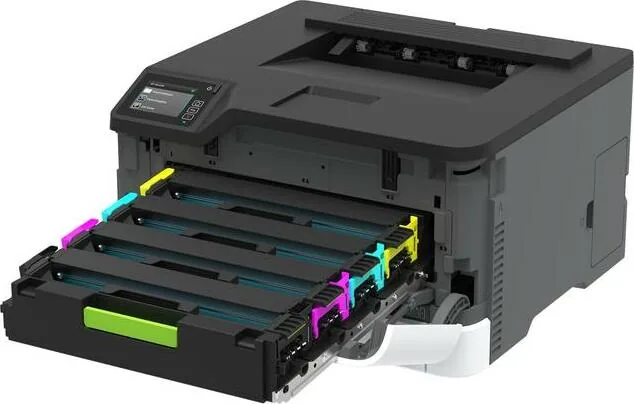
Open front door, pull out tray, insert new genuine Lexmark cartridge, and close door when prompted by low toner message.
Remove used bottle in upright position to avoid spills. Insert new waste toner bottle when full indicator appears.
Turn off printer and unplug power. Access internal area, remove old tires, and install new ones ensuring hands are clean.
Turn off printer and unplug power. Wipe screen with a damp, soft, lint-free cloth. Do not use household cleaners.
Free maintenance reminders
Timed to your purchase date. Always free, unsubscribe anytime.
Ask a Question
Do you recommend CS431dw?
Yes NoFrequently Asked Questions
Configure settings via the control panel or Embedded Web Server to enable PIN protection, then select Confidential Print during job submission. The job is held in memory until a PIN is entered at the machine.
Is this answer helpful?
The printer accepts paper weighing between 60 to 176 g/m2 for standard feeding without issues. Paper lighter or heavier may cause jams or damage.
Is this answer helpful?
Yes, models support wireless connections and Wi-Fi Direct for mobile device printing without requiring a router. Setup on the printer panel facilitates this connection.
Is this answer helpful?
View the indicator light and display messages or use the control panel to view supply estimates. The system will alert you when replacement is needed.
Is this answer helpful?
Safe Mode allows the printer to continue offering functionality even with known hardware issues like motor failures. It prioritizes printing tasks despite component malfunctions.
Is this answer helpful?
Connect to the web interface, type the IP address, and navigate to Device settings to check and upload updates. Ensure the process completes without interruption.
Is this answer helpful?
Advantages and Disadvantages
Advantages

- High quality output with 4800 CQ resolution ensures sharp text and vibrant images.
- Supports extensive paper types including card stock and envelopes for diverse needs.
- Cloud Connector integration allows printing from various online storage platforms easily.
- Strong security features including confidential print with PIN and network encryption.
- Flexible network options like Wi-Fi Direct and wireless setup for easy connectivity.
Disadvantages

- Moving the unit requires caution due to significant weight and tipping hazards.
- Requires specific power cord usage to avoid fire or electrical shock risks.
- Paper handling demands strict adherence to weight and grain direction guidelines.
- Some security menu items are only accessible via Embedded Web Server.
- Mobile printing features may be limited depending on specific printer model version.
Product Specification
Paper Format
A4
Type
Laser Printer
Color System
4-color
Consumables
20N20K0, 20N20C0, 20N20M0, 20N20Y0, 20N2XC0, 20N2XM0, 20N2XY0, 20N0X10, 20N0X20, 20N0X30, 20N0X40, 20N0W00
Print Speed
600x600dpi - 24 ppm (A4)
Paper Handling
Duplex Unit
Memory
512MB (RAM)
Ports
1x USB-B 2.0
Network
Gb LAN, Wi-Fi 5 (WLAN 802.11a/b/g/n/ac), AirPrint, Universal Print (Azure Cloud Print), PIN Printing
Display
Color, 2.8" Touchscreen
Power Consumption
400W (typical), 17W (standby), 1.2W (sleep)
Emulation
PCL 6, PCL 5, PCLm, PostScript 3
Dimensions
16.18 x 9.61 x 15.51 in
Weight
35.49 lbs
Manufacturer Warranty
1 Year (On-site)
Product Description
Discover the Lexmark CS431dw Laser Color
The Lexmark CS431dw Laser Color represents a robust solution for modern workplace efficiency. Designed for high-volume environments, this machine delivers consistent results daily. Users often refer to setup guides, such as the Lexmark CS431dw Laser Color Manual, to navigate initial configurations smoothly. This color laser printer supports a variety of connectivity options including wireless networking and mobile printing technologies like AirPrint and Mopria. It is engineered to handle busy workflows with minimal downtime.
Performance and Capabilities
Operating within the 4800 CQ quality range, the device ensures sharp text and vibrant color images. Toner darkness adjustments allow users to customize output density for various document types. The control panel features an intuitive interface where users can view supply status and modify settings easily. Power management options include sleep modes that save energy when the device sits idle for extended periods. Print driver installations are simplified with network discovery tools available on Windows and Macintosh systems. Users can adjust security settings like login methods and certificates to protect company data effectively.
Media Versatility
Handling different media types is straightforward with this unit. It supports plain paper, card stock, and envelopes with specific handling requirements. The standard tray holds a specific capacity while optional trays expand this limit significantly. Users must select grain long paper for best results and adhere to specific weight guidelines ranging from 60 to 176 g/m2. Avoiding coated papers except those designed for electrophotographic processes prevents jams and maintains quality. Customizing home screen icons allows quick access to frequently used functions directly from the display.
Security and Maintenance
Confidential jobs can be secured with PIN codes to protect sensitive data during transmission. Security features also include encryption protocols like TLS and IPSec for network traffic. Regular maintenance helps keep the printer running optimally. Users should check toner levels frequently and order replacement supplies through authorized channels. Cleaning parts and ensuring proper ventilation around the unit extends hardware life significantly. The Embedded Web Server allows for remote management of settings without physical access to the device. Safe Mode allows the printer to continue offering functionality even if motors fail partially. Users can also view reports regarding supply levels and error logs.
Connectivity and Cloud Integration
Cloud Connector profiles enable printing from various online storage platforms directly through the machine interface. Wi-Fi Direct technology facilitates peer-to-peer connections for mobile devices without requiring a router. Network status pages provide detailed diagnostics when connection issues arise. Administrators can manage firmware updates and security certificates remotely through the provided tools. Troubleshooting steps assist in resolving paper feed problems and color quality issues quickly. The menu map provides organization for complex configuration tasks.
Final Thoughts
Integrating this printer into an office setup involves careful planning regarding power outlets and space. Adequate clearance is required for ventilation and tray access. Moving the unit requires caution due to its weight and potential tipping hazards. Following these guidelines ensures a stable and productive workflow for all team members utilizing the system. It remains a powerful tool for offices seeking reliable color printing solutions. This equipment provides long term value for high traffic environments.
Notes:
- Ensure power cords are grounded properly.
- Use Lexmark approved surge protectors.
- Keep paper stored in original wrappers.
Search for 67,706 Manuals online


Type-in Brand or Model