
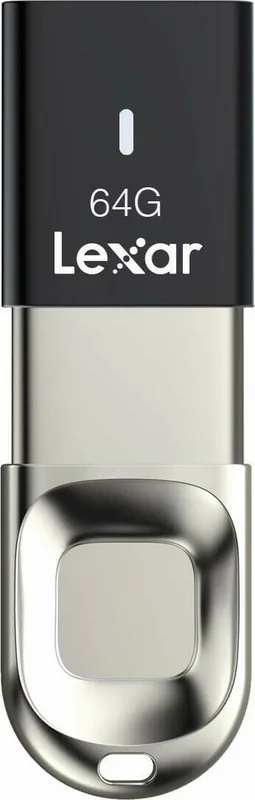
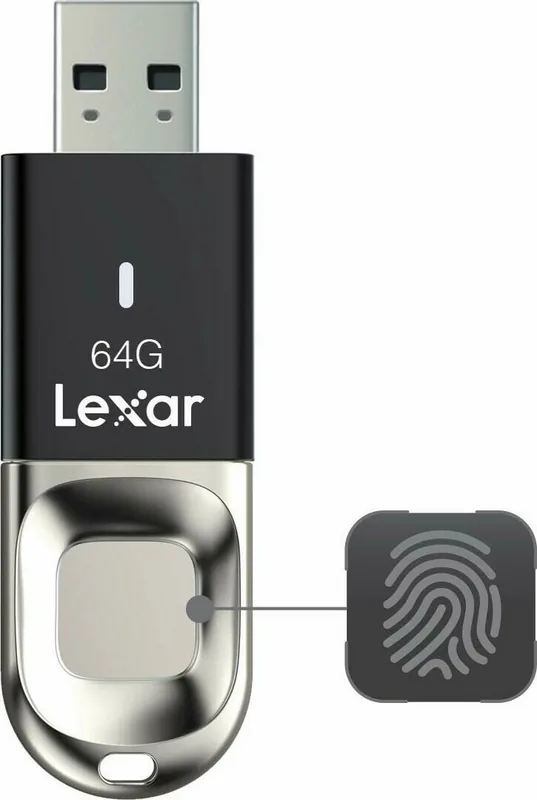
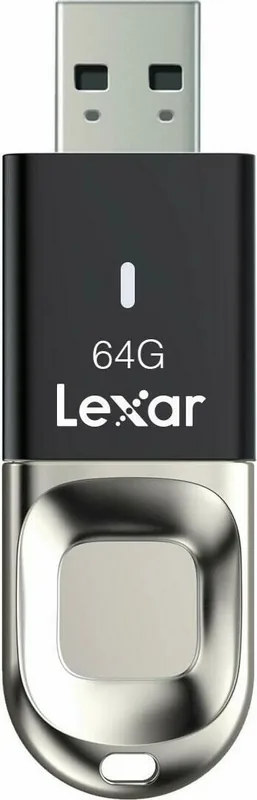
Lexar JumpDrive Fingerprint F35 Manual
PDF manual · 13 Pages
English



Quick check
Incorrect answer, please try again.
Chat with your Lexar JumpDrive Fingerprint F35 manual using AI
Get instant AI answers from your Lexar JumpDrive Fingerprint F35 manual
Ask anything about the Lexar JumpDrive Fingerprint F35. Answers come from this manual, with the pages they are based on.
Ask a Question
Do you recommend JumpDrive Fingerprint F35?
Yes NoFrequently Asked Questions
The drive separates storage into public and secure partitions. The secure partition opens only after a registered fingerprint is authenticated and uses 256-bit AES encryption to help protect stored data.
Is this answer helpful?
The Lexar JumpDrive Fingerprint F35 can store up to 10 fingerprints. An administrator can register fingerprints, add users, edit account details, and remove accounts through the management application.
Is this answer helpful?
The management application is designed for compatible Windows systems, including Windows XP SP3, Vista, Windows 7, Windows 8, Windows 8.1, and Windows 10 in 32-bit or 64-bit versions.
Is this answer helpful?
Standard storage use is compatible with Windows, macOS, and Linux. A smartphone can access the public partition only. Windows is required for fingerprint setup, account management, and partition resizing.
Is this answer helpful?
The secure partition closes automatically after 15 minutes without activity. Scan an authorized fingerprint on the sensor again to unlock the secure area and restore access.
Is this answer helpful?
The drive is initially formatted as FAT32, which has a 4 GB maximum size for individual files. Reformatting it to exFAT supports larger files, but reformatting removes existing stored data.
Is this answer helpful?
Make sure both your finger and the sensor are clean and dry. Apply gentle, even pressure with the registered finger. If recognition still fails, disconnect the drive, reconnect it, and try again.
Is this answer helpful?
Advantages and Disadvantages
Advantages

- Fingerprint authentication provides quick access without relying on a long password each time.
- A secure partition protects private data with 256-bit AES encryption.
- Stores up to 10 fingerprints for administrator and user access management.
- Public and secure partition sizes can be adjusted through the Windows management tool.
- Secure storage closes automatically after 15 minutes of inactivity.
Disadvantages

- Fingerprint setup, account management, and partition changes require the Windows application.
- The default FAT32 format does not support individual files larger than 4 GB.
- Smartphones can access only the public partition, not protected storage.
- Reformatting to exFAT deletes existing files on the drive.
- Too many incorrect administrator password attempts can trigger complete data erasure.
Product Specification
Type
Slider
Interface
USB-A 3.0
Dimensions
2.52 x 0.83 x 0.31 in (L x W x H)
Weight
0.81 oz
Features
256-bit AES encryption
Manufacturer warranty
3 years
USB designation
Link
Product Description
Lexar JumpDrive Fingerprint F35 Manual: Secure Storage Made Simple
The Lexar JumpDrive Fingerprint F35 is a USB 3.0 flash drive designed for people who want convenient portable storage with an added layer of privacy. Instead of relying solely on a traditional password, the drive uses biometric fingerprint authentication to unlock protected content. This makes it a practical choice for carrying business records, personal documents, photos, and other sensitive files while reducing the need to remember complex login details.
Biometric Access and Protected Storage
A key feature of the F35 is its split storage design. The drive provides a public partition for everyday files and a secure partition for information that should remain private. The secure area becomes available only after an authorized fingerprint is scanned successfully. The drive can store up to 10 fingerprints, allowing an administrator to add and manage access for additional users when needed.
The secure partition automatically closes after 15 minutes of inactivity, helping prevent accidental exposure when the drive is left connected. Security is supported by 256-bit AES encryption, while fingerprint data is stored separately through a dedicated hardware identifier. This combination is intended to protect the contents of the secure area from unauthorized access.
Setup and Everyday Use
The Lexar JumpDrive Fingerprint F35 Manual explains that initial setup is handled through the integrated FingerTool_Lexar application on compatible Windows systems. An administrator first creates a password and registers a fingerprint. Afterward, the administrator can create, edit, or remove user accounts, change registered fingerprints, and adjust the amount of capacity assigned to the public and secure partitions.
For daily access, connect the drive to an available USB port and place a registered finger gently on the sensor. Once authentication succeeds, the secure partition appears and can be used like normal removable storage. Registering a finger from slightly different angles during setup can improve recognition by capturing more of the fingertip surface.
Compatibility and Important Considerations
The fingerprint management application is intended for Windows systems, including Windows XP SP3 and later supported releases. Standard storage access is also compatible with Windows, macOS, and Linux. On smartphones, only the public partition can be accessed.
The drive is initially formatted as FAT32, which limits individual file transfers to 4 GB. Reformatting to exFAT enables larger files, but it erases stored content, so a backup is essential. Users should also keep the sensor and their finger clean and dry for reliable scanning.
Note: Keep at least one administrator account active. Repeated incorrect administrator password attempts can erase all drive data as a security measure.
Search for 67,706 Manuals online


Type-in Brand or Model