
Intel NUC 7 Business NUC7i5DNKPC Manual
PDF manual · 10 Pages
English



Quick check
Incorrect answer, please try again.
Chat with your Intel NUC 7 Business NUC7i5DNKPC manual using AI
Get instant AI answers from your Intel NUC 7 Business NUC7i5DNKPC manual
Ask anything about the Intel NUC 7 Business NUC7i5DNKPC. Answers come from this manual, with the pages they are based on.
Ask a Question
Do you recommend NUC 7 Business NUC7i5DNKPC?
Yes NoFrequently Asked Questions
The NUC 7 Business supports two 260-pin DDR4 SO-DIMM sockets using 1.2V, 2133 MHz, non-ECC SO-DIMMs. If installing a single module, place it in the lower socket. Use the Intel Product Compatibility Tool to confirm specific module compatibility.
Is this answer helpful?
Power down and unplug the unit, open the chassis, remove the standoff screw, slide the existing M.2 module out, align the new M.2’s notch to the connector, insert at the correct angle, and secure it to the standoff with the small screw. Disable Intel Optane first before removal if applicable.
Is this answer helpful?
Windows 10 is preinstalled. The NUC contains a recovery partition enabling Refresh, Reset, or Restore actions. Access Recovery from Windows Settings or press F8 during boot if Windows doesn’t start. Back up data before performing Refresh or Reset.
Is this answer helpful?
Disconnect power and network cables, use ESD protection (antistatic wrist strap and conductive pad), follow step order, and be careful of sharp chassis edges and hot components. Record system details (model, serials) before modifications.
Is this answer helpful?
Use the Intel Driver & Support Assistant or visit Intel’s Download Center for NUC7i5DNKPC drivers and BIOS updates, including updates for graphics, chipset, LAN, Bluetooth, Intel ME, and storage technologies.
Is this answer helpful?
Some SKUs include a region-specific power cord while others ship without one. If your box lacks a cord, purchase a compatible AC cord (C5 connector on the adapter) appropriate for your region.
Is this answer helpful?
Yes. The NUC supports an optional VESA bracket. Use the included small screws to attach the bracket to a monitor, attach two screws to the NUC chassis, and slide the unit onto the bracket for a tidy, space-saving setup.
Is this answer helpful?
Advantages and Disadvantages
Advantages

- Compact, VESA-mountable design ideal for space-constrained deployments and discreet installations.
- Easily upgradeable memory and M.2 storage with clear step-by-step procedures and accessible chassis.
- Preinstalled Windows 10 with recovery partition simplifies setup and system recovery options.
- Supports enterprise features like Intel ME, Rapid Storage, and driver updates via Intel DSA for manageability.
- Solid safety guidance and ESD precautions to protect components during servicing and upgrades.
Disadvantages

- Power cord may not be included depending on SKU, requiring separate purchase for some regions.
- Memory limited to DDR4 2133 MHz SO-DIMMs; not compatible with higher-frequency modules.
- Removing Intel Optane requires disabling steps first, adding complexity to upgrades.
- Small chassis can make handling tiny screws and connectors fiddly for inexperienced users.
- Preinstalled components (like SSD) may require replacement or reinstallation for different capacities or OS setups.
Product Specification
Form factor
Mini-PC
Flash
N/A
Rear ports
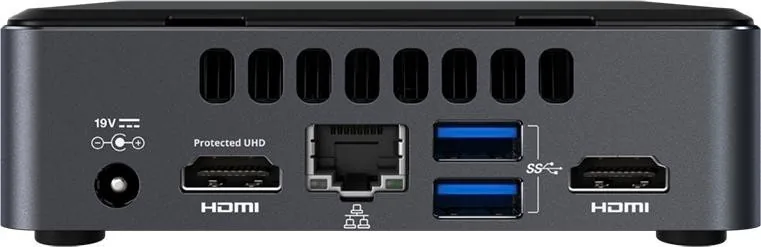
2x USB-A 3.0 (5Gb/s), 2x HDMI 2.0a, 1x RJ-45 1Gb LAN (Intel I219-V), 1x DC-In barrel connector (power connection)
Front/side ports
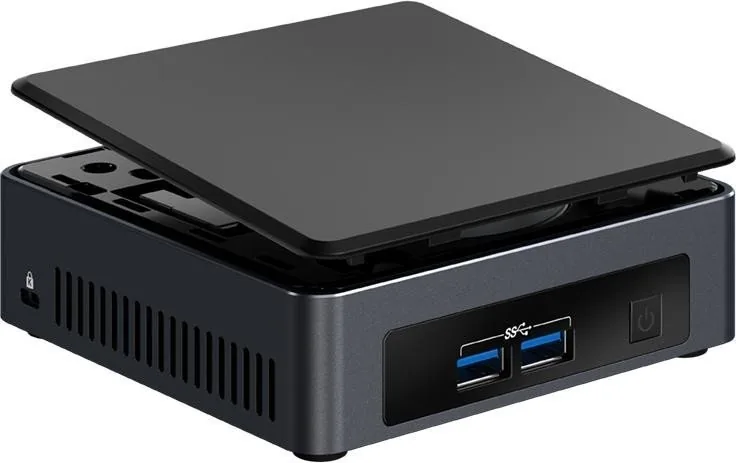
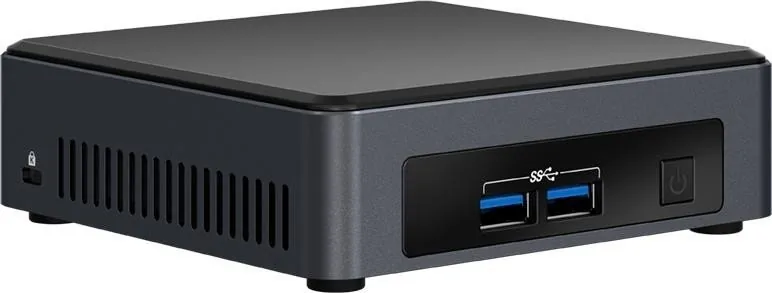
2x USB-A 3.0 (5Gb/s)
Wireless
Wi-Fi 5 (WLAN 802.11a/b/g/n/ac, 2x2, Intel 8265), Bluetooth 4.2
Optical drive
N/A
Camera
N/A
Operating system
Windows 10 Pro 64bit
Power supply
external 65W, 1x barrel plug
Warranty
three years
USB notation
Link
Product Description
Intel NUC 7 Business - Dawson Canyon Manual
The Intel NUC 7 Business - Dawson Canyon is a compact, business-focused mini PC designed to deliver desktop-class performance in a small form factor. Powered by Intel processors and supporting Windows 10, this NUC balances productivity, expandability, and manageability for office, digital signage, or home-office deployments. The platform emphasizes reliable hardware design, straightforward upgrades, and enterprise-ready features that make it a practical choice for IT administrators and power users alike.
Compact design and core features
Despite its small footprint, the NUC 7 Business supports dual SO-DIMM DDR4 memory slots, M.2 SSD storage (including Intel Optane support), and a range of connectivity options. It ships with Windows 10 preinstalled and includes built-in wired and wireless networking, Bluetooth, and modern Intel-managed technologies such as Intel ME and Rapid Storage. The unit can be VESA-mounted behind a monitor for discreet installations, making it ideal for space-constrained environments.
Upgradeability and maintenance
The chassis opens easily by removing four bottom screws, granting access to memory and storage. The device accepts 2133 MHz, 1.2V non-ECC SO-DIMMs and M.2 SSDs (80mm or 42mm). Instructions for safe handling—including ESD precautions, power disconnection, and screw handling—help ensure proper upgrades. The manual details step-by-step procedures to remove and install modules, secure M.2 drives to standoffs, and reassemble the chassis without over-tightening screws.
Deployment and setup
Initial setup is straightforward: Windows 10 setup guides region, language, personalization, and network connectivity. IT teams can keep drivers and BIOS current via Intel Driver & Support Assistant or Intel’s Download Center. The system supports enterprise-friendly technologies and provides clear guidance for reinstalling or recovering Windows using the built-in recovery partition (Refresh, Reset, Restore), with cautions about backing up data prior to resets.
Safety and best practices
The manual emphasizes safety: disconnect power and networks before servicing, use antistatic measures, and be cautious of sharp edges and hot components. It lists installation warnings and regulatory compliance reminders to reduce risk and maintain warranty and safety standards.
Notes
- Use the Intel Product Compatibility Tool to confirm compatible memory and M.2 SSDs.
- Before removing Intel Optane, follow disabling procedures to avoid data loss.
- Purchase region-appropriate AC power cords if not included with the unit.
Search for 67,732 Manuals online


Type-in Brand or Model