Manual.ly Logo

InLine AD-CP02A Manual

0.0 · 0 Ratings

PDF manual · 4 Pages

English

M: OA-GPT-54-NAN
page

/ 4

Loading...
424bfe57a2ac2754412b03ce62743a321191 page 3
Quick Installation Guide Applicable model: 61602C 2-port DVI USB KVM Switch w/ Audio & Mic
Rev. 1.3 Copyright© All rights reserved
2 x USB 2.0 hub ports + USB Keyboard Hotkeys
True Transparent USB Emulation Technology
Single Link DVI 1920 x 1200 / Analog 2048 x 1536 Resolution
Active Sync Replication™ for Best Video Compatibility
User-definable Hotkey Preceding Sequence
61602C
2-port Compact Desktop
DVI USB KVM Switch
w/ Audio & Microphone Switching
and 2 x USB 2.0 device hub ports
True Transparent USB Emulation Technology
Quick Installation Guide
Thank you for purchasing the 61602C Compact Desktop DVI
USB KVM Switch! With our highly reliable and quality product,
user can enjoy countless benefits from using it.
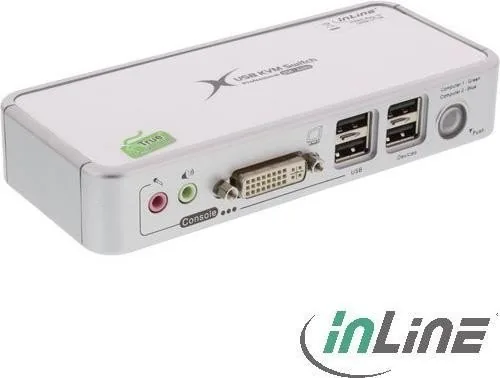
AD-CP02A - Front View
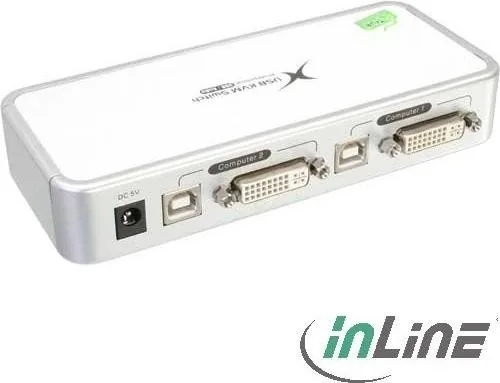
AD-CP02A – Rear View
Introduction
The 61602C is a 2-port Compact Desktop DVI USB KVM Switch
with audio and microphone switching function. It features our
latest True Transparent USB (TTU) Emulation Technology. The
TTU Technology ensure ultimate compatibility to all types of
advanced keyboards and mice, giving users a best experience in
seamless KVM Switching, either in gaming or any other critical
computer operation. Its independent audio/mic switching function
allows an uninterrupted audio experience on a same connected
computer even when you switch to another computer.
This KVM Switch adopts the DVI technology for digital video
signal transmission over the cable to reduce undesired distortion
from conventional analog/digital conversion. Both digital video
(1920 x 1200) and analog video (2048 x 1536) are supported.
Its Audio&Mic switching function offers you uninterrupted
multimedia experience while performing KVM Switching. Multi-
platform support for PC and Mac is available. For users who
might need to use a hotkey preceding sequence other than two
scroll locks, we also offer five key alternatives for free
configuration.
The 61602C features the Active Sync Replication™ (A.S.R.)
technology that offers a full-time DDC emulation for best video
compatibility with new type of Operating System that requires
more critical DDC communication.
Out-of-the-box Installation
Step 1. First, connect the shared USB keyboard, mouse, monitor,
speaker/headphone and microphone each to the USB
keyboard and mouse port on your KVM Switch (2 x USB
ports on the left). After these connections (especially the
monitor connection) are made, then
plug in the power
adapter to the Power receptacle on the backpanel.
Step 2. Connect each KVM PC port to a computer, using the
slim 3-in-1 KVM combo cable and the audio/mic cable.
After you have connected the KVM and computers
properly, you can operate the KVM Switch immediately.
If you need to connect a computer with an analog video display
(HDB15) to the KVM switch, you need to use a HDB15-DVI adapter
for connection.
Some older computers with USB interface might need to manually
enable the USB option in the BIOS settings before you can use any
USB devices. If your USB interface does not work, please check the
USB option in the BIOS.
If you use Windows 95/98/SE or Mac OS and has not yet installed a
USB mouse on your computer, there might be an error message
telling you that mouse is not detected and prompting you to decide
whether to ignore the same message in the future, and yet you will
find there is no mouse movement to disable this message….So it is
suggested that you should installed your USB mouse on your
computer first, before connecting it to this KVM Switch.
Step 3. Connect each of your USB device to the USB 2.0 device
ports (2 x USB ports on the right).
You can now begin to use the KVM switch ….
Sharing High-speed USB Device
There are 4 x USB ports on the front-panel. The 2 x USB ports
on the left are reserved only for keyboard and mouse; While the
other 2 x USB ports on the right are for connecting with other
USB 2.0 devices.
Easy Operation
There are two methods to control your KVM Switch for PC, hub
port control and Audio/Mic channel selection: using (1) the front-
panel push button, and (2) the hotkey sequences
Front-panel button
The front-panel button allows you a direct control over KVM
switching operation. Simply press the button to toggle to the
other PC port (together with hub port control and/or audio/mic
channel, if binding is enabled). By default, PC port switching, hub
port control and audio/mic port switching are bound together,
unless you specify the audio to be fixed a specific port.
Keyboard hotkeys
For keyboard hotkeys, please refer to the Quick Reference Sheet.

Chat with your InLine AD-CP02A manual using AI

Get instant AI answers from your InLine AD-CP02A manual

Ask anything about the InLine AD-CP02A. Answers come from this manual, with the pages they are based on.

Ask a Question

0/1000

Do you recommend AD-CP02A?

Yes No

Frequently Asked Questions

A

It is used to control two computers with one monitor, keyboard, mouse, and shared USB, audio, and microphone devices. It helps simplify small workstations and reduce cable clutter.

Is this answer helpful?

A

Yes. The switch supports multi-platform use, including PC and Mac systems, making it useful for mixed-device environments.

Is this answer helpful?

A

It supports single-link DVI digital video up to 1920 x 1200. For analog video, it supports up to 2048 x 1536 when the proper adapter is used.

Is this answer helpful?

A

Yes. Audio and microphone switching can operate independently, so you can keep multimedia playback on one system while working on another if needed.

Is this answer helpful?

A

You can switch using the front-panel button or keyboard hotkeys. The hotkey system includes customizable prefix options and can also be used for autoscan.

Is this answer helpful?

A

The switch includes shared USB 2.0 hub ports for extra peripherals. The left USB ports are reserved for keyboard and mouse, while the right ports are intended for other USB devices.

Is this answer helpful?

M: OA-GPT-54-NAN

Advantages and Disadvantages

Advantages

  • True Transparent USB emulation helps maintain smooth compatibility with modern keyboards and mice.
  • Independent audio and microphone switching keeps multimedia use flexible during computer changes.
  • DVI output delivers strong digital video quality with support for high resolutions.
  • Built-in USB 2.0 hub ports make it easy to share extra peripherals between two systems.
VS

Disadvantages

  • Only two computers can be connected, so it is not ideal for larger multi-PC setups.
  • Legacy analog connections may need an additional DVI adapter to work correctly.
  • Some older systems may require BIOS changes or extra setup before USB functions operate normally.
M: OA-GPT-54-NAN

Product Specification

Ports

2

Monitor

2x DVI

Keyboard/Mouse

USB

Audio

2x 0.14 in jack

Resolution

1920x1200

M: OA-GPT-54-NAN

Product Description

InLine AD-CP02A KVM Switch

If you're researching the InLine AD-CP02A KVM Switch Manual, this compact two-port DVI USB KVM switch is designed to make a small workstation feel far more efficient. It lets you control two computers with one keyboard, one mouse, one monitor, plus shared audio, microphone, and USB devices. For home offices, test benches, or mixed PC/Mac setups, it offers a clean way to reduce cable clutter while keeping everyday tasks smooth.

Built for flexible switching

One of the strongest points of the AD-CP02A is its True Transparent USB emulation technology. In practice, that means modern keyboards and mice stay compatible and responsive, so switching between machines feels natural instead of awkward. The unit also supports independent audio and microphone switching, which is especially useful if you want one computer to keep playing sound while you work on another.

Video quality and device sharing

This KVM switch uses DVI for digital video transmission, helping preserve image quality and reduce distortion. It supports single-link DVI resolutions up to 1920 x 1200 and analog video up to 2048 x 1536 when an adapter is used. That makes it a practical choice for users who still work with a mix of modern and legacy equipment. On top of that, the built-in USB 2.0 hub ports let you share flash drives, printers, and other peripherals without reconnecting them every time.

Easy operation and control

The front-panel button offers quick switching, while hotkey commands provide faster access for users who prefer keyboard control. The hotkey system is flexible too, with customizable prefix options and autoscan features for checking connected systems one by one. This is useful in support environments, studios, and labs where fast switching matters.

Notes

  • Older computers may require USB to be enabled in BIOS before the switch works properly.
  • If you connect an analog display source, a DVI adapter may be needed.
  • Installing a USB mouse first can help avoid detection issues on older operating systems.

Overall, the AD-CP02A is a compact but capable KVM solution that balances reliability, multimedia convenience, and practical desktop control.

M: OA-GPT-54-NAN

© Copyright 2026 Manual.ly