
Inateck KB02009 for Surface Go Manual
PDF manual · 18 Pages
English



Quick check
Incorrect answer, please try again.
Chat with your Inateck KB02009 for Surface Go manual using AI
Get instant AI answers from your Inateck KB02009 for Surface Go manual
Ask anything about the Inateck KB02009 for Surface Go. Answers come from this manual, with the pages they are based on.
Ask a Question
Do you recommend KB02009 for Surface Go?
Yes NoFrequently Asked Questions
Turn on the keyboard by holding the power button for three seconds. Press Fn and Spacebar together until the blue light flashes. On your Surface Go, go to Settings > Devices > Add Bluetooth, select Inateck KB02009, and confirm the connection.
Is this answer helpful?
To improve battery life, the keyboard is designed not to wake up when the touchpad is touched during sleep mode. You must press any key on the keyboard to wake it up instead.
Is this answer helpful?
Yes, you can use the keyboard normally while it is connected to a power source. The indicator light will remain red during charging and turn green once fully charged.
Is this answer helpful?
To restore factory settings, press the Fn, Shift (left), and Backspace keys simultaneously. This will clear all previous Bluetooth pairings and return the device to its original configuration.
Is this answer helpful?
This happens if you accidentally touch the pad. Press Fn and the touchpad toggle key to turn off the touchpad. Press it again to turn it back on when needed.
Is this answer helpful?
No, the backlight is only available when the keyboard is successfully paired with a Surface Go. If not paired, the lights will not function regardless of battery level.
Is this answer helpful?
Advantages and Disadvantages
Advantages

- Seamless Bluetooth pairing with automatic reconnection
- Customizable seven-color backlight with three brightness levels
- Long battery life up to 187 hours with backlight off
- Can be used while charging without interruption
- Compact design perfect for Surface Go portability
Disadvantages

- Cannot wake from sleep mode by touching the trackpad
- Backlight unavailable unless paired with Surface Go
- Auto-dimming may activate if battery drops below 20%
- Touchpad cursor may jump if accidentally touched while typing
- Requires specific key combination to disable right-click feature
Product Specification
Layout
DE
Compatibility
Surface Go 2, Surface Go
Type
Bluetooth Keyboard and Case
Material
Plastic
Dimensions
9.65x7.4x0.27in
Weight
8.65oz
Features
Backlit keyboard (7 colors), Chiclet, Touchpad, built-in battery (750mAh)
Product Description
Enhance Your Surface Go Experience with the Inateck Bluetooth Keyboard Case
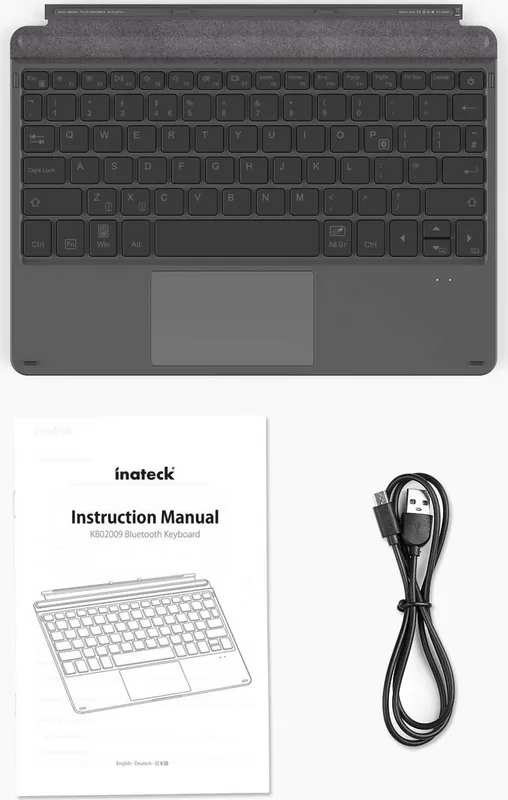
The Inateck Surface Go Bluetooth Keyboard Case in black is a versatile accessory designed to transform your tablet into a powerful productivity tool. This sleek device combines a full-sized keyboard with an integrated trackpad, offering seamless control for navigation and typing. Designed specifically for the Surface Go, it provides a comfortable typing experience while maintaining the portability of your tablet.
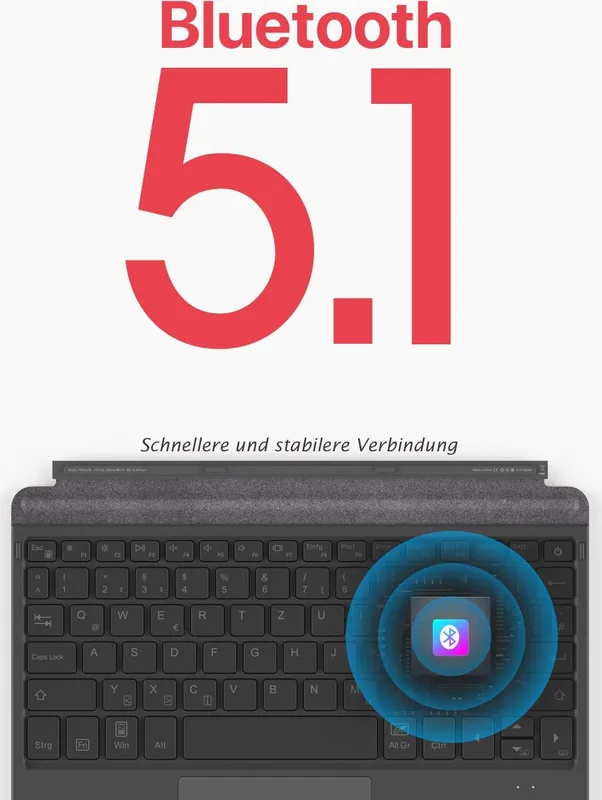
One of the standout features is its advanced connectivity. The keyboard utilizes Bluetooth technology to pair effortlessly with your Surface Go. Once paired, it remembers the connection for automatic reconnection upon powering on. The pairing process is straightforward: simply long-press the power button until the green LED stays on, then press Fn plus the spacebar to enter pairing mode. Your Surface Go will detect the "Inateck KB02009" device, allowing you to connect with just a few clicks.
The keyboard also boasts customizable lighting options to suit any environment. Users can adjust the backlight color among seven vibrant hues and select from three brightness levels. However, please note that the backlight only functions when the keyboard is successfully paired with the Surface Go. Additionally, if the battery drops below 20%, the backlight will automatically turn off to conserve power.
Battery life is a key consideration for mobile users. Equipped with a 750mAh battery, the keyboard offers extended usage times. It takes approximately four to five hours to fully charge via a standard USB port or phone charger. During charging, a red light indicates the status, turning green once complete. Interestingly, you can continue using the keyboard even while it is connected to power.
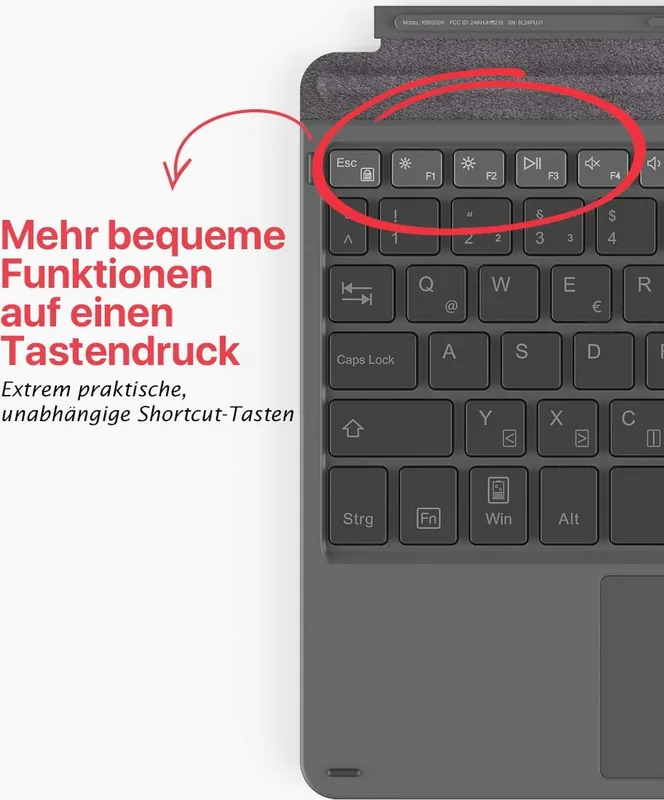
For added convenience, the device includes smart sleep modes. If inactive for two hours, the keyboard enters sleep mode to save energy. To wake it, simply press any key; touching the trackpad will not wake the device, which helps prevent accidental activations and preserves battery life. The keyboard also features function keys that can be locked or unlocked using the Fn key, giving you flexibility over F1-F12 shortcuts.
Key Features
- Integrated trackpad for smooth navigation
- Seven-color customizable backlight
- Long battery life with fast charging support
- Automatic reconnection after pairing
- Compact and portable design for Surface Go users
Notes
- Ensure the Surface Go has stable Bluetooth signal for best results.
- Reset factory settings by pressing Fn + Shift + Backspace simultaneously if issues arise.
Search for 67,706 Manuals online


Type-in Brand or Model