
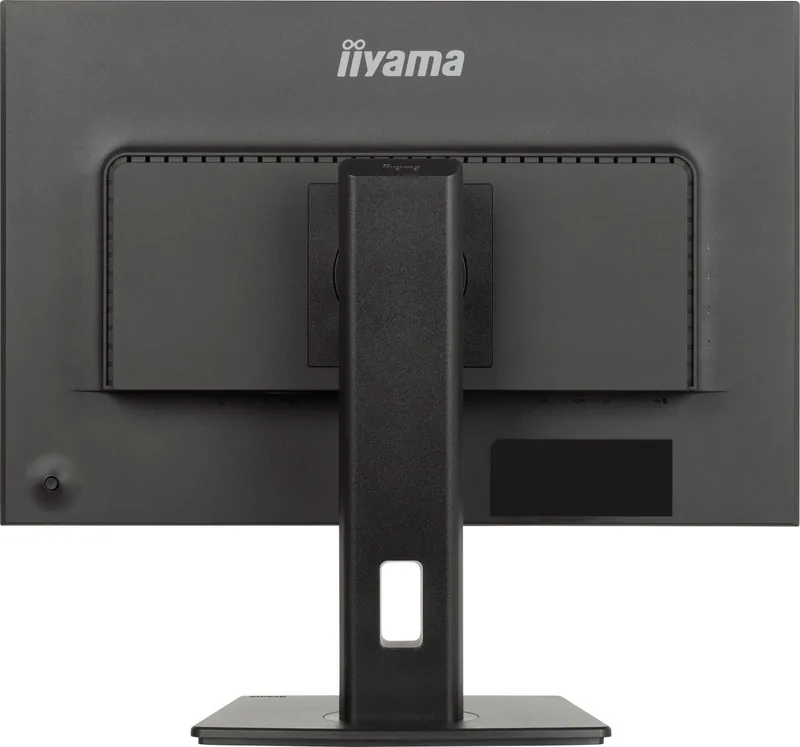
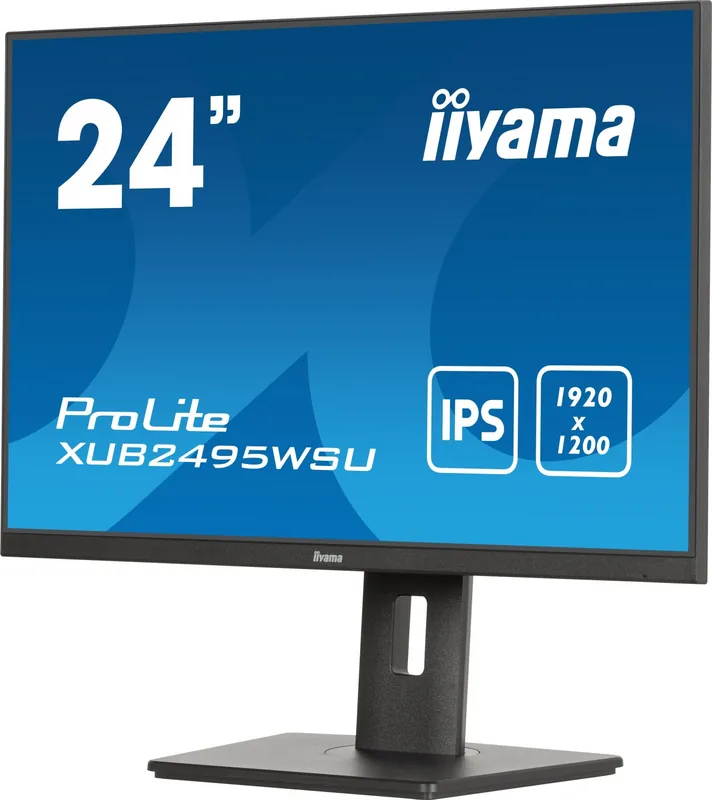
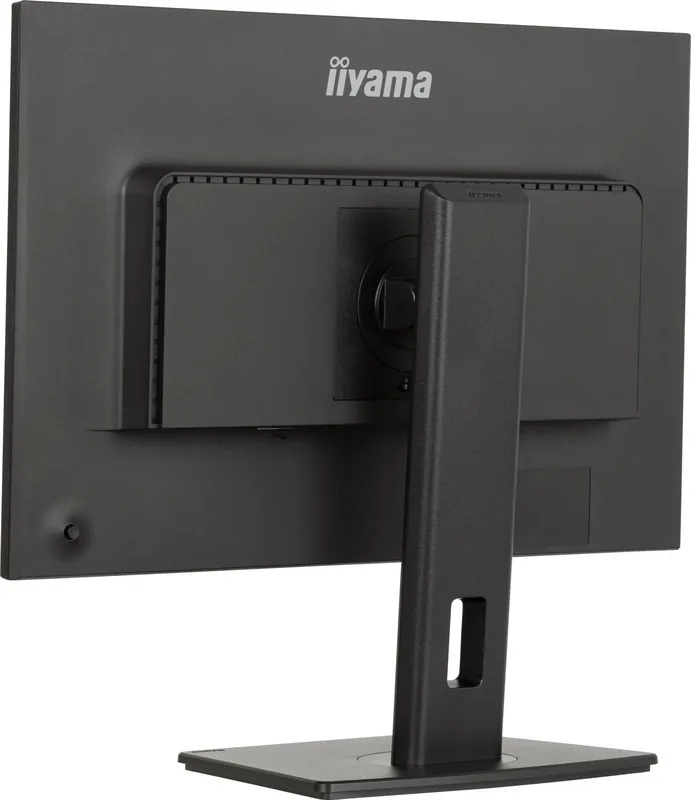
iiyama ProLite XUB2495WSU-B7 Manual
PDF manual · 37 Pages
English



Quick check
Incorrect answer, please try again.
Chat with your iiyama ProLite XUB2495WSU-B7 manual using AI
Get instant AI answers from your iiyama ProLite XUB2495WSU-B7 manual
Ask anything about the iiyama ProLite XUB2495WSU-B7. Answers come from this manual, with the pages they are based on.
Ask a Question
Do you recommend ProLite XUB2495WSU-B7?
Yes NoFrequently Asked Questions
Yes, the ProLite XUB2495WSU-B7 variant supports landscape and portrait modes. However, rotating the panel requires adjusting the stand height beforehand. You will also need a compatible video card for portrait display functionality.
Is this answer helpful?
The monitor includes HDMI and DisplayPort connectors for video signals. Additionally, there are three USB Type-A downstream ports and one USB Type-C upstream port for peripheral connectivity and data transfer.
Is this answer helpful?
Yes, the product holds TCO Certification which verifies environmental and social criteria. It complies with CE and RoHS directives for safety and reduced hazardous substances. Low standby power consumption further supports energy savings.
Is this answer helpful?
Use the joystick button to access the On Screen Display menu. Navigate to Picture Adjust settings where you can modify contrast, brightness, and enable features like Overdrive or Blue Light Reducer to suit your environment.
Is this answer helpful?
Avoid operating near water and do not remove the cabinet cover due to high voltage risks. Ensure the monitor is placed on a stable surface. Unplug power before moving or cleaning the device to prevent electric shock hazards.
Is this answer helpful?
Yes, it supports USB BC charging for connected devices. However, charging stops when the monitor is powered off. Ensure the function is enabled in the OSD menu to allow charging even during standby mode.
Is this answer helpful?
Use a soft dry cloth to wipe the screen gently. Do not use paper tissues or hard objects that could scratch the surface. Never apply solvents like thinner or acid directly onto the LCD panel or cabinet.
Is this answer helpful?
Advantages and Disadvantages
Advantages

- High resolution 1920 x 1200 IPS panel for clear images
- USB-C connectivity simplifies single cable data and power transfer
- TCO Certified ensures sustainable manufacturing and material choices
- Ergonomic stand allows height, tilt, and swivel adjustments
- Portrait rotation capability supports specialized workflows
Disadvantages

- Not designed for 24/7 digital signage or wall mounting applications
- Basic built-in stereo speakers offer limited audio volume
- Brightness may feel dimmer compared to higher end gaming displays
- Some settings require specific joystick combinations to access
- Screen saver can interfere with standby function activation
Product Specification
Function
Monitor (stationary)
Diagonal
24.1 in
Resolution
1920x1200 (WUXGA), 16:10, 94ppi
Panel
IPS
Backlight
LED, Blue Light Filter, flicker-free
Brightness
300 cd/m^2 (typical)
Contrast
1,000:1 (static), 80,000,000:1 (dynamic)
Response Time
4ms (GtG)
Refresh Rate
75Hz (1920x1200)
Signal Frequency
60-95kHz (H) / 75Hz (V)
Ports
1x HDMI 1.4, 1x DisplayPort 1.2, 1x USB-C 3.0 (Upstream, 5Gb/s, PD 15W), 4x USB-A 2.0 (Downstream, 480Mb/s), 1x 3.5mm Jack (Line-In), 1x AC-In C13 (Power Input)
Shape
Straight (Flat)
Viewing Angle
178 deg/178 deg
Coating
Non-Glare (Matte)
Color Depth
8-bit (16.7 Million colors)
Frame Rate Control
Unknown
sRGB
99%
NTSC
72%
Speakers
Speakers (2x 2W)
Controls
Joystick
Ergonomics
With base, height adjustable (5.91 in), Pivot (+/- 90 deg), Rotatable (+/- 45 deg), Tiltable (+23 deg/-5 deg)
VESA Mount
100x100 mm (Compatible)
Power Consumption
17W (typical), 0.5W (standby)
Energy Efficiency SDR (A to G)
15 kWh/1000h (Class D)
Features
Security Lock (Kensington Security Slot), Slim Bezel
Screen-to-Body Ratio
95.07% (Calculated)
Dimensions
21.00x14.70x8.25 in (WxHxD) with base folded, 20.98x13.07x2.24 in (WxHxD) without base
Color
Black (Bezel) / Black (Lower Bezel) / Black (Base) / Black (Rear)
Weight
7.94 lbs (with base)
Power Supply
Internal
Warranty
Three Years (Claims via Manufacturer, Product Registration within 60 days of purchase: Link, Warranty Information: Link)
USB Naming
Link
Product Description
Elevate Your Workspace Efficiency
The iiyama ProLite XUB2495WSU-B7 offers a seamless visual experience designed for modern workspaces requiring precision and comfort. With its 24.1 inch display technology, professionals benefit from crisp details and accurate colors right out of the box. This monitor brings high-quality performance to your desk without compromising on valuable floor space. Users often refer to detailed guides when setting up new equipment to ensure optimal configuration and safety. Reviewing resources related to the iiyama ProLite XUB2495WSU-B7, 24.1" Manual highlights the comprehensive setup options available for this powerful device. It serves as an excellent companion for office tasks and multimedia consumption alike.
Versatile Connectivity Options
Connecting peripherals is effortless thanks to the integrated port selection found on the rear panel. You will find multiple inputs including HDMI and DisplayPort alongside advanced USB-C capabilities. This allows for streamlined data transfer and potential power delivery depending on the host system. The built-in stereo speakers provide convenient audio output for multimedia tasks without needing external drivers. Ergonomics play a significant role in long-term comfort, and this unit supports height adjustments along with swivel functions. The panel orientation can be rotated for portrait viewing, which is ideal for coding or reading long documents.
Sustainable Design Philosophy
Environmental responsibility is built into the manufacturing process from start to finish. This product holds TCO Certification, ensuring safe materials and responsible labor practices throughout the entire lifecycle. Compliance with global standards like CE and RoHS guarantees safety and low electromagnetic emissions. Power consumption remains low during normal operation and standby modes to save energy costs. Maintaining ventilation slots prevents overheating during extended usage periods which protects internal components. Following safety precautions ensures longevity and user protection against electrical hazards or physical injury.
Optimized Viewing Experience
Color accuracy meets professional demands with IPS technology providing consistent viewing angles. Contrast levels remain vivid even when viewed from the side. Flicker-free implementation reduces eye strain during marathon work sessions significantly. Blue light reduction filters are adjustable to match ambient lighting conditions in any room. The OSD menu allows precise tuning of brightness and gamma settings for personal preference. Security locks keep the hardware safe in shared office environments preventing theft. Whether for creative work or daily browsing, the 1920 by 1200 resolution delivers sharp imagery suitable for various professional applications today.
Installation And Maintenance Guidelines
Setting up the unit involves securing the base properly on a stable flat surface. Avoid placing heavy objects directly on the monitor to prevent damage to the hinge mechanism. Always disconnect cables before moving the unit to avoid stress on connectors or accidental drops. Cleaning the LCD screen requires a soft dry cloth specifically designed for electronics. Never use harsh chemicals or liquids that could penetrate the casing and cause failure. If you encounter image issues, check signal timing compatibility with your computer graphics card. Adjusting input sources via the joystick ensures the correct signal path is active immediately. Keeping the software updated helps maintain driver compatibility for the best visual output possible. Ensure that the computer is strong enough to hold the weight of the monitor, otherwise, you may damage your computer stand or desk surface over time. If smoke or strange sounds occur, unplug the monitor immediately to contact service center.
Search for 67,706 Manuals online


Type-in Brand or Model