
iiyama ProLite XU2294HSU-B2 / XUB2294HSU-B2 / XUB2294HSU-W2 Manual
PDF manual · 36 Pages
English



Quick check
Incorrect answer, please try again.
Chat with your iiyama ProLite XU2294HSU-B2 / XUB2294HSU-B2 / XUB2294HSU-W2 manual using AI
Get instant AI answers from your iiyama ProLite XU2294HSU-B2 / XUB2294HSU-B2 / XUB2294HSU-W2 manual
Ask anything about the iiyama ProLite XU2294HSU-B2 / XUB2294HSU-B2 / XUB2294HSU-W2. Answers come from this manual, with the pages they are based on.
ProLite XU2294HSU-B2 / XUB2294HSU-B2 / XUB2294HSU-W2 Maintenance Schedule
Wipe the screen with a soft dry cloth. Do not use tissue paper as it will damage the screen.
Remove stains with a cloth lightly moistened with mild detergent solvent, then wipe with a soft dry cloth.
Ask a Question
Do you recommend ProLite XU2294HSU-B2 / XUB2294HSU-B2 / XUB2294HSU-W2?
Yes NoFrequently Asked Questions
Use a soft dry cloth to wipe the screen. Avoid harsh chemicals or rough materials. Use a weak dish soap solution for fingerprints. Do not spray liquid directly on the screen.
Is this answer helpful?
Yes, the unit supports VESA mounting standards at 100mm by 100mm. Ensure your arm or wall mount can handle the weight. Do not use it for digital signage wall mounting according to warnings.
Is this answer helpful?
The standby mode consumes minimal power, typically less than 0.5 watts when no USB devices are connected. The power-off mode is even lower.
Is this answer helpful?
Yes, the monitor supports AMD FreeSync technology to reduce tearing. Ensure your graphics card supports it for best performance.
Is this answer helpful?
Use the joystick on the monitor front. Select the picture settings menu. Adjust brightness using the joystick controls. ECO mode can also lower brightness automatically.
Is this answer helpful?
No, the XUB2294 models offer height adjustment. The XU2294 models typically focus on tilt and swivel without the same height range. Check your specific model number.
Is this answer helpful?
Portrait mode is available for specific variants if the graphics card supports rotation. Use the joystick to rotate the display settings. Ensure stability to prevent tipping.
Is this answer helpful?
Advantages and Disadvantages
Advantages

- High contrast ratio ensures deep blacks and vibrant colors for better visual experience.
- AMD FreeSync technology reduces screen tearing during gaming and video playback.
- Energy Star certified operation ensures low power consumption and environmental friendliness.
- VESA mounting compatibility allows flexible installation on desks or monitor arms.
- Built-in 2W stereo speakers provide basic audio output without extra hardware.
Disadvantages

- Stand height adjustment varies by model, limiting ergonomic flexibility in some variants.
- No support for 3D imaging is available in the product specifications.
- USB downstream ports may support charging but lack advanced hub functionalities.
- Portrait mode operation requires specific graphics card support to rotate properly.
- Static images displayed for long periods may cause ghosting on the LCD panel.
Product Specification
Function
Monitor (stationary)
Diagonal
21.5"
Resolution
1920x1080 (FHD), 16:9, 102 ppi
Panel
VA
Backlight
LED, Blue Light Filter, flicker-free
Brightness
250 cd/m^2 (typical)
Contrast
3,000:1 (static), 80,000,000:1 (dynamic)
Response Time
1ms (MPRT)
Refresh Rate
75Hz (1920x1080)
Signal Frequency
30-85kHz (H) / 55-75Hz (V)
Ports
1x HDMI 1.4 (75Hz@1920x1080), 1x DisplayPort 1.2 (75Hz@1920x1080), 1x USB-B 3.0 (Upstream, 5Gb/s), 2x USB-A 3.0 (Downstream, 5Gb/s), 1x 3.5mm Jack (Line-Out), 1x AC-In C13 (Power Input)
Shape
Straight (flat)
Viewing Angle
178deg/178deg
Coating
non-glare (matte)
Color Depth
8-bit (16.7 Million colors)
FRC
Yes (6-bit + 2-bit)
Speakers
Speakers (2 x 2W)
Controls
Mechanical buttons
Power Consumption
13W (typical), 0.5W (Standby)
Energy Efficiency SDR (A-G)
12 kWh/1000h (D)
Features
Security Lock (Kensington Security Slot), Slim Bezel
Screen-to-Body-Ratio
89.66% (calculated)
Power Supply
Internal
Warranty
3 Years (Claims via Manufacturer, Product Registration within 60 days after purchase: Link, Warranty Information: Link)
USB Spelling
Link
Product Description
Exploring the iiyama ProLite XU2294HSU-B2 / XUB2294HSU-B2 / XUB2294HSU-W2 Manual
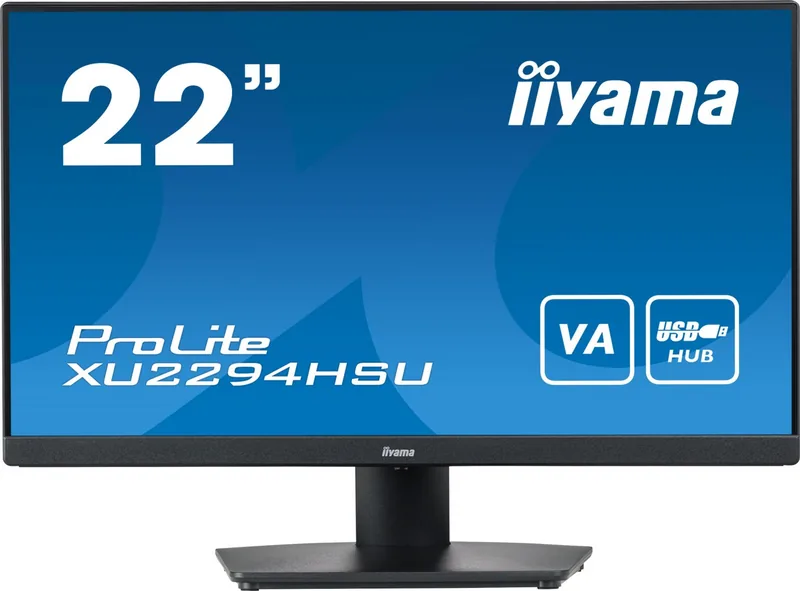
The iiyama ProLite XU2294HSU-B2 / XUB2294HSU-B2 / XUB2294HSU-W2 Manual introduces a robust lineup of monitors designed for everyday computing and light gaming needs. These devices feature a 21.5-inch VA panel delivering a sharp Full HD resolution. Users benefit from a high contrast ratio that ensures deep blacks and vibrant colors, making them suitable for creative tasks and media consumption. The inclusion of AMD FreeSync technology reduces screen tearing for smoother visuals during dynamic scenes. Response times are competitive, ensuring minimal trailing on moving objects. The refresh rate can reach up to 75Hz in certain modes to enhance fluidity.
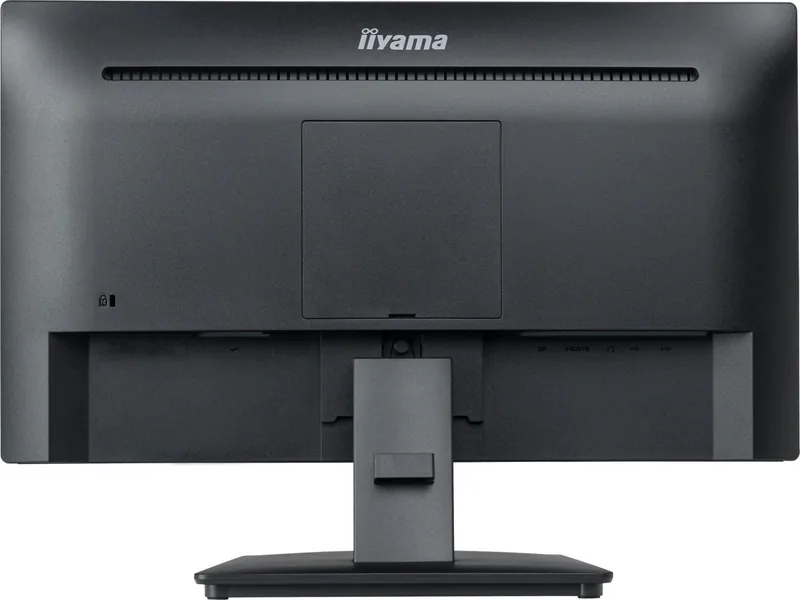
Connectivity options are versatile, allowing connection through HDMI and DisplayPort cables. Some models include USB downstream ports for peripheral charging or data transfer. The monitor supports VESA mounting standards, offering flexibility for desk setups or arm installations. Sound is handled by built-in 2W stereo speakers, though external audio solutions often provide better quality for immersive media consumption. Cable management is simplified with dedicated holders on the chassis to reduce clutter.
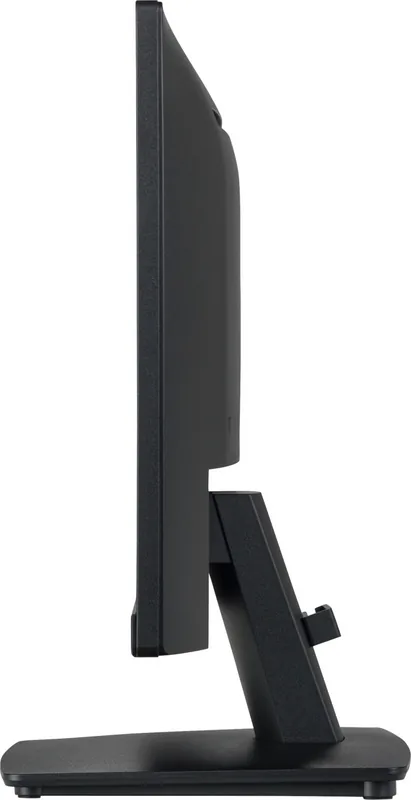
Ergonomics vary slightly between the XUB and XU variants. The XUB2294 models offer height adjustment along with tilt and swivel capabilities, ensuring a comfortable viewing angle for extended work sessions. The XU2294 models typically focus on tilt and swivel without the same height range. This distinction is vital for users seeking specific posture support. Users must ensure the stand base is stable to prevent tipping, especially when adjusting angles. Portrait mode is available for specific variants if the graphics card supports rotation, though landscape is standard.
Power consumption remains efficient, adhering to Energy Star guidelines under standard factory settings. However, enabling additional features may increase energy usage significantly. The standby mode consumes minimal power when the device is not actively processing signals. Users should follow safety guidelines regarding ventilation and avoiding water contact near the device. Regular cleaning with a soft dry cloth prevents dust accumulation without damaging the screen surface. Avoid harsh chemicals or rough materials that could scratch the finish. Operating the menu is intuitive via a joystick control system. Navigation covers brightness, contrast, color temperature, and input selection. The Blue Light Reduction feature helps minimize eye strain during late-night usage. While the monitors are not designed for 24/7 digital signage, they serve well for office and home environments. Understanding the specifications helps maximize the lifespan and performance of the unit. Proper configuration ensures the display operates within its optimal timing specifications for the best image fidelity. Installation involves securing the stand carefully to avoid damaging the chassis during assembly. Safety warnings emphasize not opening the casing to prevent electrical shock risks. If abnormalities like smoke occur, immediate disconnection is required.
Search for 67,706 Manuals online


Type-in Brand or Model