
iiyama ProLite XCB4594DQSN-B1 Manual
PDF manual · 34 Pages
English



Quick check
Incorrect answer, please try again.
Chat with your iiyama ProLite XCB4594DQSN-B1 manual using AI
Get instant AI answers from your iiyama ProLite XCB4594DQSN-B1 manual
Ask anything about the iiyama ProLite XCB4594DQSN-B1. Answers come from this manual, with the pages they are based on.
ProLite XCB4594DQSN-B1 Maintenance Schedule
Clean the display regularly with a dry soft cloth. Do not use paper towels as they may damage the LCD.
Remove stains with a damp soft cloth using a weak dish soap solution. Avoid long contact with rubber or plastic products.
Ask a Question
Do you recommend ProLite XCB4594DQSN-B1?
Yes NoFrequently Asked Questions
The native resolution is 5120×1440. Maximum refresh can reach 165Hz when using DisplayPort or USB-C with DSC/appropriate settings; HDMI 2.1 and DSC may be required for some high-rate modes.
Is this answer helpful?
Yes. The USB-C port supports Power Delivery up to 90W, allowing laptop charging and video/data over one cable. If your laptop requires more than 90W (especially during boot or heavy load), use the laptop’s original power adapter.
Is this answer helpful?
It suits both: Adaptive Sync, low MPRT (0.8ms), MBR and high refresh help gaming. HDR400 and user color/i-Style modes support improved image quality, though professional color grading may require external calibration for absolute accuracy.
Is this answer helpful?
The integrated stand offers 130mm height adjustment and tilt from 3° down to 20° up. VESA mounting supports 100×100 / 200×100mm standards and compatible desk arms (observe M4 screw length restrictions).
Is this answer helpful?
The on-screen menu lists feature dependencies: enabling HDR, DSC, MST or MBR can disable other functions. Check the function correlation matrices in the menu/manual and toggle settings to find a compatible combination for your desired mode.
Is this answer helpful?
Turn off and unplug the monitor before cleaning. Use a soft dry cloth for the screen; a mildly damp cloth for the cabinet. Avoid solvents (thinner, benzine, abrasive or spray cleaners) and do not insert objects or liquids into the monitor.
Is this answer helpful?
Verify power and signal cable connections, ensure the computer’s output timing is supported, and check standby status. Try keyboard/mouse to wake the monitor, adjust input selection, and consult troubleshooting steps or contact iiyama support if unresolved.
Is this answer helpful?
Advantages and Disadvantages
Advantages

- Ultra-wide 5120×1440 native resolution for expansive multitasking and seamless workflows.
- High contrast (3000:1), 450 cd/m² brightness and HDR400 support for vivid images.
- USB-C with 90W Power Delivery plus multiple USB ports and RJ45 for laptop docking convenience.
- High refresh options (up to 165Hz with DSC) and low MPRT (0.8ms) for smoother motion.
- Ergonomic stand (130mm height, tilt range) and VESA compatibility for flexible setups.
Disadvantages

- Not intended for portrait use or certain digital signage installations (landscape only).
- Some advanced features (DSC, MST, HDR, MBR) are mutually limiting and require menu tuning.
- USB-C PD limited to 90W; higher-draw devices may need their original chargers.
- Large size (44.5") demands adequate desk space and sturdy arm/stand rated for the weight.
- Certain installations require specific screw lengths (M4, 12mm) — wrong screws may damage internals.
Product Specification
Function
Monitor (stationary)
Diagonal
44.5" (44.49in)
Resolution
5120x1440 (DQHD), 32:9, 120ppi
Panel
VA
Backlight
LED, blue light filter, flicker-free
Brightness
450cd/m² (typical)
Contrast
3,000:1 (static), 80,000,000:1 (dynamic)
HDR
VESA DisplayHDR 400
Response time
0.8ms (GtG)
Refresh rate
165Hz (5120x1440)
Variable Synchronization
Adaptive Sync, AMD FreeSync Premium certified (48-165Hz via DisplayPort, 48-165Hz via HDMI, with LFC support, without HDR)
Signal frequency
30-260kHz (H)
Connections
2x HDMI 2.1 (165Hz@5120x1440), 1x DisplayPort 1.4 (165Hz@5120x1440), 1x USB-C 3.0 with DisplayPort 1.4 (Upstream, 5Gb/s, PD 90W, 165Hz@5120x1440), 3x USB-A 3.0 (Downstream, 5Gb/s), 1x 3.5mm jack (Line-Out), 1x RJ-45 1Gb LAN, 1x AC-In C13 (Power connection)
Shape
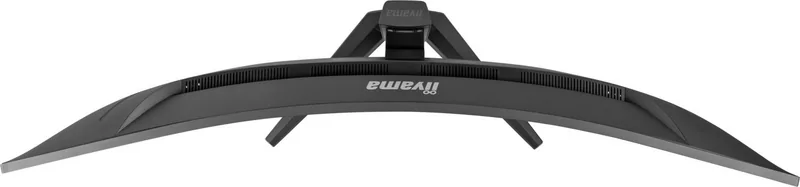
curved, 1500R/59.06in
Viewing angle
178°/178°
Coating
non-glare (matte)
Color depth
8bit (16.7 million colors)
FRC
N/A (8bit native)
sRGB
100%
NTSC
80%
Speakers
Speakers (2x 3W)
Controls
Joystick
Ergonomics
with stand, height adjustable (5.12in), Pivot N/A, rotatable N/A, tiltable (+20°/-3°)
VESA
100x100/200x100 (occupied)
Power consumption
37W (typical), 0.5W (Standby)
Energy efficiency SDR (A to G)
37kWh/1000h (F)
Energy efficiency HDR (A to G)
67kWh/1000h (G)
Special features
KVM switch, Slim Bezel
Screen-to-Body Ratio
90.11% (calculated)
Dimensions
42.91x16.10x10.83in (WxHxD) with stand compressed, 42.91x13.35x6.34in (WxHxD) without stand
Color
black (display frame) / black (lower bezel) / black (stand) / black (backside)
Weight
24.69lb (with stand)
Power supply
internal
Warranty
three years (processing via manufacturer, product registration within 60 days of purchase: Link, Warranty information: Link)
USB notation
Link
Product Description
iiyama ProLite XCB4594DQSN-B1, 44.5" Manual
Overview
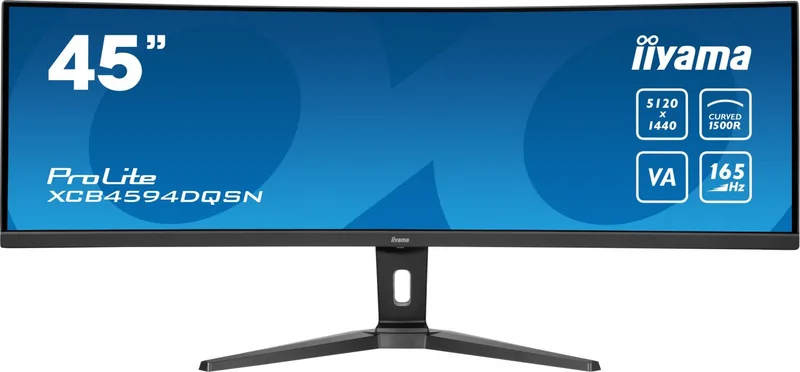
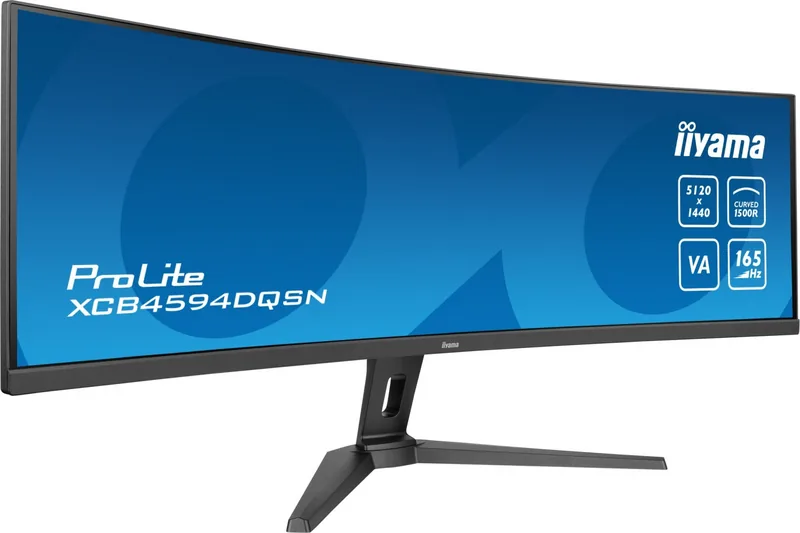
The iiyama ProLite XCB4594DQSN-B1 is a 44.5" curved (1500R) VA-panel monitor designed for immersive desktop use. With a native 5120×1440 resolution and up to 165Hz refresh (DSC/MST/HDMI 2.1 dependent), it targets power users who want expansive screen real estate for productivity, multimedia and gaming. The panel yields a high 3000:1 contrast ratio, 450 cd/m² typical brightness, and a fast MPRT 0.8ms response for crisp motion.
Key features and use cases
This model combines large-format multitasking with modern connectivity: dual HDMI, DisplayPort, USB-C (Alt Mode) with 90W Power Delivery, upstream/downstream USB ports and an RJ45 LAN. It supports HDR400, Adaptive Sync, flicker-free operation, blue light reduction and multiple picture modes (i-Style). Built-in 2×3W speakers and headphone output cover basic audio needs. VESA mounts and desk-arm compatibility expand installation options, while a height-adjustable stand (130mm) and tilt range (20° up, 3° down) enable ergonomic positioning.
For creative professionals and developers, the ultra-wide 5120×1440 canvas replaces multi-monitor setups with a single seamless workspace. Gamers benefit from high refresh rates and MBR/overdrive options; office users gain USB hub convenience and up to 90W charging for laptops via USB-C.
Practical notes
- Designed for landscape desktop use only; not intended for ceiling or certain wall-mounted digital signage applications.
- When using USB-C, ensure cables support full PD, video and data (USB-IF certified recommended). USB PD caps at 90W — use device chargers when higher wattage is required.
- Several features (DSC, MST, HDR, MBR, Direct Drive, specific HDMI versions) interact; enabling one may disable others. Consult the menu when configuring advanced modes.
- Stand removal and arm mounting require attention to screw length (M4, 12 mm max) to avoid contact with internal components.
Notes
- Supports resolutions and refresh combinations up to 5120×1440 @165Hz with DSC/HDMI 2.1 or DisplayPort configurations.
- Power consumption typical ~60W (37W default energy-saving); standby ≤0.5W.
- Avoid solvents and abrasive cleaners on the screen; use a soft dry cloth or mild detergent for the cabinet.
Search for 67,706 Manuals online


Type-in Brand or Model