

iiyama ProLite TF1215MC-B1 Manual
PDF manual · 36 Pages
English



Quick check
Incorrect answer, please try again.
Chat with your iiyama ProLite TF1215MC-B1 manual using AI
Get instant AI answers from your iiyama ProLite TF1215MC-B1 manual
Ask anything about the iiyama ProLite TF1215MC-B1. Answers come from this manual, with the pages they are based on.
ProLite TF1215MC-B1 Maintenance Schedule
Wipe spots with a soft damp cloth using mild dish soap solution. Do not use abrasive cleaners, solvents, or acidic/alkaline agents.
Use a soft clean cloth with mild commercial window glass cleaner or a 50/50 mix of water and IPA. Avoid acid or alkaline solvents.
Ask a Question
Do you recommend ProLite TF1215MC-B1?
Yes NoFrequently Asked Questions
The iiyama ProLite TF1215MC-B1 has a native resolution of 1024 x 768 pixels, optimized for clarity at this specific size.
Is this answer helpful?
The front panel is IP65 rated, meaning it is dust-tight and protected against low-pressure water jets, but the unit itself is not fully submersible.
Is this answer helpful?
Yes, it uses capacitive touch technology that supports multi-touch gestures compatible with Windows 8, 8.1, and 10 operating systems.
Is this answer helpful?
Yes, it conforms to the VESA 100mm x 100mm mounting standard, allowing for flexible wall or arm installation.
Is this answer helpful?
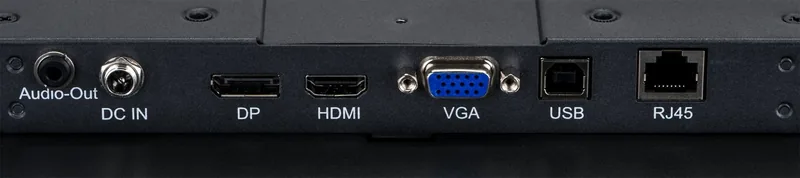
The monitor includes VGA, HDMI, and DisplayPort inputs, along with a USB port for touch data transmission.
Is this answer helpful?
Use a soft, dry cloth or a microfiber cloth lightly dampened with a mild glass cleaner or 50/50 water and IPA solution. Avoid harsh chemicals.
Is this answer helpful?
Advantages and Disadvantages
Advantages

- IP65 rated front panel protects against dust and water jets for harsh environments
- IPS technology provides wide 178-degree viewing angles with stable colors
- Capacitive multi-touch support works seamlessly with Windows 8 and 10
- Multiple connectivity options including HDMI, DisplayPort, and VGA
- Anti-fingerprint coating keeps the screen clear and easy to maintain
Disadvantages

- Not designed for true 24/7 continuous operation without maintenance
- Resolution is limited to 1024x768 compared to modern Full HD standards
- External power brick required adds clutter to the setup
- Touch drivers may require manual configuration on non-Windows systems
- Standby power consumption varies slightly based on USB connection status
Product Specification
Touchscreen
capacitive, multi-touch
Diagonal
12.1"/12.1 in
Resolution
1024x768, 4:3
Brightness
450 cd/m²
Contrast
1,000:1 (static), not specified (dynamic)
Response Time
25 ms
Viewing Angle
178°/178°
Panel
IPS
Backlight
White LED
HDR
N/A
Color Depth
8 bit (16.7 million colors)
Refresh Rate
60 Hz
Signal Frequency
31.4-60 kHz (horizontal), 56-75 Hz (vertical)
Connectors
1x VGA (60Hz@1024x768), 1x HDMI, 1x DisplayPort, 1x 3.5mm jack (Line-Out)
Other Connectors
1x USB-B (touch function)
Ergonomics
N/A
VESA
100x100 (free)
Power Consumption
not specified (max), 9W (typical), 11W (energy label old A+++ to G), 2W (standby)
Old Energy Efficiency Class (A+++ to G)
B
Annual Consumption Old (A+++ to G)
16.06 kWh
SDR Energy Efficiency Class (A to G)
F
SDR Power Consumption
11 kWh/1000h
Dimensions (WxDxH)
12.0x9.8x1.6 in
Weight
4.63 lbs
Special Features
IP65 certified (front)
Manufacturer Warranty
three years (processing via manufacturer, product registration within 60 days of purchase: Link, warranty information: Link)
Product Description
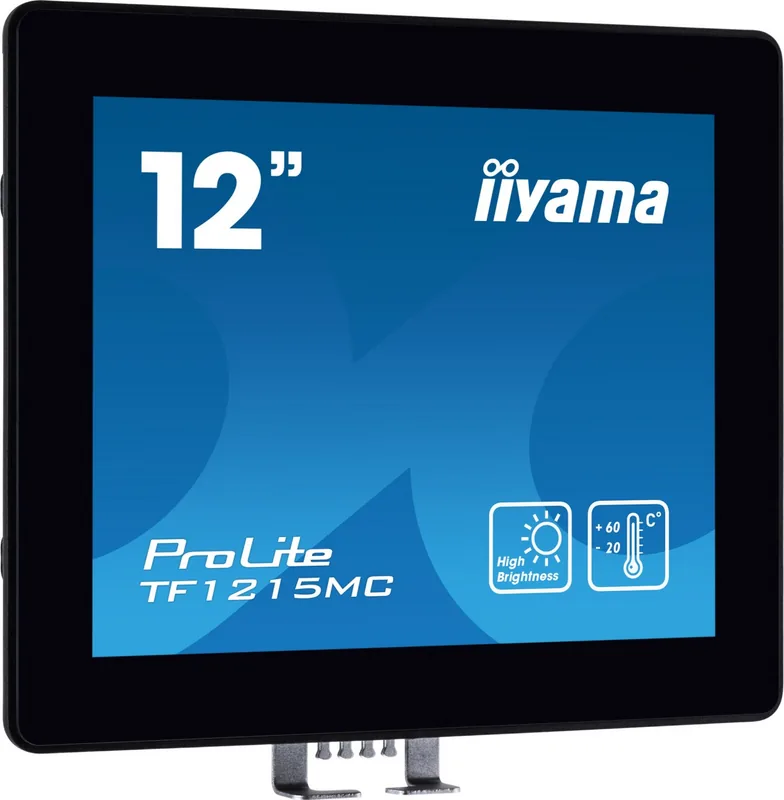
iiyama ProLite TF1215MC-B1: A Versatile 12.1 Inch Touch Solution
The iiyama ProLite TF1215MC-B1 stands out as a robust 12.1-inch display designed for environments requiring both precision and durability. This monitor integrates a high-quality IPS panel that delivers wide viewing angles of 178 degrees horizontally and vertically, ensuring consistent color reproduction from almost any position. With a native resolution of 1024 x 768 pixels, it offers sharp text rendering ideal for point-of-sale systems, industrial control panels, or compact workstations.
One of the standout features is its capacitive touch technology, which supports multi-touch gestures and responds accurately to fingers or styluses. The screen is treated with an anti-fingerprint coating, keeping the surface clean even in high-traffic areas. Additionally, the front bezel meets the IP65 standard, providing excellent protection against dust and water jets, making it suitable for demanding settings like food processing or outdoor kiosks where hygiene is critical.
Connectivity is comprehensive, featuring VGA, HDMI, and DisplayPort inputs alongside a dedicated USB port for touch functionality. Users can easily switch between sources using the intuitive On-Screen Display menu controlled by physical buttons on the back. The monitor also adheres to VESA mounting standards (100mm x 100mm), allowing flexible installation on arms or walls. While optimized for standard desktop use, it handles a variety of input signals efficiently, though users should note it is not specifically engineered for continuous 24/7 operation without breaks.
Key Highlights and Installation Notes
Setting up the iiyama ProLite TF1215MC-B1 involves connecting the power adapter and signal cables securely. It is crucial to ensure the computer supports Plug & Play for automatic detection. For optimal image quality, users are advised to run the auto-adjust feature or manually calibrate H-position and size if flickering occurs. The standby function helps save energy when the system is idle, dropping power consumption significantly below one watt in sleep mode.
Note: Always disconnect power before cleaning the unit to avoid electrical hazards. Note: Do not use abrasive cleaners or solvents on the screen; a soft cloth with mild detergent is recommended. Note: Ensure adequate ventilation around the monitor to prevent overheating during extended use.
Search for 67,706 Manuals online


Type-in Brand or Model