


iiyama ProLite T2252MSC-B1 Manual
PDF manual · 28 Pages
English



Quick check
Incorrect answer, please try again.
Chat with your iiyama ProLite T2252MSC-B1 manual using AI
Get instant AI answers from your iiyama ProLite T2252MSC-B1 manual
Ask anything about the iiyama ProLite T2252MSC-B1. Answers come from this manual, with the pages they are based on.
Ask a Question
Do you recommend ProLite T2252MSC-B1?
Yes No
Mia Keller
8 months ago
Does this product have height adjustment, or is the height fixed?

Manual.ly
8 months ago
The device is a solid setup, but it does not offer height adjustment. One reviewer noted the lack of height adjustment as the main drawback. If you need adjustable height for comfort or different users, you may need to pair it with an external solution (for example, a suitable stand or mat) that fits your desired working height.
Video Manual
Ilyama T2252MSC Touchscreen Monitor with Raspberry Pi 4
Frequently Asked Questions
Do not use standard paper towels or harsh chemicals. Use a soft dry cloth for dust. For fingerprints, use a slightly damp cloth with weak detergent. Never spray liquid directly on the screen to avoid moisture entering the device.
Is this answer helpful?
Yes, the Automatic Image Adjustment can be used to center the image. You may need to adjust brightness, contrast, or phase manually if you see flickering or if the image does not fit within the standard display area.
Is this answer helpful?
No, the notes indicate this product is not specifically designed for 24-hour continuous operation. It is recommended to turn it off when not in use for long periods to ensure safety and longevity.
Is this answer helpful?
The monitor supports VGA, HDMI, and DisplayPort connections. You will also find a USB connector for device data and a 3.5mm audio jack for sound output or input depending on your setup.
Is this answer helpful?
Yes, the device conforms to the VESA mounting standard with a 100mm by 100mm hole pattern, allowing it to be attached to compatible wall mounts or monitor arms for space saving.
Is this answer helpful?
Navigate to the color configuration menu in the OSD and activate the Blue Light Reducer feature. There are multiple levels available to adjust the reduction based on your personal comfort needs.
Is this answer helpful?
Press and hold the specific navigation buttons together for approximately ten seconds to unlock the power button. This prevents the device from being accidentally turned off or changed during normal operation.
Is this answer helpful?
Advantages and Disadvantages
Advantages

- Integrated capacitive touchscreen allows for direct interaction with on-screen elements enhancing workflow efficiency
- IPS panel technology provides consistent color reproduction and wide viewing angles up to 89 degrees
- Multiple connectivity options including HDMI, DisplayPort, and VGA ensure compatibility with various devices
- Built-in stereo speakers provide basic audio functionality without requiring external peripherals
- Energy management modes reduce power consumption when the system is inactive to save electricity
Disadvantages

- Screen brightness of 250 nits may be insufficient for very bright sunlight or high glare environments
- Maximum refresh rate is limited to 60Hz which may not satisfy high-end gaming requirements
- Monitor is not designed for 24/7 continuous operation which limits its use in industrial settings
- No integrated web camera requires users to source external peripherals for video conferencing
- Built-in speakers have lower power output limiting audio depth for immersive media consumption
Product Specification
Touchscreen
Capacitive, Multi-Touch
Screen Size
21.5 inches (54.6 cm)
Resolution
1920x1080, 16:9
Brightness
250 cd/m2
Contrast
1,000:1 (static), 5,000,000:1 (dynamic)
Response Time
7 ms
Viewing Angle
178 degrees/178 degrees
Panel
IPS
Backlight
White LED
HDR
N/A
Refresh Rate
60 Hz
Signal Frequency
Not specified (horizontal), not specified (vertical)
Ports
1x VGA (60Hz@1920x1080), 1x HDMI, 1x DisplayPort
Additional Ports
1x USB-B (Touch)
Ergonomics
N/A
VESA Mount
100x100 mm (supported)
Power Consumption
Not specified (max), 18.1 W (typical), Not specified (Energy Label old A+++ to G), 0.5 W (standby)
SDR Energy Efficiency Class (A to G)
F
SDR Energy Consumption
18 kWh/1000h
Dimensions (WxHxD)
19.33x14.61x8.69 inches
Weight
4.76 lbs
Features
Speakers
Manufacturer Warranty
three years (Processing by manufacturer, Product registration within 60 days after purchase: Link, Warranty details: Link)
Product Description
Comprehensive Review of the iiyama ProLite T2252MSC-B1
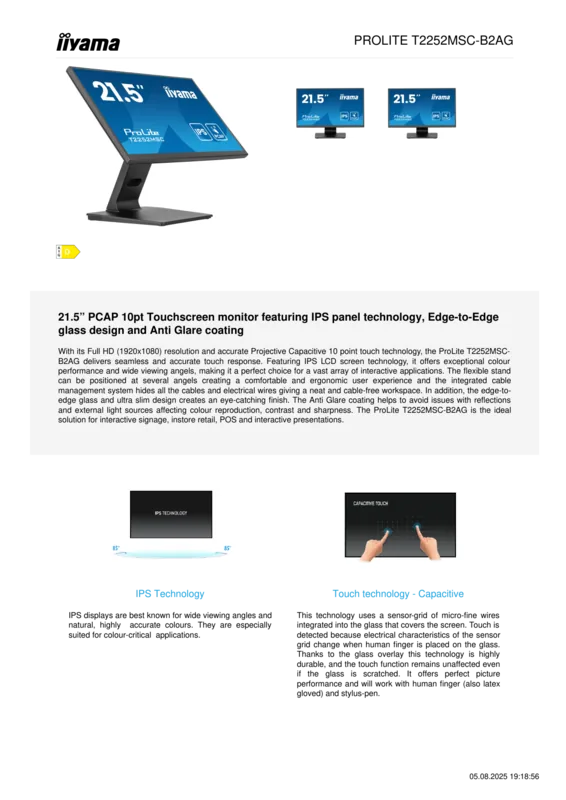
When working with modern office technology, choosing the right monitor is essential for productivity and comfort. The iiyama ProLite T2252MSC-B1 stands out in its segment due to its versatility and ease of use for daily tasks. This 21.5 inch display unit caters to professionals who need reliable performance without excessive complexity in their workflow. For detailed configuration steps and troubleshooting, users are advised to consult the iiyama ProLite T2252MSC-B1, 21.5 Manual to optimize their workstation experience significantly. The screen utilizes IPS panel technology which ensures consistent colors from wide viewing angles. This is particularly useful in shared office spaces where multiple people view the display simultaneously from different positions.
Touchscreen Capabilities and Ergonomics
The device integrates a capacitive touch function that adds interactivity to your daily computing tasks. This feature allows direct manipulation of on-screen elements, which streamlines navigation and control for various applications. The physical stand is robust and supports a significant range of tilt adjustments for user comfort. You can recline the screen back or tilt it forward to maintain a neutral neck posture over time. It is important to keep the area around the monitor clean to prevent dust accumulation in the ventilation slots. Regular maintenance is key to ensuring the longevity of the internal components and the external casing finishes remain pristine.
Connectivity and Audio Solutions
Connection options are varied to support different computer setups regardless of their make or age. The inclusion of HDMI ports alongside VGA inputs means compatibility with most graphics cards available today. Audio output is handled by integrated speakers which are sufficient for multimedia playback during breaks without external gear. If higher fidelity is needed, standard audio jacks allow external headphones to connect directly to the unit easily. Power management is handled through advanced protocols that reduce energy consumption during idle periods automatically. This helps keep operational costs down while meeting environmental standards for electronic equipment usage globally.
Image Adjustments and Safety
The On-Screen Display menu provides granular control over image parameters like sharpness, contrast, and brightness. You can adjust the color temperature settings to suit the ambient lighting conditions of your specific room. A blue light reducer function is available to minimize eye strain during long sessions of reading data or coding software. Safety protocols require the unit to be powered down before any cleaning or cable management occurs strictly. This prevents electrical hazards and protects the sensitive internal circuitry from damage caused by static or moisture ingress. Ultimately, this model offers a balanced solution for general computing needs in both home and corporate environments.
Final Notes
Additionally, the OSD lock feature prevents accidental changes to your preferred settings while working. This adds a layer of security for your visual preferences against unauthorized adjustments by others. Energy modes switch automatically based on activity, ensuring the device does not consume excess power when left unattended. These features combined make the unit a practical tool for sustained productivity without distraction.
Search for 67,706 Manuals online


Type-in Brand or Model
Julia Schmidt
9 months ago
I see great reviews, but did anyone notice if the height is adjustable? I need a flexible stand.
Manual.ly
8 months ago
Our records indicate this specific model does not have a height adjustment function. It is a fixed-height unit. This design choice ensures maximum stability during use. Please review the dimensions in the product description to see if the current height meets your needs.