
iiyama ProLite T1521MSC-B2 Manual
PDF manual · 30 Pages
English



Quick check
Incorrect answer, please try again.
Chat with your iiyama ProLite T1521MSC-B2 manual using AI
Get instant AI answers from your iiyama ProLite T1521MSC-B2 manual
Ask anything about the iiyama ProLite T1521MSC-B2. Answers come from this manual, with the pages they are based on.
Ask a Question
Do you recommend ProLite T1521MSC-B2?
Yes NoFrequently Asked Questions
The monitor is designed for an optimal resolution of 1024 by 768 pixels. It handles lower resolutions but may stretch the image. Using the native resolution is recommended for best clarity.
Is this answer helpful?
Use a soft clean cloth with water mixed with Isopropyl alcohol. Do not use harsh chemicals like solvents or acids as they will damage the coating. Avoid rough scrubbing materials.
Is this answer helpful?
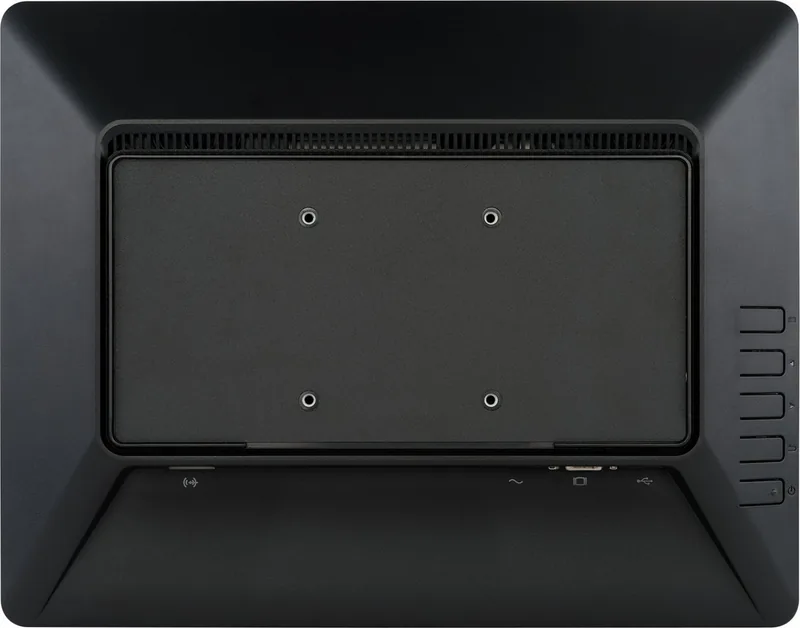
Yes, it conforms to the VESA mounting standard with a 75mm by 75mm pattern. Ensure you use M4 screws with a maximum length of 8mm to avoid damaging the chassis.
Is this answer helpful?
It supports Windows XP through 10 and Linux kernel 3.4 and higher. Touch drivers are needed for the digitizer function on specific systems to operate correctly.
Is this answer helpful?
No, this product is not developed specifically for 24/7 operation. Continuous use without breaks may lead to component stress. Recommended for standard business hours usage.
Is this answer helpful?
Check the power connection first. If powered, move the mouse or press a keyboard key to wake it from standby. Ensure the video signal timing matches specifications.
Is this answer helpful?
Yes, it includes two stereo speakers delivering 2 watts each. They provide adequate audio for presentations but may lack deep bass compared to dedicated sound systems.
Is this answer helpful?
Advantages and Disadvantages
Advantages

- Capacitive touch screen supports ten points for multi-user interaction
- Built-in stereo speakers simplify audio requirements for displays
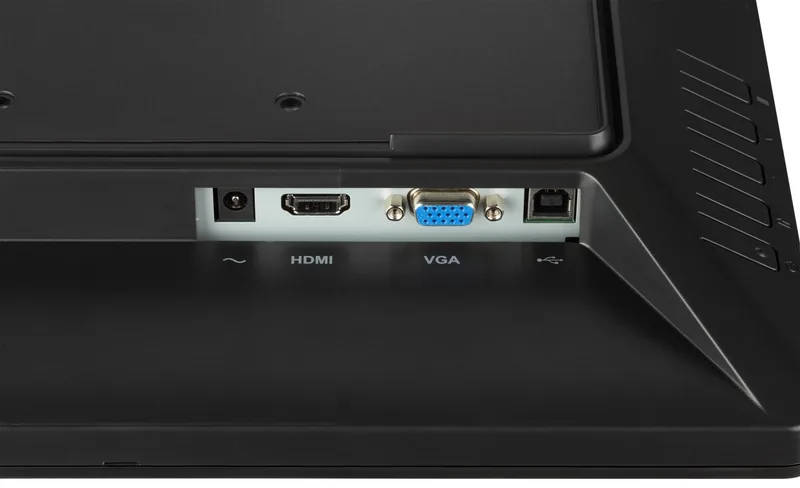
- Flexible connectivity options include HDMI and VGA ports
- Low power consumption in standby mode saves energy
Disadvantages

- Maximum resolution is limited to 1024 by 768 pixels
- Unit is not rated for 24 hour 7 day continuous operation
- Screen brightness decreases when touch panel is active
Product Specification
Touchscreen
Capacitive, Multi-Touch
Diagonal
15 inch
Resolution
1024 x 768, 4:3
Brightness
325 cd/m^2
Contrast
800:1 (static), not specified (dynamic)
Response Time
8 ms
Viewing Angle
160 deg / 160 deg
Panel
TN
Coating
Not specified, hardness 7H
Glass
0.05 inch
Backlight
White LED
HDR
N/A
Refresh Rate
60 Hz
Signal Frequency
31.4 - 60 kHz (horizontal), not specified (vertical)
Ports
1x VGA (60 Hz @ 1024 x 768), 1x HDMI (60 Hz @ 1024 x 768)
Other Ports
1x USB-B (touch functionality)
Ergonomics
N/A
VESA Mount
2.95 x 2.95 inch
Power Consumption
Not specified (max), 16 W (typical), Not specified (energy label old A+++ to G), 0.5 W (standby)
SDR Energy Efficiency Class (A to G)
E
SDR Energy Consumption
11 kWh / 1000 h
Dimensions (W x H x D)
13.41 x 12.13 x 7.80 inch
Weight
7.72 lbs
Features
Speakers (2x 2 W), IP65 certified (front side)
Manufacturer Warranty
three years (processing via manufacturer, product registration within 60 days of purchase: Link, warranty information: Link)
Product Description
Discovering Advanced Interactive Display Solutions
When selecting the perfect hardware for your workstation or interactive kiosk setup, efficiency and clarity matter immensely. The iiyama ProLite T1521MSC-B2, 15" Manual guides users through essential setup procedures to ensure seamless integration into daily workflows. This device is designed for professionals who require reliability in a space-saving form factor. Whether you are in retail, healthcare, or office environments, understanding the features is key to maximizing productivity and reducing downtime. Many organizations rely on such tools to streamline operations and enhance user engagement across various sectors effectively.
Performance and Visual Clarity Standards
At the heart of this monitor lies a responsive capacitive touch surface that supports ten simultaneous touch points. This ensures smooth navigation and interaction for applications requiring direct input from employees or customers. The panel delivers a standard resolution of 1024 by 768 pixels, which balances sharpness with the demands of legacy software systems still widely in use today. While the contrast ratio reaches up to 800 to 1 typically, the brightness levels offer visibility even in moderately lit rooms without glare issues. Blue light reduction technology helps reduce eye strain during long sessions, ensuring comfort over time for staff members working extended shifts. Digital sharpening further enhances text legibility on lower resolution settings, making it suitable for detailed tasks.
Connectivity and Expansion Capabilities
Versatility is a major strength here compared to competitors in this class. Users can connect via HDMI or VGA inputs, providing flexibility for older computers and modern laptops alike depending on available ports. A built-in USB hub allows peripheral devices to interface directly through the display, saving desk space and simplifying cabling arrangements significantly. Stereo speakers integrated into the frame deliver decent audio output without needing external soundbars or complex audio setups. This makes it ideal for digital signage or point-of-sale stations where simplicity reduces clutter and maintenance costs. Additional software drivers are available online to support specific operating systems including recent windows versions.
Ergonomics and Power Efficiency Considerations
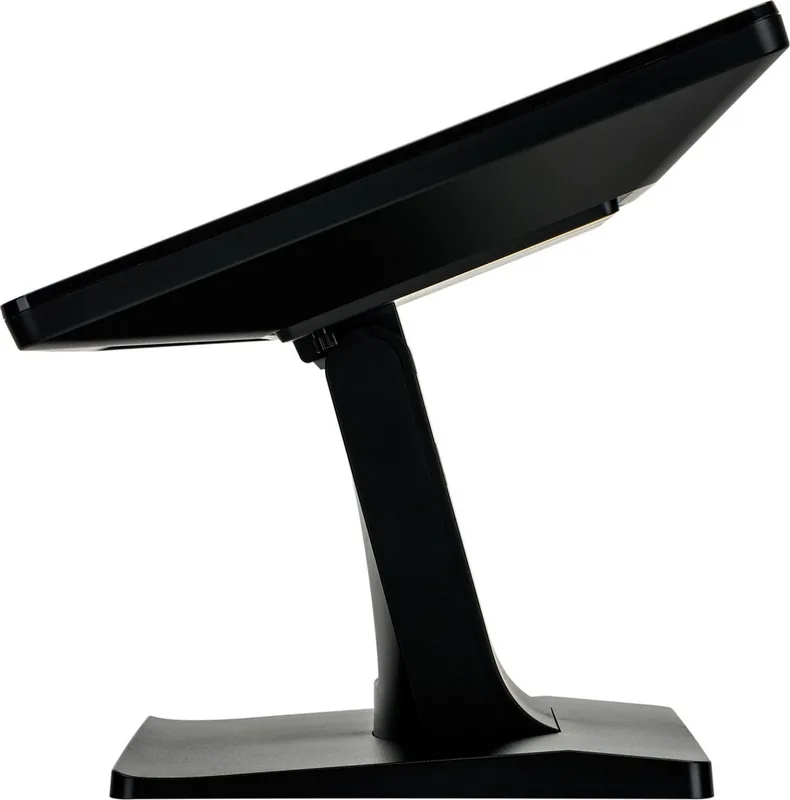
Adjustability remains a focus despite the slim profile found in many modern designs. The stand allows significant tilting backward and forward to find the optimal viewing angle for individual needs without straining the neck. VESA mounting patterns enable wall or arm installations when floor space is limited or when a clean aesthetic is required for public areas. Power consumption is kept low with a standby mode drawing less than one watt, which aligns well with energy saving initiatives while maintaining operational readiness for rapid wake up times. Always adhere to safety guidelines to prevent overheating and ensure safe operation around moisture sources. Proper cable management prevents accidents and prolongs the lifespan of the unit significantly. Remember that the unit is not intended for twenty four seven continuous operation to avoid premature wear on components internally. Cleaning requires specific agents to protect the coated glass surface from damage over many years of service life.
Installation and Maintenance Insights
Setting up the equipment involves straightforward assembly steps outlined in technical documentation. Removing the base allows access to VESA holes for secure attachment to mounts or walls. It is crucial to place the monitor on a stable surface to prevent falling hazards that could cause injury. Cable protection mechanisms should be utilized to avoid tripping or crushing wires under heavy furniture. Disconnecting power supplies is mandatory before moving the physical unit to transport locations safely. Regular cleaning with approved solutions maintains the optical quality of the screen without leaving streaks or residues.
Search for 67,706 Manuals online


Type-in Brand or Model