
Huion Kamvas 16 (2021) Manual
PDF manual · 131 Pages
English



Quick check
Incorrect answer, please try again.
Chat with your Huion Kamvas 16 (2021) manual using AI
Get instant AI answers from your Huion Kamvas 16 (2021) manual
Ask anything about the Huion Kamvas 16 (2021). Answers come from this manual, with the pages they are based on.
Kamvas 16 (2021) Maintenance Schedule
The nib will wear off after long use. Rotate the holder anticlockwise to open, remove old nib, and insert new one firmly.
Unplug USB cable before cleaning. Wipe with a soft damp cloth only; do not use detergents.
Ask a Question
Do you recommend Kamvas 16 (2021)?
Yes NoFrequently Asked Questions
The display ships with the battery-free PW517 stylus, featuring 8192 pressure levels, two customizable side buttons, 5080 LPI resolution, and a 10mm sensing height for accurate input.
Is this answer helpful?
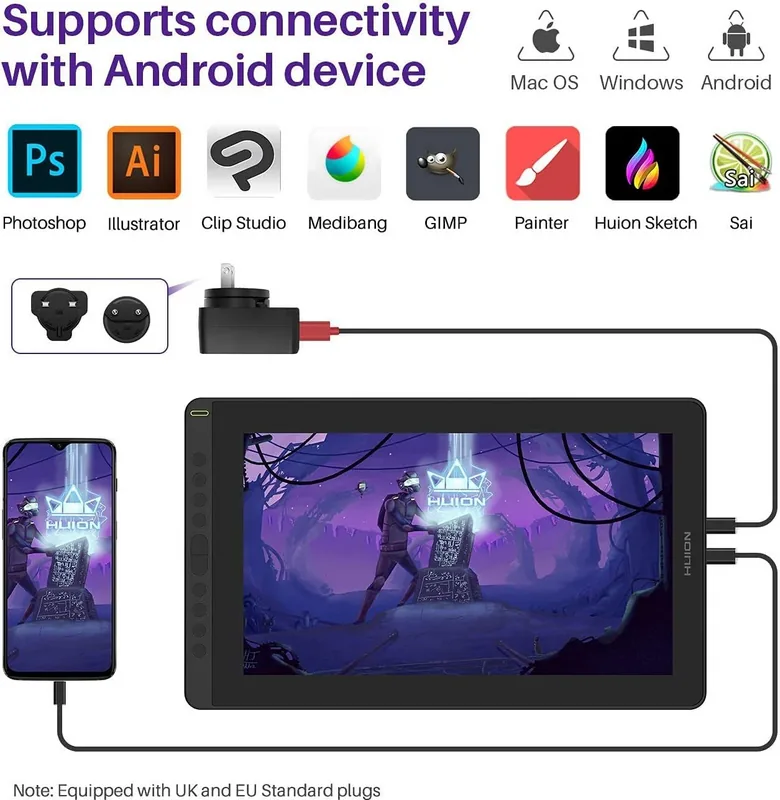
You can connect via the supplied 3-in-1 cable (HDMI for video, USB for data, USB for power) or with a single USB-C to USB-C cable that supports DisplayPort. Some setups require the power input from the 3-in-1 cable; avoid unsupported USB-to-HDMI adapters.
Is this answer helpful?
Huion provides drivers for Windows 7 and later and macOS 10.12 and later. Certain Android devices supporting USB 3.1 DP1.2 may work via USB-C, but check compatibility before connecting.
Is this answer helpful?
Uninstall other tablet drivers, close drawing software, reinstall the Huion driver, and restart the system. Use the driver’s pressure sensitivity slider and pen pressure test to calibrate and restore defaults if needed.
Is this answer helpful?
Yes. The driver’s Working Area lets you map the pen to a selected monitor in extended mode. In mirror mode the pen maps across all displays simultaneously; choose the mapped monitor in the driver interface.
Is this answer helpful?
Rotate the pen holder anticlockwise to open, remove a new nib from the holder, use the nib clip to pull out the old nib, and insert the new nib straight into the pen until it seats firmly.
Is this answer helpful?
Verify power and cable connections, ensure HDMI is plugged into your graphics card on desktops, set Windows to Duplicate/Extend (Windows+P), try alternate ports or cables, and avoid USB hubs or unsupported adapters.
Is this answer helpful?
Advantages and Disadvantages
Advantages

- PW517 battery-free pen with 8192 pressure levels and 5080 LPI for natural, precise strokes.
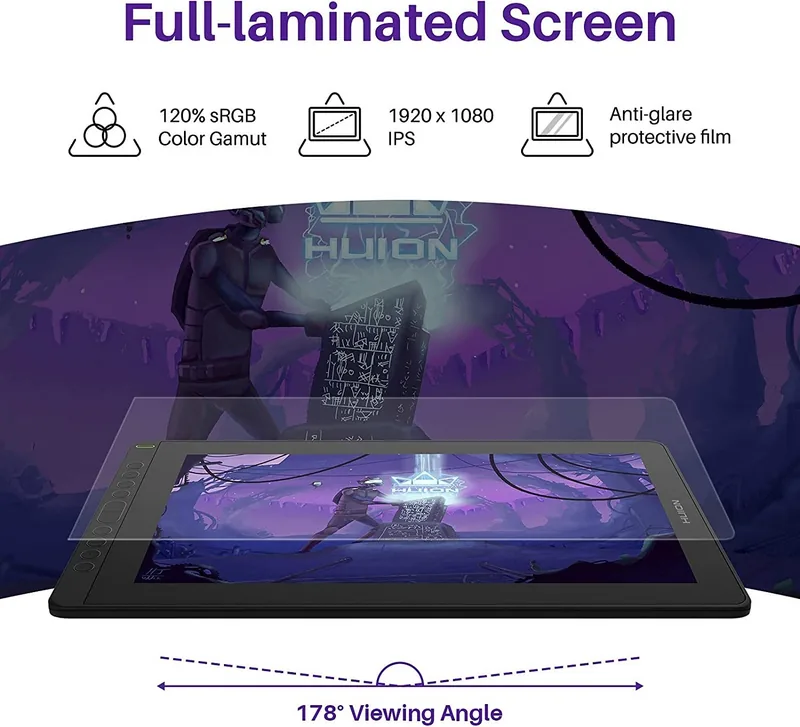
- 15.6" IPS panel, 1920×1080 resolution and 120% sRGB for vibrant color and wide viewing angles.
- Multiple connection options: bundled 3-in-1 HDMI/USB power or single USB-C (DP) cable.
- Driver features: working-area mapping, rotation, pressure tuning, hotkeys, profile export/import.
- Complete accessory pack: replacement nibs, pen holder, cables, cleaning cloth, power adapter.
Disadvantages

- Some setups require external power via the 3-in-1 cable, adding cable complexity.
- 220 cd/m² brightness may be insufficient in very bright environments.
- Full HD 1920×1080 limits pixel density versus higher-resolution displays.
- Driver conflicts can occur if other tablet drivers aren’t fully removed prior to install.
- USB-to-HDMI adapters and USB hubs are not recommended and may cause connection problems.
Product Specification
Type
Graphics tablet with screen
Active Area
12.25x7.62in
Pen
wireless, tip, 2 buttons
Resolution
5080lpi
Sensitivity Levels
8192
Tilt Range
60°
Max. Pen Distance
0.39in
Display
15.6", 1920x1080, IPS, 120% sRGB, Full Lamination
Signal Input
HDMI 2.0 (via 3in1-Cable), USB-C with DisplayPort 1.2
Brightness
220cd/m2
Contrast
1.000:1
Response Time
25ms
Buttons
10x Buttons
CPU
N/A
RAM
N/A
Storage
N/A
Graphics
N/A
Host Connection
USB-C
Other Connections
1x USB-A 2.0, 1x USB-C 3.0 with DisplayPort 1.2
Wireless
N/A
Card Reader
N/A
Webcam
N/A
Operating System
N/A
Power Consumption
7.8W (typical), no data (Standby), 0.3W (Sleep)
Dimensions
16.68x9.96x0.47in
Weight
2.78lb
Scope of Delivery
Main unit, Pen (PW517), 10x replacement nib, Pen holder (PH05), 2x glove, 3in1-Cable, USB-C to USB-C cable, USB power cable, USB extension cable, 1x cleaning cloth
Energy Efficiency Class SDR (A to G)
D
Energy Consumption SDR
8kWh/1000h
Product Description
Huion Kamvas 16 (2021) Twilight Blue — HDMI/DP Manual
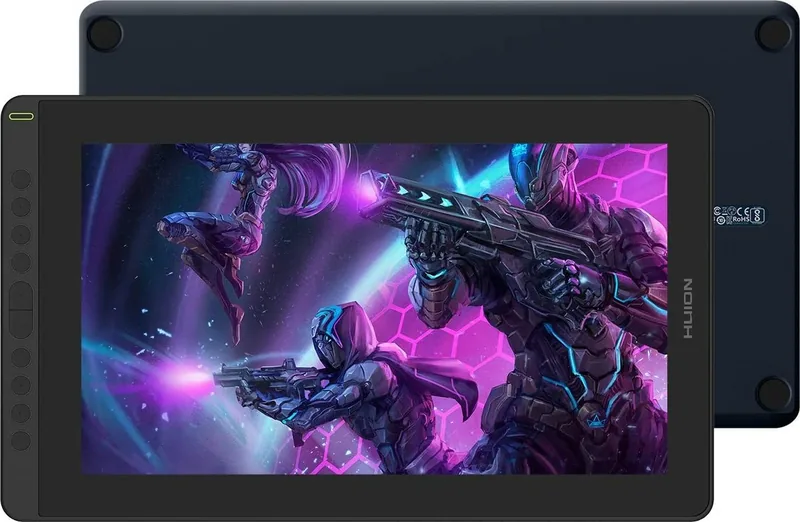
The Huion Kamvas 16 (2021) Twilight Blue is a 15.6-inch pen display designed for creative professionals and hobbyists who want a responsive, color-rich drawing surface with HDMI/DisplayPort connectivity. This model pairs an IPS 1920×1080 panel with a battery-free PW517 stylus offering 8192 pressure levels, 5080 LPI resolution, and a 10mm sensing height for accurate, paper-like strokes. The Twilight Blue finish gives the display a distinctive aesthetic while retaining the standard slim 12mm chassis and ergonomic proportions suitable for desktop use.
Set up is straightforward: connect via the bundled 3-in-1 cable (HDMI, data USB, power) or USB-C to USB-C, install Huion’s driver for Windows or macOS, then map the active pen area to your monitor. The driver includes working-area mapping for multi-monitor setups, rotation options (0°, 90°, 180°, 270°), pressure sensitivity adjustment, pen button customization, and export/import of profiles for different software workflows.
The display delivers vibrant visuals with 120% sRGB gamut coverage and 220 cd/m² brightness, while the IPS panel ensures wide viewing angles. Hardware features include eight programmable press keys, an OSD mode for screen adjustments, and optional adjustable stand compatibility for comfortable drawing angles. The kit includes replacement nibs, a pen holder, cleaning cloth, pen nib clip, and necessary cables and power adapter.
Daily operation focuses on natural pen handling—hold the pen like a regular pencil, use side buttons within 10mm of the surface, and replace nibs when worn using the pen holder tool. The driver provides a pen pressure test area and a pressure-sensitivity slider so you can fine-tune behavior for soft or firm strokes. Windows Ink support enhances compatibility with major creative apps such as Adobe Photoshop and other drawing software.
Troubleshooting guidance covers common issues: confirm cables and power for no-display situations, set the monitor to duplicate/extend modes as needed, ensure HDMI is connected to the graphics card on desktops, and reinstall drivers if pressure features fail. Avoid magnetic fields, use only specified power adapters, and unplug during cleaning or long periods of inactivity. For repairs or part replacement, contact Huion support to avoid unauthorized components.
Notes:
- Optimal resolution: 1920×1080 for sharp images.
- Recommended OS: Windows 7+ or macOS 10.12+; Android support via compatible USB-C (DP) devices.
- Keep vents clear to avoid overheating and do not use detergents when cleaning.
Pros and Cons
Pros:
- Responsive PW517 battery-free pen with 8192 pressure levels.
- Accurate 15.6" IPS display with 120% sRGB coverage.
- Flexible connectivity: 3-in-1 HDMI/USB power or USB-C DP.
- Customizable driver: mapping, hotkeys, pressure tuning, export/import.
- Slim, lightweight design with optional adjustable stand compatibility.
Cons:
- Requires external power via 3-in-1 cable in some setups.
- Brightness 220 cd/m² may be low for bright rooms.
- 1920×1080 limits pixel density compared to 4K panels.
- Potential driver conflicts if other tablet drivers remain installed.
- Some adapters (USB-to-HDMI) are not recommended and may cause issues.
Key Results (3–5 most important)
- Seamless pen performance: PW517 stylus, 8192 pressure levels, 5080 LPI, 10mm sensing for precise strokes.
- Reliable visuals: 15.6" IPS, 1920×1080 resolution, 120% sRGB color gamut for vibrant artwork.
- Versatile connectivity: supports 3-in-1 HDMI/USB power or single USB-C (DP) connection depending on host.
- Custom driver features: working-area mapping, rotation, pressure adjustment, hotkeys, and profile import/export.
- Practical bundle: includes replacement nibs, pen holder, cables, cleaning cloth, and power adapter.
FAQ
{ "question": "What stylus comes with the Huion Kamvas 16 (2021) Twilight Blue?", "answer": "The display ships with the battery-free PW517 stylus, featuring 8192 pressure levels, two customizable side buttons, 5080 LPI resolution, and a 10mm sensing height for accurate input." }, { "question": "Which connections does the display support?", "answer": "You can connect via the supplied 3-in-1 cable (HDMI for video, USB for data, USB for power) or with a single USB-C to USB-C cable that supports DisplayPort. Some setups require the power input from the 3-in-1 cable; avoid unsupported USB-to-HDMI adapters." }, { "question": "What operating systems are supported?", "answer": "Huion provides drivers for Windows 7 and later and macOS 10.12 and later. Certain Android devices supporting USB 3.1 DP1.2 may work via USB-C, but check compatibility before connecting." }, { "question": "How do I fix pressure sensitivity issues?", "answer": "Ensure other tablet drivers are uninstalled, close drawing software before driver installation, reinstall the Huion driver, and restart the computer. Use the driver’s pressure sensitivity slider and pen pressure test to calibrate." }, { "question": "Can I map the pen to a specific monitor in multi-monitor setups?", "answer": "Yes. The driver’s Working Area lets you map the pen to a selected monitor when using extended mode; in mirror mode the pen maps to all displays simultaneously." }, { "question": "How do I replace the pen nib?", "answer": "Open the pen holder anticlockwise, use the nib clip to remove the old nib, and insert the new nib straight into the pen until it stops. Replacement nibs are stored inside the pen holder." }, { "question": "What should I do if the display shows no signal?", "answer": "Check all cable connections and power, confirm HDMI is connected to your graphics card (desktop), set Windows to Duplicate or Extend via Windows+P, try a different port, and avoid USB hubs or unsupported adapters." }
Search for 67,706 Manuals online


Type-in Brand or Model