
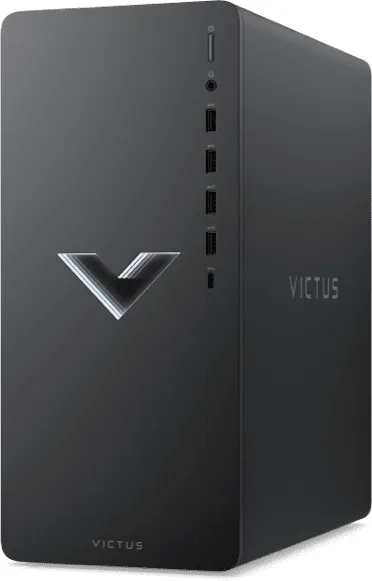
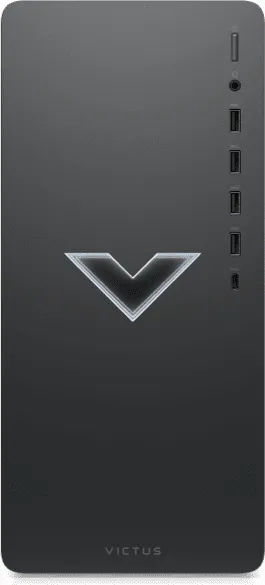
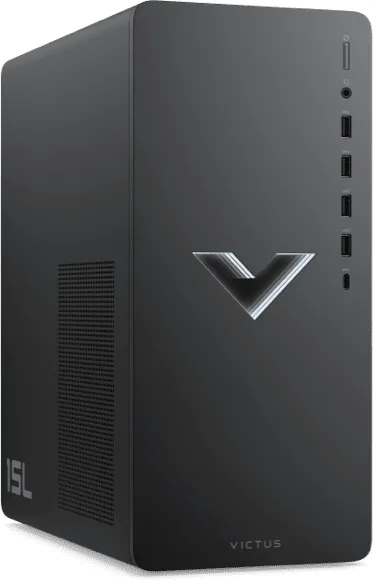
HP Victus 15L TG02-0000ng Manual
PDF manual · 64 Pages
English


Quick check
Incorrect answer, please try again.
Chat with your HP Victus 15L TG02-0000ng manual using AI
Get instant AI answers from your HP Victus 15L TG02-0000ng manual
Ask anything about the HP Victus 15L TG02-0000ng. Answers come from this manual, with the pages they are based on.
Victus 15L TG02-0000ng Maintenance Schedule
Use Disk Defragmenter to defragment your hard drive at least once a month. This is not necessary for solid-state drives.
Regularly remove dirt and debris from external surfaces using a microfiber cloth moistened with water or a 70% isopropyl alcohol solution.
Free maintenance reminders
Timed to your purchase date. Always free, unsubscribe anytime.
Ask a Question
Do you recommend Victus 15L TG02-0000ng?
Yes NoFrequently Asked Questions
Ensure your Wi-Fi device is enabled, click the network icon in the taskbar, select your available network, and enter the security code if prompted. You can also use the Network and Sharing Center for advanced settings.
Is this answer helpful?
Turn off and unplug the device. Use a microfiber cloth dampened with water or a 70% isopropyl alcohol solution. Do not spray liquid directly on the unit and avoid harsh chemicals like bleach or ammonia.
Is this answer helpful?
Yes, you can connect multiple displays using HDMI, DisplayPort, or VGA ports depending on your specific model configuration. Use the Windows key plus P to switch between display modes like duplicate or extend.
Is this answer helpful?
Open the HP Support Assistant app from the start menu or search bar, navigate to Updates, and let the system scan for and install the latest drivers and software automatically.
Is this answer helpful?
Yes, the USB ports support charging small devices like smartphones even when the computer is in standby mode, provided you use standard cables or adapters.
Is this answer helpful?
Check power connections, ensure the outlet works, and try a hard reset by holding the power button for ten seconds. If issues persist, consult the troubleshooting section for hardware diagnostics.
Is this answer helpful?
Advantages and Disadvantages
Advantages

- Versatile connectivity with USB Type-C, Thunderbolt, and HDMI support
- Easy setup process guided by comprehensive HP documentation
- Integrated HP Support Assistant for automatic driver updates
- Robust safety features preventing overheating and electrical hazards
Disadvantages

- Some advanced features require specific hardware configurations not present in all models
- Cleaning requires specific alcohol solutions to avoid surface damage
- Wireless range may be limited by physical obstacles or interference
- Initial setup requires internet access for full functionality activation
Product Specification
Form Factor
Tower
Flash
N/A
Front/Side Ports
1x USB-C 3.0 (5Gb/s), 2x USB-A 3.1 (10Gb/s), 2x USB-A 3.0 (5Gb/s), 1x 3.5mm Jack
Optical Drive
N/A
Camera
N/A
Dimensions
6.1x13.3x11.7in (WxDxH)
Volume
948.8cu in (calculated), 942.4cu in (manufacturer)
Warranty
one year
USB Notation
Left
Product Description
HP Victus 15L Desktop TG02-0000ng Intel Manual Overview
The HP Victus 15L Desktop TG02-0000ng is a powerful desktop computer designed to handle both demanding work tasks and immersive entertainment experiences. This guide provides essential insights into setting up, maintaining, and maximizing the performance of your system. Whether you are a gamer, a creative professional, or a home user, understanding the core functionalities of this machine ensures you get the most out of your investment.
Getting Started with Your Desktop
Upon unboxing, proper setup is crucial for optimal performance and longevity. The manual emphasizes placing the unit on a flat, stable surface where ventilation slots remain unobstructed to prevent overheating. It is recommended to connect all peripherals, including monitors and external drives, before powering on the system for the first time. Users should also ensure they have a reliable internet connection to download necessary drivers and updates via the HP Support Assistant.
Connectivity and Networking
One of the standout features of the HP Victus 15L is its versatile connectivity options. The desktop supports various network configurations, allowing users to connect via Wi-Fi, Bluetooth, or a wired LAN connection. For those who need high-speed data transfer, the USB Type-C ports offer Thunderbolt capabilities, enabling fast connections to external displays and storage devices. The manual details how to configure wireless settings, pair Bluetooth audio devices, and establish secure wired networks for stable gaming or streaming sessions.
Entertainment and Display Options
Transform your desktop into a complete entertainment hub. The system supports multiple display outputs, including HDMI, DisplayPort, and VGA, allowing for dual-monitor setups or connection to high-definition televisions. Audio enthusiasts can utilize advanced sound settings and connect external speakers or headsets through dedicated jacks. The guide explains how to adjust audio levels, manage sound effects, and optimize video playback for an immersive experience without lag.
Maintenance and Safety
Regular maintenance keeps your HP Victus running smoothly. The documentation advises on cleaning procedures using specific solutions like 70% isopropyl alcohol to disinfect surfaces safely. Users are warned against using harsh chemicals that could damage the chassis or internal components. Additionally, safety tips regarding heat management and electrical grounding are provided to ensure long-term reliability. Periodic defragmentation and driver updates are also highlighted as key practices for maintaining peak system speed.
Important Notes
- Always power down the system before connecting non-USB hardware.
- Use only latched original software to avoid stability issues.
- Keep ventilation areas clear of dust and debris.
- Back up data regularly using Windows tools or HP recovery media.
Search for 67,706 Manuals online


Type-in Brand or Model