
HP Pavilion 27-ca1000 Manual
PDF manual · 65 Pages
English


Quick check
Incorrect answer, please try again.
Chat with your HP Pavilion 27-ca1000 manual using AI
Get instant AI answers from your HP Pavilion 27-ca1000 manual
Ask anything about the HP Pavilion 27-ca1000. Answers come from this manual, with the pages they are based on.
Pavilion 27-ca1000 Maintenance Schedule
HP recommends defragmenting the hard drive at least once a month to improve performance. Note that this is not required for solid-state drives (SSDs).
Clean the computer regularly to remove dirt and contaminants using a microfiber cloth dampened with water or a 70% isopropyl alcohol solution.
Free maintenance reminders
Timed to your purchase date. Always free, unsubscribe anytime.
Ask a Question
Do you recommend Pavilion 27-ca1000?
Yes NoFrequently Asked Questions
The 27-ca1000 Series provides a large 27-inch display with options for flicker-free panels and low-blue-light modes. Select models include factory-calibrated low-blue-light hardware or software settings accessible through HP Display Control or myHP apps to reduce eye strain.
Is this answer helpful?
The system supports HDMI and DisplayPort connections and, on select models, USB Type-C with DisplayPort or Thunderbolt support and Dual-Mode DisplayPort. Use Windows + P to switch among PC screen only, Duplicate, Extend, and Second screen only modes.
Is this answer helpful?
Use HP Support Assistant to check for and install updates for programs and drivers. You can also use Windows Update for driver checks and visit HP Support at hp.com/support to download device-specific firmware and driver packages.
Is this answer helpful?
You can use Windows built-in backup tools, create recovery media, or use the HP Cloud Recovery Download Tool on select products. HP also documents methods for system restore, restoring from HP recovery media, and changing boot order for recovery tasks.
Is this answer helpful?
Security features include user and administrator BIOS passwords, Windows Hello (fingerprint or facial sign-in on equipped models), preinstalled antivirus trial software, and firewall protections. Regular updates and strong passwords improve protection.
Is this answer helpful?
Enable Bluetooth under Windows Settings > Bluetooth & other devices, then Add Bluetooth or other device to pair. For wireless networks, use the network status icon on the taskbar to view and connect to available WLANs or configure cellular settings for mobile broadband on select models.
Is this answer helpful?
Turn off and unplug the system before cleaning. Use a moist microfiber cloth for surfaces and a 70% isopropyl alcohol/30% water mix for disinfecting if needed. Use HP Easy Clean on supported models to temporarily disable input devices, and follow HP guidance for wood veneer and ventilation care.
Is this answer helpful?
Advantages and Disadvantages
Advantages

- Large integrated 27-inch display with flicker-free and low-blue-light options for comfortable long-term viewing
- Multiple modern connectivity options: USB-A, USB-C/Thunderbolt, HDMI, DisplayPort, and dual-mode DP support
- Strong multimedia features: integrated cameras, quality audio tuning, and built-in support for Miracast wireless displays
- Comprehensive maintenance and recovery tools including HP Support Assistant and HP PC Hardware Diagnostics
- Security features such as Windows Hello, admin/BIOS passwords, firewall, and preinstalled antivirus trials
Disadvantages

- Some advanced features (mobile broadband, 3D DriveGuard, specific display modes) are only on select configurations
- Integrated design limits internal upgrade options compared with tower desktops
- Certain display and port features require additional cables or accessories purchased separately
- Preinstalled trial security software may require an additional purchase for long-term protection
- High-resolution or multi-monitor setups may need manual resolution adjustments for best results
Product Specification
Form Factor
All-in-One
Flash
N/A
Optical Drive
N/A
Authentication
IR Camera
Operating System
Windows 11 Home
Dimensions
24.13x8.19x18.73in (WxHxD)
Weight
18.30lb
Volume
16.03 gal (calculated)
Color
white (Snowflake White)
USB Type
Link
Product Description
HP Pavilion All-in-One 27-ca1000 Series Manual
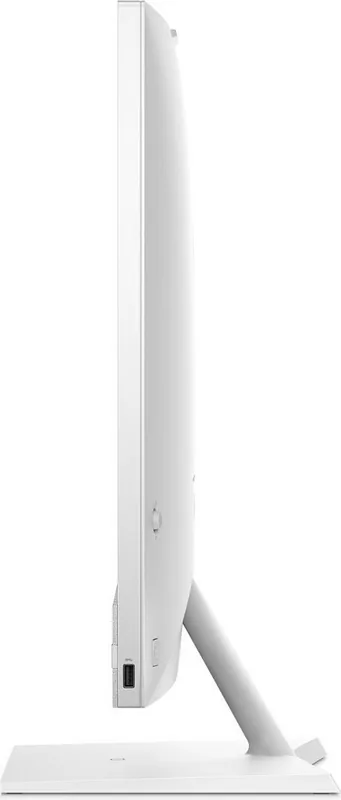
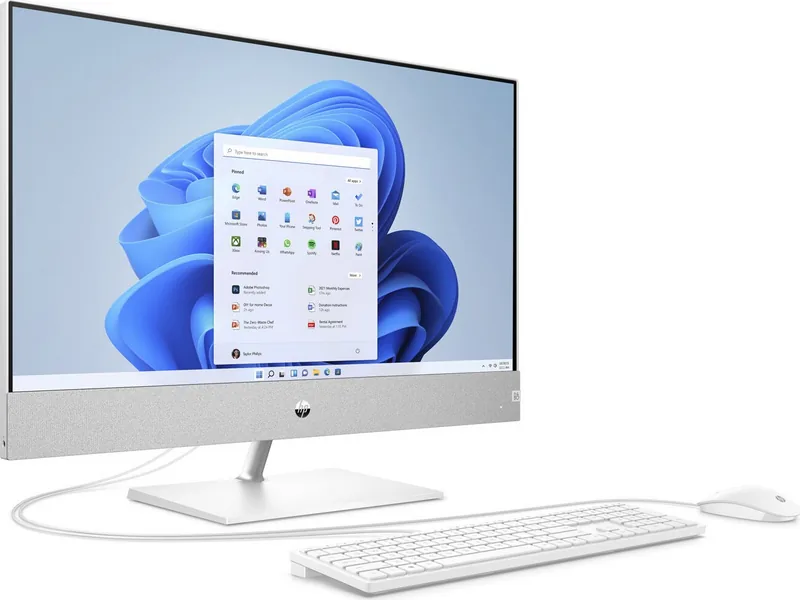
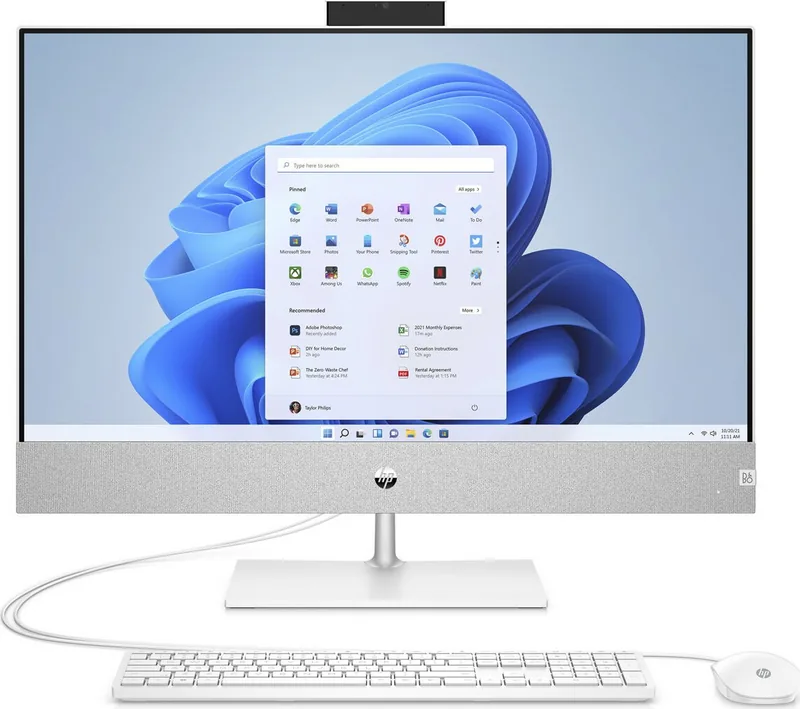
The HP Pavilion All-in-One 27-ca1000 Series blends modern design with practical features aimed at home and small-office users who want a powerful, space-saving desktop. This all-in-one offers a large 27-inch display, multiple connectivity options, customizable display settings, solid multimedia capabilities, and built-in tools for system maintenance and security. It’s geared toward users who value an elegant, clutter-free workstation that still delivers the ports, performance, and support features needed for everyday productivity, entertainment, and remote work.
Overview and key capabilities
The Pavilion 27-ca1000 lineup emphasizes a bright, comfortable viewing experience with options for flicker-free displays and low-blue-light modes to reduce eye strain during extended use. The large screen supports multiple display outputs and can connect to external monitors or TVs via HDMI, DisplayPort (USB-C), or Dual-Mode DisplayPort adapters. Video modes (Duplicate, Extend, Second screen only) are easily toggled with Windows shortcuts for flexible multi-display workflows.
Under the hood, the system supports contemporary Intel processors and provides fast I/O through SuperSpeed USB and USB-C/Thunderbolt ports, enabling quick file transfers and peripheral connectivity. Wireless features include Wi‑Fi, optional HP Mobile Broadband, Bluetooth for peripherals and audio devices, and Miracast support for wireless display streaming.
Multimedia and input
Integrated camera options (including front-facing cameras and possible pop-up designs) and Bang & Olufsen–tuned audio (on some models) make the Pavilion 27 a capable hub for video conferencing, streaming, and media playback. Audio and video settings are accessible through Windows sound controls and vendor audio panels, while the camera is managed through the Windows Camera app. Headphones, microphones, speakers, and headsets are supported via combo jacks, USB, or Bluetooth.
Maintenance, recovery, and security
HP provides a comprehensive set of maintenance tools: Disk Cleanup/Defragmenter, HP 3D DriveGuard for mechanical drives, HP Support Assistant for updates, and HP PC Hardware Diagnostics for hardware testing. Recovery and backup options include Windows tools and HP Cloud Recovery (on select models). Security features include Windows Hello (fingerprint/IR camera), user and administrator BIOS passwords, preinstalled antivirus trials, and firewall protections.
Practical usage and care
The manual emphasizes safe, ergonomic use—positioning for ventilation, regular breaks to reduce strain, and cleaning procedures (including HP Easy Clean and disinfectant guidance). Detailed setup notes cover connecting wired LAN, configuring wireless networks, using mobile broadband/SIM activation, and tips for traveling or shipping the unit safely.
Notes
- Low-blue-light and flicker-free display options vary by model.
- Some features (HP Mobile Broadband, HP 3D DriveGuard, USB-C DisplayPort/Thunderbolt) are available only on select configurations.
- Keep firmware and drivers updated via HP Support Assistant for best performance.
Search for 67,706 Manuals online


Type-in Brand or Model