
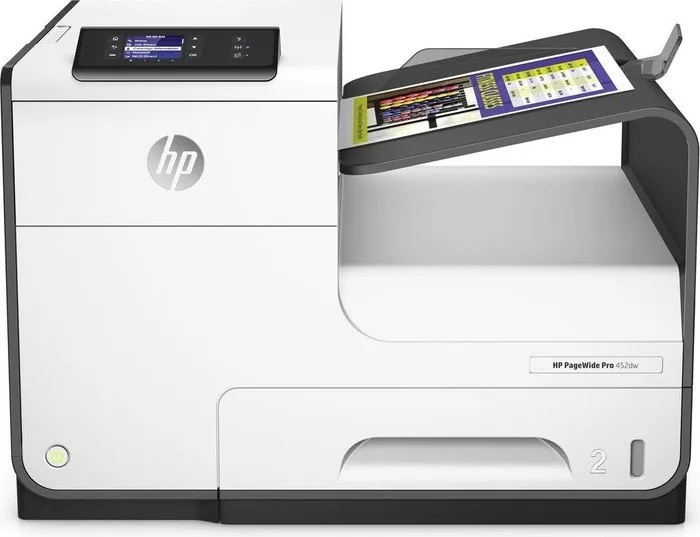
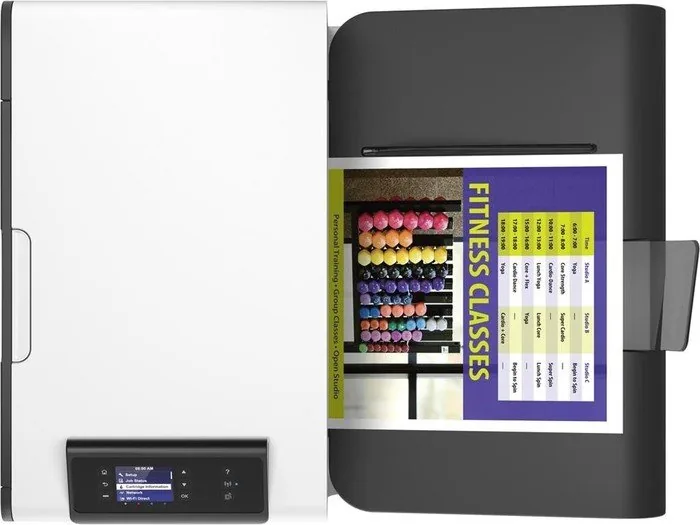
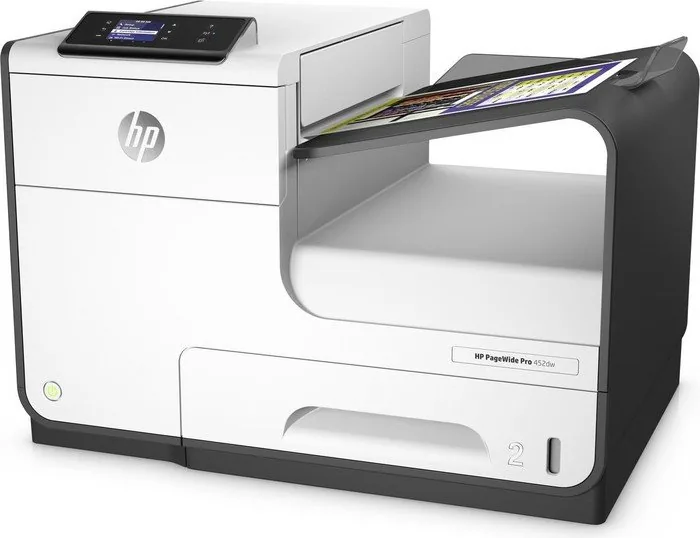
HP PageWide Pro 452dw Manual
PDF manual · 113 Pages
English


Quick check
Incorrect answer, please try again.
Chat with your HP PageWide Pro 452dw manual using AI
Get instant AI answers from your HP PageWide Pro 452dw manual
Ask anything about the HP PageWide Pro 452dw. Answers come from this manual, with the pages they are based on.
PageWide Pro 452dw Maintenance Schedule
Use this routine only to correct print quality errors. Do not use it for periodic maintenance.
Wipe gently with a clean, water-dampened, lint-free cloth whenever fingerprints or dust appear.
Ask a Question
Do you recommend PageWide Pro 452dw?
Yes NoFrequently Asked Questions
It combines fast color output, duplex printing, large paper capacity, and flexible network options. That makes it a practical choice for teams that print often and need reliable everyday performance.
Is this answer helpful?
Yes. It supports wireless networking, Wi‑Fi Direct, HP ePrint, and AirPrint. Users can print from laptops, tablets, and mobile devices without always needing a direct cable connection.
Is this answer helpful?
Yes, if Web Services are enabled and the printer is connected to the Internet. HP ePrint lets you send files by email to the printer’s assigned address and print from almost anywhere.
Is this answer helpful?
It supports standard office paper, envelopes, labels, letterhead, photo media, and heavier stock within the recommended weight limits. Tray 1 is the most flexible for specialty media.
Is this answer helpful?
Quiet Mode reduces printer noise, which is helpful in shared or quiet workspaces. The tradeoff is slower printing, so it is best used when noise reduction matters more than speed.
Is this answer helpful?
Ink levels can be viewed from the control panel through Cartridge Information and Estimated Levels. The EWS and printer software also provide supply status for planning replacements ahead of time.
Is this answer helpful?
Advantages and Disadvantages
Advantages

- Fast color and black printing with strong duplex performance for busy office workloads.
- Flexible connectivity includes Ethernet, Wi‑Fi, Wi‑Fi Direct, HP ePrint, and AirPrint support.
- Large paper capacity and multiple tray options reduce refills and support mixed media tasks.
- Energy-saving modes, duplex printing, and supply monitoring help cut waste and control costs.
Disadvantages

- Quiet Mode can lower noise, but it also reduces printing speed.
- Web services and HP ePrint require an Internet connection and do not work over USB alone.
- Some paper types and media sizes are restricted, especially for envelopes and specialty stock.
- Control-panel text is small, which may be less convenient for extended viewing.
Product Specification
Format
A4
Type
Inkjet printer
Color system
4-color, 4x individual cartridge
Consumables
973X
Printing
1200x1200dpi - 40/40 ppm (A4) (ISO)
Paper input
Duplex unit
Memory
512MB (RAM)
Ports
1x USB-B 2.0, 1x USB-A 2.0 (Host)
Network
LAN, Wi-Fi 4 (WLAN 802.11b/g/n), NFC, AirPrint, Cloud Print, Mobile Print
Display
monochrome, 2"
Power consumption
100W (maximum), 70W (typical), 9.5W (standby), 4.5W (sleep)
Sound pressure level
56.0dB(A)
Emulation
PCL 6, PostScript 3, PDF
Dimensions
20.87x14.92x16.03in
Weight
36.12lb
Special features
Direct Print, Blue Angel
Manufacturer's warranty
1 year
Product Description
HP PageWide Pro 452dw: Color Printing Built for Fast-Paced Work
The HP PageWide Pro 452dw blends speed, color quality, and everyday practicality into one business-friendly printer. Designed for teams that need dependable output without constant interruptions, it delivers sharp text, vivid multicolored pages, and efficient duplex printing that helps reduce both paper use and operating costs.
A closer look at what stands out
This model is built to handle real office demand. With a roomy Tray 2 capacity and support for an optional Tray 3, it can keep up with frequent print jobs while minimizing refills. Tray 1 adds extra flexibility for special media, envelopes, labels, and heavier paper stocks, making it easier to switch between routine documents and more polished materials.
Connectivity is another major strength. The HP PageWide Pro 452dw supports wired networking, wireless setup, Wi‑Fi Direct, and mobile-friendly printing options such as HP ePrint and AirPrint. That means users can print from desktops, laptops, tablets, and smartphones with less friction, whether they are on-site or working remotely. The built-in control panel and HP Embedded Web Server also make it easier to manage settings, monitor supplies, and adjust preferences.
Designed for efficiency
HP also gives this printer a strong environmental edge. Automatic duplex printing comes standard, helping reduce paper waste. Energy-saving sleep modes and scheduling tools allow the printer to power down intelligently when it is not in use. For offices focused on sustainability, these details matter just as much as speed.
Maintenance is straightforward too. Cartridge status can be checked from the control panel, and the printer includes tools for print-quality improvement, troubleshooting, and network configuration. Security settings, password protection, and firewall options add a useful layer of control for shared work environments.
Notes
- Best suited for offices that need fast color output and flexible connectivity.
- Works well for everyday documents, reports, and mixed paper needs.
- Quiet Mode can reduce noise, though it may slow printing.
- Using recommended paper and genuine HP cartridges helps maintain print quality.
Search for 67,732 Manuals online


Type-in Brand or Model
Thérèse Riou
10 months ago
How reliable is the printer in everyday use, and how often do I need to run the cleaning process? Also, where can I get ink?
Manual.ly
10 months ago
Customers report it runs reliably with no major issues during everyday use. They do occasionally need to start the cleaning process, but it is not constant. For ink, people say they can buy it regularly at lower prices from online marketplaces such as willhaben (often cheaper than many other retailers). If you want, you can follow the cleaning steps in the manual when print quality drops to keep the device performing consistently.