
HP OfficeJet Pro 9120B Manual
PDF manual · 139 Pages
English


Quick check
Incorrect answer, please try again.
Chat with your HP OfficeJet Pro 9120B manual using AI
Get instant AI answers from your HP OfficeJet Pro 9120B manual
Ask anything about the HP OfficeJet Pro 9120B. Answers come from this manual, with the pages they are based on.
OfficeJet Pro 9120B Maintenance Schedule
Wipe the scanner glass and lid backing with a soft cloth. Ensure they are clean to prevent scanning errors.
Use a damp, lint-free cloth to wipe down the outside of the printer. Do not use abrasive cleaners or solvents.
Open the document feeder cover and clean the rollers and glass strip inside with a lint-free cloth moistened with water.
Replace cartridges when ink levels are low or print quality degrades. Use only Original HP cartridges for best results.
Ask a Question
Do you recommend OfficeJet Pro 9120B?
Yes NoDo you recommend OfficeJet Pro 9120B?
Yes NoFrequently Asked Questions
You can link via Wi-Fi for maximum mobility. Use the HP software on your device or the control panel menu to select your network and enter the password. Turn on Wi-Fi mode from the network settings menu.
Is this answer helpful?
Yes, mobile printing capabilities ensure you can send content from your smartphone or tablet anywhere in the house. Use the HP software or AirPrint depending on your operating system.
Is this answer helpful?
Managing supplies is straightforward with real-time ink level monitoring. You should receive alerts when levels are low to prevent interruptions during critical work.
Is this answer helpful?
The automatic paper feeder simplifies multiple sheet copying and scanning tasks, saving time compared to handling single sheets manually.
Is this answer helpful?
Advanced fax features include blocking unwanted numbers and storing sent faxes for later reprinting. You can also schedule faxes for later times.
Is this answer helpful?
Energy conservation settings help reduce power usage when the machine is idle, supporting an eco-friendly workflow.
Is this answer helpful?
Yes, you can also configure the printer to auto-update firmware, or manually check for updates from the control panel menu.
Is this answer helpful?
Advantages and Disadvantages
Advantages

- Supports multiple connection types including Wi-Fi Direct and Ethernet for flexible networking options
- Includes advanced fax capabilities such as memory storage and blocking unwanted numbers
- Real-time ink level monitoring prevents interruptions and keeps workflow running smoothly
Disadvantages

- Setup process requires specific software configuration and network knowledge for initial connectivity
- Firmware updates may require network availability and can temporarily pause operations
- Physical size is substantial so it may not fit on small desktop workspaces easily
Product Specification
Paper Size
A4 (Print), A4 (Scan)
Type
Printer / Scanner / Copier / Fax
Color System
4-color, 4x Individual Cartridges
Consumables
HP 937, HP 937e, HP 938, HP 938e
1200x1200dpi - 22 / 18 ppm (A4) (ISO)
Scan
1200x1200dpi
Copy
600x600dpi
Paper Input
500 sheets (2x 250 sheets), DADF (35 sheets), Duplex Unit
Memory
512MB (RAM)
Ports
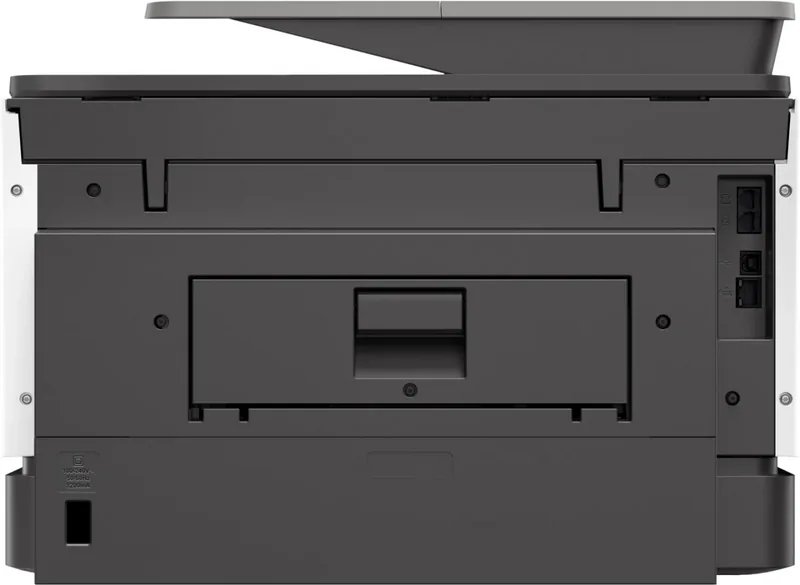
1x USB-B 2.0, 1x USB-A 2.0 (Host), 2x Fax (RJ-11)
Network
LAN, Wi-Fi 4 (802.11b/g/n), NFC, Wi-Fi Direct, AirPrint, Cloud Print, Mopria
Display
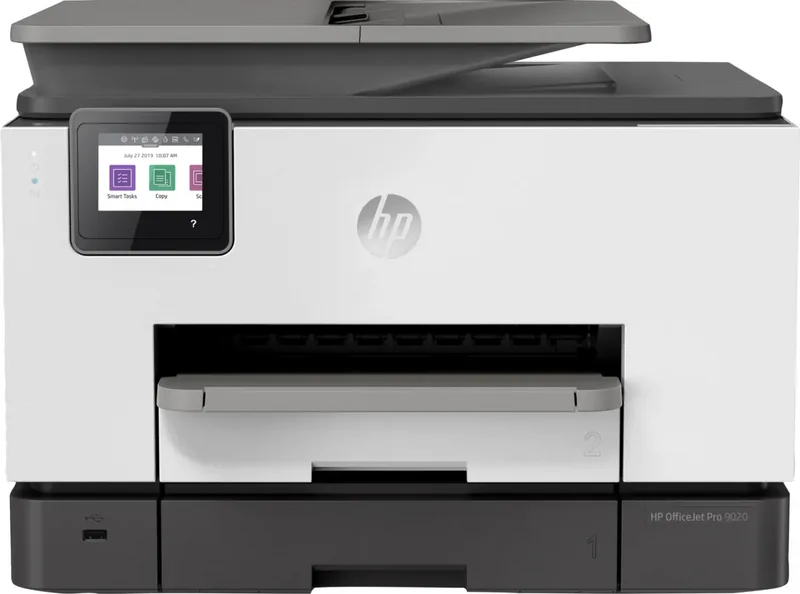
Color, 2.65", Touchscreen
Power Consumption
30W (max), 5.8W (standby), 1.22W (sleep), 0.13W (off)
Emulation
PCL 6, PCL 5, PostScript 3, PDF
Chassis Color
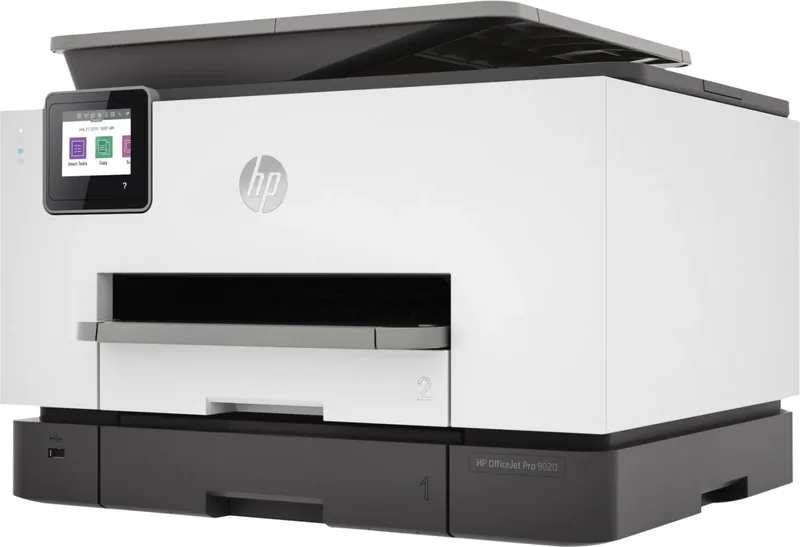
White
Dimensions
17.20x12.53x15.60in
Weight
25.02lbs
Features
Borderless printing, Instant Ink capable
Manufacturer Warranty
1 Year
Product Description
Revolutionize Your Workspace with the HP OfficeJet Pro 9120B
Welcome to the modern era of office efficiency with the HP OfficeJet Pro 9120B e-All-in-One. This robust machine promises to streamline your daily workflow while delivering professional results. Designed for small businesses and busy households, it combines speed, reliability, and smart connectivity. Whether you are printing invoices or scanning family photos, this device handles it all with ease. The integration of robust hardware and intuitive software makes managing tasks significantly easier than with older models.
One standout feature is its robust connection options. You can link via Wi-Fi for maximum mobility, use an Ethernet cable for a stable wired link, or connect directly with a USB cable for immediate printing tasks. The mobile printing capabilities ensure you can send content from your smartphone or tablet anywhere in the house. The embedded web server allows remote management, letting you check status or adjust settings from a web browser. This flexibility means you never get stuck waiting for tasks to complete during busy hours. You can also configure the printer to auto-update firmware, ensuring security and performance improvements are applied automatically without user intervention.
Output quality remains a priority with vivid color performance. The built-in ink system ensures sharp text and bright graphics suitable for presentations or marketing materials. The automatic paper feeder simplifies multiple sheet copying and scanning tasks, saving valuable time compared to handling single sheets manually. Security is also a concern, so password protection controls access to sensitive print jobs and network settings. You can block unwanted numbers to keep your phone lines safe from spam calls while receiving necessary faxes.
Managing supplies is straightforward with real-time ink level monitoring. You receive alerts when levels are low, preventing interruptions during critical work. The control panel remains intuitive, offering clear navigation through menus for copying, scanning, or faxing. Advanced fax features include blocking unwanted numbers and storing sent faxes for later reprinting. Energy conservation settings help reduce power usage when the machine is idle, supporting an eco-friendly workflow.
Ultimately, investing in this all-in-one unit brings efficiency to your space. It replaces multiple devices with a single footprint. With features like Wi-Fi Direct and mobile fax, staying connected is effortless. Legal paper support ensures compatibility with important business forms. Ensure you follow proper setup procedures to unlock all potential capabilities. Enjoy seamless operations and high-quality output consistently. The design accommodates various paper sizes and types for versatile usage scenarios around the office.
Key Considerations
This comprehensive guide highlights the essential functions of the HP OfficeJet Pro 9120B e-All-in-One, Ink, Color solution. By focusing on connectivity and reliability, users can maximize productivity without technical headaches. The system supports diverse media types for varied print needs.
Important Notes
- Always keep the device powered on to maintain network connectivity.
- Check supply levels regularly to avoid unexpected stoppages.
- Update firmware via web server for best performance.
Search for 67,732 Manuals online


Type-in Brand or Model