
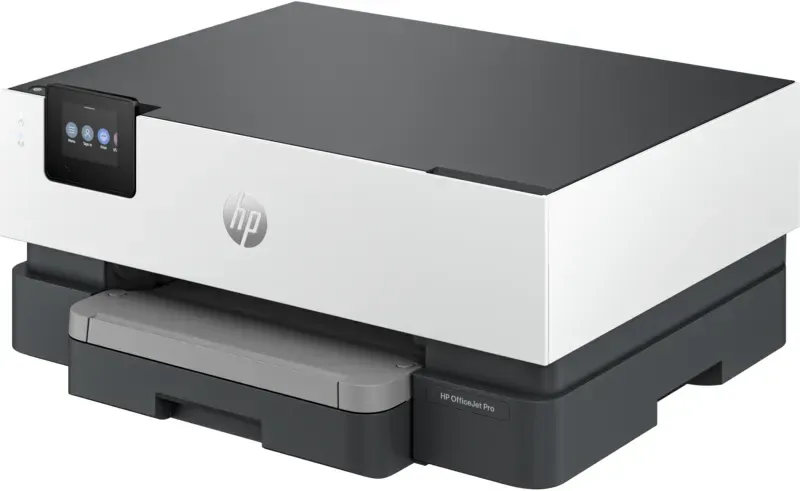
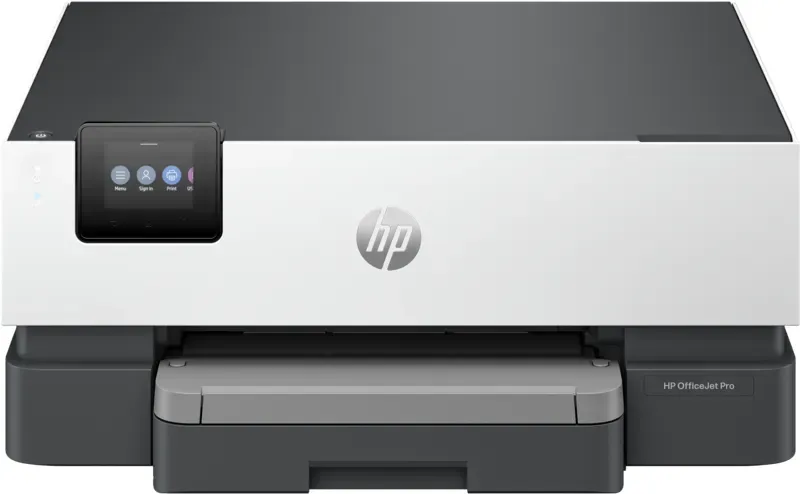
HP OfficeJet Pro 9110B Manual
PDF manual · 69 Pages
English


Quick check
Incorrect answer, please try again.
Chat with your HP OfficeJet Pro 9110B manual using AI
Get instant AI answers from your HP OfficeJet Pro 9110B manual
Ask anything about the HP OfficeJet Pro 9110B. Answers come from this manual, with the pages they are based on.
OfficeJet Pro 9110B Maintenance Schedule
Use a soft, damp, lint-free cloth to wipe dust and stains. Turn off and unplug the printer before cleaning.
Perform cleaning only when output is streaked or colors are missing. Use three stages if necessary; do not clean unnecessarily as it wastes ink.
Run alignment if the status page shows streaking or white lines through color blocks. The printer aligns automatically during initial setup.
Ask a Question
Do you recommend OfficeJet Pro 9110B?
Yes NoFrequently Asked Questions
You can connect via Wi-Fi, Ethernet, or USB. Use the control panel or HP software for setup.
Is this answer helpful?
Use Original HP cartridges for warranty coverage and best quality. Non-HP chips may be blocked by security updates.
Is this answer helpful?
Yes, if original cartridges are used within the warranty period. Damage from non-HP supplies may void coverage.
Is this answer helpful?
It might be blocked by firmware updates due to dynamic security. Original supplies are recommended for reliability.
Is this answer helpful?
Open doors and remove paper gently. Do not use sharp tools. Ensure guides fit snugly before reloading.
Is this answer helpful?
It reduces energy use and noise without affecting print quality. Enable in settings for Quiet Mode.
Is this answer helpful?
Go to Menu then Utilities then Tools then Maintenance then Restore Settings. Select desired option.
Is this answer helpful?
Advantages and Disadvantages
Advantages

- Original HP cartridges maintain warranty coverage
- Easy setup using Wi-Fi Direct and Ethernet
- Firmware updates enhance security and features
- Multi-connection methods for flexibility
- Eco-friendly modes reduce energy use
Disadvantages

- Dynamic security may block non-HP chips
- Paper jams require careful removal steps
- Ink levels require regular checking to avoid delays
- Maintenance can waste ink if done unnecessarily
- Wireless connection depends on strong signal
Product Specification
Format
A4 (Print)
Type
Inkjet Printer
Color System
4-color, 4 individual cartridges
Consumables
HP 936, HP 937, HP 938
Printing
1200x1200dpi - 20/16 ppm (A4) (ISO)
Paper Input
250 sheets (1x 250 sheets), Duplex unit
Memory
512MB (RAM)
Connections
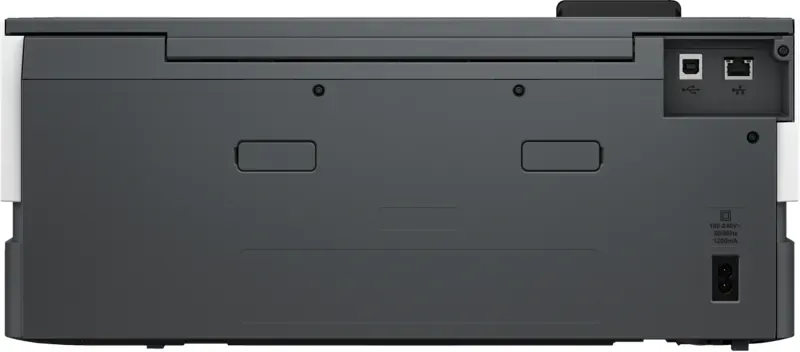
1x USB-B 2.0, 1x USB-A 2.0 (Host)
Network
LAN, Wi-Fi 5 (WLAN 802.11a/b/g/n/ac), Bluetooth LE, Wi-Fi Direct, AirPrint, Cloud Print
Display
Color, 2.65", Touchscreen
Power Consumption
27W (max), 3.49W (standby), 1.16W (sleep), 0.13W (off)
Emulation
PCL 6, PCL 5, PostScript 3, PDF
Casing Color
White
Dimensions
17.28x7.70x13.48 inches
Weight
13.56 lbs
Features
Borderless printing, Instant Ink ready
Manufacturer Warranty
1 Year
Product Description
Unleash Professional Printing with the HP OfficeJet Pro 9110B
When you need reliable performance for your office or home workspace, the HP OfficeJet Pro 9110B stands out as a top choice. Designed for speed and versatility, this multi-color ink solution ensures your printouts look professional every time. Whether you are printing marketing materials or everyday reports, the quality of output remains consistent and vivid for users.
Seamless Connectivity Options
Setting up your printing environment should be effortless for everyone. This printer supports multiple connection methods to fit any network setup. You can connect via Wi-Fi for wireless freedom, use an Ethernet cable for a stable wired connection, or utilize a USB cable for direct computer access easily. The control panel allows you to manage these options simply. If you are on the go, Wi-Fi Direct lets devices connect directly without a central router network.
Managing Ink and Supply Management
One of the critical aspects of owning this printer is understanding how to handle supplies effectively. Regular maintenance checks help extend the life of the printer components significantly. Using genuine toner supplies helps avoid the blockage of non-HP chips effectively. The system is designed to work with original cartridges to maintain warranty coverage. It is recommended to check ink levels regularly through the control panel or HP software to avoid interruptions.
Troubleshooting Common Issues
Sometimes technical hiccups occur during daily operations. Paper jams are common issues that can be resolved by following specific steps to remove jammed paper safely. Ensure the firmware is up to date to avoid compatibility issues with newer operating systems. If print quality suffers, running a diagnostic report helps identify if the printhead needs alignment or cleaning. Network issues can also be fixed by restoring original network settings or resetting the printer unit. For wireless issues, check the router settings to ensure a strong signal reaches the printer.
Eco-Friendly Features
HP is committed to sustainability and environmental responsibility for all customers. You can optimize energy use by enabling Quiet Mode or setting schedules for power management. Recycling programs ensure used ink containers are disposed of responsibly without harming the planet. Always read safety precautions to prevent risks like electrical shocks during maintenance procedures. Keep the printer on a flat surface to avoid jams.
Notes Important
- Ensure paper guides fit snugly to prevent jams.
- Turn off the printer using the Power button before unplugging cables.
- Register your device for better support from the manufacturer.
The HP OfficeJet Pro 9110B Ink, Multi-color Manual provides detailed instructions for all these features. By following the guidelines, users can maximize efficiency and maintain high print standards consistently.
Search for 67,732 Manuals online


Type-in Brand or Model