
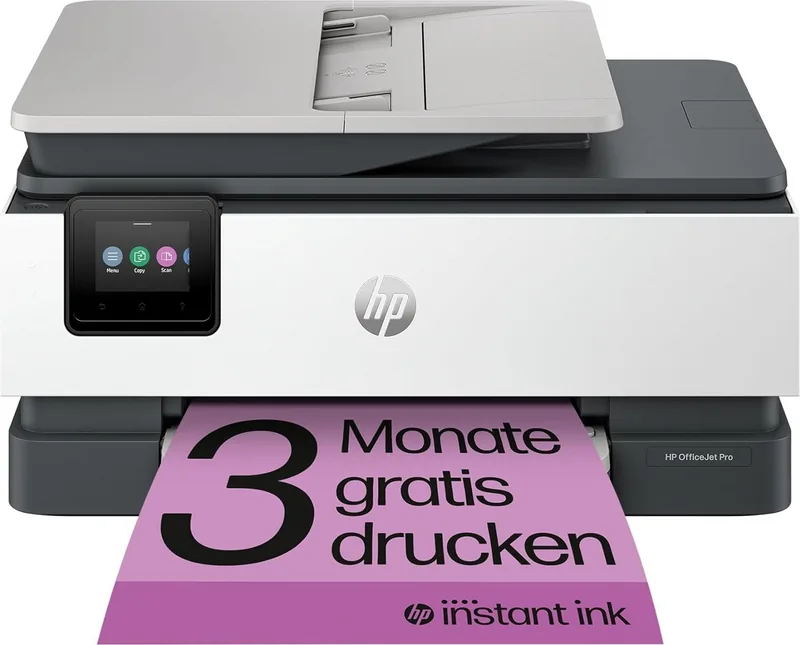
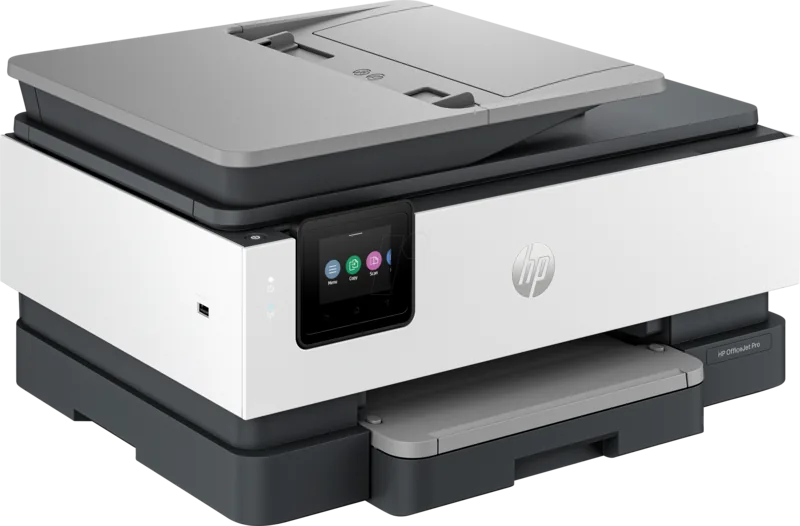
HP OfficeJet Pro 8132e Manual
PDF manual · 137 Pages
English


Quick check
Incorrect answer, please try again.
Chat with your HP OfficeJet Pro 8132e manual using AI
Get instant AI answers from your HP OfficeJet Pro 8132e manual
Ask anything about the HP OfficeJet Pro 8132e. Answers come from this manual, with the pages they are based on.
OfficeJet Pro 8132e Maintenance Schedule
Clean the scanner glass and the back of the lid to ensure the scanner works correctly. Unplug the printer before cleaning.
Use a soft cloth dampened with water or mild soap solution to clean the outside of the printer. Avoid using harsh chemicals.
Wipe the document feeder rollers with a lint-free cloth moistened with water to remove dust and debris that can cause feed issues.
Perform printhead cleaning or alignment via the control panel if print quality issues occur. Ensure cartridges are installed correctly.
Ask a Question
Do you recommend OfficeJet Pro 8132e?
Yes NoFrequently Asked Questions
Use the control panel to access network settings and select your Wi-Fi network name. Alternatively, use the HP software on your computer or mobile device during the initial setup wizard to automate the connection process securely.
Is this answer helpful?
If the printer is part of the HP+ program, it may not operate as expected. HP recommends using Original HP cartridges to ensure optimal print quality and prevent potential hardware damage during regular operations.
Is this answer helpful?
Yes, connect the printer to the network and use the HP software to select the scan and share email option. This feature allows you to digitize and distribute documents quickly without physical copies.
Is this answer helpful?
Check your telephone line connection and run a fax setup test from the control panel. Ensure the fax settings are correct and the receiving machine is active before attempting to resend the document.
Is this answer helpful?
Navigate to the menu on the control panel, select settings, and choose the network option. Select restore original network settings to clear any custom configurations and return to default status for reconfiguration.
Is this answer helpful?
iOS devices running iOS 4.2 or later have AirPrint preinstalled. This allows you to print wirelessly from compatible Apple devices without installing specific printer drivers on your phone or tablet.
Is this answer helpful?
HP recommends plain papers with the ColorLok logo for everyday documents. They produce crisp color and dry faster. Always load one type and size at a time to avoid jams and ensure smooth feeding.
Is this answer helpful?
Advantages and Disadvantages
Advantages

- Connectivity options include Wi-Fi, Ethernet, and USB for versatile network integration.
- Instant Ink subscription service helps manage costs and prevent supply shortages.
- Mobile printing capabilities work with iOS and Android devices via dedicated apps.
- Built-in scan, copy, and fax features cover all essential office tasks.
- Embedded web server allows advanced network configuration for power users.
Disadvantages

- HP+ printers require constant internet connection for full functionality.
- Using non-Original HP cartridges may disable features or void warranty.
- Paper jams can occur if loading instructions are not followed correctly.
- Setup requires creating an HP account and registering the device.
- Some advanced app features may not be available in all countries.
Product Specification
Paper Size
A4 (Print), A4 (Scan)
Type
Printer/Scanner/Copier/Fax
Color System
4-color, 1x Single Cartridge, 1x Tricolor Cartridge
Consumables
HP 923, HP 923e
1200x1200dpi - 20/10 ppm (A4) (ISO)
Scan
1200x1200dpi (CIS) - 8/3.5 ppm (A4)
Copy
1200x1200dpi - 8/3.5 ppm (A4)
Paper Input
225 Sheets (1x 225 Sheets), ADF (35 Sheets), Duplex Unit
Memory
512MB (RAM)
Connections
1x USB-B 2.0
Network
LAN, Wi-Fi 5 (802.11a/b/g/n/ac), Bluetooth LE, Wi-Fi Direct, AirPrint, Mopria
Display
Color, 2.7", Touchscreen
Power Consumption
4.45W (Typical), 1.15W (Standby), 0.12W (Off)
Emulation
PCL 3, URF
Housing Color
White, Black
Dimensions
18.12 x 9.17 x 13.29 in
Weight
17.64 lbs
Features
3 Months Instant Ink
Manufacturer Warranty
3 Years (with Instant Ink and after registration)
Note
Instant Ink is a subscription system - please refer to additional links.
Product Description
Elevate Your Home Office
The HP Officejet Pro 8132e All-in-One white/black stands out as a versatile solution for modern workspaces demanding speed and efficiency. This device supports Instant Ink, ensuring you never run out of supplies unexpectedly. Its multicolor capabilities allow for vibrant printouts suitable for both professional documents and creative projects. The printer integrates seamlessly into your routine, offering flexible connectivity options to suit your specific workflow needs.
Connectivity and Setup
Connecting this printer is straightforward whether you prefer wireless convenience or wired stability. The HP Officejet Pro 8132e All-in-One white/black supports Wi-Fi networks, allowing you to print from multiple devices simultaneously without manual intervention. Users can also establish an Ethernet connection for a robust link or use USB for direct computer access during setup or specific tasks. Mobile printing is enhanced through dedicated software, enabling seamless scanning and management from iOS or Android devices while on the go. The control panel displays help information contextually, guiding users through common tasks effortlessly. You can also switch connection types easily if your network environment changes.
Advanced Features
Beyond standard printing, this unit handles scanning, copying, and faxing efficiently for daily use. Security features allow you to assign password protection to prevent unauthorized changes to sensitive settings. The embedded web server offers deeper configuration control for network administrators or power users who require advanced tweaks. Faxing is enabled for those needing traditional communication channels, complete with address book management for frequent recipients. Web services enable scan-to-cloud capabilities without installing extra drivers on every computer.
Ink Optimization
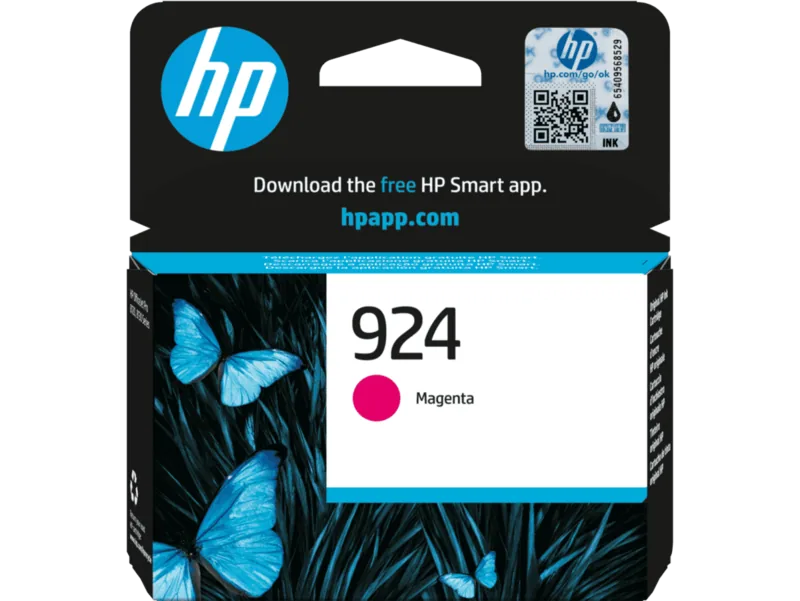
Managing ink costs is simplified with options like Instant Ink available for purchase online. Subscribing to service plans can reduce per-page costs significantly compared to standard ink cartridges found elsewhere. The printer monitors levels automatically, alerting you before supplies run low to avoid printing failures. Original HP cartridges are recommended to maintain optimal print quality and prevent hardware damage during operation. Always check the cartridge access door when supplies are needed to ensure proper installation and contact alignment. Using supported paper types ensures consistent performance and reduces potential jams.
Maintenance and Support
Keeping the device running smoothly involves regular checks on supplies and the scanner glass surface. Cleaning the exterior and document feeder prevents jams and ensures clear scans for all future jobs. Troubleshoot network issues by resetting original network settings if connectivity wavers during use. Energy-saving modes help reduce consumption when the device is idle for long periods. Whether you are printing photos on thick media or scanning important contracts, this machine adapts to your needs. Experience reliability with the HP Officejet Pro 8132e All-in-One white/black today. Refer to the product manual for detailed instructions on setup and troubleshooting processes.
Search for 67,732 Manuals online


Type-in Brand or Model
Hans Weber
6 months ago
Are there cheaper third-party ink options available since many reviews mention high official cartridge costs?
Manual.ly
6 months ago
To ensure the best print quality and long-term reliability, we recommend using original HP cartridges. Many users find HP Instant Ink offers significant savings through subscription plans tailored to usage. Please note that third-party cartridges may not be recognized by the printer firmware, which could lead to compatibility errors. For warranty support, official supplies are required.