
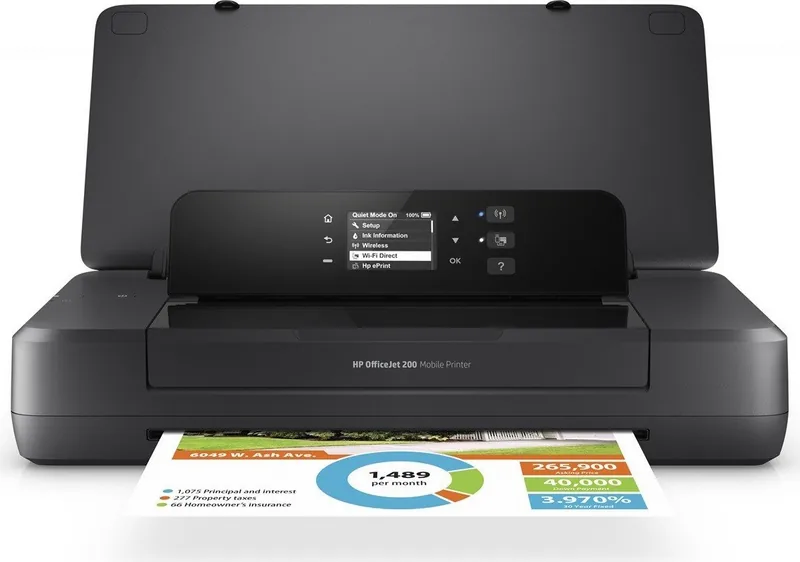
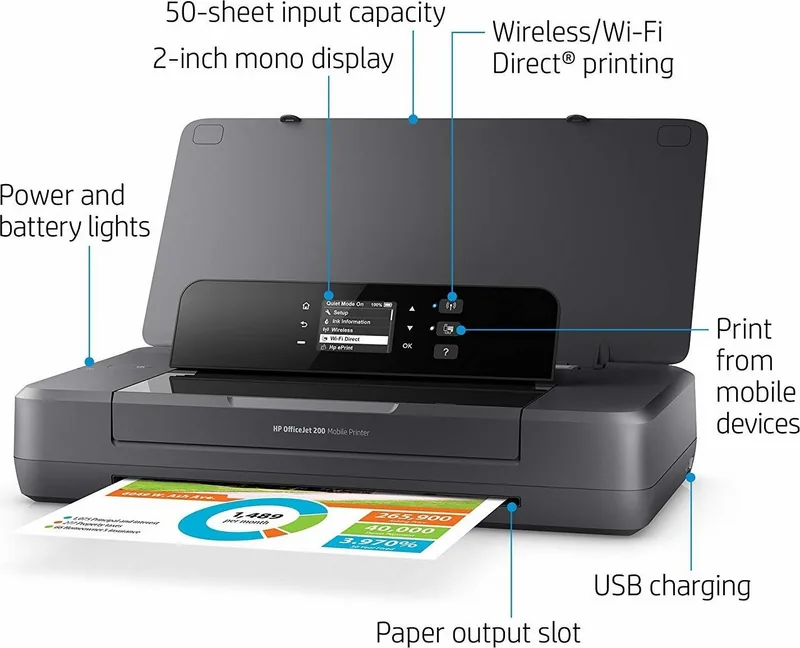
HP OfficeJet 200 Mobile Manual
PDF manual · 88 Pages
English


Quick check
Incorrect answer, please try again.
Chat with your HP OfficeJet 200 Mobile manual using AI
Get instant AI answers from your HP OfficeJet 200 Mobile manual
Ask anything about the HP OfficeJet 200 Mobile. Answers come from this manual, with the pages they are based on.
OfficeJet 200 Mobile Maintenance Schedule
Turn off and unplug the printer. Use a damp, soft, lint-free cloth to remove dust and stains. Do not let liquids enter the interior or control panel.
Only clean if print quality is poor with stripes or missing colors. Each cleaning stage takes about two minutes and consumes ink. Check quality after each stage.
Run alignment when color fields on diagnostic pages are misaligned, show white lines, or output has jagged lines. Occurs automatically during initial setup.
Ask a Question
Do you recommend OfficeJet 200 Mobile?
Yes No
Mariam Schneider
9 months ago
Is setup for an iPad difficult, and does this mobile printer work without Bluetooth?

Manual.ly
9 months ago
According to user feedback, setup on an iPad can take a bit more effort than on other devices, but it is still manageable even for people who are not very tech-savvy. The printer does not offer Bluetooth, so you connect it via its own Wi-Fi network. During installation, make sure your iPad joins the printer's Wi-Fi, then use the recommended print app or driver to select the printer. If you run into connection issues, recheck the Wi-Fi network name, signal strength, and that the printer is in setup mode when pairing.
Frequently Asked Questions
It can print everyday documents, brochures, envelopes, photos, and special or custom-size paper. It also supports manual two-sided printing, making it useful for both business and personal projects.
Is this answer helpful?
Yes. Wi-Fi Direct lets you connect a compatible computer or mobile device directly to the printer without joining a wireless network. It is useful when a router is unavailable.
Is this answer helpful?
Yes. The printer supports AirPrint, HP ePrint, and wireless printing from compatible mobile apps. This makes it easy to send print jobs from phones and tablets.
Is this answer helpful?
Yes. You can insert a USB flash drive into the printer and print supported image files directly. It is a convenient option when a computer is not available.
Is this answer helpful?
Use draft quality when possible, print on both sides manually, avoid unnecessary printhead cleaning, and use Original HP supplies. HP also recommends choosing suitable paper and loading it correctly.
Is this answer helpful?
No. Automatic duplex printing is not supported. If you want to print on both sides, you must reload the paper manually after the first side finishes.
Is this answer helpful?
Charging with AC power can take up to 2.5 hours. The printer can also be charged through a compatible USB charging port, which adds flexibility while traveling.
Is this answer helpful?
Advantages and Disadvantages
Advantages

- Portable design makes it easy to print away from a fixed office.
- Supports wireless, Wi-Fi Direct, AirPrint, and HP ePrint connections.
- Prints documents, brochures, envelopes, photos, and custom paper sizes.
- Battery support and power-saving modes improve mobile usability.
Disadvantages

- No automatic duplexing; two-sided printing must be done manually.
- Quiet Mode is limited and does not work for photos or envelopes.
- Wireless setup and advanced network settings may feel complex for beginners.
- Battery charging can take time, especially when using AC power.
Product Specification
Format
A4
Type
Inkjet printer
Color system
4-color, 1x single cartridge, 1x tri-color cartridge
Consumables
HP 62
Printing
4800x1200dpi - 10/7 ppm (A4) (ISO), Photo 10x15: 34s
Paper input
50 sheets
Memory
128MB (RAM)
Ports
1x USB-B 2.0
Network
WLAN, Wi-Fi Direct, AirPrint, Mobile Print
Display
color, 2"
Power consumption
15W (typical), 3.9W (standby), 1.1W (sleep)
Dimensions
14.33x2.72x7.32in
Weight
4.63 lb
Special features
borderless printing, battery
Manufacturer's warranty
1 year
Product Description
HP OfficeJet 200 Mobile: Portable Printing with Real-World Flexibility
The HP OfficeJet 200 Mobile is built for people who need dependable printing away from a traditional desk. Compact, lightweight, and ready for travel, it brings inkjet convenience to laptops, tablets, phones, and even USB flash drives. For anyone who prints on the road, between meetings, or in temporary workspaces, this mobile printer offers a practical balance of performance and convenience.
A small printer with useful range
Despite its portable design, the HP OfficeJet 200 Mobile handles a surprising variety of tasks. It can print documents, brochures, envelopes, photos, and custom-size pages, making it suitable for business, school, and everyday personal use. The color output is designed for multicolor printing, so charts, graphics, and photo projects can look sharp and vibrant when paired with the right paper and Original HP ink cartridges.
Designed for mobile work
One of the strongest parts of this printer is its flexibility. Wireless printing, Wi-Fi Direct, AirPrint support, and HP ePrint help users send jobs without being tied to a cable. That means a phone or laptop can stay connected even when a full office network is not available. The printer also supports USB printing from flash drives, which is especially handy when working quickly in shared spaces or on the move.
Efficiency, control, and power management
The printer includes several features that help reduce waste and improve comfort. Sleep Mode and Auto-Off save power, Quiet Mode reduces noise during standard printing, and manual two-sided printing helps save paper. The battery option adds even more portability, letting users print where outlets are limited. For maintenance, the manual-style guidance around ink levels, cartridge replacement, and paper handling makes routine care easier to manage.
A reliable choice for everyday portable printing
Overall, the HP OfficeJet 200 Mobile stands out as a compact printer for people who value mobility without giving up useful features. It is especially appealing for professionals, students, and travelers who need a printer that can move with them and still support a wide range of print jobs. If you want a practical overview before setup, the HP OfficeJet 200 Mobile, Ink, multicolor Manual is a helpful reference for getting the most from its features.
Notes
- Best for portable printing, quick business documents, and occasional photo output.
- Works well when paired with HP paper and Original HP cartridges.
- Manual duplex printing is supported, but automatic double-sided printing is not.
Search for 67,732 Manuals online


Type-in Brand or Model
maria_k
10 months ago
Does this portable printer have Bluetooth, and how hard is the setup on an iPad?
Manual.ly
10 months ago
It does not include Bluetooth. Instead, it uses its own built-in Wi-Fi for wireless printing. For iPad setup, we recommend using the HP Smart app (or the app specified for your model) and connecting the iPad to the same Wi-Fi network as the printer. Follow the on-screen prompts to complete pairing and driver installation. A few users find iPad setup slightly more involved than setup on other devices, but it is manageable, especially if you keep the printer powered on, confirm the correct Wi-Fi connection, and restart both devices if pairing fails.