
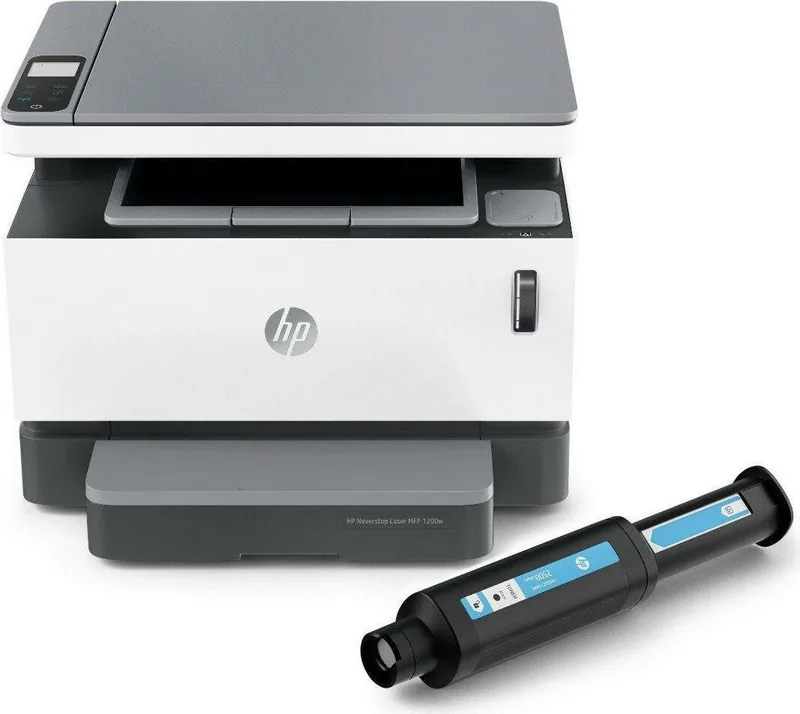
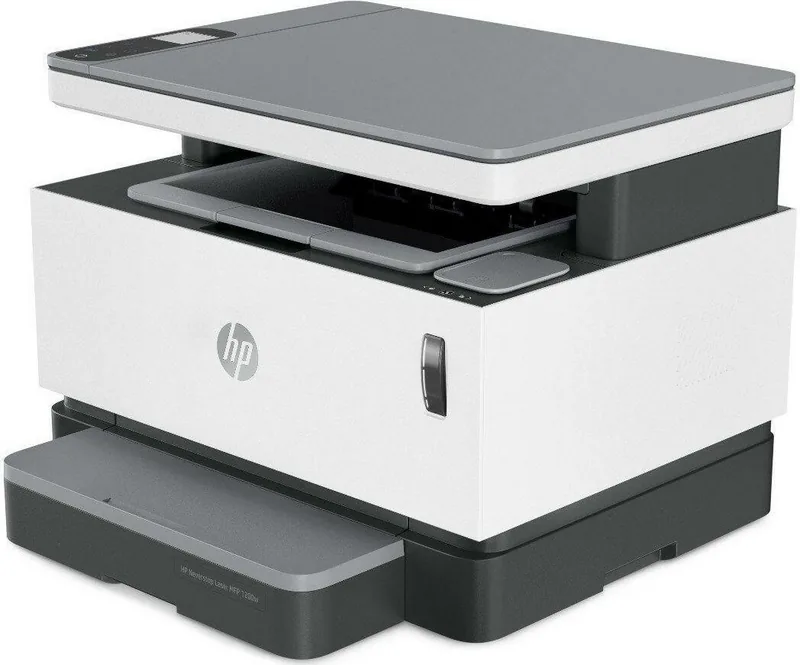
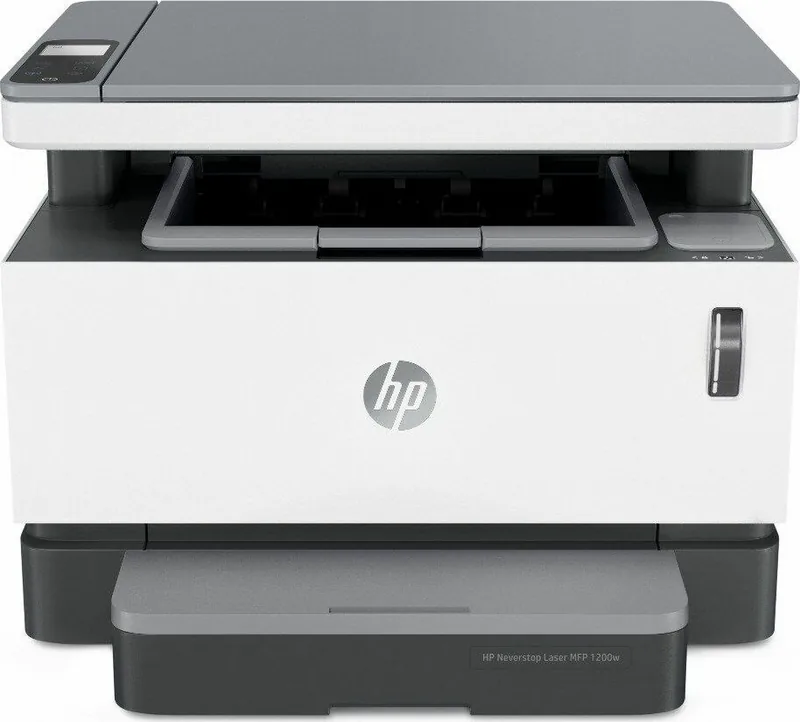
HP Neverstop Laser MFP 1202nw Manual
PDF manual · 154 Pages
English


Quick check
Incorrect answer, please try again.
Chat with your HP Neverstop Laser MFP 1202nw manual using AI
Get instant AI answers from your HP Neverstop Laser MFP 1202nw manual
Ask anything about the HP Neverstop Laser MFP 1202nw. Answers come from this manual, with the pages they are based on.
Neverstop Laser MFP 1202nw Maintenance Schedule
Check the toner level indicator. When it shows Low or Very Low, insert an HP Toner Reload Kit into the reload port when the status light is white.
Replace the imaging drum when the Imaging Drum light blinks or error Er/09 appears, indicating the drum has reached the end of its service life.
If copy or scan image quality degrades, clean the scanner glass and white plastic backing with a soft cloth moistened with nonabrasive glass cleaner.
If the printer does not pick up paper, clean the rollers above the input tray with a lint-free cloth dampened with warm water to remove contamination.
Ask a Question
Do you recommend Neverstop Laser MFP 1202nw?
Yes No
Charles White
5 months ago
Do I need to create an HP account and use the Smart app just to scan, or is basic printing possible without registration?

Manual.ly
5 months ago
Yes, scanning features currently require the HP Smart app and account registration for security purposes. Basic printing via USB or direct network connection can often function without cloud registration depending on your network setup. We understand privacy concerns and encourage reviewing the data sharing settings in the app. If you need guidance on local-only printing configurations, please contact our helpdesk to ensure your specific printer model supports these offline modes.
Frequently Asked Questions
Ensure the printer is powered on and the Reload Status light is white. Shake the toner kit for ten seconds, then insert it into the reload port and rotate it clockwise until it stops. Push the plunger down completely until you hear a click before removing the kit.
Is this answer helpful?
Yes, you can use Wi-Fi Direct technology. Turn on Wi-Fi Direct on the printer control panel and your mobile device. Connect your device to the printer network name and enter the Wi-Fi Direct password to print directly without a router or access point.
Is this answer helpful?
You can use the HP Smart app for Windows Mac and mobile devices. Alternatively you can use the HP Scan software on Windows or the built-in scan feature on Mac computers connected to the same network as the printer.
Is this answer helpful?
Open the scanner and top cover carefully. Remove the imaging drum if necessary to access the jam. Pull the jammed paper straight out gently without ripping. Reinstall the drum and close all covers. Do not use sharp objects to remove paper.
Is this answer helpful?
You can purchase them from the HP website at www.hp.com/go/suresupply or from your local authorized HP reseller. Ensure you buy the correct HP 103A or 143A kit for this specific Neverstop model series.
Is this answer helpful?
The display shows light patterns and codes like Er/01 for empty tray or Go/03 for mismatch paper size. Refer to the manual guide chapter nine for the full list of status light patterns and the specific actions required to fix each error state.
Is this answer helpful?
Advantages and Disadvantages
Advantages

- Innovative refillable toner system reduces waste and long-term costs significantly for owners
- Wireless and Ethernet connectivity offer flexible network setups for various office environments
- HP Smart app integration simplifies remote printing management and supply ordering tasks
- Compact compact design fits well on desks while performing print copy and scan functions
Disadvantages

- Lacks automatic duplex printing which requires manual two-sided document handling by users
- No automatic document feeder present requiring manual placement for multi page scanning jobs
- Monochrome output limits usage to black text and graphics only without color capabilities
Product Specification
Format
A4 (Print), A4 (Scan)
Type
Printer/Scanner/Copier
Color System
Monochrome, 1 Toner Cartridge
Consumables
103A, 103AD, 104A
600x600dpi - 20 ppm (A4) (ISO)
Scan
600x600dpi (CIS) (A4)
Copy
600x400dpi - 14 ppm (A4) (ISO)
Paper Input
150 Sheets
Memory
64MB (RAM)
Ports
1x USB-B 2.0
Network
LAN, Wi-Fi 4 (WLAN 802.11b/g/n), Wi-Fi Direct, AirPrint, Cloud Print, Mopria
Display
Monochrome
Sound Pressure Level
51.0 dB(A)
Emulation
PCLmS, PWG, URF
Housing Color
White
Dimensions
15 x 11.54 x 11.30 inches
Weight
19.25 lbs
Features
Refill System, Direct Print
Manufacturer Warranty
3 Years (after registration)
Product Description
HP Neverstop Laser MFP 1202nw Overview
Welcome to the world of efficient printing with this versatile machine. It is designed for modern home and office environments that demand speed and reliability without constant supply interruptions. As a monochrome laser solution, it delivers crisp black text ideal for documents, contracts, and detailed reports. The comprehensive manual provides extensive guidance on setup and maintenance, ensuring users get the most out of their investment right from the start.
Connectivity is a standout feature of this device that enhances versatility significantly. It supports wireless networking allowing you to print from laptops, smartphones, or tablets easily within your local network environment. The HP Smart app simplifies the process significantly, letting you manage print tasks remotely or order supplies automatically. Wired connections via Ethernet are available for stable performance in shared office spaces. Wireless Direct lets you connect without a router, offering great flexibility for mobile users without complex configurations.
One of the most notable aspects is the innovative Neverstop toner system. Unlike traditional cartridges, you refill toner using easy reload kits effectively. This reduces waste significantly and lowers long-term costs over time. The manual details how to reload toner safely by shaking the kit and inserting it into the dedicated reload port. It also covers replacing the imaging drum when necessary for sustained print quality and clarity.
Printing, copying, and scanning are core functions of this multifunction printer model. You can scan using the flatbed scanner glass or the HP Scan software suite effectively. Copying includes options for adjusting contrast and scaling factors accurately for different needs. ID Copy mode helps scan both sides of an identification card onto one page seamlessly. Manual duplex printing is supported for two-sided documents, though it requires handling pages to print the reverse side manually.
Maintenance is straightforward thanks to clear status indicators provided. The control panel lights indicate status clearly for jams or low supplies immediately. Toner level indicators help you order supplies early before the printer stops working unexpectedly. Error codes guide troubleshooting for paper jams or connectivity issues effectively. The Embedded Web Server allows deeper configuration of IP settings and security protocols. This product manual ensures you can manage these features effectively without technical confusion.
In summary, the HP Neverstop Laser MFP 1202nw offers a robust printing experience for daily tasks. It balances functionality with ease of use for various users efficiently. Whether for small business or home office, this monochrome laser manual guides you toward productivity. Explore the features and start printing efficiently today with confidence in your hardware performance. Firmware updates are also supported to keep the machine secure and efficient over its lifetime.
Search for 67,706 Manuals online


Type-in Brand or Model
Eva Schulz
5 months ago
Is it possible to scan and print without registering an HP account or connecting to the HP Smart app?
Manual.ly
5 months ago
Thank you for reaching out. Current firmware updates on this device model often require a registered HP account and the HP Smart application to activate scanning features. Basic printing may work via USB or Wi-Fi without these steps, but cloud integration is mandatory for scanning data. We recommend utilizing a local network connection if privacy is a concern, though functionality remains app-dependent. For specific exceptions or local driver installations, please contact our support team directly for assistance.