
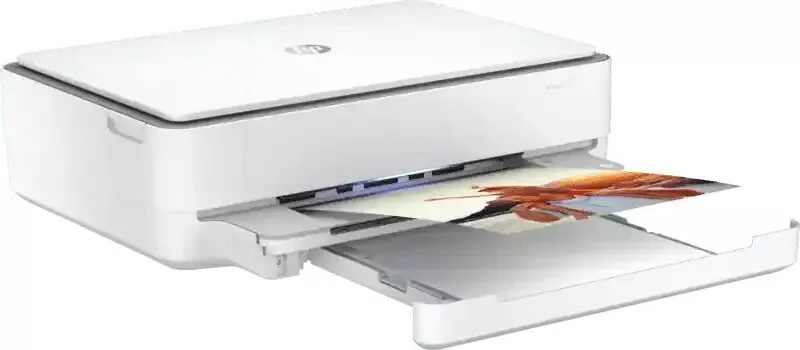
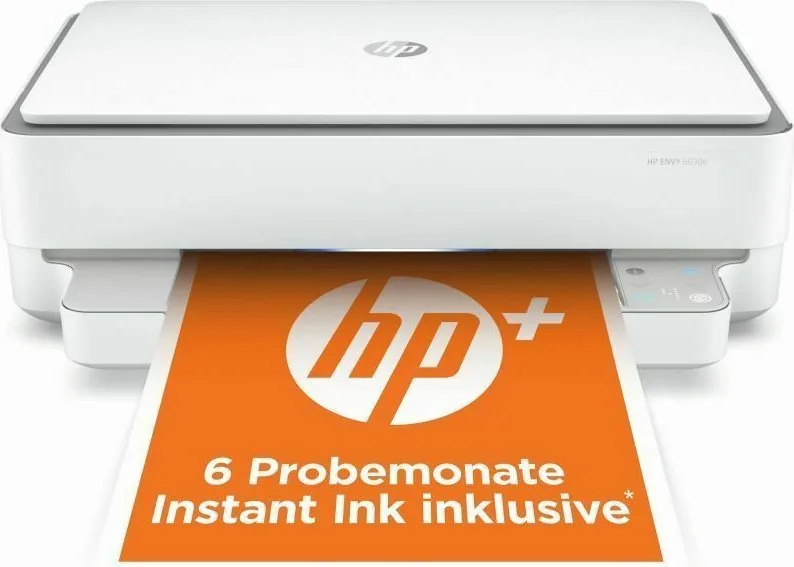
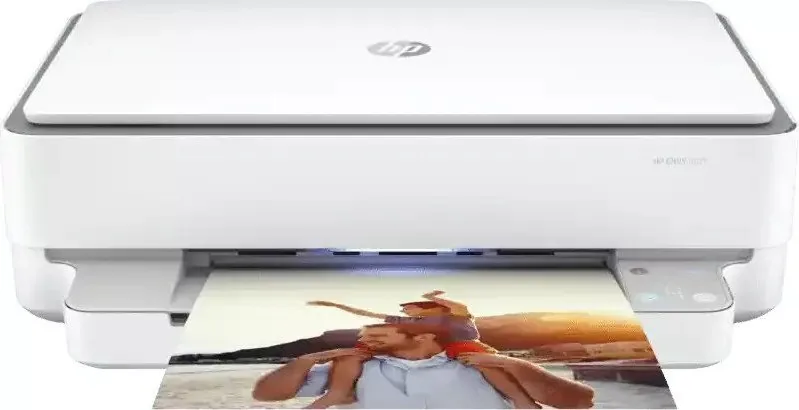
HP Envy 6000 Series Manual
PDF manual · 138 Pages
English


Quick check
Incorrect answer, please try again.
Chat with your HP Envy 6000 Series manual using AI
Get instant AI answers from your HP Envy 6000 Series manual
Ask anything about the HP Envy 6000 Series. Answers come from this manual, with the pages they are based on.
Envy 6000 Series Maintenance Schedule
Clean the scanner glass and cover underside with a soft cloth dampened with mild glass cleaner to maintain scan quality.
Use a damp, soft, lint-free cloth to remove dust and stains from the printer housing.
Ask a Question
Do you recommend Envy 6000 Series?
Yes NoFrequently Asked Questions
Use the HP Smart app on a mobile device or the printer software on a computer to locate and add the printer to your wireless network automatically.
Is this answer helpful?
No, HP+ printers require Original HP cartridges to maintain functionality and warranty coverage, though standard models may have different policies regarding non-original supplies.
Is this answer helpful?
Quiet Mode slows down the printing process to reduce noise without affecting print quality, making it suitable for shared office or home environments during sleep or work hours.
Is this answer helpful?
Use the HP printer software on Windows to scan directly to the hard drive or utilize the web server for scanning to email and network folders without local drivers.
Is this answer helpful?
The system will notify you via the control panel and HP Smart app to alert you to order replacements to prevent interruptions in your printing tasks immediately.
Is this answer helpful?
Yes, both Android and iOS mobile phones can print easily using the HP Smart app or AirPrint technology on compatible Apple devices with a shared network connection.
Is this answer helpful?
Advantages and Disadvantages
Advantages

- Seamless wireless connectivity with Wi-Fi Direct and router support
- HP Smart app integration simplifies setup and mobile printing
- Quiet Mode reduces noise levels to maintain peaceful workspace environment
- Energy saving Auto-Off and Sleep modes lower electricity consumption rates
- Original HP cartridges ensure consistent print quality and printer longevity
Disadvantages

- HP+ models strictly require an active Internet connection to function
- Replacement cost for Original HP cartridges can be high over time
- Wi-Fi Direct supports only up to five connected devices at a time
- Some advanced features require HP+ enrollment which limits flexibility
- Troubleshooting guides can be lengthy for users new to complex technical setups
Product Specification
Format
A4 (Print), A4 (Scan)
Type
Printer / Scanner / Copier
Color System
4-color, 1x Individual Cartridge, 1x Tri-color Cartridge
Consumables
HP 305, HP 305 XL
1200x1200dpi - 10/7 ppm (A4) (ISO)
Connections
1x USB-B 2.0
Display
monochrome
Power Consumption
4W (standby), 1.7W (sleep), 0.1W (off), TEC: 0.31kWh/week
Sound Pressure Level
56.0dB(A)
Emulation
PCL 3
Housing Color
white
Dimensions
17.05 x 5.20 x 20.16 in
Weight
11.51 lbs
Manufacturer Warranty
1 Year
Product Description
HP Envy 6000 All-in-One Series Overview
The demand for efficient home office solutions has skyrocketed, and the HP Envy 6000 All-in-One Series stands out as a versatile contender for modern households and small businesses. This printer combines high-quality printing, copying, and scanning into a single sleek unit designed to save space while delivering professional results. Users appreciate the seamless connectivity options that allow for wireless operation from various devices. Setting up the machine is straightforward using the HP Smart app, which guides owners through network configuration quickly. The Edge lighting system provides visual feedback, indicating status through colors like purple for setup or green for readiness.
Managing your supplies is crucial for uninterrupted tasks and maintaining consistent performance. This is where understanding the HP Envy 6000 All-in-One Series, Ink Manual becomes valuable for users seeking to maximize utility. Although the device automates many maintenance functions, knowing how to properly handle original HP cartridges ensures longevity and optimal print quality. The system supports HP Instant Ink, a subscription service that delivers supplies to your door before you run out. This feature saves time and reduces the hassle of frequent store runs for ink supplies. Additionally, Quiet Mode is available for those needing a quieter workspace, sacrificing slight speed for reduced noise levels during operation which is essential for quiet spaces.
Energy efficiency is another major highlight in this category. Features like Auto-Off and Sleep mode help reduce power consumption when the printer is inactive for specific periods. The printer needs Internet for HP+ features that offer cloud services and warranties. While non-Original HP supplies might sometimes fit, they do not guarantee performance on HP+ enabled machines and could void support. The device also supports Wi-Fi Direct, allowing direct connections to up to five devices without a traditional router. Duplex printing allows for printing on both sides of the paper to save resources. The control panel offers physical buttons for resume and cancel actions, alongside information keys for troubleshooting. Overall, this machine balances functionality with cost-efficiency.
Copying capabilities are also robust. The control panel allows for easy selection of black and white copies directly from the glass. You can adjust the number of copies instantly by pressing the start buttons multiple times. Scanning functions extend beyond simple digitization. The embedded web server enables scanning to email or network folders without installing extra software on every device. For mobile users, the camera scan feature utilizes phone cameras to create digital copies quickly. This versatility ensures printed materials stay accessible digitally for backup or sharing. The ability to share scans via cloud services further enhances collaboration across teams efficiently.
Search for 67,732 Manuals online


Type-in Brand or Model