
HP EliteOne 870 G9 Manual
PDF manual · 43 Pages
English


Quick check
Incorrect answer, please try again.
Chat with your HP EliteOne 870 G9 manual using AI
Get instant AI answers from your HP EliteOne 870 G9 manual
Ask anything about the HP EliteOne 870 G9. Answers come from this manual, with the pages they are based on.
EliteOne 870 G9 Maintenance Schedule
Turn off the device and disconnect power. Wipe the exterior with a microfiber cloth dampened with water or a 70% isopropyl alcohol solution.
Periodically clean dust and debris from all vented sides of the computer to ensure proper air circulation.
Free maintenance reminders
Timed to your purchase date. Always free, unsubscribe anytime.
Ask a Question
Do you recommend EliteOne 870 G9?
Yes NoFrequently Asked Questions
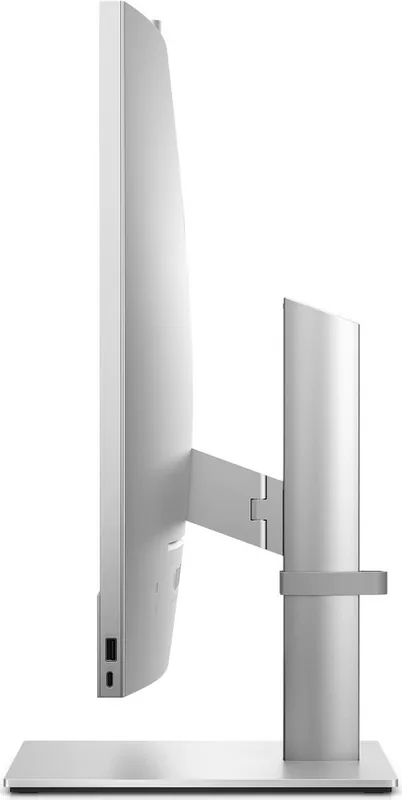
Place the computer facedown on a soft flat surface. Align the stand with the connector on the back and press down firmly until locked. Pull up gently to confirm attachment. You may choose a recline stand or an adjustable-height stand based on preference.
Is this answer helpful?
Use a microfiber cloth moistened with water or a solution of 70 percent isopropyl alcohol. Do not use bleach, peroxides, ammonia, acetone, or aerosol sprays as they may damage the finish.
Is this answer helpful?
Utilize Windows tools for local backups or the HP Cloud Recovery Download Tool to create bootable media. If issues persist, change the boot order to start from the USB drive containing recovery media.
Is this answer helpful?
Yes, HP PC Hardware Diagnostics Windows and UEFI versions are available. They run within Windows or outside the operating system to test hardware functionality and generate failure ID codes.
Is this answer helpful?
The unique serial number is found on the exterior bottom, rear panel, or under the service door. Keep this number available when contacting customer service for assistance or warranty claims.
Is this answer helpful?
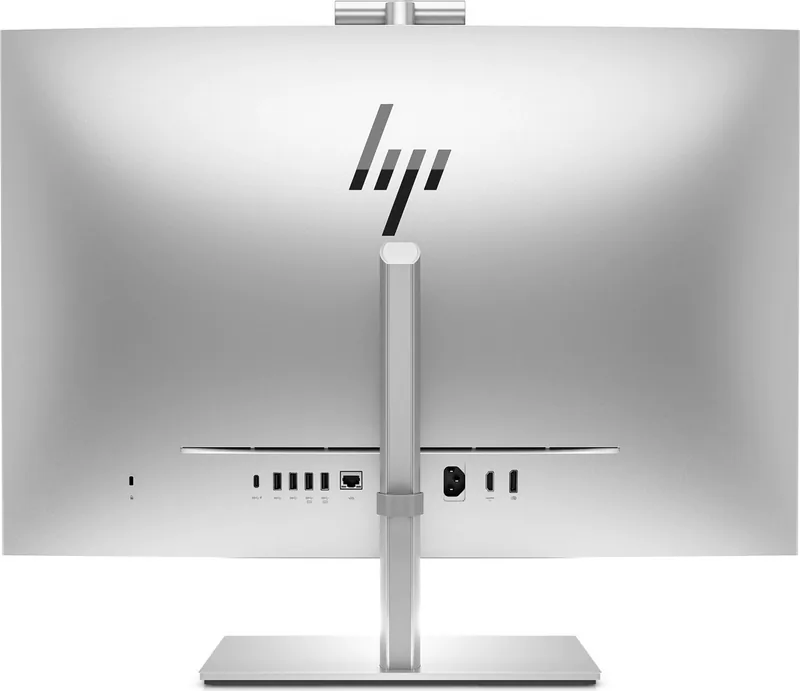
Yes, the rear panel components include DisplayPort and HDMI-in connectors that allow you to connect up to two monitors. Use appropriate video adapters if the monitors do not match the available ports.
Is this answer helpful?
Advantages and Disadvantages
Advantages

- Multiple USB SuperSpeed ports provide versatile connectivity for various peripherals and charging needs
- Flexible mounting stands allow customization of screen height and angle for optimal ergonomics
- Built-in hardware diagnostics enable thorough testing of system health outside the operating system
- Privacy camera shutter and facial recognition enhance security for sensitive corporate information
- Windows Hello support simplifies secure login processes with biometric authentication options
Disadvantages

- Internet connection is mandatory for accessing online recovery tools and operating system updates
- Specific cleaning agents like 70 percent isopropyl alcohol are required to avoid surface damage
- Serial number documentation is essential for validating warranty claims and receiving support assistance
- Windows S Mode limitations restrict app installation to Microsoft Store applications initially
- Drive backup is strongly recommended prior to shipping to prevent loss of critical business data
Product Specification
Form Factor
All-in-One
Chipset
Intel Q670
Hard Disk Drive
N/A
Flash Storage
N/A
Rear Ports
1x USB-C 3.1 with DisplayPort 1.4 (10Gb/s), 2x USB-A 3.1 (10Gb/s), 2x USB-A 3.0 (5Gb/s), 1x HDMI 2.0a, 1x DisplayPort 1.4, 1x RJ-45 1Gb LAN (Intel I219-LM), 1x AC-In C13 (Power Input)
Front/Side Ports
1x USB-C 3.2 (20Gb/s), 1x USB-A 3.1 (10Gb/s, BC), 1x 3.5mm Audio Jack, 1x SD Card
Wireless
Wi-Fi 6E (WLAN 802.11a/b/g/n/ac/ax, 2x2, Intel AX211), Bluetooth 5.3
Optical Drive
N/A
Camera
5 Megapixel, Webcam Cover
Dimensions
24.17 x 23.62 x 9.72 inches (W x H x D)
Weight
19.62 lbs
Volume
3.21 cu ft (calculated)
Color
Black
USB Orientation
Left
Product Description
Comprehensive Guide to HP EliteOne 870 G9 Performance
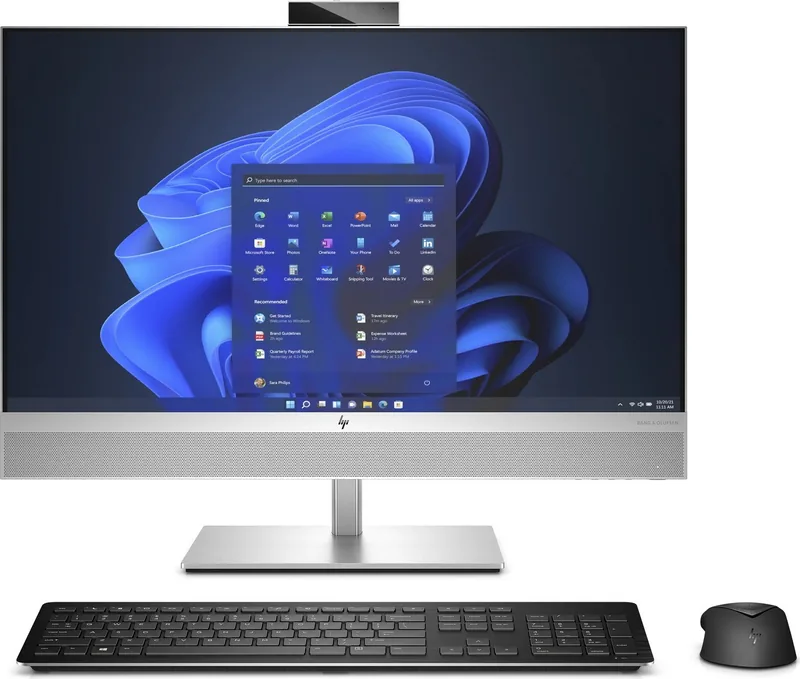
The HP EliteOne 870 G9 represents a significant step forward in all-in-one computing solutions designed for professional environments. This machine delivers powerful performance while maintaining a sleek and space-efficient design suitable for diverse office layouts. Users will appreciate the flexibility offered by its mounting options. You can attach either a recline stand or an adjustable-height stand depending on your ergonomic needs. The system board layout ensures easy access to components if maintenance becomes necessary in the future. Connectivity remains a strong point with multiple USB SuperSpeed ports including Type-C interfaces for high-speed data transfer. Additional video outputs allow for dual monitor configurations via DisplayPort connectors or HDMI-in inputs for external signals.
Operational Insights and Security
Security features are integrated directly into the chassis design. A dedicated slot allows for physical cable locks to deter theft in public workspaces. Internal cameras come with privacy shutters and support Windows Hello facial recognition for secure login processes. Power management functions help extend hardware life during off-hours. Proper ventilation is critical for sustained performance, so keep vents clear of obstructions to prevent overheating. Cleaning procedures require specific precautions to avoid damaging surfaces. Use a microfiber cloth moistened with water or approved disinfectants containing 70 percent isopropyl alcohol for hygiene without harming the finish. Never spray liquids directly onto the device to protect internal circuitry from moisture damage. Wear disposable gloves when handling cleaning agents to maintain surface integrity over time.
System Management and Recovery
System recovery is streamlined through multiple methods. You can utilize Windows tools for local backups or download the HP Cloud Recovery Download Tool to create bootable media. This ensures that operating system restoration is possible even if internal storage fails. Hardware diagnostics run outside the main environment to isolate failures accurately. Three diagnostic utilities exist ranging from Windows-based checks to advanced UEFI testing modules. Accessing support involves visiting the official website or contacting specialized channels for accessibility questions. The software suite includes tools for synchronizing wireless peripherals and adjusting low blue light modes for eye comfort during extended viewing sessions. Shipping preparation requires careful packing to protect components during transit and backing up hard drive files beforehand. Always secure boards properly before transport. Referencing the HP EliteOne 870 G9 Manual provides detailed navigation for these intricate procedures and ensures compliance with warranty terms. Regular maintenance and adherence to operating guidelines ensure long-term reliability for demanding tasks. Whether managing finances or analyzing data, this platform supports essential workflows efficiently across global teams. Compliance with international accessibility standards further broadens its utility for inclusive workplaces worldwide. Setting up the initial environment involves connecting cables carefully. Connect power and peripheral devices according to port labels. Ensure the mouse and keyboard pair correctly if factory synchronization failed. Adjust display settings to reduce eye strain. Install drivers through supported update channels to optimize functionality. Keep documentation accessible for quick troubleshooting during peak operational periods.
Search for 67,706 Manuals online


Type-in Brand or Model