Manual.ly Logo

HP EliteDisplay S240uj Manual

5.0 · 1 Ratings

PDF manual · 2 Pages

English

M: OA-GPT-54-NAN
page

/ 2

Loading...
5303b92fd31bc95e692037151b9c09eb8092 page 1
Optimum Resolution:
2560 × 1440 @ 60 Hz
861845-B23
Quick Setup
5
2 43
USB Type-A to Type-B
1
HDMI
HDMI
DisplayPort
IMPORTANT: The monitor ships in the Power Saver mode. To enable
the USB hub/ports, wireless charging, and USB power delivery during
low power sleep mode, you must switch to Performance mode. Follow

OSD menu and select Power Control > Power Mode > Performance
to enable these functions.
 ." :ماه
USBUSB


Power ControlOSD
Performance >Power Mode >

PENTING: Monitor dikirimkan dalam mode Power Saver. Untuk
mengaktifkan hub/port USB, pengisian daya nirkabel, dan penyediaan
daya USB selama mode tidur daya rendah, Anda harus beralih ke
mode Kinerja. Ikuti petunjuk di layar yang ditampilkan saat awal daya
aktif, atau buka menu OSD dan pilih Power Control (Kontrol Daya) >
Power Mode (Mode Daya) > Performance (Kinerja) untuk mengaktifkan
fungsi ini.






Контрол на захранването > Режим на захранване >
Производителност


Výkon.

Power
Control> Power Mode >
Performance
VIGTIGT: Skærmen leveres med strømbesparelsestilstanden aktiveret.
Du kan aktivere dens USB-hub/-porte, trådløs opladning og USB-
strømforsyning i den strømbesparende tilstands slumretilstand ved
at skifte til tilstanden Ydeevne. Følg anvisningerne på skærmen, der
vises, når skærmen tændes første gang, eller åbn OSD-menuen og
vælg Strømstyring > Strømtilstand > Ydeevne for at aktivere
disse funktioner.
Der Monitor wird im Energiesparmodus geliefert.
Zum Aktivieren des USB-Hubs/der USB-Anschlüsse, der Wireless-

Energiesparmodus müssen Sie in den 
wechseln. Folgen Sie den Anleitungen auf dem Bildschirm, die

Betriebssteuerung > Betriebsmodus >
Leistungsverbesserung, um diese Funktionen zu aktivieren.
IMPORTANTE: El 
Para activar los puertos/conectores USB, las conexiones inalámbricas de

durante los modos de suspensión de baja alimentación debe cambiar
al modo Rendimiento. Siga las instrucciones que aparecen en el primer
encendido o abra el menú en pantalla y seleccione Control de energía >
Modo de alimentación > Rendimiento para activar estas funciones.






Power Control
> Power Mode>
Performance
IMPORTANT : moniteur passe en mode économie d'énergie. Pour
activer le concentrateur/les ports
USB au cours des modes veille à faible consommation, vous devez
passer en mode Performance. Suivez les instructions à l'écran qui
apparaissent lors du premier démarrage ou ouvrez le menu OSD et
sélectionnez Commande d'alimentation > Mode d'alimentation >
Performance pour activer ces fonctions.
IMPORTANTE: il monitor è fornito in modalità Risparmio di energia.
Per abilitare le porte/hub USB, la ricarica wireless e la funzione di
alimentazione USB durante la modalità di sospensione a basso
consumo, passare alla modalità Prestazioni. Seguire le istruzioni
visualizzate alla prima accensione, oppure aprire il menu OSD e
selezionare Controllo alimentazione > Modalità alimentazione >
Prestazioni per abilitare queste funzioni.






Қуатты басқару > Қуат режимі > Өнімділік
Iš 


krovimo ar maitinimo per USB
 šias funkcijas

Power Control
(Energijos valdymas) > Power Mode >
Performance (Našumas).
De monitor wordt geleverd in de stand voor
energiebesparing. Om de USB-hub/-poorten, het draadloos opladen en
de USB-voeding in te schakelen tijdens de slaapstand met een minimaal
energieverbruik, moet u overschakelen naar de prestatiemodus.
Volg de instructies op het scherm die bij de eerste opstart worden
weergegeven of open het schermmenu en selecteer Voedingsbeheer >
Energiemodus > Prestaties om deze functies uit te schakelen.
VIKTIG: Skjermen sender i strømsparingsmodus. Du kan aktivere USB-
hub/porter, trådløs lading og levering av USB-strømfunksjoner under
modusen for dvale og med lavt strømforbruk ved å bytte til modusen
Ytelse. Følg instruksjonene på skjermen som vises første gang du
slår på strømmen, eller åpne OSD-menyen og velg Strømkontroll >
Strømmodus > Ytelse for å aktivere disse funksjonene.
Monitor 





wybierz w menu ekranowym opcje Power Control (Sterowanie
zasilaniem) > Power Mode (Tryb zasilania) > Performance,

IMPORTANTE: O monitor é expedido no modo de Poupança de Energia.


mudar para o modo Desempenho. Siga as instruções apresentadas no

Controlo de energia > Modo de energia > Desempenho para ativar
estas funções.
IMPORTANTE: O monitor é enviado em Modo de Economia de Energia.
Para 

para o modo Performance. Siga as instruções exibidas na tela ao ligar
pela primeira vez ou abra o Menu na Tela (OSD) e selecione Controle de
Energia > Opções de Energia > Performance para ativar essas funções.
IMPORTANT: 



care 
Control al alimentării > Mod alimentare > Performanţă









Power Control> Power Mode
> Performance
POMEMBNO: 

napajanje prek vrat USB v stanju spanja z nizko porabo energije, morate
preklopiti v 
na zaslonu, ki so prikazana ob prvem zagonu, ali odprite zaslonski
meni in izberite Power Control (Nadzor porabe energije) > Power Mode
> Performance
TÄRKEÄÄ: 

virransyötön USB:n kautta alhaisen virran lepotilan aikana vaihtamalla

tulevien Power
Control (Virranhallinta) > Power Mode (Virtatila) > Performance

VIKTIGT: 
hubben/-portarna, trådlös laddning och USB-strömförsörjning under


Power Control (Strömkontroll) > Power Mode>
Performance (Prestanda) för att aktivera dessa funktioner.

USB 


Güç Denetimi > Güç Modu > Performans








Управление питанием
> Режим питания>
Высокая производительность

중요: 모니터가 절전 모드입니다. 저전력 절전 모드일 때 USB 허브/
포트, 무선 충전 및 USB 전원 제공 기능을 활성화하려면 성능 모드로
전환해야 합니다. 처음 전원을 켰을 때 나타나는 화면의 설명에 따라,
또는 OSD 메뉴를 열고 전원 컨트롤 > 전원 모드 > 성능을 선택하여 이
기능을 활성화하십시오.
重要说明:显示器在出厂装运时为“省电”模式。要在低功耗的睡
眠模式下启用 USB 集线器/端口、无线充电和 USB 功率输送功能,
您必须切换到“性能”模式。按照开机时屏幕上显示的说明操作,
或打开 OSD 菜单,然后选择电源控制 > 电源模式 > 性能以启用上
述功能。
重要事項:螢幕以「省電模式」運送。若要在「低功率睡眠」模式
下啟用 USB 集線器/連接埠、無線充電,以及 USB 供電功能,您必
須切換為「效能」模式。依照第一次開機時畫面上的指示繼續執
行,或開啟 OSD 功能表,然後選取電源控制 > 電源模式 > 效能,
以啟用這些功能。

MHL
OR
www.hp.com/support
DisplayPort 1.2, USB 3.0 Upstream, USB Power Deliver up to 60 W

60 W Max
Power Output: 5 V / 5.25 V / 9 V / 12 V / 15 V / 20 V , 3 A
USB-C
OR OR
HDMI MHL
HDMI MHL
USB-C
1
3
2

The information contained herein is subject to change without notice. HP shall not be liable for technical or editorial edits or omissions contained herein.
Third Edition: October 2016
Printed in xxxxx

Chat with your HP EliteDisplay S240uj manual using AI

Get instant AI answers from your HP EliteDisplay S240uj manual

Ask anything about the HP EliteDisplay S240uj. Answers come from this manual, with the pages they are based on.

Ask a Question

0/1000

Do you recommend EliteDisplay S240uj?

Yes No
0
User Pic

LiberoVel27

8 months ago

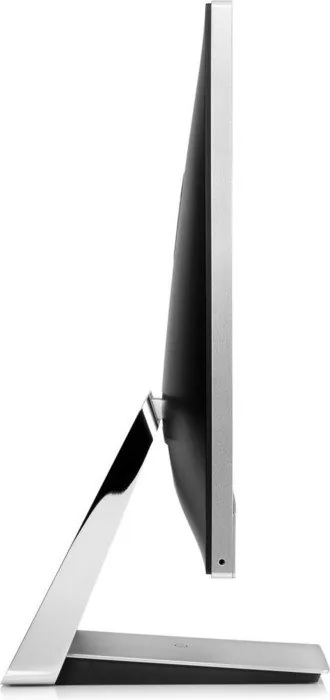
Does the monitor make setup easier with a laptop via USB-C, and where is the headphone jack? Also, how good are the built-in speakers and does it support wireless (inductive) charging?

0
User Pic

Manual.ly

8 months ago

Yes. The monitor connects to compatible laptops via USB-C, which typically reduces cable clutter since you can use the screen connection for both display and additional setup needs. The headphone port is on the left side of the frame, not on the back, making it convenient for everyday use. The built-in speakers sound surprisingly good for an integrated solution, though they are not meant to replace a separate external audio system. The monitor also includes inductive (wireless) charging, which works as a handy accessory for compatible devices.

M: OA-GPT-5-NAN
M: OA-GPT-5-NAN

Frequently Asked Questions

A

It supports 2560 × 1440 resolution at 60 Hz. That gives you a sharp image and more screen space for multitasking, documents, and professional work.

Is this answer helpful?

A

Open the monitor’s OSD menu, go to Power Control, then Power Mode, and select Performance. This activates features like the USB hub, wireless charging, and USB power delivery support.

Is this answer helpful?

A

The monitor includes HDMI, DisplayPort, USB Type-C, and USB 3.0 upstream support. That makes it flexible for both current and older computer setups.

Is this answer helpful?

A

Yes, USB-C can provide up to 60 W of power delivery. Actual charging performance depends on the connected laptop and the overall device configuration.

Is this answer helpful?

A

The monitor ships in Power Saver mode to reduce energy use. Some features, including USB hub functions and wireless charging, become available only after switching to Performance mode.

Is this answer helpful?

A

Yes. Use a grounded power outlet, do not disable the grounding plug, and disconnect power by unplugging the cord from the electrical outlet when needed.

Is this answer helpful?

M: OA-GPT-54-NAN

Advantages and Disadvantages

Advantages

  • 2560 × 1440 QHD resolution gives a sharper workspace for multitasking and detailed content.
  • USB-C supports video and up to 60 W power delivery, reducing cable clutter for compatible laptops.
  • HDMI and DisplayPort offer flexible compatibility with modern and older devices.
  • Performance mode unlocks extras like USB hub access, wireless charging, and USB power delivery.
VS

Disadvantages

  • Ships in Power Saver mode, so key features are not active immediately after setup.
  • Users must navigate the OSD menu to enable Performance mode and unlock full functionality.
  • Feature availability depends on using the correct ports, cables, and supported device setup.
  • The multilingual safety and setup information can make the quick-start details harder to scan fast.
M: OA-GPT-54-NAN

Product Specification

Function

Monitor (stationary)

Diagonal

23.8" (23.82in)

Resolution

2560x1440 (QHD), 16:9, 123ppi

Panel

IPS

Backlight

LED

Brightness

300cd/m² (typical)

Contrast

1,000:1 (static), 5,000,000:1 (dynamic)

Response time

5ms (GtG)

Refresh rate

60Hz (2560x1440)

Connections

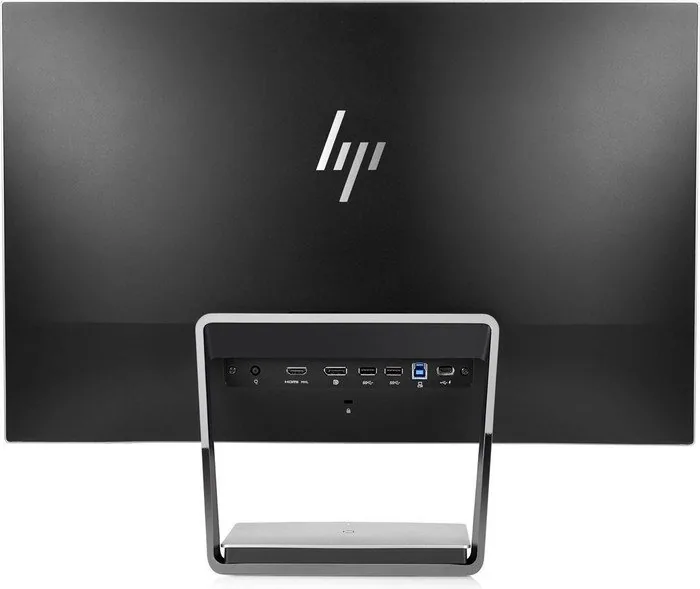
1x HDMI 1.4, 1x HDMI 1.4, 1x DisplayPort 1.2, 1x USB-C 3.0 (Downstream, 5Gb/s), 1x USB-B 3.0 (Upstream, 5Gb/s), 2x USB-A 3.0 (Downstream, 5Gb/s), 1x 3.5mm jack (Line-Out), 1x DC-In jack (Power connection)

Shape

straight (flat)

Viewing angle

178°/178°

Coating

non-glare (matt)

FRC

unknown

Speakers

Speakers (2x 2W)

Ergonomics

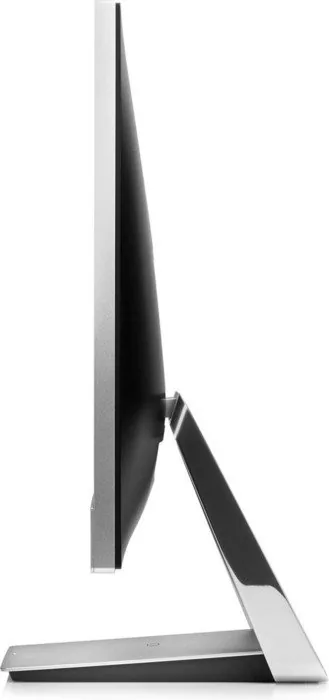
with stand, height adjustable N/A, Pivot N/A, swivel N/A, tilt (+21°/-5°)

VESA

N/A

Power consumption

148W (maximum), 40W (typical), 0.5W (Standby)

Special features

Slim Bezel

Screen-to-Body-Ratio

83.42% (calculated)

Dimensions

21.30x16.89x8.39in (WxHxD) with stand compressed, 21.30x13.62x1.73in (WxHxD) without stand

Color

black (display frame) / silver (bottom bezel) / silver (stand)

Weight

12.13lb (with stand)

Power supply

external

Warranty

three years

USB notation

Link

M: OA-GPT-54-NAN

Product Description

HP EliteDisplay S240uj, 23.8-inch Overview

If you're looking for a clean, modern display that balances workspace, convenience, and laptop-friendly features, the HP EliteDisplay S240uj, 23.8" Manual is a strong example of HP's business-focused design. This 23.8-inch monitor delivers a sharp 2560 × 1440 resolution at 60 Hz, giving you more room for spreadsheets, creative tools, and side-by-side multitasking than a standard Full HD screen. The result is a display that feels crisp without being overwhelming on a desk.

What makes it especially interesting is its connectivity. With HDMI, DisplayPort 1.2, USB 3.0 upstream, and USB Type-C, the monitor is built to handle both modern and legacy setups. USB-C can carry video and provide up to 60 W of power delivery, making it useful for compatible laptops that need fewer cables. HP also includes USB hub support and wireless charging features, turning the monitor into more than just a screen. It can become the center of a compact productivity setup.

Another standout detail is the power behavior. The display ships in Power Saver mode, which helps reduce energy use, but several of its premium features only appear after switching to Performance mode in the OSD menu. Once enabled, the USB hub, USB power delivery during low-power sleep, and wireless charging are ready to use. That means the S240uj rewards a quick setup pass and a little configuration time. For users who want an orderly desk and a reliable all-in-one-style display experience, that extra step can pay off quickly.

In everyday use, the HP EliteDisplay S240uj feels tailored to professionals who value clarity, charging convenience, and flexible connectivity. It suits office desks, home workstations, and hybrid workspaces where a single monitor must do a lot of heavy lifting. If you want a practical display with a premium feature set and a polished business look, this monitor fits the brief.

Setup guidance matters too. HP emphasizes using a grounded power outlet and keeping the grounding plug intact for safety. The included instructions and support materials cover installation, drivers, software, and regional warranty details. In other words, this is a monitor that works best when you follow the initial guidance closely, especially if you want the USB hub, charging, and power-delivery features active from day one. After that, it becomes a neat, capable display with a smart mix of image quality and desk-friendly convenience.

Notes

  • Best results come after switching to Performance mode.
  • Ideal for tidy desks and laptop-centered workflows.
  • Check support resources for region-specific setup and warranty details.
M: OA-GPT-54-NAN

© Copyright 2026 Manual.ly