
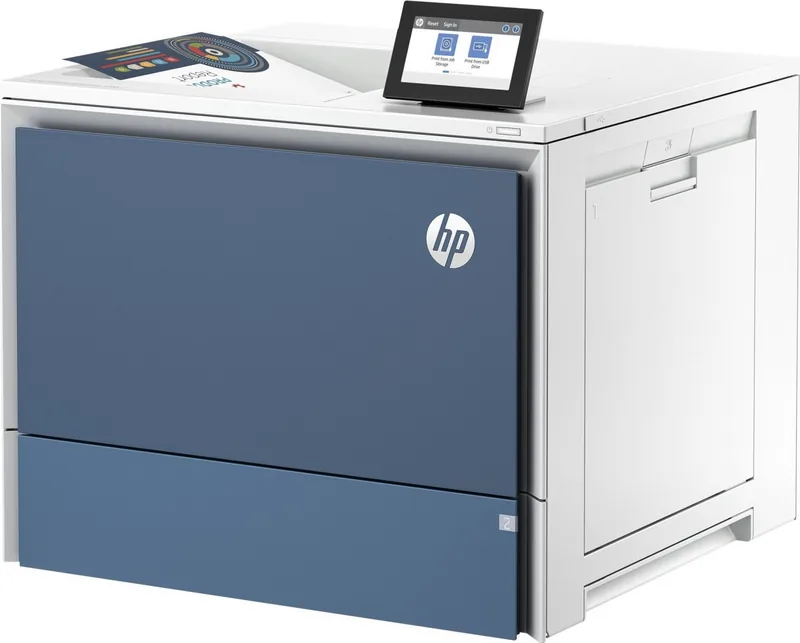
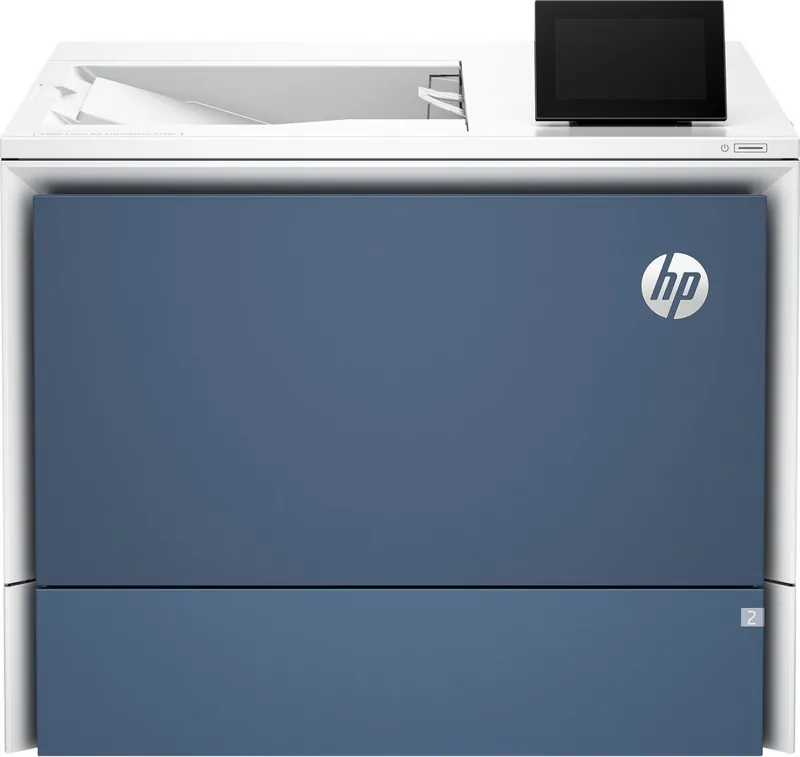
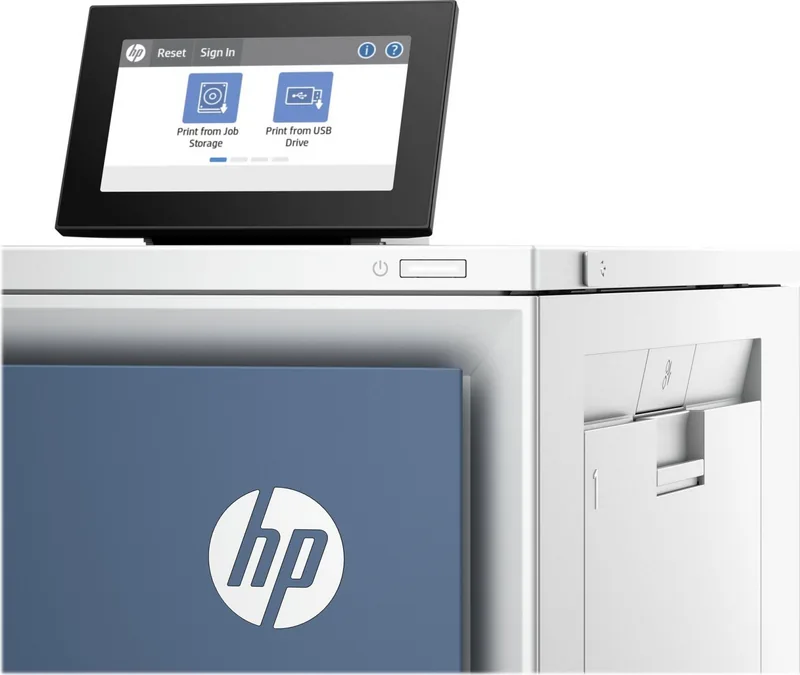
HP Color LaserJet Enterprise 5700dn Manual
PDF manual · 181 Pages
English


Quick check
Incorrect answer, please try again.
Chat with your HP Color LaserJet Enterprise 5700dn manual using AI
Get instant AI answers from your HP Color LaserJet Enterprise 5700dn manual
Ask anything about the HP Color LaserJet Enterprise 5700dn. Answers come from this manual, with the pages they are based on.
Color LaserJet Enterprise 5700dn Maintenance Schedule
Clean the printer paper path to remove accumulated dust and toner. Access via Support Tools > Maintenance > Calibration/Cleaning. Do not turn off the printer during the process.
Optimize print quality and align colors if issues like misaligned color or blurry graphics occur. Access via Support Tools > Maintenance > Calibration/Cleaning.
Replace cartridges when the printer displays a message indicating they are very low or when print quality is no longer acceptable.
Replace the TCU when the printer displays a message or if print quality problems occur.
Ask a Question
Do you recommend Color LaserJet Enterprise 5700dn?
Yes NoDo you recommend Color LaserJet Enterprise 5700dn?
Yes NoFrequently Asked Questions
The device prints up to 43 pages per minute on A4 and 45 pages per minute on letter-size paper for standard tasks.
Is this answer helpful?
Yes, the printer supports automatic duplex printing to save paper when using compatible sizes and types.
Is this answer helpful?
It has embedded hard disk encryption, security statements, and a trusted platform module for data protection.
Is this answer helpful?
Yes, it works with AirPrint, HP Smart app, and Wi-Fi Direct for printing from mobile devices.
Is this answer helpful?
Open the front door and pull out the old cartridge. Rock the new one and insert until it clicks into place.
Is this answer helpful?
Yes, you can use the multipurpose tray for envelopes and labels using manual feed settings.
Is this answer helpful?
Cartridge policy settings may block unauthorized cartridges and prevent printing until replaced.
Is this answer helpful?
Advantages and Disadvantages
Advantages

- High speed printing up to 45 ppm for letter size documents
- Secure storage with embedded hard disk for private print jobs
- Flexible connectivity including USB 3.0 and multiple network options
- Support for various media types like envelopes and labels in multipurpose tray
- Energy saving settings help reduce overall power consumption significantly
Disadvantages

- Optional wireless modules cost extra beyond standard network features
- Replacement toner cartridges can be expensive compared to generic alternatives
- Physical footprint is larger due to additional tray capacity options
- Requires network administrator password for certain security configuration tasks
- Limited to specific operating system support for older server versions
Product Specification
Format
A4
Type
Laser Printer
Color System
4-color
Consumables
213A, 213X, 213Y
Printing
1200x1200 dpi - 43 pages/min (ISO) (A4)
Paper Input
650 Sheets (1x 550 Sheets + 1x 100 Sheets), Duplex Unit
Memory
1.5GB (RAM), 16GB (eMMC)
Ports
1x USB-B 3.0, 1x USB-A 2.0 (Host)
Network
Gb LAN, AirPrint, Mopria
Display
color, 4.3 inches, Touchscreen
Power Consumption
1380W (max), 605W (typical), 40.1W (standby), 1.1W (sleep), 0.08W (off)
Noise Level
53.0dB(A)
Emulation
PCL 6, PCL 5c, PostScript 3, PDF 1.7
Housing Color
white, blue
Dimensions
19.69x16.34x18.11in
Weight
68.65lbs
Features
Print server, Direct Print, Blue Angel
Manufacturer Warranty
1 Year (On-site)
Product Description
Revolutionize Your Office Workflow with the HP Color LaserJet Enterprise 5700dn
Elevate your business productivity with the robust HP Color LaserJet Enterprise 5700dn. This advanced Laser printer is engineered for high-volume environments requiring speed and reliability. It effortlessly handles color jobs at speeds up to 45 pages per minute on letter-size paper. The multicolor output ensures every document looks professional and engaging. Whether you are printing marketing materials or financial reports, the sharp resolution brings clarity to every page.
Control and security are managed directly from the device. A responsive color touchscreen interface simplifies navigation. You can store print jobs securely on the embedded hard disk for private release printing later. This feature is vital for offices handling sensitive information. The built-in security includes encryption support and options to lock the formatter. Administrators can set policies to restrict toner cartridge use, preventing the installation of non-genuine supplies. This protects both the machine hardware and print quality standards.
Connectivity is designed for modern networks. The SuperSpeed USB 3.0 rear port offers rapid connections for walk-up printing. Network configurations are flexible with dual-band wireless options available. Mobile printing solutions like AirPrint and HP ePrint allow employees to print from anywhere using smartphones or tablets. The embedded web server provides comprehensive remote management tools. IT staff can monitor consumption and configure settings without visiting the physical location.
Paper handling accommodates various media types. The multipurpose tray accepts envelopes, letterheads, and labels for diverse tasks. Additional trays expand total capacity to thousands of sheets. Automatic duplex printing reduces paper waste by printing on both sides efficiently. Manual feed options are available for specialized media types using the tray settings. Environmentally conscious settings allow the machine to conserve energy during non-operational hours. The robust chassis supports heavy daily use in demanding office settings.
Important Considerations
Use only compatible toner cartridges to avoid errors. Regular cleaning maintains optimal performance. Check regional power specifications before installation to prevent damage. Ensure network security protocols align with your organization policy.
Search for 67,732 Manuals online


Type-in Brand or Model