
Hori Mario Kart Racing Wheel Pro Deluxe Manual
PDF manual · 54 Pages
English



Quick check
Incorrect answer, please try again.
Chat with your Hori Mario Kart Racing Wheel Pro Deluxe manual using AI
Get instant AI answers from your Hori Mario Kart Racing Wheel Pro Deluxe manual
Ask anything about the Hori Mario Kart Racing Wheel Pro Deluxe. Answers come from this manual, with the pages they are based on.
Ask a Question
Do you recommend Mario Kart Racing Wheel Pro Deluxe?
Yes NoVideo Manual
Mario Kart Racing Wheel Pro Mini & Deluxe Review | Nintendo Switch Hori
Frequently Asked Questions
Yes. The wheel works with Nintendo Switch and PC using XInput. It does not support DirectInput and some games requiring motion control may not function correctly.
Is this answer helpful?
You can mount it using the five suction cups on a clean, flat tabletop or use the clamp tightened to the wheel base on a flat, hard surface. Do not use both methods simultaneously and avoid attaching to glass or fragile furniture.
Is this answer helpful?
Turn the wheel fully to each extreme once and press each pedal fully once. Repeat this calibration whenever reconnecting the controller or restarting the Switch or PC to ensure proper input recognition.
Is this answer helpful?
Assign Mode lets you remap buttons (ZL/ZR, paddles, ITEM, sticks, d-pad). Program LEDs indicate assignment state and color-coded LEDs show sensitivity and dead zone levels. Assignments persist even when USB is disconnected.
Is this answer helpful?
Sensitivity adjusts steering responsiveness across seven levels (1 gradual to 7 responsive). Dead zone sets the central tolerance across seven levels. Quick Handling Mode reduces max rotation from 270° to 180° for quicker steering inputs.
Is this answer helpful?
Reset an individual button using the Assign Mode steps for that button. To reset all buttons and functions, press and hold the designated reset control for three seconds; LEDs will indicate reset completion and defaults are restored.
Is this answer helpful?
Do not disassemble or modify the product, keep it away from dust and moisture, avoid strong impacts, do not pull or bend cables, and clean only with a soft dry cloth. Keep out of reach of children under 3 due to cord hazards.
Is this answer helpful?
Advantages and Disadvantages
Advantages

- Wired XInput compatibility for PC and native Nintendo Switch support (ensure Switch firmware is up to date).
- Customizable controls with Assign Mode and Button Hold; mappings persist after USB disconnect.
- Seven-level sensitivity and dead zone adjustments with color-coded LED feedback for quick tuning.
- Two secure mounting options (suction cups or clamp) and detachable foot pedals for flexible setup.
- Quick Handling Mode changes rotation from 270° to 180° for faster steering response.
Disadvantages

- Not compatible with DirectInput or some motion-control-dependent games.
- Button assignment disables normal controller input during programming steps.
- Suction cups can be damaged if combined with clamp; not suitable for glass surfaces.
- Button Hold behavior can complicate item use in Mario Kart unless manually toggled off.
- Limited warranty durations vary by region (90 days US; initial 30-day EU retailer guidance).
Product Specification
Type
Steering Wheel
Compatibility
PC, Switch
Material
Plastic
Mounting
clampable, Suction cups
Connectivity
wired, USB
Power Supply
USB
Buttons
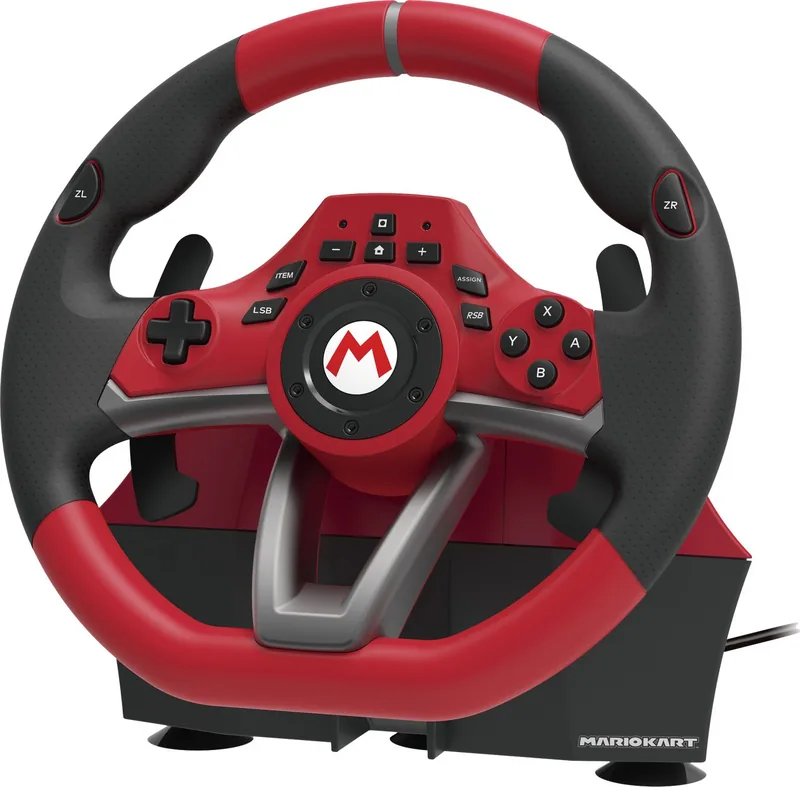
14 (total), 1 (left), 8 (center), 5 (right)
D-pad
concave
Steering Range
270° (adjustable)
Pedals
2 standing
Gear Shifter
2 paddle shifters (Plastic, stationary)
Special Features
incl. Pedals, Vibration motor
Product Description
Hori Mario Kart Racing Wheel Pro Deluxe (PC/Switch) Manual
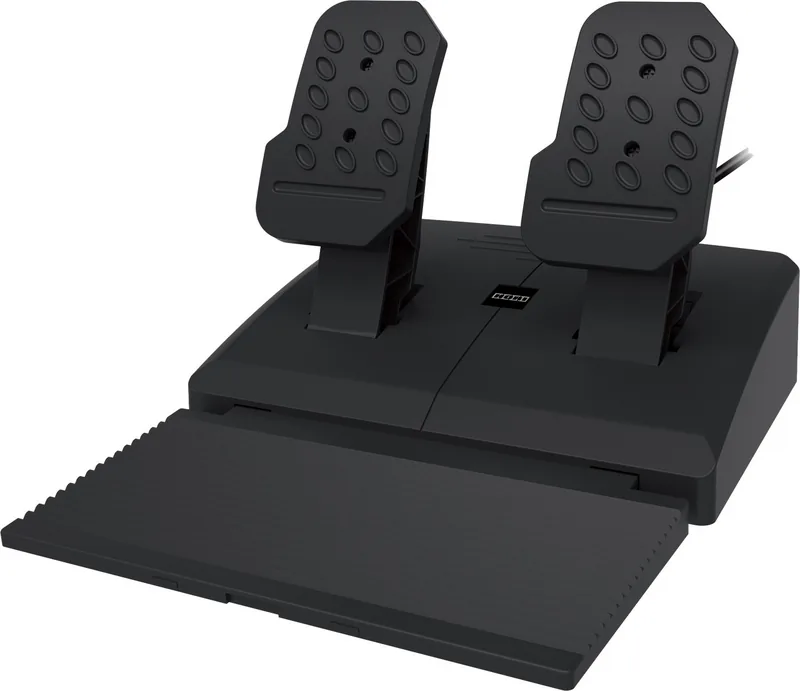
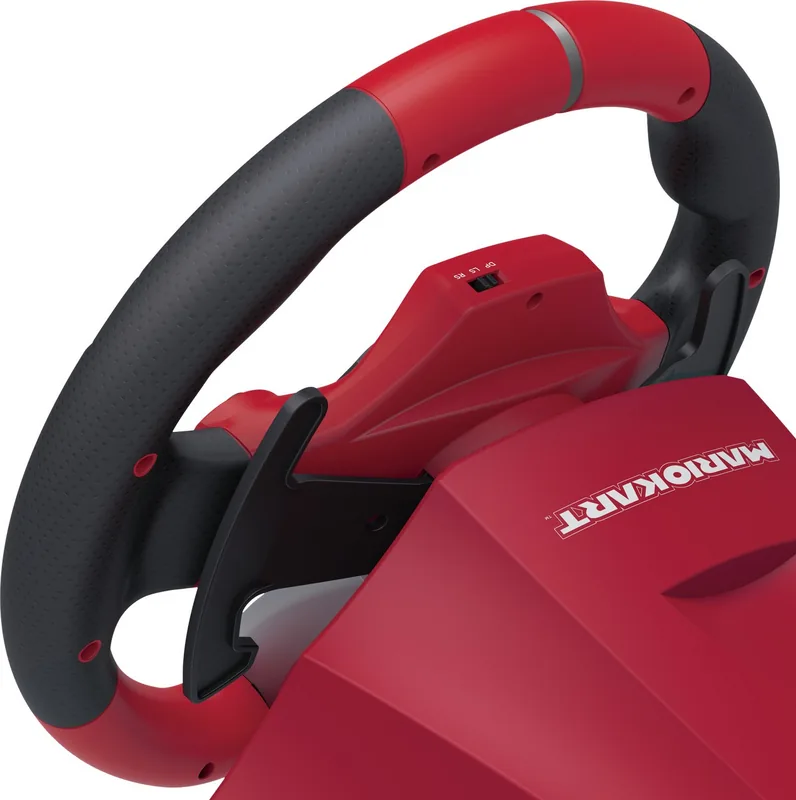
The Hori Mario Kart Racing Wheel Pro Deluxe (PC/Switch) Manual outlines setup, features and safe use for HORI’s wired racing wheel designed for Nintendo Switch and PC (XInput). Built with a 280mm steering diameter, 270° rotation (switchable to 180° Quick Handling Mode), and detachable foot pedals, this peripheral delivers a console-style driving feel without taking up a large space. The wheel connects via USB, with a 3m cable for the steering unit and a 1.5m cable for the pedal set, ensuring flexible placement on tables or floors.
Setup and mounting are covered in detail: choose between five suction cups or a clamp to secure the steering unit (do not use both simultaneously), and place foot pedals on a flat surface. The manual stresses correct modular plug orientation when connecting the pedals and recommends a simple calibration routine—turn the wheel fully to each extreme and press both pedals once—after reconnecting or restarting the system.
Control customization is a major focus. The directional pad toggle lets you map the d-pad to the left stick, right stick or d-pad; button assignment (Assign Mode) allows remapping of a wide range of inputs including ZL/ZR, analog sticks, ITEM and paddle inputs. Program LEDs indicate assignment states and settings; assigned mappings persist even when the USB cable is disconnected. A Button Hold function can latch a button press (not available for all ITEM remaps) and there are instructions for resetting individual buttons or restoring all functions to default via a three-second press routine.
Performance tuning includes seven-level adjustable sensitivity and seven-level dead zone adjustment, each with color-coded LED feedback to help dial-in steering responsiveness and center tolerance. Quick Handling Mode shortens maximum rotation to improve rapid steering response. The manual also details cautions: avoid disassembly, exposure to dust or moisture, strong impacts, and use only a soft dry cloth for cleaning. Safety notes include choking risks from long cords and child-safety guidance. FCC and disposal statements, plus regional warranty information (90 days US, 30 days EU retailer guidance), round out the manual.
Notes:
- Functions on PC use XInput only (DirectInput not supported).
- Some games requiring motion controls may not be compatible.
- Button remaps disable controller button input during programming steps.
Pros and cons are provided below along with an FAQ to help users get started and troubleshoot common issues.
Search for 67,706 Manuals online


Type-in Brand or Model
Lukas Herrmann
9 months ago
My accelerator pedal started registering even with the slightest touch and would not stop automatically. Is this a common issue, and what should I do if it happens?
Manual.ly
9 months ago
That sounds like a pedal hardware fault rather than normal sensitivity settings. First, make sure the pedal cable is fully connected and not under tension, and test the pedals in your PC or console control settings. If the throttle still stays active at rest, try resetting/recalibrating the controller and re-checking sensitivity and deadzone for the accelerator. If the problem persists, it is not something you should need to fix yourself. Please contact our support with your order details and a short video of the pedal at rest, and we will help with the next steps (for example, replacement or warranty support).