
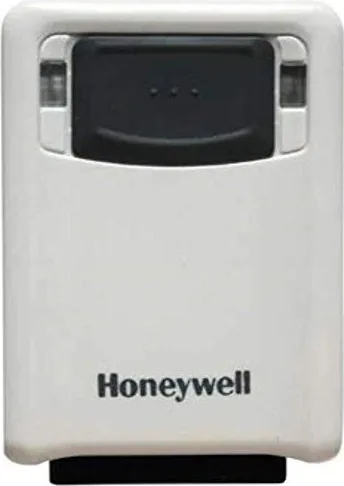
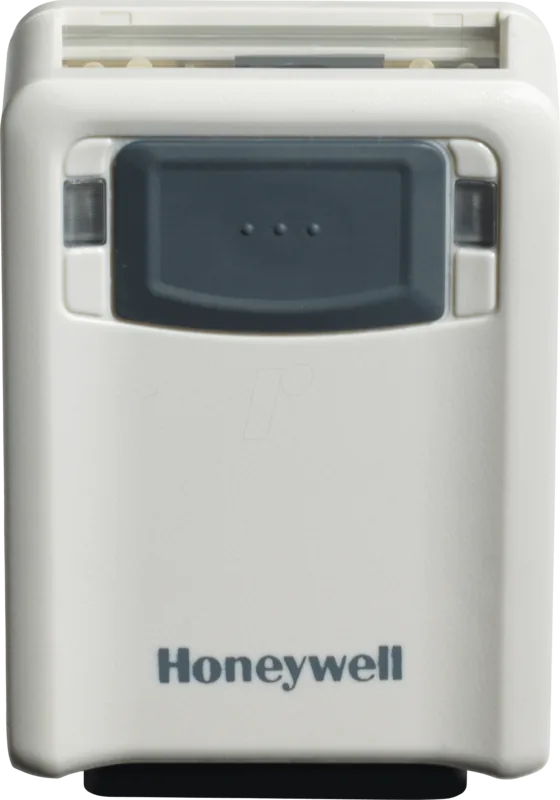
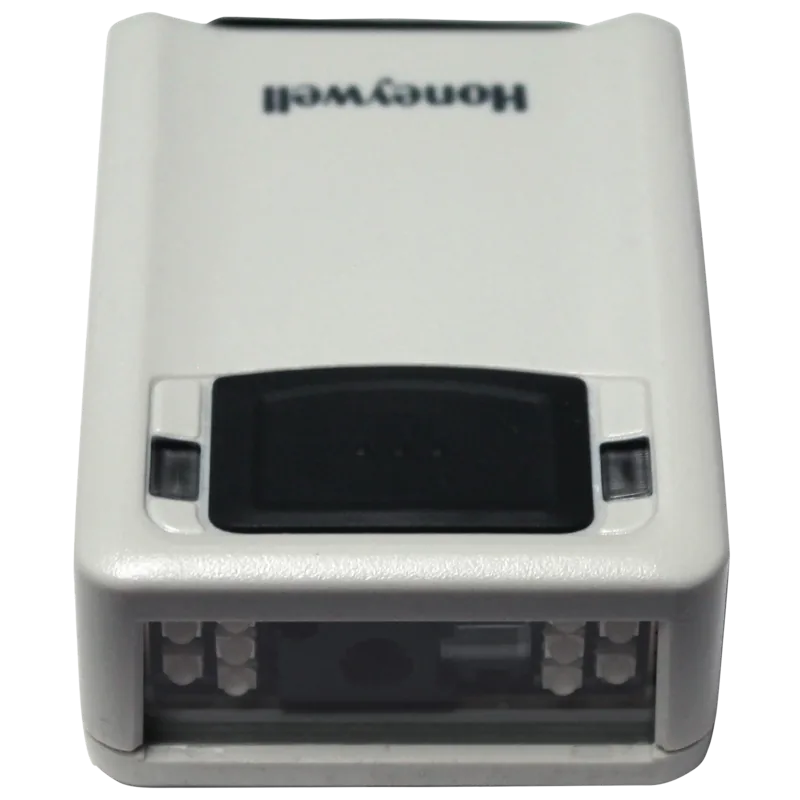
Honeywell Vuquest 3320g Manual
PDF manual · 202 Pages
English



Quick check
Incorrect answer, please try again.
Chat with your Honeywell Vuquest 3320g manual using AI
Get instant AI answers from your Honeywell Vuquest 3320g manual
Ask anything about the Honeywell Vuquest 3320g. Answers come from this manual, with the pages they are based on.
Vuquest 3320g Maintenance Schedule
Use a soft cloth or tissue dampened with water or mild detergent. Rinse with water if detergent is used.
If visibly dirty or performance degrades, clean using approved wipes like Sani-Cloth HB, Isopropyl Alcohol (70%), or CaviWipes.
Check the interface cable and connector for wear or damage that may interfere with operation.
Ask a Question
Do you recommend Vuquest 3320g?
Yes NoFrequently Asked Questions
To reset the Honeywell Vuquest 3320g to factory settings, scan the Reset Factory Defaults bar code found in the user guide. This action clears all custom configurations and restores original settings.
Is this answer helpful?
Yes, the Vuquest 3320g has a dedicated Mobile Phone Read Mode optimized for LCD and LED displays. Enable this mode via the programming menu to improve readability on digital screens.
Is this answer helpful?
The scanner supports multiple interfaces including USB HID, USB Serial, RS232, and Keyboard Wedge. It can emulate PC keyboards and connect directly to terminals or computers.
Is this answer helpful?
Absolutely. You can adjust the beeper volume, pitch, and duration for both good reads and errors. There are also options to disable the beeper entirely if noise reduction is needed.
Is this answer helpful?
Use the Data Editing section in the manual. Scan the Add Prefix or Suffix code, select the symbology, and enter the desired characters using the hex values provided in the ASCII chart.
Is this answer helpful?
Yes, the USB interface supports Macintosh and Linux systems. On Mac, it acts as a CDC class device requiring no extra drivers, while Linux users may need specific serial drivers for RS232 emulation.
Is this answer helpful?
Manual Trigger requires pressing a button to scan, offering maximum control. Presentation Mode uses ambient light to automatically detect and decode codes without physical triggering, ideal for hands-free operation.
Is this answer helpful?
Advantages and Disadvantages
Advantages

- Omnidirectional scanning reduces operator fatigue and speeds up transactions
- Supports over 100 symbologies including difficult-to-read 2D codes
- Highly customizable with extensive programming options for specific workflows
- Durable construction withstands frequent drops and harsh industrial environments
- Multiple interface options including USB, Serial, and Keyboard Wedge
Disadvantages

- Complex programming may require time to master for new users
- Pricing can be higher compared to basic linear laser scanners
- Some advanced features require manual configuration via menu codes
Product Specification
Type
Stationary Scanner
Decoding Capabilities
1D, 2D, PDF417
Reading Distance
1.02-17.13 in
Connections
USB 2.0, Serial, Keyboard Wedge
Wireless
N/A
Protection Class
IP53 Certified
Package Contents
Barcode Scanner
Dimensions
2.01x2.87x1.02 in
Weight
2.72 oz
Manufacturer Warranty
2 Years
Product Description
Unlocking the Power of the Honeywell Vuquest 3320g
The Honeywell Vuquest 3320g stands as a pinnacle in area-imaging technology, designed to meet the rigorous demands of modern retail, logistics, and healthcare environments. This versatile scanner combines high-speed performance with exceptional durability, ensuring that your operations run smoothly without interruption. Whether you are scanning damaged labels, deep-printed codes, or mobile phone displays, the Vuquest 3320g delivers consistent results.
One of the standout features of this device is its advanced imaging engine. Unlike traditional laser scanners, the area-imaging technology allows for omnidirectional reading at various angles. This means operators do not need to align the barcode perfectly, significantly speeding up checkout processes and inventory counts. The built-in aiming beam guides users effortlessly, while the adjustable illumination ensures reads even in low-light conditions or on reflective surfaces.
Customization is at the heart of the Vuquest 3320g experience. Through an extensive menu of programmable settings, users can tailor the scanner to specific workflow requirements. From adjusting beeper volume and LED behavior to configuring complex output sequences, the possibilities are vast. The device supports a wide array of interfaces including USB, RS232, and Keyboard Wedge, making it compatible with virtually any host system. Additionally, the ability to set custom defaults allows businesses to create unique profiles for different applications, streamlining setup for new tasks.
Security and reliability are paramount. The scanner includes robust security features like Menu Bar Code Security, preventing unauthorized changes to critical settings. Its rugged design withstands drops and daily wear, while the comprehensive troubleshooting tools help resolve issues quickly. With support for over one hundred symbologies, from standard UPCs to complex Data Matrix and QR codes, the Vuquest 3320g is truly a universal solution for bar code reading challenges.
Key Features Overview
- High-speed area imaging for rapid decoding
- Omnidirectional reading capability
- Extensive interface options for flexible integration
- Customizable audio and visual feedback
- Robust build quality for harsh environments
Important Notes
Always ensure the scanner is powered down before connecting cables to prevent interface errors. For optimal performance in presentation mode, adjust the centering window to match your typical product placement.
Search for 67,706 Manuals online


Type-in Brand or Model