
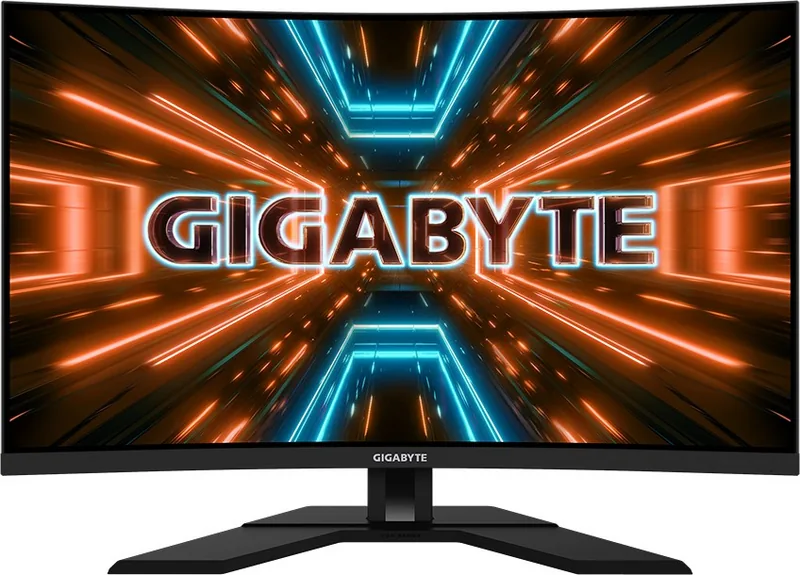
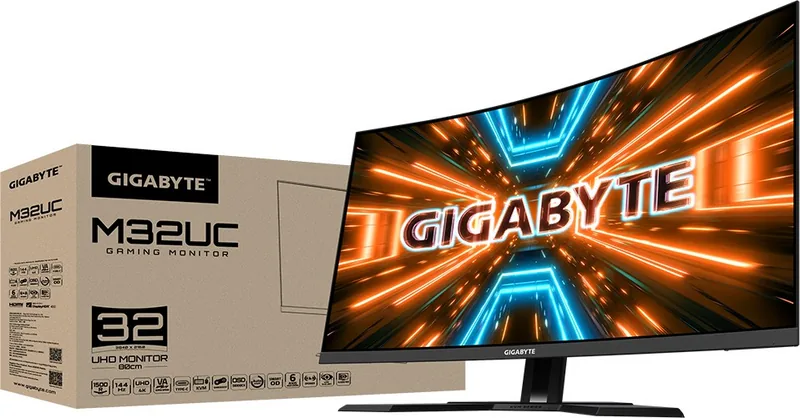
GIGABYTE M32UC Manual
PDF manual · 48 Pages
English


Quick check
Incorrect answer, please try again.
Chat with your GIGABYTE M32UC manual using AI
Get instant AI answers from your GIGABYTE M32UC manual
Ask anything about the GIGABYTE M32UC. Answers come from this manual, with the pages they are based on.
Ask a Question
Do you recommend M32UC?
Yes No
Tom Becker
8 months ago
Does this monitor work with a 100x100 VESA wall mount, and will the built-in KVM work with Windows laptops (or can it be blocked by security settings)?

Manual.ly
8 months ago
Yes, it supports the VESA 100x100 standard for mounting. In some wall mounts, the VESA screws can be hard to fit because the 100x100 interface is recessed, so you may need the correct mount design, screw length, and enough clearance or spacers. Please measure the available depth and compare with your wall mount hardware. For KVM, functionality depends on your laptop allowing USB device switching. Some Windows setups and security policies can block control of other devices. Test by connecting the KVM USB cables directly to an allowed port, then check device permissions and try after updating the monitor firmware. If your laptop uses strict enterprise policies, KVM may be limited.
Frequently Asked Questions
The M32UC features a 31.5-inch panel with UHD 3840 x 2160 resolution, a 16:9 aspect ratio, 350 nits typical brightness, and a 3000:1 contrast ratio for detailed imagery and deep blacks.
Is this answer helpful?
It includes 2x HDMI 2.1, 1x DisplayPort 1.4, 1x USB Type-C, 3x USB 3.2 downstream, a USB upstream port, and a headphone jack. The USB-C port supports video and power delivery, but charging voltage/current profiles depend on settings and connected device compatibility.
Is this answer helpful?
Yes. The monitor supports VESA 100 x 100 wall mounts. Use M4 x 15mm minimum screws and follow the wall‑mount kit’s installation guide for secure mounting.
Is this answer helpful?
It supports AMD FreeSync Premium Pro to reduce tearing, Overdrive to improve response time, and Aim Stabilizer Sync to cut motion blur. Note some functions are limited at lower refresh rates or with HDR activated.
Is this answer helpful?
KVM lets you control multiple input sources via a single keyboard/mouse using USB upstream bindings, simplifying multi-PC setups. PIP/PBP splits or overlays inputs for simultaneous viewing; audio and source switching are configurable. PIP/PBP is not compatible with HDR/FreeSync Premium Pro.
Is this answer helpful?
Use a soft lint-free cloth; apply cleaner to the cloth (not directly to the screen). Avoid abrasive or acidic cleaners and excessive pressure. Disconnect power before cleaning and keep liquids away from the monitor to prevent damage.
Is this answer helpful?
GIGABYTE provides service and regulatory information on their official website. The monitor complies with major regional directives (FCC, CE, RoHS, WEEE) and includes multilingual regulatory documentation in the package.
Is this answer helpful?
Advantages and Disadvantages
Advantages

- UHD 3840x2160 resolution on a 31.5" panel for crisp, detailed images.
- Multiple modern inputs (HDMI 2.1, DisplayPort 1.4, USB-C) for broad device compatibility.
- Gaming features: FreeSync Premium Pro, Aim Stabilizer, Overdrive, and gaming overlays.
- Ergonomic stand with 100mm height adjustment, tilt, and VESA 100x100 support.
- KVM and PIP/PBP capabilities enhance multitasking and multi-source workflows.
Disadvantages

- Some high refresh/timing modes are limited by input type and may require specific cables.
- PIP/PBP cannot be used simultaneously with HDR or FreeSync Premium Pro.
- USB-C power delivery limits vary by voltage/current profile; full charging depends on device.
- Monitor firmware/settings complexity may require time to configure ideal profiles.
- Weight and size (710.5 x 555 x 183.9 mm with stand) demand adequate desk space.
Product Specification
Function
Monitor (stationary)
Diagonal
31.5" (31.50in)
Resolution
3840x2160 (4K UHD), 16:9, 140ppi
Panel
VA
Backlight
LED, Blue Light Filter, flicker-free
Brightness
350cd/m2 (typical)
Contrast
3,000:1 (static)
HDR
VESA DisplayHDR 400
Response Time
2ms (GtG), 1ms (MPRT)
Refresh Rate
144Hz (160Hz OC, 3840x2160)
Variable Synchronization
Adaptive Sync, AMD FreeSync Premium certified (48-160Hz via DisplayPort, 48-144Hz via HDMI, with LFC-Support, with HDR)
Blur Reduction Function
GIGABYTE Aim Stabilizer
Connections
2x HDMI 2.1 (144Hz@3840x2160), 1x DisplayPort 1.4 (160Hz@3840x2160), 1x USB-C 3.0 with DisplayPort (Upstream, 5Gb/s, PD 18W), 1x USB-B 3.0 (Upstream, 5Gb/s), 3x USB-A 3.0 (Downstream, 5Gb/s), 1x 3.5mm Jack (Line-Out), 1x DC-In Barrel Jack (Power Connector)
Shape
curved, 1,500R/4.92ft
Viewing Angle
178deg/178deg
Coating
non-glare (matte)
Color Depth
8bit (16.7 million Colors)
FRC
unknown
sRGB
123%
DCI-P3
93%
Speakers
Speakers (2x 3W)
Controls
Joystick
Ergonomics
with Stand, height adjustable (3.94in), Pivot N/A, swiveling N/A, tiltable (+20deg/-5deg)
VESA
100x100 (occupied)
Power Consumption
47W (typical), 0.3W (Standby)
Special Features
Security Lock (Kensington Security Slot), KVM Switch, Picture-in-Picture, Slim Bezel
Screen-to-Body Ratio
90.95% (calculated)
Dimensions
27.97x21.85x7.24in (WxHxD) with stand compressed, 27.97x16.66x3.96in (WxHxD) without stand
Color
black (Display Frame) / black (Bottom Bezel) / black (Stand) / black (Rear)
Weight
17.19lb (with stand), 12.13lb (without stand)
Power Supply
external
USB Naming Convention
Link
Product Description
GIGABYTE M32UC 31.5" Manual — Overview and Key Features
The GIGABYTE M32UC 31.5" is a 31.5-inch UHD (3840 x 2160) IPS-class display engineered for mixed use: gaming, productivity, and content creation. With a 16:9 aspect ratio, 350 nits typical brightness, 3000:1 contrast ratio, and wide 178° viewing angles, it balances vibrant visuals and extensive desk presence. The monitor offers multiple modern inputs — two HDMI 2.1 ports, one DisplayPort 1.4, and a USB Type-C port — plus USB 3.2 downstream ports and a headphone jack for versatile connectivity and peripheral integration.
Design, Ergonomics, and Build
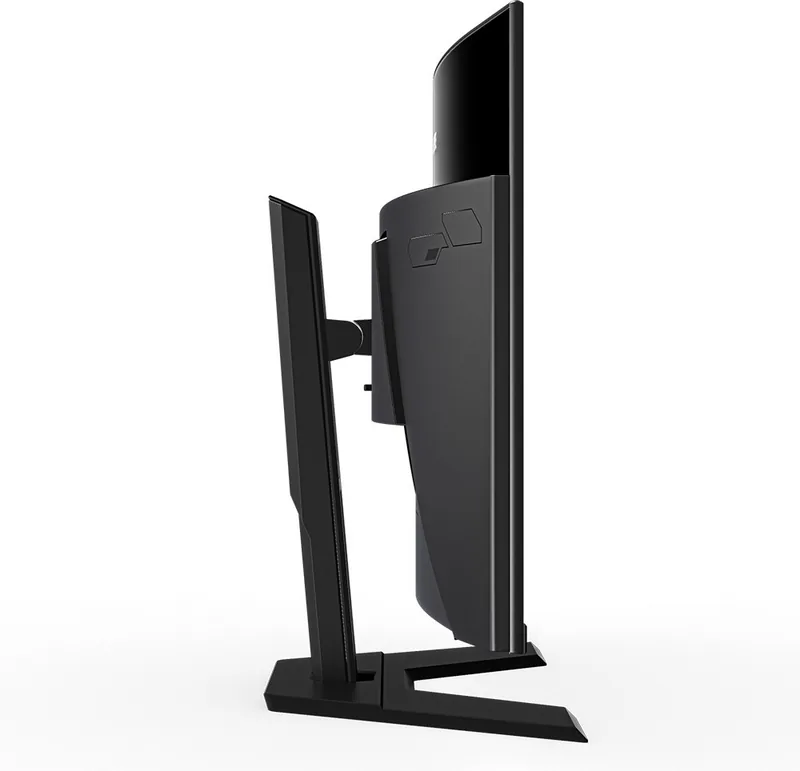
The M32UC ships with a detachable stand that supports tilt (-5° to 20°), 100 mm height adjustment, and VESA 100 x 100 compatibility for wall mounting. The base installs with a locking latch and captive screw ring for stability. Built-in ventilation and a Kensington lock slot support secure, long-term desktop setups. The package includes essential cables (HDMI, DP, USB, power) and an adapter for easy out-of-the-box setup.
Performance and Gaming Features
Engineered with gaming in mind, the display supports AMD FreeSync Premium Pro and high refresh rates up to 144Hz for some resolutions, plus Overdrive and Aim Stabilizer Sync to reduce motion blur. A rich Game Assist suite offers FPS counters, gaming timers, crosshair overlays, an on-screen dashboard for CPU/GPU telemetry (via USB upstream), and alignment guides for multi-monitor setups. Picture presets (Standard, FPS, RTS/RPG, Movie, Reader, sRGB, Custom) and adjustable settings (brightness, contrast, 6-axis color, gamma, color temperature, Low Blue Light) let users tune image characteristics to preference.
Productivity and Connectivity
The USB Type-C port supports power delivery and video, while the monitor’s KVM features let users switch between sources and control connected systems through a single keyboard/mouse chain. Picture-in-Picture and Picture-by-Picture modes enable multi-source workflows, and PIP/PBP audio switching and sizing give flexible multitasking. System-level options include OSD customization, quick-switch hotkey assignment, USB charging behavior, and Type-C compatibility toggles.
Power, Care, and Compliance
Power consumption is modest (typical on: 47W; standby: 0.5W). The display includes care guidance (soft lint-free cloth, avoid direct spraying, low-pressure cleaning) and extensive safety, regulatory, and recycling instructions. It meets major global declarations (FCC, CE, RoHS, WEEE) and includes multilingual regulatory documentation.
Notes
- Supports VESA 100 x 100 mounting; use M4 x 15mm screws minimum.
- USB upstream is required for dashboard telemetry and some KVM features.
- PIP/PBP is incompatible with HDR and FreeSync Premium Pro modes.
- Some high refresh/timing modes depend on input type and cable capability (check timing list).
Search for 67,706 Manuals online


Type-in Brand or Model
Lukas H.
9 months ago
My monitor started failing with capacitor-related issues after about two weeks. Is there anything I can do right away, and what is the next step if it is a manufacturing defect?
Manual.ly
9 months ago
If you notice capacitor-related symptoms (flicker, artifacts, abnormal shutdowns, bulging, smells/heat), stop using the monitor and do not open it. First, install the latest firmware, then perform a factory reset and try a different power outlet and video cable to rule out setup issues. If the problem persists, treat it as a potential hardware defect: contact support with your proof of purchase and the monitor serial number to start a warranty claim. Support will guide you through diagnostics and, if confirmed, arrange repair or replacement. Please have photos of the issue ready as well.