

GIGABYTE M32U AE Manual
PDF manual · 57 Pages
English


Quick check
Incorrect answer, please try again.
Chat with your GIGABYTE M32U AE manual using AI
Get instant AI answers from your GIGABYTE M32U AE manual
Ask anything about the GIGABYTE M32U AE. Answers come from this manual, with the pages they are based on.
M32U AE Maintenance Schedule
Wipe dust off with a soft, lint-free cloth. Apply cleaner to the cloth, not directly on the screen. Do not use acidic or abrasive cleaners.
Pause for at least 10 minutes every 30 minutes of use. Look away from the screen and focus on a distant object for at least 20 seconds.
Ask a Question
Do you recommend M32U AE?
Yes No
Jan Weber
5 months ago
What is the power output of the USB-C port and which laptops can it charge while connected?

Manual.ly
5 months ago
The USB-C port provides 18 Watts of power delivery. This is adequate for charging and video transmission with devices such as the MacBook Air and potentially the MacBook Pro. However, this output may not suffice for higher power requirements found in many HP and Lenovo models. We suggest using the monitor for display purposes and charging other devices with their original adapters for full performance.
Frequently Asked Questions
The monitor features a 4K UHD resolution of 3840 by 2160 pixels. This high resolution ensures sharp text and detailed imagery suitable for creative work and gaming.
Is this answer helpful?
Yes, the monitor includes two HDMI 2.1 ports. This allows for dynamic HDR and compatibility with next-generation gaming consoles and PCs for video transmission.
Is this answer helpful?
Absolutely. It supports high refresh rates up to 144 Hz and incorporates adaptive sync technology for fluid gameplay without screen tearing or stuttering.
Is this answer helpful?
Yes, the Type-C port supports charging compatible devices. However, it may need an external power source for high wattage requirements exceeding the port limit.
Is this answer helpful?
The stand offers height adjustment, tilt, swivel, and pivot capabilities. You can rotate it to landscape or portrait mode using the release mechanism on the base.
Is this answer helpful?
Advantages and Disadvantages
Advantages

- High refresh rate support up to 144 Hz for smooth gaming motion
- Extensive connectivity including HDMI 2.1 and USB Type-C with power delivery
- Ergonomic stand adjustments provide significant neck and eye comfort
- AMD FreeSync Premium Pro support eliminates screen tearing during gameplay
- KVM switch functionality allows sharing peripherals between different computers efficiently
Disadvantages

- Limited USB-C power delivery capacity for high wattage laptops
- Stand does not include VESA mount kit in standard package
- No built-in speaker system mentioned in technical specifications
- OSD navigation relies on single control button rather than joystick
- Manual language options may be limited to English and German
Product Specification
Product
Monitor (Desktop)
Diagonal
31.5" (31.50")
Resolution
3840x2160 (4K UHD), 16:9, 140ppi
Panel
IPS, Manufacturer: Innolux (M315DCA-K7B)
Backlight
LED, Blue Light Filter, flicker-free
Brightness
350 cd/m^2 (typical), 400 cd/m^2 (HDR)
Contrast
1,000:1 (static)
HDR
VESA DisplayHDR 400
Response Time
1ms (MPRT)
Refresh Rate
144Hz (3840x2160)
Variable Refresh Rate
Adaptive Sync, AMD FreeSync Premium certified (48-144Hz via DisplayPort, 48-144Hz via HDMI, with LFC support, with HDR)
Motion Blur Reduction
GIGABYTE Aim Stabilizer
Connectivity
2x HDMI 2.1 (144Hz@3840x2160), 1x DisplayPort 1.4 (144Hz@3840x2160), 1x USB-C 3.0 with DisplayPort (Upstream, 5Gb/s, PD 18W), 1x USB-B 3.0 (Upstream, 5Gb/s), 3x USB-A 3.0 (Downstream, 5Gb/s), 1x 3.5mm Jack (Line-Out), 1x AC-In C13 (Power Input)
Shape
Flat
Viewing Angle
178°/178°
Coating
Non-glare (matte)
Color Depth
10bit (1.07 Billion Colors)
FRC
Yes (8bit+2bit)
sRGB
123%
DCI-P3
90%
Speakers
Speakers (2x 3W)
Controls
Joystick
Ergonomics
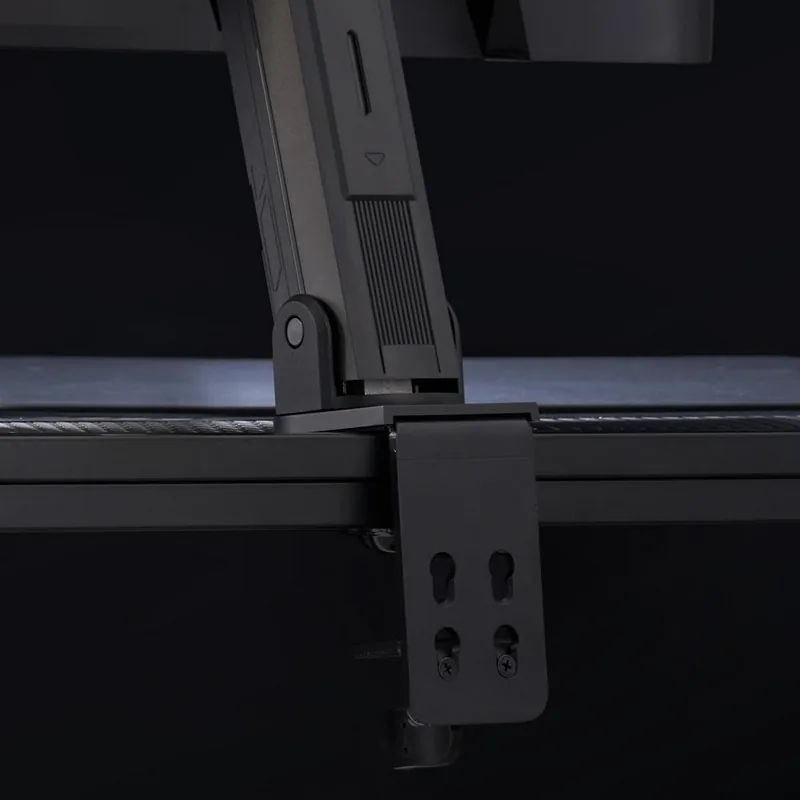
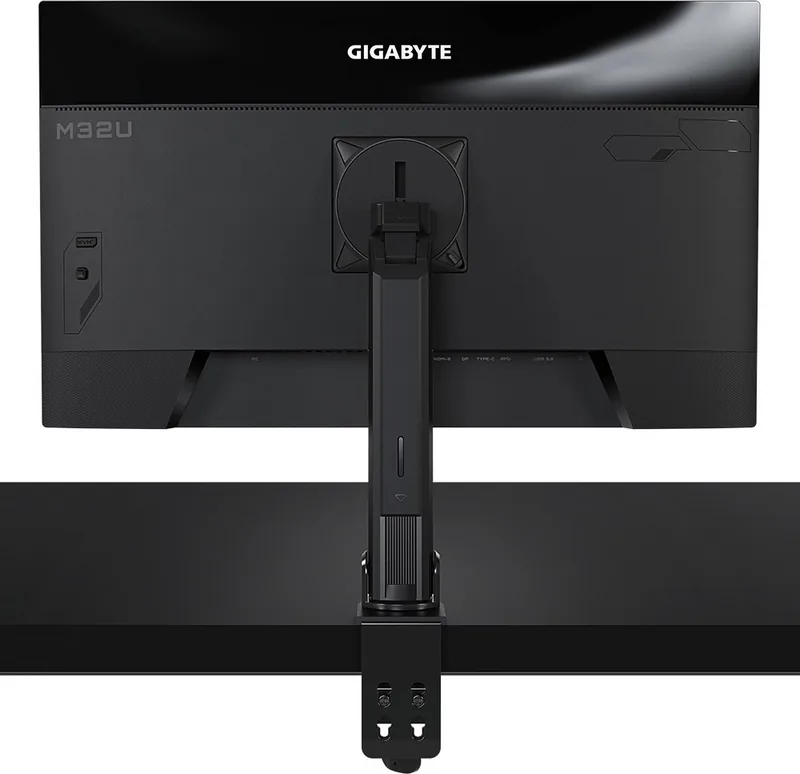
With stand, height adjustable (8.19"), Pivot (+90°), Rotate (+/-135°), Tilt (+25°/-5°), Stand with monitor arm and desk mount
VESA
100x100 (Included)
Power Consumption
140W (max), 45.5W (typ), 0.5W (Standby)
Special Features
Security Lock (Kensington Lock), KVM-Switch, Picture-in-Picture, Slim Bezel
Screen-to-Body Ratio
90.19% (Calculated)
Dimensions
28.18x23.14x8.70" (WxHxD) with stand compressed, 28.18x16.68x2.69" (WxHxD) without stand
Color
Black (Bezel) / Black (Bottom Trim) / Black (Stand) / Black (Rear)
Weight
23.21 lbs (with stand), 15.90 lbs (without stand)
Power Supply
Internal
USB Configuration
Link
Product Description
Overview of Display Solutions
The GIGABYTE M32U AE (Arm Edition), 31.5 Manual provides extensive information for setting up a high-performance workspace. This 32-inch monitor is designed for professionals and gamers who require precision and speed. Users receive detailed guidance on connecting the device to various computers and optimizing settings for specific tasks. The screen size offers a comfortable viewing area, reducing eye strain during long periods of work. High resolution ensures text is sharp, aiding in graphic design or coding environments. The bezel is thin, maximizing the visible content area for productivity tasks. It integrates well into modern home office setups.
Connectivity options are plentiful with this unit. Multiple HDMI ports allow connection to consoles and PCs simultaneously. The USB Type-C port simplifies desk clutter by combining data and video signals. Power delivery through this port supports charging compatible devices, though power limits apply for high wattage needs. For devices requiring more than 18 watts, an external power source is recommended. Multiple USB ports allow connection for mouse and keyboard. The included KVM switch enables sharing peripherals between different computers efficiently. This feature is valuable for users managing multiple systems on one desk.
Gaming performance is highlighted through specific settings. The monitor supports high refresh rates for smooth motion. Adaptive sync technologies minimize screen tearing during gameplay. On-screen graphics can display system metrics like CPU usage in real time. Adjusting image presets allows for different experiences across game genres. The menu system is intuitive, using a single control button for navigation without mouse dependency. Calibration settings ensure accurate colors for media consumption and creative work. Image modes help optimize settings for film or reading. Regularly check for firmware updates to improve system stability.
Installation requires careful attention to stability and safety. The stand offers significant flexibility for neck and eye comfort. Tilt and pivot adjustments allow various orientations depending on user preference. Wall mounting is optional but available for cleaner setups. Following recommended safety steps prevents damage during assembly. The guidance covers ventilation requirements and proper cleaning methods for longevity. Ensure cables are routed correctly to avoid accidents. Proper alignment ensures the monitor remains secure on the desk surface.
Practical Considerations
Always verify voltage compatibility before connecting power. Keep packaging for future transport if needed. Use only approved accessories for best performance. Clean the screen gently to avoid scratches. Regular updates to settings maintain optimal operation and reduce eye fatigue over time. Maintain a clean environment to prevent dust accumulation on ports.
Search for 67,706 Manuals online


Type-in Brand or Model
velit51
6 months ago
Is the USB-C port powerful enough for Windows laptops and does it support KVM switching?
Manual.ly
6 months ago
The USB-C port provides 18 watts of power. This is sufficient for charging and video transmission with devices like the MacBook Air. However, it may not provide enough power for higher requirements like certain HP or Lenovo models. Additionally, this monitor does not include a built-in KVM switch. We recommend checking your laptop's power specifications before relying on USB-C for charging.