
GIGABYTE M32QC Manual
PDF manual · 45 Pages
English


Quick check
Incorrect answer, please try again.
Chat with your GIGABYTE M32QC manual using AI
Get instant AI answers from your GIGABYTE M32QC manual
Ask anything about the GIGABYTE M32QC. Answers come from this manual, with the pages they are based on.
M32QC Maintenance Schedule
Use a soft, lint-free cloth to remove dust. Apply cleaning fluid to the cloth, not directly on the screen. Do not use acidic or abrasive cleaners.
Ensure the monitor is disconnected from the power supply before performing any cleaning operations.
Ask a Question
Do you recommend M32QC?
Yes No
Rowena Evans
5 months ago
Why are the USB ports located on the back of the monitor instead of the front or side where they would be easier to reach?
Frequently Asked Questions
The monitor supports a native refresh rate of up to 165Hz at QHD resolution, ensuring buttery smooth motion for competitive gaming.
Is this answer helpful?
Yes, it features AMD FreeSync Premium Pro technology which synchronizes the refresh rate with the graphics card to eliminate screen tearing.
Is this answer helpful?
Yes, the USB Type-C port supports power delivery up to 65W, allowing compatible laptops to charge while receiving video signals.
Is this answer helpful?
Absolutely, the stand allows for height adjustment from 0 to 100mm, plus tilt and swivel capabilities for perfect ergonomics.
Is this answer helpful?
The monitor offers a 1ms (GtG) response time, minimizing motion blur and ensuring sharp visuals during fast-paced action.
Is this answer helpful?
No, this model does not include built-in speakers; however, it has a headphone jack for connecting external audio devices.
Is this answer helpful?
Advantages and Disadvantages
Advantages

- High refresh rate of 165Hz with AMD FreeSync Premium Pro for ultra-smooth gameplay
- Immersive 1800R curved screen enhances focus and reduces eye fatigue
- Versatile connectivity including USB Type-C with power delivery and KVM support
- Excellent 3000:1 contrast ratio provides deep blacks and vivid colors
- Fully ergonomic stand with height, tilt, and swivel adjustments
Disadvantages

- VA panel may exhibit slight ghosting in very dark scenes compared to IPS
- Viewing angles are good but not as wide as premium IPS panels
- Built-in speakers are not included, requiring external audio solutions
- USB Type-C charging speed may vary depending on the connected device
- Overdrive settings can cause inverse ghosting if set too high
Product Specification
Function
Monitor (stationary)
Diagonal
31.5" (80.0cm)
Resolution
2560x1440 (QHD), 16:9, 93ppi
Panel
VA
Backlight
LED, blue light filter, flicker-free
Brightness
350cd/m^2 (typical)
Contrast
3,000:1 (static)
HDR
VESA DisplayHDR 400
Response Time
1ms (MPRT)
Refresh Rate
165Hz (170Hz OC, 2560x1440)
Variable Synchronization
Adaptive Sync, AMD FreeSync Premium certified (48-165Hz via DisplayPort, 48-144Hz via HDMI, with LFC support, with HDR)
Motion Blur Reduction Function
GIGABYTE Aim Stabilizer
Signal Frequency
48-165Hz (V)
Connections
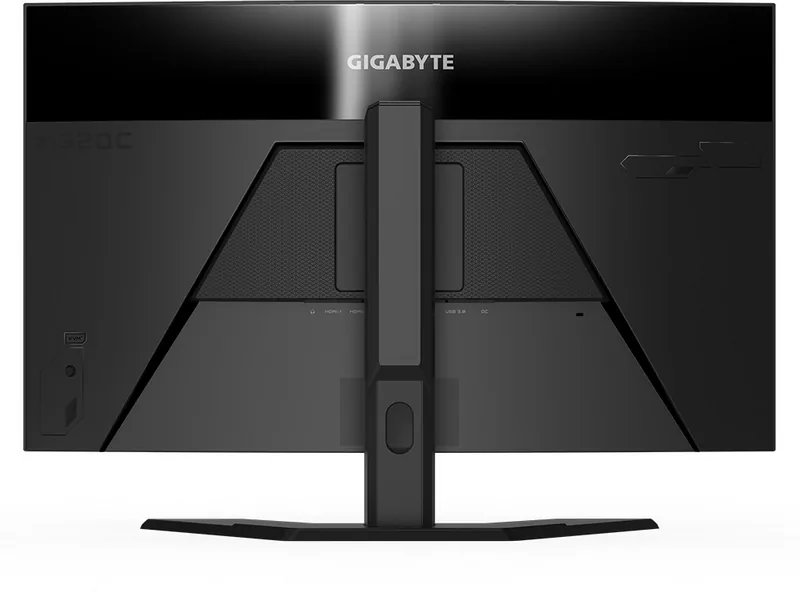
2x HDMI 2.0, 1x DisplayPort 1.2, 1x USB-C 3.0 with DisplayPort (Upstream, 5Gb/s), 1x USB-B 3.0 (Upstream, 5Gb/s), 2x USB-A 3.0 (Downstream, 5Gb/s), 1x 3.5mm jack (Line-Out), 1x AC-In C13 (Power)
Shape
curved, 1500R/1.50m
Viewing Angle
178°/178°
Coating
non-glare (matte)
Color Depth
8bit (16.7 million colors)
FRC
unknown
sRGB
123%
DCI-P3
94%
Control
Joystick
Ergonomics
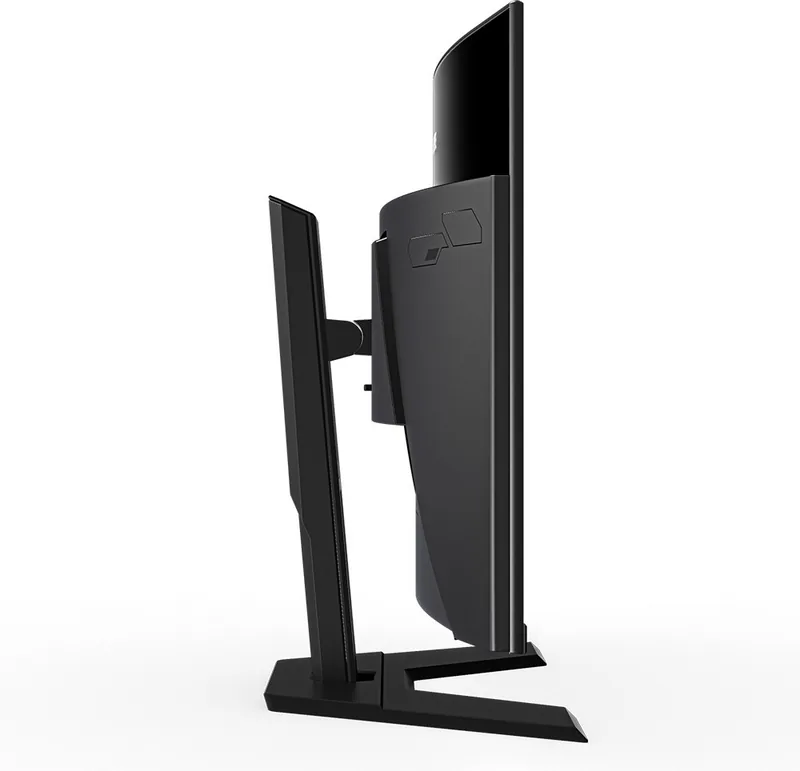
with stand, height adjustable (100mm), Pivot N/A, swivel (+/-30°), tilt (+20°/-5°)
VESA
100x100 (occupied)
Power Consumption
120W (max), 90W (typical), 0.5W (standby)
Energy Efficiency SDR (A to G)
40kWh/1000h (G)
Energy Efficiency HDR (A to G)
64kWh/1000h (G)
Features
Security lock (Kensington Security Slot), KVM switch, Picture-in-Picture, Slim Bezel
Screen-to-Body Ratio
90.95% (calculated)
Dimensions
27.97x21.74x9.24in (WxDxH) with stand compressed, 27.97x16.67x4.05in (WxDxH) without stand
Color
black (display frame) / black (lower bezel) / black (stand) / black (back)
Weight
15.65lbs (with stand), 12.13lbs (without stand)
Power Supply
internal
USB Notation
Link
Product Description
GIGABYTE M32QC 31.5: The Ultimate Curved Gaming Experience
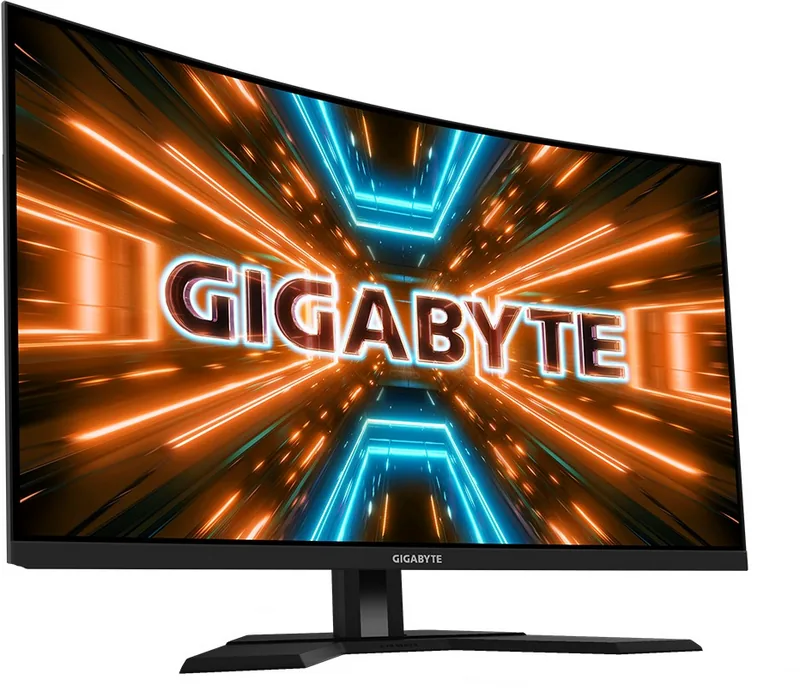
The GIGABYTE M32QC is a standout 31.5-inch curved gaming monitor designed to immerse players in high-performance visuals. With a stunning QHD resolution of 2560 by 1440 pixels, this display delivers crisp details and vibrant colors across its expansive screen. The 1800R curvature wraps around your field of view, reducing eye strain during long gaming sessions while enhancing spatial awareness in competitive titles.
Equipped with AMD FreeSync Premium Pro technology, the M32QC ensures smooth gameplay by eliminating screen tearing and stuttering. It supports refresh rates up to 165Hz, providing fluid motion that gives gamers a critical edge. The VA panel offers an impressive 3000:1 contrast ratio, making dark scenes deep and rich without losing shadow detail. Whether you are exploring vast open worlds or engaging in fast-paced shooters, the visual fidelity remains top-tier.
Connectivity is seamless with a robust array of ports including two HDMI 2.0 inputs, one DisplayPort 1.2, and a versatile USB Type-C port that supports video, data, and power delivery. This makes it easy to connect laptops, consoles, and PCs. The built-in KVM switch allows users to control multiple devices with a single keyboard and mouse setup, boosting productivity for multitaskers. Additional features include a gaming dashboard that displays real-time system stats like CPU temperature and GPU usage directly on the screen.
Ergonomics are also a priority, with a fully adjustable stand that allows for height adjustments between 0 and 100 mm and tilt angles ranging from -5 to 20 degrees. For those who prefer a cleaner desk, the monitor supports VESA wall mounting. The included suite of software tools lets you customize image modes for FPS, RTS, RPG, and movie watching, ensuring optimal settings for any content type.
Notes
- Ensure the monitor is placed on a stable surface to prevent tipping.
- Use only recommended cleaning cloths to avoid screen scratches.
- Check cable compatibility when using the USB Type-C port for charging.
Search for 67,706 Manuals online


Type-in Brand or Model
GamingFan99
5 months ago
Is the ghosting issue on this monitor fixed by adjusting settings, or is it a hardware defect?
Manual.ly
5 months ago
Some users report experiencing ghosting initially, but this can often be resolved by adjusting the monitor's specific settings. If the issue persists after configuration changes, it may indicate a hardware defect that could require a return or replacement under warranty.