
GIGABYTE GS34WQC Manual
PDF manual · 32 Pages
English



Quick check
Incorrect answer, please try again.
Chat with your GIGABYTE GS34WQC manual using AI
Get instant AI answers from your GIGABYTE GS34WQC manual
Ask anything about the GIGABYTE GS34WQC. Answers come from this manual, with the pages they are based on.
GS34WQC Maintenance Schedule
Remove dust with a soft, lint-free cloth. If needed, apply cleaning fluid to the cloth (not directly on screen) and wipe gently.
Always unplug the monitor from the power outlet before cleaning it to prevent electric shock or damage.
Ask a Question
Do you recommend GS34WQC?
Yes NoFrequently Asked Questions
It supports 3440 x 1440 resolution at up to 120Hz.
Is this answer helpful?
Yes, it supports VESA 100 x 100 mm mounting standard.
Is this answer helpful?
Yes, it includes FreeSync Premium for smooth gameplay.
Is this answer helpful?
Use the stand release mechanism to lift up to 100 mm.
Is this answer helpful?
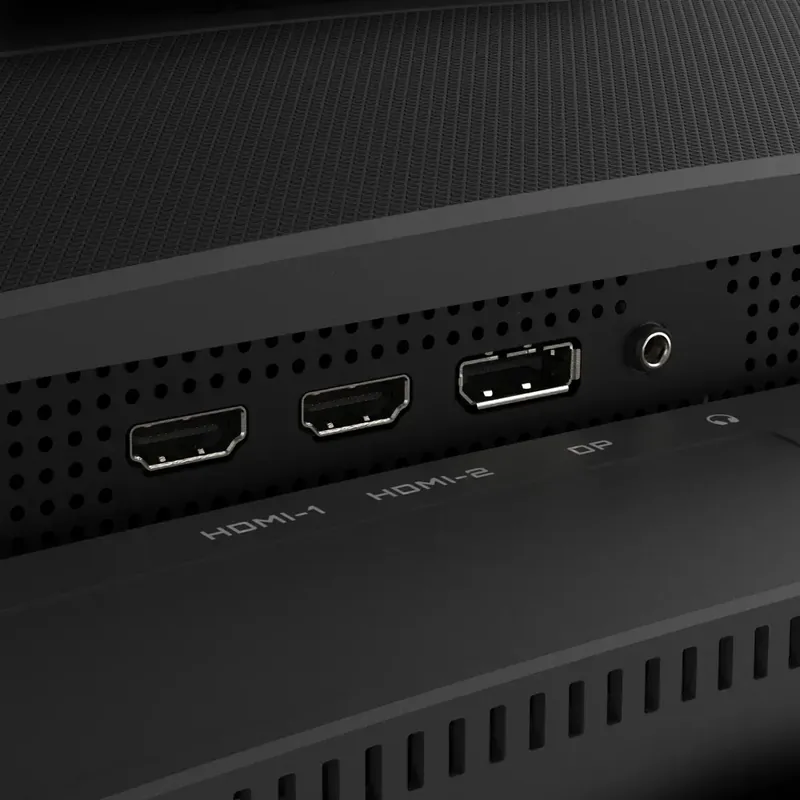
It features two HDMI ports and one DisplayPort connector.
Is this answer helpful?
Yes, it uses Flicker-Free technology to reduce eye strain.
Is this answer helpful?
Select All Reset in the System menu to restore defaults.
Is this answer helpful?
Advantages and Disadvantages
Advantages

- 3440 x 1440 resolution offers sharp detail across 21:9 aspect ratio.
- Supports up to 120Hz refresh rate for smooth competitive gaming.
- FreeSync Premium eliminates screen tearing and stuttering during motion.
- Adjustable stand allows height and tilt adjustments for comfort.
- VESA mount compatible for flexible wall or arm installation options.
Disadvantages

- Maximum brightness is limited compared to high-end HDR displays.
- Navigation requires learning specific control button movements for menus.
- Audio output relies on headphones rather than built-in speaker drivers.
- Overscan issues may require manual configuration on some inputs.
- Color accuracy requires calibration for professional graphic design tasks.
Product Specification
Feature
Monitor (fixed)
Diagonal
34" (34.02in)
Resolution
3440x1440 (UWQHD), 21:9, 110ppi
Panel
VA
Backlight
LED, Blue Light Filter, flicker-free
Brightness
300 cd/m2 (typical)
Contrast Ratio
4,000:1 (static)
Response Time
1ms (MPRT)
Refresh Rate
120Hz (135Hz OC, 3440x1440)
Variable Refresh Rate
Adaptive Sync, AMD FreeSync Premium certified (48-120Hz via DisplayPort, 48-120Hz via HDMI, with LFC support, with HDR)
Motion Blur Reduction
GIGABYTE Aim Stabilizer
Ports
2x HDMI 2.0 (120Hz@3440x1440), 1x DisplayPort 1.4 (120Hz@3440x1440), 1x 3.5mm Jack (Line-Out), 1x AC Input C13 (Power)
Shape
Curved, 1500R / 4.92ft
Viewing Angle
178 deg / 178 deg
Coating
non-glare (matte)
Color Depth
8bit (16.7M colors)
FRC
unknown
sRGB
120%
Controls
D-Pad
Ergonomics
with stand, height-adjustable (3.94in), Pivot N/A, Swivel N/A, Tilt (+20 deg / -5 deg)
VESA Mounting
100x100mm (3.94x3.94in) (included)
Power Consumption
35.5W (typical), 0.5W (standby)
Energy Efficiency SDR (A-G)
31 kWh/1000h (F)
Energy Efficiency HDR (A-G)
58 kWh/1000h (G)
Features
Security Lock (Kensington Security Slot), Picture-in-Picture, Slim Bezel
Screen-to-Body Ratio
90.35% (calculated)
Dimensions
31.85x19.24x9.24in (WxHxD) with stand compressed, 31.85x14.31x4.51in (WxHxD) without stand
Color
black (display bezel) / black (bottom bezel) / black (base) / black (rear)
Weight
18.47lbs (with stand), 13.40lbs (without stand)
Power Supply
Internal
USB Designation
Link
Product Description
Experience Elite Performance with the GIGABYTE GS34WQC 34 Monitor
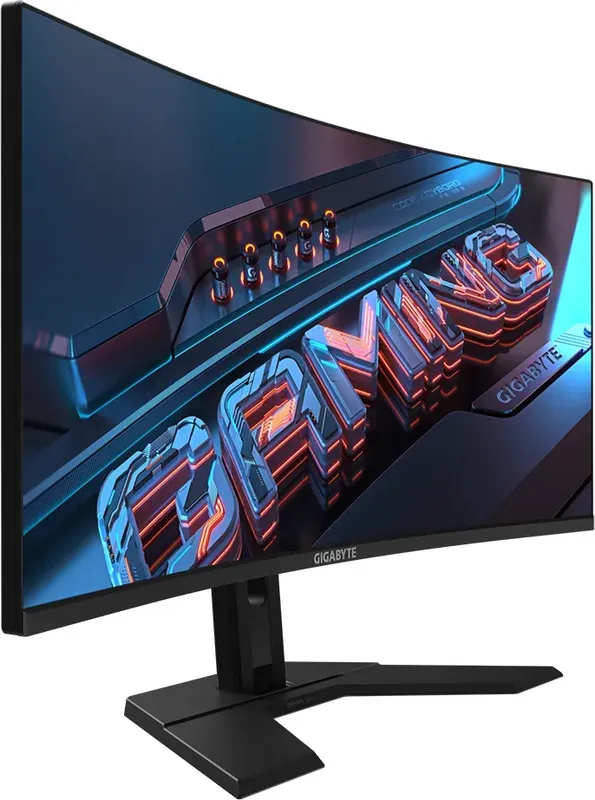
Gamers and professionals alike demand a display that keeps pace with their ambition. The GIGABYTE GS34WQC, 34 Manual specifications are impressive, introducing a stunning ultrawide visual experience designed to immerse users in every task or title. With a native resolution of 3440 by 1440 pixels, this screen offers a vast canvas that accommodates multitasking without sacrificing image fidelity. The 21:9 aspect ratio ensures that content from modern games and productivity software fills the space perfectly, reducing the need for multiple monitors while increasing workspace efficiency. Under the hood, this panel supports refresh rates up to 120Hz, providing fluid motion that is essential for competitive shooters and fast-paced racing simulations.
Advanced Gaming Features and Adjustments
To ensure a smooth visual experience, the monitor integrates AMD FreeSync Premium technology. This feature synchronizes the refresh rate with the graphics card to eliminate screen tearing and reduce stuttering. The On-Screen Display menu grants direct access to game-specific tools. Users can enable Black Equalizer to see details in dark scenes or activate Target Stabilizer to reduce motion blur. These utilities are controlled via a single navigation button, though users should familiarize themselves with the up, down, and left movements to access functions like Crosshair overlay or quick source switching. The interface allows toggling the Info position and refreshing the rate monitor directly. Users can also configure input auto-switch and set up quick switch buttons for immediate access to brightness or volume controls. Additionally, the OSD system allows for extensive picture mode customization including Gaming, Cinema, and Reader settings.
Versatile Ergonomics and Connections
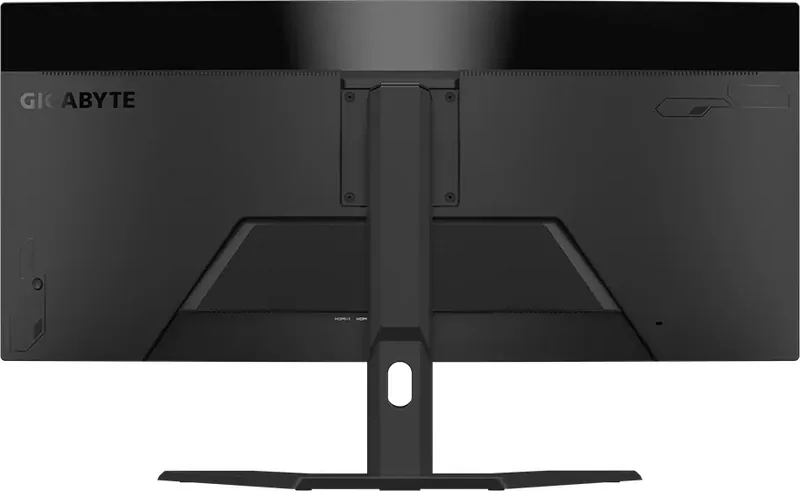
Physical comfort is prioritized with an adjustable stand that supports height changes of up to 100mm and a tilt range from minus five to 20 degrees. If desk space is limited, the monitor accepts standard VESA 100 mm mounting brackets for wall or arm installation. Connectivity options include two HDMI interfaces and one DisplayPort, ensuring compatibility with various consoles and PCs. A headphone socket located on the rear panel provides private audio monitoring. The device also adheres to strict safety standards including low blue light certification and flicker-free technology to protect eyes during extended sessions. This ensures longevity and safe operation over many years of heavy usage. Proper maintenance involves using a soft cloth and avoiding harsh chemicals on the panel surface.
Notes
Ensure all cables are firmly connected before powering on. Use the included power cord for warranty compliance. Refer to the official website for firmware updates or driver support. The reference manual contains detailed setup diagrams.
Search for 67,706 Manuals online


Type-in Brand or Model