
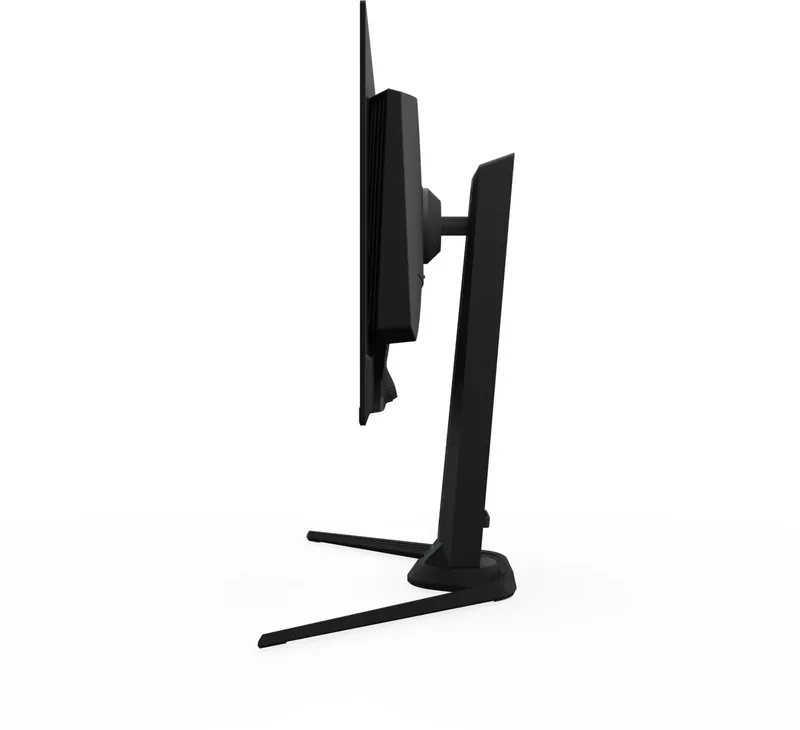
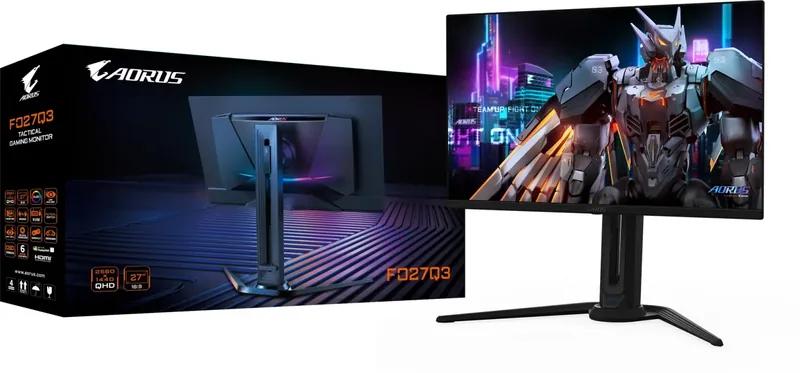
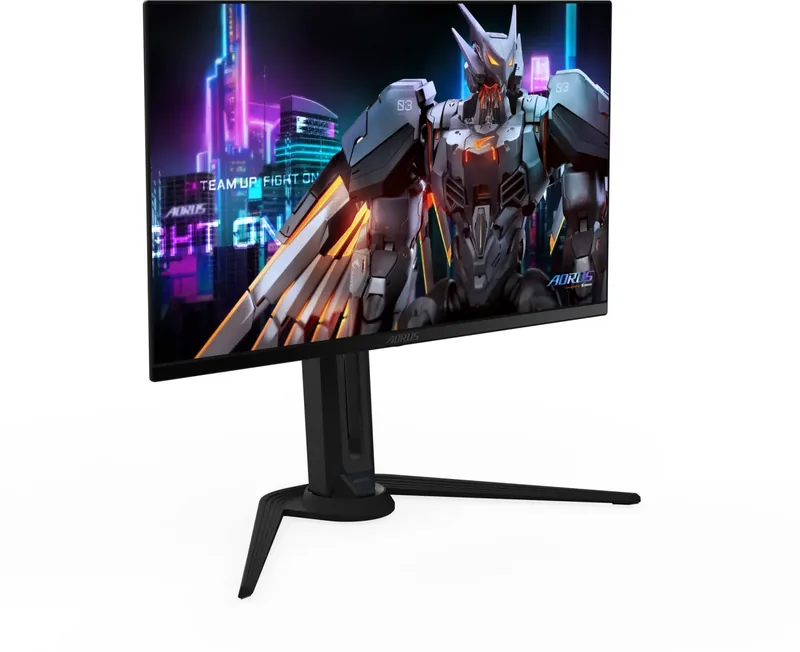
GIGABYTE AORUS FO27Q3 Manual
PDF manual · 30 Pages
English



Quick check
Incorrect answer, please try again.
Chat with your GIGABYTE AORUS FO27Q3 manual using AI
Get instant AI answers from your GIGABYTE AORUS FO27Q3 manual
Ask anything about the GIGABYTE AORUS FO27Q3. Answers come from this manual, with the pages they are based on.
AORUS FO27Q3 Maintenance Schedule
If the monitor has been used for more than 4 hours, start the Pixel Clean process via the OLED Care menu to compensate pixels and prevent burn-in.
Remove dust from the screen using a soft, lint-free cloth. Apply cleaning fluid to the cloth, not directly on the screen, and wipe gently without excessive pressure.
Ask a Question
Do you recommend AORUS FO27Q3?
Yes NoFrequently Asked Questions
Press the Control button for two seconds or select Power Off from the Main menu after pressing the button down.
Is this answer helpful?
Use a soft lint-free cloth lightly dampened with cleaner. Never spray fluid directly on the panel to avoid liquid damage.
Is this answer helpful?
Yes, the KVM function allows you to control two devices with a single keyboard and mouse setup.
Is this answer helpful?
It supports VESA 100mm by 100mm mounting kits using four M4 by 10mm screws minimum.
Is this answer helpful?
Try changing the Display Mode aspect ratio setting found in the Gaming menu to fill the entire panel correctly.
Is this answer helpful?
Advantages and Disadvantages
Advantages

- Supports high refresh rates up to 360Hz for competitive gameplay smoothness.
- Includes multiple modern input ports like HDMI 2.1 and USB Type-C.
- Features specialized gaming aids such as Black Equalizer and Tactical Switch.
Disadvantages

- Setup may require navigating complex menus for first time users.
- Wall mounting requires separate purchase of VESA compatible bracket kit.
- Power supply uses external adapter rather than built-in transformer.
Product Specification
Function
Monitor (stationary)
Diagonal
27 in (69 cm)
Resolution
2560x1440 (QHD), 16:9, 109 ppi
Panel
OLED (QD-OLED), Quantum-Dot, Manufacturer: Samsung
Backlight
N/A
Brightness
250 cd/m2 (Typical), 1000 cd/m2 (HDR)
Contrast
1,500,000:1 (Static)
HDR
VESA DisplayHDR True Black 400
Response Time
0.03ms (GtG)
Refresh Rate
360Hz (2560x1440)
Variable Refresh Rate
Adaptive Sync, AMD FreeSync Premium certified (48-360Hz via DisplayPort, 48-360Hz via HDMI, with LFC support, with HDR)
Motion Blur Reduction
VESA ClearMR 13000
Ports
2x HDMI 2.1, 1x DisplayPort 1.4, 1x USB-C 3.0 with DisplayPort 1.4 (Upstream, 5Gb/s, PD 18W), 1x USB-B 3.0 (Upstream, 5Gb/s), 2x USB-A 3.0 (Downstream, 5Gb/s), 1x 3.5mm jack (Line-Out), 1x 3.5mm jack (Line-In), 1x DC-In barrel (Power)
Shape
Flat
Viewing Angle
178 deg / 178 deg
Coating
Anti-glare (Non-reflective)
Color Depth
10 bit (1.07 Billion colors)
FRC
Unknown
DCI-P3
99%
LUT (Lookup Table)
Factory Calibration
Speakers
Speakers (2x 5W)
Controls
Mechanical buttons, Joystick
Ergonomics
With Stand, Height Adjustable (5.12 in), Pivot (+90 deg), Swivel (+-20 deg), Tilt (+20 deg/-5 deg)
VESA Mount
100x100 (Used)
Power Consumption
53W (Max), 0.5W (Standby)
Features
Security Lock (Kensington Security Slot), Rear Illumination (RGB), KVM Switch, Picture-in-Picture, Slim Bezel
Screen-to-Body Ratio
92.39% (Calculated)
Dimensions
24.03 x 20.96 x 6.24 in (WxDxH) with Stand compressed, 24.03 x 14.03 x 2.25 in (WxDxH) without Stand
Color
Black (Bezel) / Black (Bottom Trim) / Black (Stand) / Black (Back)
Weight
15.87 lbs (with Stand), 11.02 lbs (without Stand)
Power Supply
External
Warranty
Three Years (Link)
USB Naming
Link
Product Description
Elevate Your Gaming Experience with Precision
When searching for high performance in a mid-size display, the GIGABYTE AORUS FO27Q3 stands out significantly. This twenty-seven inch monitor delivers exceptional clarity alongside rapid refresh rates that cater to competitive players. Understanding the full potential requires careful configuration which is why having access to the GIGABYTE AORUS FO27Q3, 27" Manual is essential for optimal setup. The device supports resolutions up to two thousand five hundred sixty by one thousand four hundred forty pixels ensuring sharp visuals during intense moments in popular titles. Color depth reaches ten-bit capabilities for smoother gradients and realistic rendering across supported content types.
Connectivity remains a major highlight for this unit. Users benefit from multiple HDMI 2.1 ports plus DisplayPort 1.4 access. A USB Type C port facilitates connection for laptops requiring video and power simultaneously. The inclusion of USB 3.2 downstream ports simplifies peripheral management directly from the screen. Configuring these inputs ensures seamless switching between consoles and PCs. The Tactical Switch allows quick access to resolution changes without deep menu diving. Gamers appreciate Black Equalizer settings which brighten dark scenes for hidden enemy spotting.
Ensuring Comfort and Longevity
Eye comfort is prioritized through flicker free technology and low blue light certification. Proper positioning guidelines recommend keeping the screen at eye level to reduce strain. Wall mounting options exist using standard VESA 100 by 100 millimeter brackets. Regular cleaning with soft cloth maintains panel integrity without chemical damage risks. System settings allow adjustment of picture modes like FPS or Racing for tailored visual profiles.
Adjusting audio via the headphone jack or microphone port ensures clear communication during multiplayer sessions. Power consumption stays efficient even at peak performance levels. If issues arise, basic troubleshooting steps are available regarding signal detection and image scaling. Resetting functions restores factory defaults easily. This comprehensive approach guarantees years of reliable service while maintaining high standards for visual fidelity and user safety throughout operation cycles. Detailed guidance helps manage thermal stability and prevents hardware hazards effectively. The On-Screen Display menu provides intuitive navigation through various system categories. Picture settings offer customization for brightness and contrast ratios suitable for any environment. Input selection becomes straightforward using the control button logic described. Firmware updates are managed externally to ensure compatibility with next generation graphics cards. Safety warnings emphasize proper ventilation placement away from direct sunlight. These measures protect internal components from overheating during extended gaming marathons. Stability hazard precautions advise securing furniture to prevent tipping accidents involving children or pets. Ultimately, adhering to manufacturer recommendations extends equipment lifespan significantly.
Search for 67,706 Manuals online


Type-in Brand or Model