
GIGABYTE AORUS FI32Q Manual
PDF manual · 46 Pages
English


Quick check
Incorrect answer, please try again.
Chat with your GIGABYTE AORUS FI32Q manual using AI
Get instant AI answers from your GIGABYTE AORUS FI32Q manual
Ask anything about the GIGABYTE AORUS FI32Q. Answers come from this manual, with the pages they are based on.
AORUS FI32Q Maintenance Schedule
Use a soft, lint-free cloth to remove dust. Apply cleaning fluid to the cloth, not directly on the screen. Avoid acidic or abrasive cleaners.
Unplug the power cord if the monitor will not be used for an extended period of time.
Ask a Question
Do you recommend AORUS FI32Q?
Yes No
Amina D'Amore
6 months ago
Is the sRGB mode on this monitor accurate for professional color work?
Katie Turner
5 months ago
Why does this monitor falsely report itself as 4K instead of its native 1440p resolution, and is there a permanent fix?

Manual.ly
5 months ago
This issue stems from an incorrect EDID configuration in the monitor firmware. While we have identified the problem and are working on a firmware update to correct the reported resolution permanently, users can currently apply a temporary workaround using the CRU tool to manually remove the false 4K entry. Please note that this manual adjustment may need to be repeated after graphics driver updates until the official firmware patch is released.
Anna Weber
5 months ago
Is the sRGB mode on this display accurate for professional color work out of the box?
Frequently Asked Questions
The monitor supports a maximum refresh rate of 170Hz when using the DisplayPort connection with overclocking enabled. Over HDMI, the maximum supported rate is 144Hz at native resolution.
Is this answer helpful?
Yes, the GIGABYTE AORUS FI32Q is compatible with standard VESA 100x100mm wall mounts. You must remove the original stand before attaching the monitor to the wall bracket.
Is this answer helpful?
Absolutely. It features a KVM switch that allows you to control two different computers with one set of peripherals. It also includes sRGB mode and various image presets suitable for creative work.
Is this answer helpful?
The HDR 400 certification provides basic high dynamic range enhancement. While it improves contrast in supported games, it does not reach the depth of higher-tier HDR monitors due to limited local dimming capabilities.
Is this answer helpful?
Navigate to the Game menu using the control button, select Game Assist, and then choose Crosshair. You can customize the type and color of the reticle to suit your preference.
Is this answer helpful?
The monitor features an intelligent overdrive setting that enhances response times. While exact milliseconds vary by input signal, the technology is designed to minimize ghosting and motion blur during fast action sequences.
Is this answer helpful?
Yes, the USB Type-C port supports power delivery up to 90W depending on the configuration, allowing you to charge compatible laptops while transmitting video and data signals through a single cable.
Is this answer helpful?
Advantages and Disadvantages
Advantages

- Exceptional 170Hz refresh rate via DisplayPort for ultra-smooth gameplay
- Comprehensive Game Assist tools including crosshairs and FPS counters
- Versatile connectivity with USB Type-C, HDMI 2.0, and DisplayPort 1.4
- Hardware-based Low Blue Light certification reduces eye strain effectively
- Full ergonomic stand support with tilt, swivel, and pivot adjustments
Disadvantages

- Adaptive Sync is incompatible with PIP/PBP multi-view functions
- HDR 400 certification offers limited dynamic range compared to higher tiers
- USB charging compatibility issues exist with certain older tablet models
- No built-in speakers included in the package
- Overclocking to 170Hz requires DisplayPort connection, not HDMI
Product Specification
Function
Monitor (stationary)
Diagonal
31.5" (80.0cm)
Resolution
2560x1440 (QHD), 16:9, 93ppi
Panel
IPS
Backlight
LED, Blue Light Filter, flicker-free
Brightness
350cd/m^2 (typical)
Contrast
1,000:1 (static), 12,000,000:1 (dynamic)
HDR
VESA DisplayHDR 400
Response Time
1ms (GtG), 1ms (MPRT)
Refresh Rate
165Hz (170Hz OC, 2560x1440)
Variable Synchronization
Adaptive Sync, AMD FreeSync Premium certified (48-170Hz via DisplayPort, 48-144Hz via HDMI, with LFC support, with HDR)
Motion Blur Reduction Function
GIGABYTE Aim Stabilizer
Connections
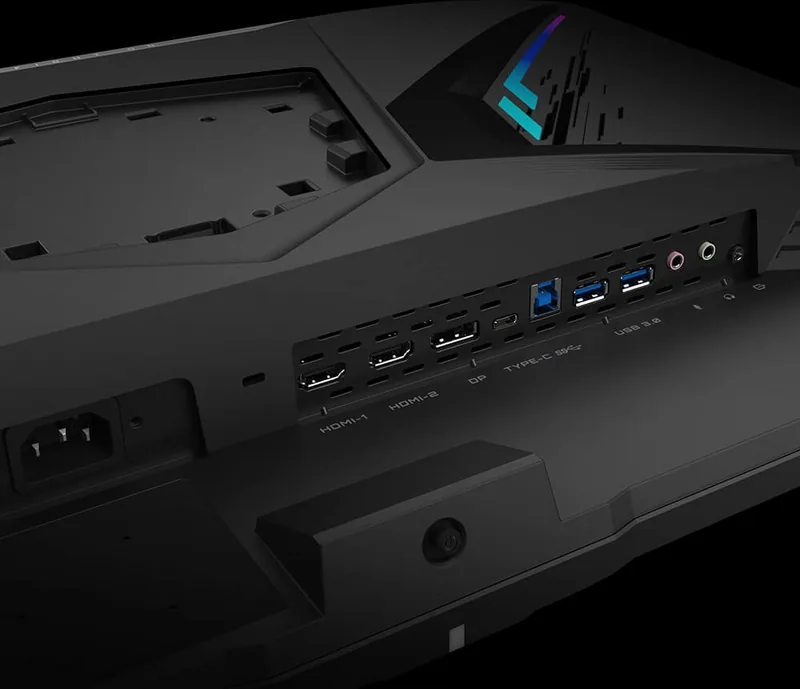
2x HDMI 2.0, 1x DisplayPort 1.4, 1x USB-C 3.0 with DisplayPort 1.4 (Upstream, 5Gb/s), 1x USB-B 3.0 (Upstream, 5Gb/s), 2x USB-A 3.0 (Downstream, 5Gb/s, BC), 1x 3.5mm Jack (Line-Out), 1x 3.5mm Jack (Line-In), 1x AC-In C13 (Power)
Shape
straight (flat)
Viewing Angle
178°/178°
Coating
non-glare (matte)
Color Depth
8bit (16.7 Million Colors)
FRC
unknown
sRGB
120%
DCI-P3
94%
Control
Joystick
Ergonomics
with stand, height adjustable (130mm), Pivot (+90°), swivel (±20°), tiltable (+21°/-5°)
VESA
100x100 (occupied)
Power Consumption
110W (max), 40W (typical), 0.5W (Standby)
Energy Efficiency SDR (A to G)
40kWh/1000h (G)
Energy Efficiency HDR (A to G)
51kWh/1000h (G)
Features
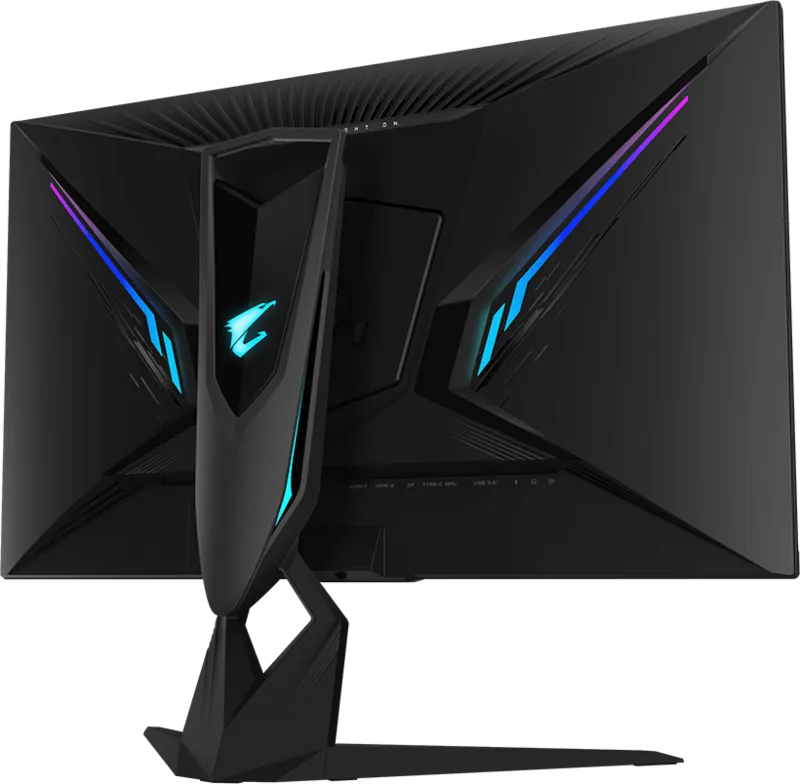
Security Lock (Kensington Security Slot), Backlight on rear (RGB), KVM Switch, Picture-in-Picture, Slim Bezel
Screen-to-Body Ratio
89.84% (calculated)
Dimensions
28.25x23.56x11.14in (WxHxD) with stand compressed, 28.25x16.70x2.81in (WxHxD) without stand
Color
black (display frame) / black (lower bezel) / black (stand) / black (rear)
Weight
23.81lbs (with stand), 16.76lbs (without stand)
Power Supply
internal
USB Notation
Link
Product Description
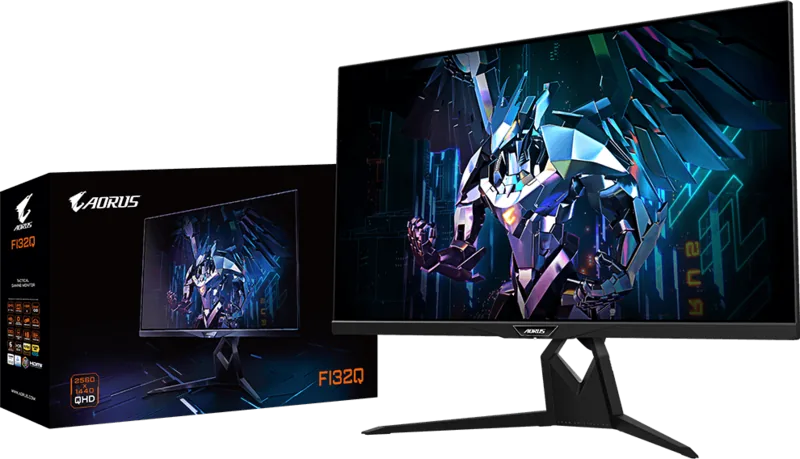
GIGABYTE AORUS FI32Q 31.5: The Ultimate Gaming Display Experience
The GIGABYTE AORUS FI32Q 31.5 is a high-performance gaming monitor designed for enthusiasts who demand precision, speed, and immersive visuals. With a stunning 31.5-inch IPS panel, this display delivers a crisp 2560x1440 resolution that brings every detail of your favorite games to life. Whether you are engaging in fast-paced competitive shooters or exploring vast open worlds, the vibrant color reproduction and wide viewing angles ensure an exceptional visual journey.
At the heart of this monitor lies its incredible refresh rate capabilities. Through DisplayPort, users can achieve an overclocked 170Hz refresh rate, providing buttery-smooth gameplay that eliminates motion blur and screen tearing. This high-speed performance is complemented by Adaptive Sync technology, which synchronizes the monitor's refresh rate with the graphics card to deliver seamless frame delivery. For gamers seeking tactical advantages, the built-in Game Assist features offer crosshairs, FPS counters, and real-time system monitoring directly on the screen.
Connectivity is robust and versatile, featuring dual HDMI 2.0 ports, a DisplayPort 1.4 input, and a USB Type-C port that supports video, data, and power delivery. The integrated KVM switch allows seamless control of multiple devices from a single keyboard and mouse setup, enhancing productivity for those who use both work and gaming rigs. Additionally, the monitor includes a comprehensive suite of ergonomic adjustments, including tilt, swivel, and pivot capabilities, allowing you to find the perfect viewing position for extended sessions.
The AORUS FI32Q also prioritizes eye comfort with hardware-based Low Blue Light solutions certified by TÜV Rheinland, reducing strain during long gaming marathons. Its sleek design, complete with customizable RGB lighting on the rear, fits perfectly into any modern gaming battlestation. From its intelligent overdrive settings to its detailed picture modes tailored for specific genres like FPS, RTS, and RPG, this monitor is engineered to elevate your entire gaming experience.
Important Notes
- Ensure the USB upstream cable is connected for full functionality of audio and KVM features.
- The monitor supports VESA 100x100mm wall mounting for flexible installation options.
- Use only recommended cleaning cloths to avoid damaging the delicate screen surface.
Search for 67,706 Manuals online


Type-in Brand or Model
Max Mueller
5 months ago
Does this monitor falsely report as 4K in its EDID, causing issues with PC drivers and scaling technologies?
Manual.ly
5 months ago
Yes, there is a known issue where the monitor's EDID incorrectly identifies it as a 4K display despite being a native 1440p panel. This can cause games to switch to 4K resolution at 120Hz, resulting in poor image quality and FPS limitations. While you can manually remove this entry using third-party tools like CRU, the setting resets after every graphics driver update. We are aware of this firmware bug and are working on a permanent solution.