
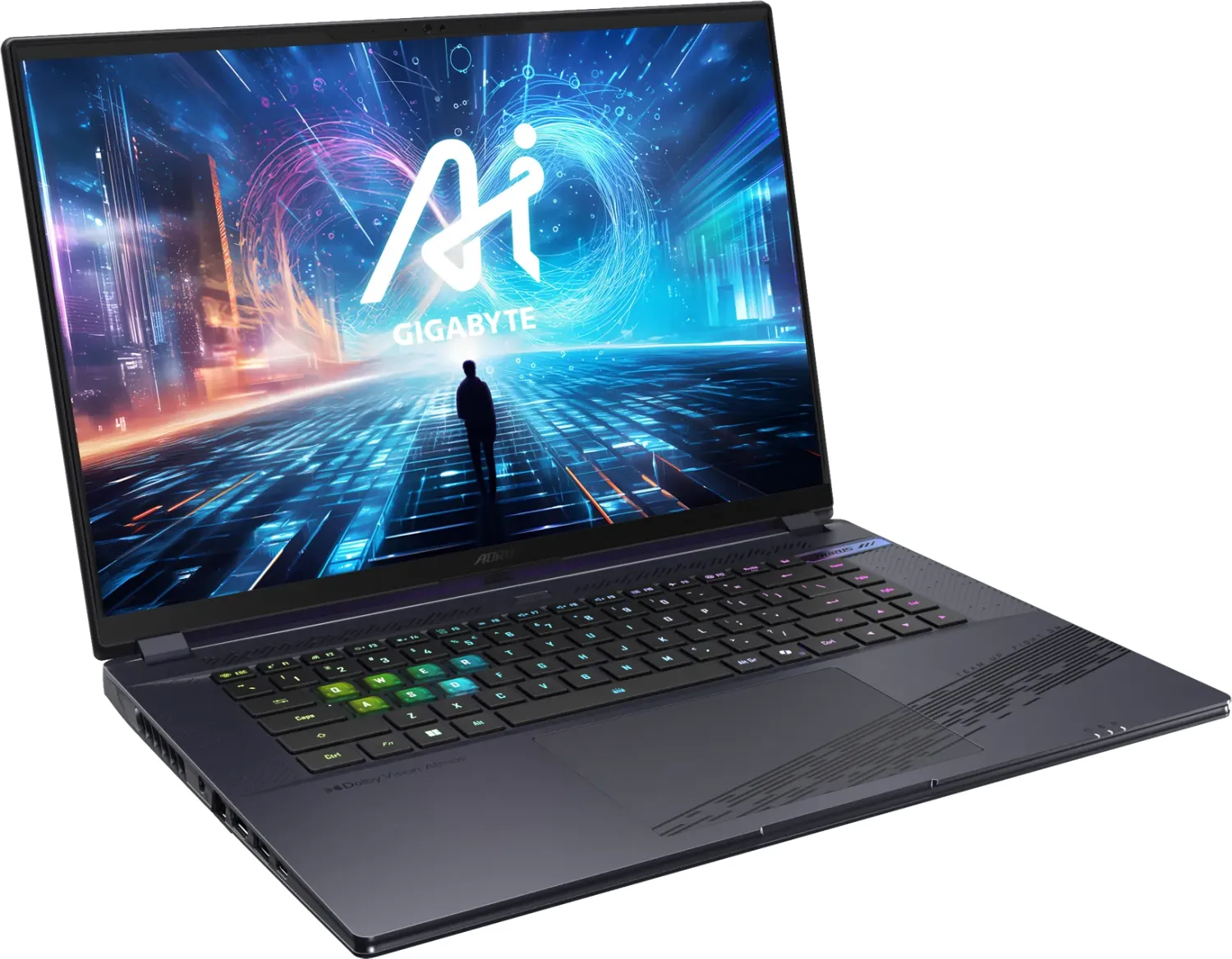

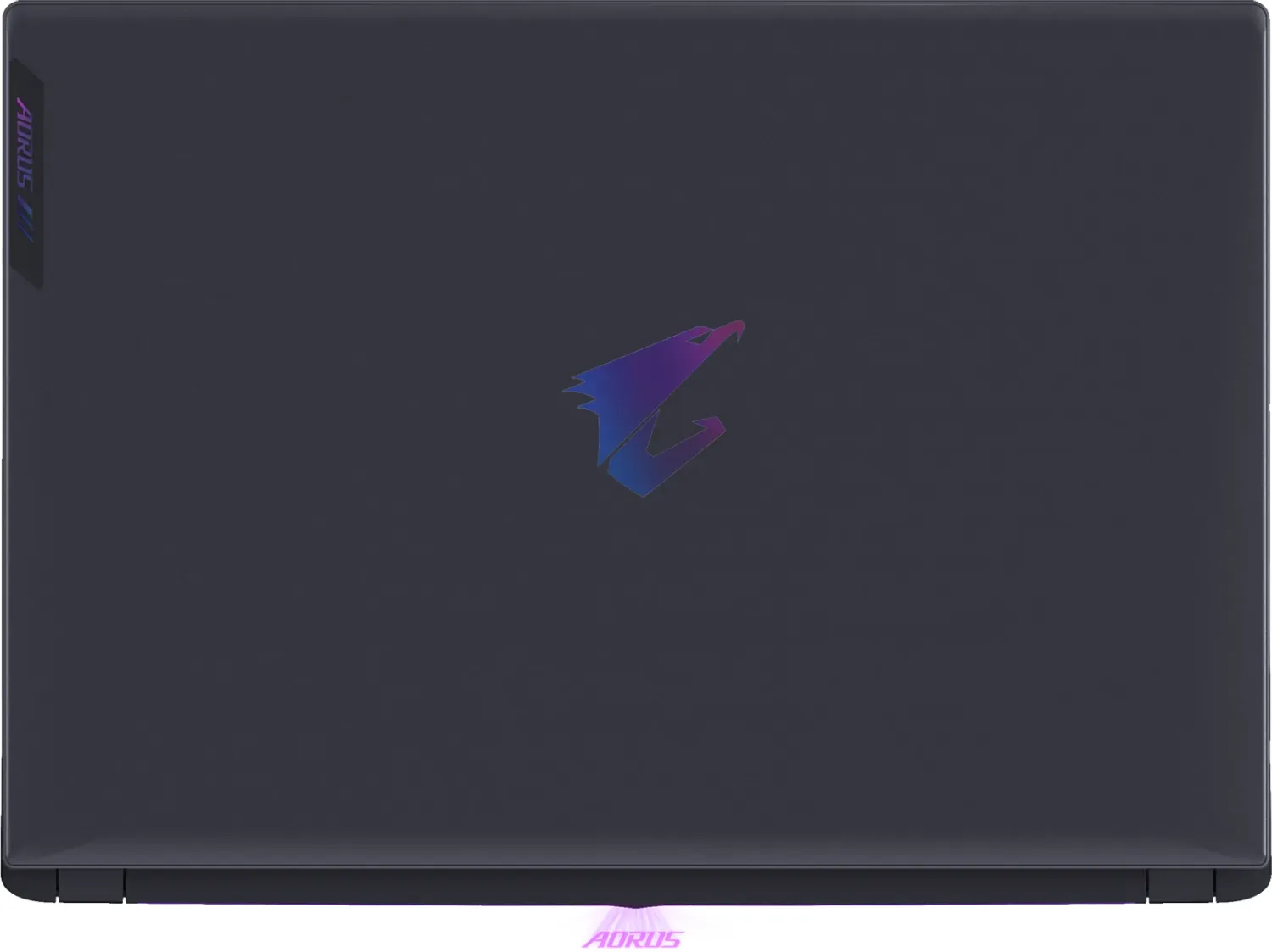
GIGABYTE AORUS 16X (2024) Manual
PDF manual · 154 Pages
English



Quick check
Incorrect answer, please try again.
Chat with your GIGABYTE AORUS 16X (2024) manual using AI
Get instant AI answers from your GIGABYTE AORUS 16X (2024) manual
Ask anything about the GIGABYTE AORUS 16X (2024). Answers come from this manual, with the pages they are based on.
Ask a Question
Do you recommend AORUS 16X (2024)?
Yes NoFrequently Asked Questions
Restart the laptop and press and hold F9 during boot to launch the recovery utility. From there choose "Troubleshoot" to access Smart Recovery or advanced recovery options like System Image Recovery, Startup Repair, Command Prompt, and UEFI settings.
Is this answer helpful?
It includes Thunderbolt 4 (USB-C), multiple USB 3.2 Type-A and Type-C ports, HDMI 2.1, Ethernet (LAN), a UHS-II microSD card reader, and an audio combo jack for broad external device support and high-speed data transfer.
Is this answer helpful?
Ensure ventilation openings are never blocked, avoid placing the laptop on soft or heated surfaces, and use the hotkey to increase fan speed when running intensive tasks. Follow manufacturer maintenance guidance and keep vents clean to maintain cooling efficiency.
Is this answer helpful?
Some features such as system audio may not function until Windows Setup completes during the initial boot. Follow the on-screen installation steps and keep the device powered until setup finishes to enable all functions.
Is this answer helpful?
No. If the internal storage is replaced or the recovery partition is removed, the built-in recovery option will no longer be available; you will need an external recovery service or media to reinstall the operating system.
Is this answer helpful?
Yes, certain configurations use Flicker-Free and Low Blue Light technologies (TÜV Rheinland verified on qualifying models). Follow recommended viewing distances and take frequent breaks to reduce eye strain.
Is this answer helpful?
Visit GIGABYTE’s regional support pages (e.g., gigabyte.com/Support) for full user manuals, downloads, FAQs, warranty info, and firmware updates specific to your model and region.
Is this answer helpful?
Advantages and Disadvantages
Advantages

- Extensive I/O: Thunderbolt 4, multiple USB 3.2 ports, HDMI 2.1, Ethernet and UHS-II microSD reader for flexible connectivity.
- Recovery options: Preinstalled system recovery partition with Smart Recovery and advanced recovery tools accessible via F9.
- Performance controls: Hotkeys for fan speed, AI mode, display toggling, and keyboard backlight provide quick hardware management.
- Multimedia-ready: Flicker-Free display, Dolby-certified audio (where licensed), webcam and microphone suitable for streaming and conferencing.
- Global power support: Wide input voltage range (100–240 VAC) and region-specific documentation and support links provided.
Disadvantages

- Recovery dependency: If storage is replaced or recovery partition is deleted, built-in recovery becomes unavailable and external recovery is required.
- Thermal sensitivity: Device requires unobstructed ventilation; misuse (e.g., on heated surfaces) can cause overheating or damage.
- Initial setup caution: Some functions (audio volume, etc.) may not operate until Windows setup completes after first boot.
- Documentation variance: Feature availability and SKU differences require checking region-specific manuals for exact specifications.
- Potential noise at max fans: Maximum fan mode may increase noise levels during intensive workloads.
Product Specification
Type
Notebook
Display
16", 2560x1600 (WQXGA), 16:10, 189ppi, 165Hz, non-glare (matte), Blue light filter, Dolby Vision, NVIDIA G-Sync, Pantone validated, 100% sRGB
HDD
N/A
Flash
N/A
Operating system
Windows 11 Home
Ports
1x USB-C 3.1 with DisplayPort 1.4 (10Gb/s), 2x USB-A 3.1 (10Gb/s), 1x Thunderbolt 4 (40Gb/s, PD), 1x HDMI 2.1, 1x 3.5mm jack (Line-In/Out), 1x RJ-45 1Gb LAN, 1x microSD (UHS-II), 1x DC-In barrel jack (Power connector)
Wireless
Wi-Fi 7 (WLAN 802.11a/b/g/n/ac/ax/be, 2x2, Intel), Bluetooth 5.4
Authentication
IR camera, TPM 2.0
Camera
2 Megapixel
Optical drive
N/A
Battery
permanently installed, Li-Polymer, 99Wh
Power supply
1x Barrel connector (240W)
Special features
MUX-Switch (Advanced Optimus)
Weight
5.07 lb
Dimensions
14.00x10.00x1.06in (WxDxH)
Color
grey, Manufacturer designation: Midnight Gray
SSD/HDD-Slots
2x M.2 PCIe 4.0 x4 (2280)
Warranty
two years (Mail-in with pick-up)
USB notation
Link
Product Description
GIGABYTE AORUS 16X (2024) Manual — Overview
The GIGABYTE AORUS 16X (2024) is a high-performance gaming and creator laptop designed to balance raw power with practical portability. Sporting advanced connectivity like Thunderbolt 4, multiple USB 3.2 ports, HDMI 2.1, Ethernet, and a UHS-II microSD reader, it targets users who need fast I/O for external displays, peripherals, and media workflows. The chassis integrates an ergonomic keyboard, precision touchpad, webcam and microphone, and stereo speakers—making it suitable for gaming, streaming, and productivity on the go.
Key features and usability
Under the hood the AORUS 16X (2024) emphasizes cooling and control: dedicated hotkeys let you toggle fan performance, adjust display brightness, switch output displays, and manage audio or touchpad functions. An AI mode toggle and keyboard backlight controls enhance both convenience and personalization. The power input and battery design are intended for varied regional power specifications (100–240 VAC), and the system ships with an intuitive first-time setup flow to guide users through activation and Windows configuration.
Recovery and support are addressed with a preinstalled system recovery partition that can restore factory software settings via an F9 boot option. The manual outlines Smart Recovery and advanced recovery options (system image recovery, startup repair, command prompt, UEFI firmware settings) to troubleshoot and restore the OS when required. Important safety and maintenance guidance covers ventilation, battery care, and optimal display ergonomics—advice includes recommended viewing distances, break schedules to reduce eye strain, and use of flicker-free and low-blue-light display modes where applicable.
Design and multimedia
The AORUS 16X (2024) blends performance-oriented hardware with multimedia features: a high-refresh display with Flicker-Free technology, Dolby certification for audio modes (where licensed), and configurable fan profiles for heavy workloads. Ports are laid out to accommodate external monitors, fast storage devices, and audio accessories, while the integrated mic and webcam support streaming and conferencing.
Final notes
This model is aimed at demanding users—gamers, creators, and professionals—who need a powerful laptop with broad connectivity and robust recovery options. Firmware and support links are provided by GIGABYTE for region-specific manuals, driver downloads, and FAQs.
Notes:
- Use F9 at boot to access recovery tools.
- Keep ventilation unobstructed to avoid overheating.
- Follow recommended viewing distances and take frequent breaks to reduce eye strain.
- Check GIGABYTE support pages for full user manuals, downloads, and warranty info.
Search for 67,706 Manuals online


Type-in Brand or Model