
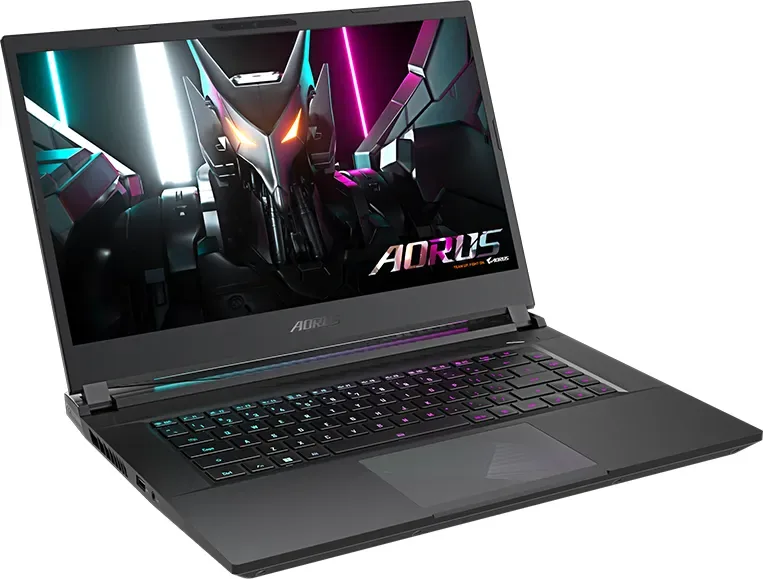
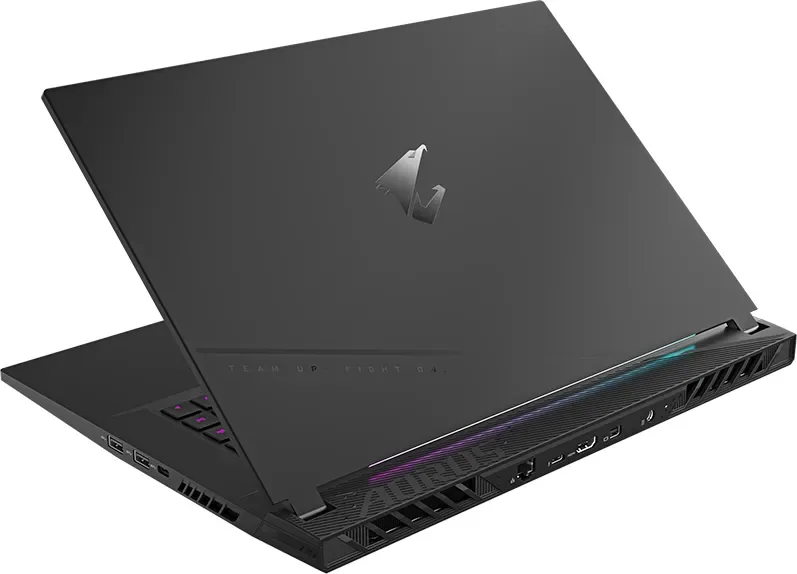
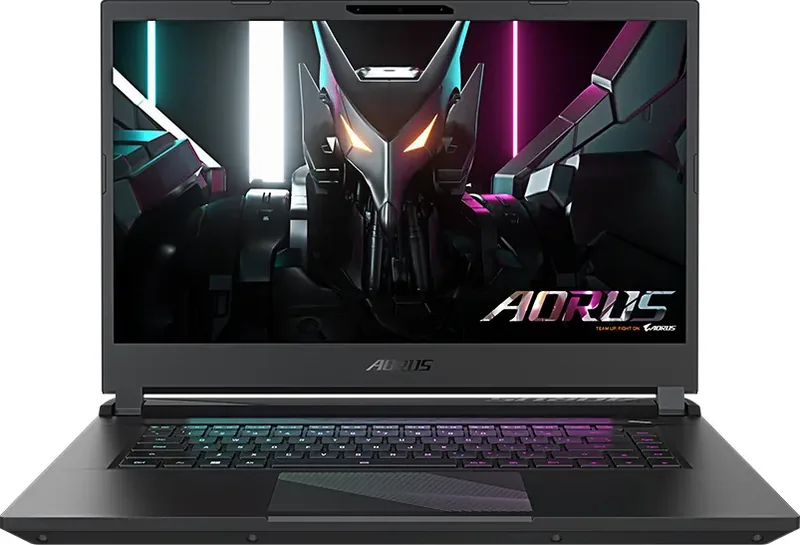
GIGABYTE AORUS 15 (2023) Manual
PDF manual · 154 Pages
English



Quick check
Incorrect answer, please try again.
Chat with your GIGABYTE AORUS 15 (2023) manual using AI
Get instant AI answers from your GIGABYTE AORUS 15 (2023) manual
Ask anything about the GIGABYTE AORUS 15 (2023). Answers come from this manual, with the pages they are based on.
Ask a Question
Do you recommend AORUS 15 (2023)?
Yes NoFrequently Asked Questions
Turn off the laptop and restart it. While it boots, press and hold the F9 key to launch the recovery tool. Select Troubleshoot to enter the settings menu.
Is this answer helpful?
Choosing Smart Recovery resets your PC to factory default settings. All personal data and files will be permanently deleted during this process.
Is this answer helpful?
No, you should not use the laptop on bedding or cushions. These surfaces block ventilation ports and can cause dangerous overheating.
Is this answer helpful?
The audio volume function will not work until the Windows Setup process has fully completed after your first boot.
Is this answer helpful?
Press and hold the Fn key, then press ESC. This sets the fan speed to 100% for maximum cooling performance.
Is this answer helpful?
Avoid covering the light sensor area. If covered, the system may incorrectly adjust screen brightness based on the false reading.
Is this answer helpful?
No, the recovery function is only available on devices with an operating system preinstalled. Devices shipped with EFI Shell do not have this feature.
Is this answer helpful?
Advantages and Disadvantages
Advantages

- Comprehensive port selection including Thunderbolt 4 and HDMI 2.1
- Built-in system recovery tool for easy OS restoration
- Dedicated hotkeys for fan control and AI mode switching
- Automatic brightness adjustment via ambient light sensor
- Robust safety features protecting the battery and hardware
Disadvantages

- Audible volume controls are inactive until Windows setup completes
- Smart Recovery deletes all personal data and files permanently
- Device cannot be used on soft surfaces like beds due to overheating risk
- Light sensor must not be covered or brightness will behave erratically
- Recovery option is unavailable if the hard drive is replaced or partition deleted
Product Specification
Type
Notebook
Display
15.6", 2560x1440 (QHD), 16:9, 188ppi, 165Hz, non-glare (matte), IPS, 100% DCI-P3
CPU
Intel Core i7-13700H, 6P+8E/20T, 2.40-5.00GHz, 24MB+20MB Cache, 45-115W TDP (PBP/MTP), Codename "Raptor Lake-H" (Raptor Cove + Gracemont, Intel 7)
RAM
16GB DDR5-4800 (2x 8GB SO-DIMM Module, 2 Slots, max. 64GB)
SSD
1TB M.2 PCIe 4.0 (2280)
HDD
N/A
Flash
N/A
Operating System
Windows 11 Home
Input
Keyboard with US Layout (3-zone RGB backlit, Rubber-Dome, Anti-Ghosting/N-Key-Rollover, 1.7mm key travel), Touchpad
Ports
1x USB-C 3.1 (10Gb/s), 2x USB-A 3.1 (10Gb/s), 1x USB-A 3.0 (5Gb/s), 1x Thunderbolt 4 (40Gb/s, PD), 1x Mini DisplayPort 1.4, 1x HDMI 2.1, 1x 3.5mm Jack, 1x RJ-45 1Gb LAN, 1x DC-In Barrel Jack (Power Connection)
Wireless
Wi-Fi 6E (WLAN 802.11a/b/g/n/ac/ax, 2x2), Bluetooth 5.2
Authentication
IR Camera, TPM 2.0
Camera
2 Megapixels
Optical Drive
N/A
Battery
Fixed, Li-Polymer, 99Wh
Power Supply
1x Barrel Plug (240W/20V/12A)
Features
MUX Switch
Weight
4.96 lbs
Dimensions
14.17x10.71x0.82 in (WxDxH)
Color
Gray
SSD/HDD Slots
2x M.2 PCIe 4.0 (2280)
Warranty
Two Years (Return Shipping Included)
USB Spelling
Link
Product Description
Experience the Power of GIGABYTE AORUS 15 (2023) Manual
The GIGABYTE AORUS 15 (2023) represents a pinnacle of gaming performance and portability. This guide dives deep into the essential features that make this notebook a standout choice for gamers and professionals alike. From its robust hardware configuration to its intuitive software controls, every aspect is designed for peak efficiency.
Upon unboxing your device, the first step involves connecting the power cord to the AC adapter and then to the DC-in jack. It is crucial to ensure the unit is connected to a grounded power outlet before the initial startup. The system requires careful handling during the first boot; do not turn it off until the operating system configuration is complete. Note that audio volume controls may remain inactive until Windows setup finishes.
The laptop features a comprehensive array of ports including USB 3.2 Type-A and Type-C, Thunderbolt 4, HDMI 2.1, and an Ethernet LAN port. The display panel includes an ambient light sensor that automatically adjusts brightness, so users should avoid covering this area to prevent erratic behavior. Safety warnings emphasize avoiding slanted surfaces, direct sunlight, or temperatures exceeding 45°C to protect the lithium-ion battery from expansion or aging.
Mastering the hotkeys transforms your user experience. By holding the Fn key, you can access functions like maximizing fan speed with Fn+ESC, toggling wireless LAN, adjusting screen brightness, and switching display outputs. The AI Mode switch allows for intelligent performance tuning, while the Airplane Mode provides quick connectivity control. The keyboard backlight toggle ensures visibility in low-light environments.
System recovery is built directly into the storage partition, offering a safety net against OS failures. To initiate this, restart the laptop and hold the F9 key during boot-up. Users can choose to reset the PC while keeping files or perform a Smart Recovery which wipes all data to factory defaults. Advanced options include System Restore, System Image Recovery, and UEFI Firmware Settings for deeper troubleshooting. Always keep the AC adapter plugged in during these processes to ensure stability.
Important Notes
- Never remove the internal lithium battery yourself.
- Ensure ventilation ports on the sides and bottom are never blocked.
- Do not use the device on bedding or pillows as this causes overheating.
- Contact authorized service centers for any repair needs.
Search for 67,706 Manuals online


Type-in Brand or Model