
Garmin vivoactive 3 Music Manual
PDF manual · 30 Pages
English


Quick check
Incorrect answer, please try again.
Chat with your Garmin vivoactive 3 Music manual using AI
Get instant AI answers from your Garmin vivoactive 3 Music manual
Ask anything about the Garmin vivoactive 3 Music. Answers come from this manual, with the pages they are based on.
vivoactive 3 Music Maintenance Schedule
Rinse with clear water after contact with chlorine, salt water, sunscreen, cosmetics, alcohol, or other harsh chemicals to prevent damage.
Thoroughly clean and dry the contacts and surrounding area before connecting to a charger or computer to protect against corrosion.
Wipe the device with a cloth dampened with mild cleaning solution, then wipe dry and allow it to dry completely.
Ask a Question
Do you recommend vivoactive 3 Music?
Yes NoFrequently Asked Questions
You can download music by connecting the watch to a computer using the Garmin Express software to transfer MP3 files. Alternatively, connect the watch to a smartphone via the Garmin Connect app and link a supported streaming service like Spotify to download playlists over Wi-Fi.
Is this answer helpful?
Yes, the device is rated as water-resistant up to 50 meters. It is safe for swimming, showering, and other water-related activities, but it is not recommended for high-velocity water sports or deep diving.
Is this answer helpful?
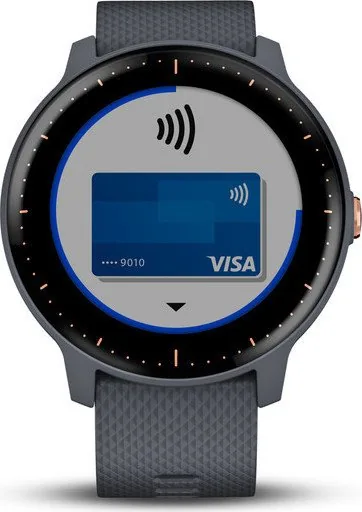
Yes, the watch supports Garmin Pay. You must first add your credit or debit cards through the Garmin Connect Mobile app. Once set up, you can pay at terminals by holding the watch near the reader and entering your PIN.
Is this answer helpful?
Yes, the vívoactive 3 Music has built-in GPS to track outdoor activities like running, cycling, and hiking. It also features an optical heart rate sensor and a barometric altimeter for accurate elevation data.
Is this answer helpful?
In smartwatch mode, the battery lasts up to seven days. When using GPS with music playback simultaneously, the battery life extends for approximately six hours before needing a recharge.
Is this answer helpful?
Advantages and Disadvantages
Advantages

- Built-in music storage allows for phone-free workouts
- Advanced health metrics including VO2 max and stress tracking
- Comprehensive navigation with GPS and turn-by-turn directions
- Water-resistant design suitable for swimming and water sports
- Supports Garmin Pay for convenient contactless transactions
Disadvantages

- No cellular connectivity requires a phone for some features
- Music syncing can drain the battery quickly if used frequently
- Touchscreen may be less responsive when wet or gloved
- Proprietary charging cable required instead of standard USB
- Golf course downloads require Wi-Fi connection which can be slow
Product Specification
Display
1.2, 240x240 Pixel, Color Display, LCD, Touchscreen, Round
Operating System
Proprietary
Interfaces
Wi-Fi (WLAN), Bluetooth, NFC, ANT+
Heart Rate Monitoring
Integrated
Measurement Functions
Time, Stopwatch, Countdown, Step Counter, Stair Counter, Lap Counter, Speed, Distance, Lap Counter, Sleep Monitoring, Cycle Tracking, Heart Rate, Calorie Burn, Temperature, Altimeter, Barometer
Other Features
Date, Calendar, Alarm, Weather Forecast, Internal Music Storage, Inactivity Alert, Payment Function, Camera Control (iOS, Android), Music Control (iOS, Android), Message Notification (iOS, Android), Call Notification (iOS, Android)
Sensors
Barometer
Navigation
Yes, Compass, GPS, GLONASS
Compatibility
Android, iOS
Power Supply
Battery
Battery Life
7 Days (typical), 13h (GPS)
Glass Type
Mineral Glass (Gorilla Glass)
Case Material
Plastic
Strap Material
Silicone
Dimensions (Case)
1.70x0.54 in
Length (Strap)
5.00-8.03 in
Weight
1.38 oz
Special Features
Water Resistant (up to 5 ATM), Interchangeable Strap, Foot Pod Compatible
Note
Some measurement functions require an optional foot pod
Product Description
Unlock Your Potential with the Garmin vívoactive 3 Music
The Garmin vívoactive 3 Music is a premium smartwatch designed for athletes and fitness enthusiasts who demand versatility without compromising on style. This device seamlessly blends advanced health monitoring features with the freedom of wireless music playback, allowing you to leave your smartphone behind during workouts. Whether you are running outdoors, hitting the gym, or simply tracking your daily steps, this watch adapts to your lifestyle.
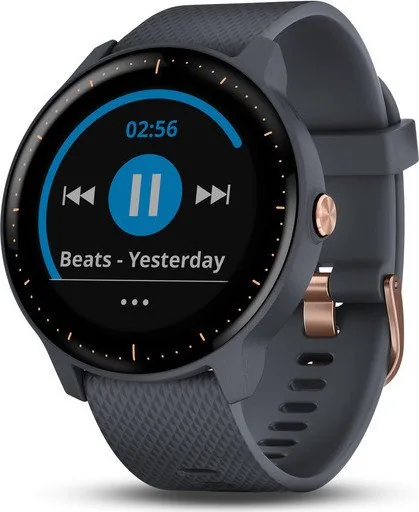
One of the standout features is the built-in music storage. You can download up to 500 songs directly from popular streaming services like Spotify or Deezer, or transfer your own MP3 files via a computer. With Bluetooth connectivity, you can pair wireless headphones to enjoy your favorite playlists anywhere. The watch also supports Garmin Pay, enabling contactless payments at participating stores, so you can pay for your post-workout smoothie without carrying a wallet.
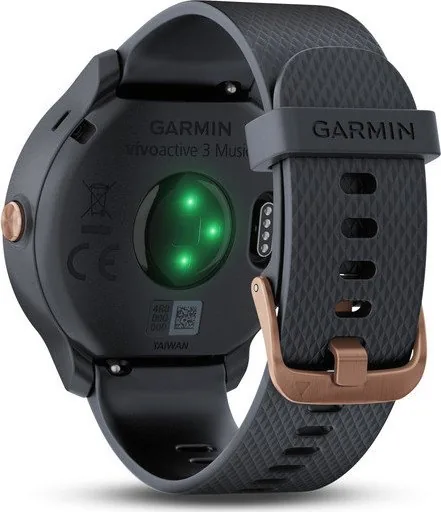
For serious fitness tracking, the vívoactive 3 Music offers wrist-based heart rate monitoring that provides real-time data without the need for a chest strap. It calculates VO2 max to estimate your aerobic fitness level and tracks sleep patterns to help you understand your recovery needs. The device includes specialized apps for golf, swimming, cycling, and strength training, complete with automatic rep counting and detailed course maps for over 41,000 golf courses worldwide.
Navigation is another key strength. With built-in GPS, you can track your outdoor activities accurately and use the navigation features to find your way back to your starting point. The touchscreen interface is intuitive, allowing you to swipe through widgets that display weather, stress levels, and activity summaries at a glance. The watch is water-resistant up to 50 meters, making it suitable for shallow-water sports and swimming in pools.
Integrating with the Garmin Connect ecosystem, the vívo active 3 Music syncs all your data to the cloud. Here, you can analyze trends, set new goals, and share your achievements with friends. The adaptive training plans powered by Garmin Coach provide personalized guidance based on your current fitness level. With a battery life that lasts up to seven days in smartwatch mode and six hours in GPS mode with music, this device ensures you stay connected and motivated throughout your week.
Search for 67,706 Manuals online


Type-in Brand or Model