
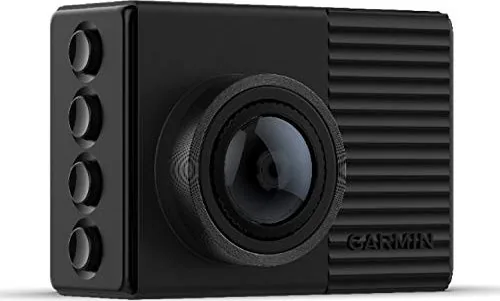
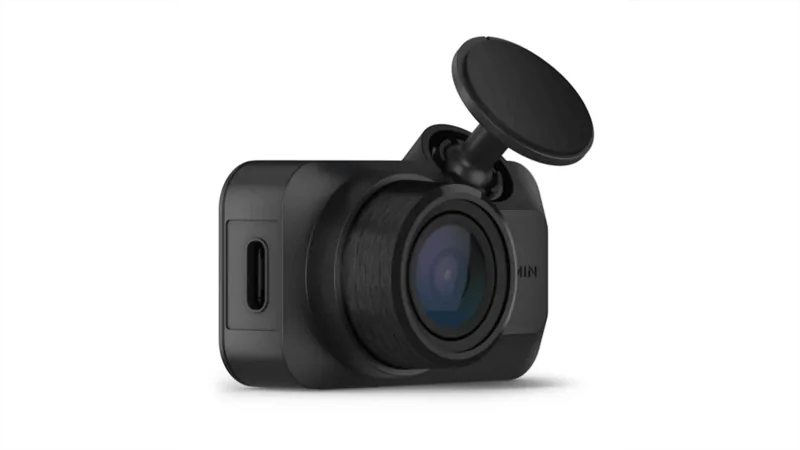
Garmin Dash Cam 66W Manual
PDF manual · 14 Pages
English


Quick check
Incorrect answer, please try again.
Chat with your Garmin Dash Cam 66W manual using AI
Get instant AI answers from your Garmin Dash Cam 66W manual
Ask anything about the Garmin Dash Cam 66W. Answers come from this manual, with the pages they are based on.
Dash Cam 66W Maintenance Schedule
Format the microSD card at least every six months to extend its lifespan and improve performance.
Wipe the lens regularly with a lint-free cloth to improve video quality. Do not use chemical cleaners.
Free maintenance reminders
Timed to your purchase date. Always free, unsubscribe anytime.
Ask a Question
Do you recommend Dash Cam 66W?
Yes No
Elena Wagner
7 months ago
The Garmin Drive app connection feels really slow. How long does it normally take to connect and transfer videos, and is there a better way than waiting during cutting/export?

Manual.ly
7 months ago
A slow first connection can happen, especially right after setup or after a phone reboot. Typically the app connects via Bluetooth first, then uses Wi-Fi for video access. Please keep Bluetooth and Wi-Fi enabled, confirm app permissions, and stay close to the car for pairing. Also update the Garmin firmware and the Garmin Drive app, then reboot the phone and re-pair if the connection repeatedly takes much longer than expected. For trimming and export, processing time depends on the video length and your phone performance. For faster handling, download the original files via USB or by removing the microSD card and copy to a computer, then trim with a PC tool or media editor. Alternatively, save only the needed clips (for example, after an event) before transferring.
Frequently Asked Questions
The camera needs a microSDHC or microSDXC card with FAT32 file formatting. The manual also specifies capacity of 8 GB or greater and a speed class of Class 10 or higher for smooth recording.
Is this answer helpful?
By default, event detection uses the camera sensor to detect possible incidents and then saves video footage before, during, and after the event. Saved footage is stamped with the time, date, and location of the incident.
Is this answer helpful?
Yes. You can find temporary unsaved footage in the Gallery under Unsaved Videos and then save a clip. The manual describes saving a three-minute video clip from the unsaved footage. This feature is not available in regions where prompt deletion is enabled.
Is this answer helpful?
In the settings, open Settings, then Camera, then Record Audio to enable or disable audio. The manual warns to follow local laws, since some jurisdictions restrict audio recording in vehicles or require passenger consent.
Is this answer helpful?
Travelapse records a fast-motion video of your trip to share. Recording Travelapse does not stop normal dash cam recording. However, the manual states Travelapse is not available when the prompt deletion option for unsaved video is enabled.
Is this answer helpful?
You activate voice control by saying, OK, Garmin. The camera listens for commands such as Save Video or Take a Picture, and it can start or stop Travelapse. The manual notes voice control may not be available for all languages, and commands must be spoken in English.
Is this answer helpful?
Parking mode recording requires connecting the camera to the Dash Cam parking mode cable accessory. Then enable Record While Parked in the camera settings. The manual also notes privacy regulations may limit this feature in some regions.
Is this answer helpful?
Advantages and Disadvantages
Advantages

- Event detection saves footage before, during, and after incidents with time, date, and location stamping.
- Loop recording automatically overwrites oldest unsaved video when storage is full.
- Smart sharing tools: Travelapse, plus Garmin Drive app trimming and exporting.
- Driver awareness alerts include forward collision warning, lane departure warning, and Go Alert.
- Multiple-camera network supports picture-in-picture exports and composite reviews.
Disadvantages

- Formatting the microSD card deletes all videos and photos on the card.
- Promptly deleting unsaved video can remove access to unsaved footage and disables Travelapse.
- ADAS warnings rely on camera alignment and clear visibility, with limited performance in poor conditions.
- Red light and speed camera alerts depend on regional availability and database updates for accuracy.
Product Specification
Effective Megapixels
2.1 Megapixels
Removable Storage
microSD/microSDHC
Video Function
2560x1440@30p (16:9)
Viewing Angle
180 degrees
Display
2" LCD
Connections
USB 2.0
Wireless
GPS
Features
Motion Sensor, Loop Function
Dimensions
2.21x1.59x0.84in (WxHxD)
Weight
0.14 lb
Product Description
Garmin Dash Cam 66W Manual - Everyday Recording, Alerts, and App Control
The Garmin Dash Cam 66W Manual is your guide to setting up a reliable dash cam system that continuously records while you drive, helps capture incidents quickly, and keeps footage organized for easy review. Designed for long-term windshield mounting and daily commuting, the 66W focuses on simple controls, smart event detection, and practical features you can use right away.
Getting started: install, mount, and format
Before recording, the camera needs a compatible microSD card. The manual explains that the card should use the FAT32 file system and meet speed requirements (Class 10 or higher). Formatting is required for the right file system, and it deletes existing videos and photos. For mounting, it provides clear windshield preparation steps and a recommended ambient temperature range to ensure the adhesive mount bonds properly.
Recording that keeps up with real life
By default, the dash cam starts recording when powered on and loops when storage is full by deleting the oldest unsaved video. Event detection uses the built-in sensor to automatically save footage before, during, and after a detected incident, with timestamps and location stamping. You can also save clips manually, capture photos, and control audio recording through camera settings.
A key highlight is Travelapse, which captures a fast-motion trip video for sharing. The manual notes an important limitation: Travelapse is not available when the feature that promptly deletes unsaved video is enabled.
Driver awareness features and connected review
The 66W includes driver assistance alerts such as forward collision warning, lane departure warning, and Go Alert for stopped traffic. There are also alerts for reported red light and speed camera locations, and the database can be updated using Garmin Express. Voice control lets you trigger actions with commands like saving videos, taking photos, and starting or stopping Travelapse.
On your smartphone, the Garmin Drive app enables pairing, review, trimming, and exporting. It also supports a multiple-camera network, including picture-in-picture exports when recording with at least two Garmin dash cams.
Top takeaways (most important results)
- Continuous recording with automatic loop deletion so you do not run out of space mid-drive.
- Event detection saves pre-, during-, and post-incident video for faster incident review.
- Voice control and the Garmin Drive app make saving, trimming, and exporting more convenient.
- ADAS alerts (FCWS, LDWS, Go Alert) add audible and on-screen awareness while driving.
Watch-outs (most important results)
- Formatting or enabling prompt delete can delete unsaved footage and impacts Travelapse availability.
- Driver alerts depend on clear views, correct camera alignment, and can have limited performance in low visibility.
- Parking mode recording depends on the Dash Cam parking mode cable accessory and privacy rules by region.
- Red light and speed camera databases are not guaranteed for accuracy everywhere.
Notes to remember
Always consider local laws and privacy rules before using dash cam audio, parked recording, or camera databases. Also, keep the lens clean for sharp footage, and periodically manage your microSD card because continuous overwriting can wear it out.
Search for 67,706 Manuals online


Type-in Brand or Model
Georg Putz
10 months ago
How long does it take to connect the Garmin Drive app and transfer videos from the W66/Mini? My phone connection feels very slow and video trimming/export seems tedious.
Manual.ly
10 months ago
App transfer can be slow if the phone, Wi-Fi, or Bluetooth are not fully established. First, keep Bluetooth and Wi-Fi enabled on your phone and use a stable connection close to the car. Then open the Garmin Drive app after the dash cam is powered and wait until the app shows it is connected (it may take around half a minute). For faster handling, you can remove the microSD card and copy files via a card reader or supported playback device instead of relying on in-app trimming. For events, use manual save or rely on collision/event detection so you export only the important clips. Also make sure the app and cam firmware are up to date.