
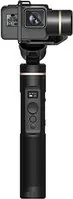
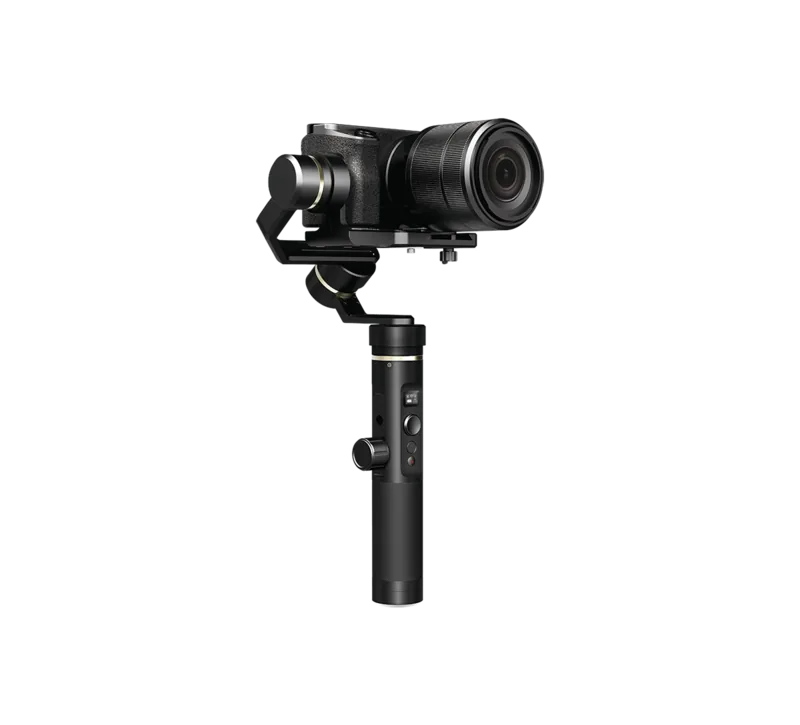
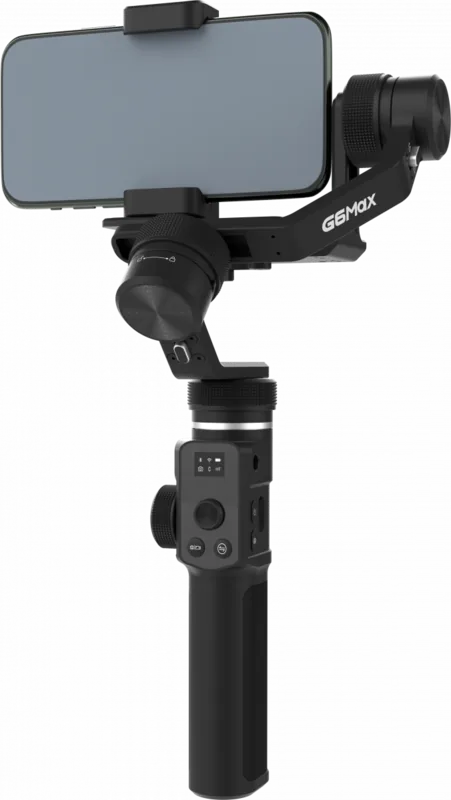
Feiyu Tech G6 Manual
PDF manual · 16 Pages
English



Quick check
Incorrect answer, please try again.
Chat with your Feiyu Tech G6 manual using AI
Get instant AI answers from your Feiyu Tech G6 manual
Ask anything about the Feiyu Tech G6. Answers come from this manual, with the pages they are based on.
G6 Maintenance Schedule
Remove the battery when the gimbal is not used for a long period of time.
Perform initialization if the camera is not level, after long non-use, or following extreme temperature variations.
Ask a Question
Do you recommend G6?
Yes NoFrequently Asked Questions
It is a 3-axis gimbal for action cameras that reduces shake and supports smoother handheld video, timelapse, and everyday motion shots.
Is this answer helpful?
The main modes are panning, follow, lock, and auto-rotation. These cover steady framing, responsive movement, and constant-speed cinematic rotation.
Is this answer helpful?
Yes. When connected through the Micro USB port, the camera can receive power while the gimbal is on, helping extend shooting time.
Is this answer helpful?
Mount the camera first, then loosen the knob ring and adjust the cross arm until the camera sits level. Tighten everything before powering on.
Is this answer helpful?
Feiyu ON lets you connect by Bluetooth, adjust settings, control the gimbal remotely, change auto-rotation speed, and install firmware updates.
Is this answer helpful?
Place it on a flat surface and run initialization. If problems continue, restart the gimbal and repeat the process after checking the balance.
Is this answer helpful?
Advantages and Disadvantages
Advantages

- 3-axis stabilization with panning, follow, lock, and auto-rotation modes for flexible shooting.
- Feiyu ON app adds remote control, settings, and firmware upgrades.
- Can charge the camera while operating and offers up to 12 hours runtime.
- Compatible with GoPro HERO5/HERO6-style cameras and optional RX0 adapter.
Disadvantages

- Camera mounting and balance must be done carefully before every session.
- Some camera connections depend on WiFi/Bluetooth pairing and may need retries.
- Firmware updates can change features, so the manual may not always match current behavior.
- RX0 compatibility is not native and needs an extra adapter kit.
Product Specification
Compatibility
Action Camera
Pan Axis
360°
Roll Axis
320°
Tilt Axis
360°
Max. Load Capacity
0.29 lb
Display
yes
Connectivity
Bluetooth, Wi-Fi (WLAN)
Power Supply
Battery (26650)
Operating Time
12 h
App Control
yes
Handling
one-handed
Special Features
splashproof, charging function for external devices, accessory port (2x 1/4")
Dimensions
10.67x4.69x1.50in (folded)
Weight
0.74 lb
Product Description
Feiyu Tech G6 Manual: Smooth Motion for Action-Camera Creators
The Feiyu Tech G6 is a compact 3-axis handheld gimbal built for users who want steadier, more polished footage from action cameras and similarly sized devices. Instead of relying on shaky handheld recording, it helps keep the image controlled while you move, making it a strong fit for travel clips, outdoor sports, vlog-style shooting, and motion timelapse work. Its design focuses on portability, quick handling, and practical control rather than complexity.
What makes the G6 appealing is the way it combines stabilization with flexible shooting modes. Panning mode is the default and keeps the camera moving smoothly with your hand, while follow mode adds more responsive motion for dynamic framing. Lock mode holds the camera orientation steady, which is useful when you want a fixed direction regardless of body movement. For more stylized footage, auto-rotation mode creates constant-speed movement that can be used for repeatable motion shots or timelapse sequences.
The controls are built around a function button, trigger button, setting button, joystick, and a horizontal adjustment button. That means the gimbal can be operated directly without depending on a phone for basic use. Still, the Feiyu ON app expands the experience by offering remote control, mode switching, rotation-speed settings, and firmware updates. For creators who like to fine-tune their workflow, this app support adds real value.
Setup matters with this device. The camera must be mounted before power-on, balanced carefully, and adjusted so the horizon stays level. If the camera tilts to one side, the cross arm and knob ring can be used to correct alignment. The gimbal also supports initialization when the system needs to be reset, such as after long storage or if the camera appears out of level. These steps are important for getting the best performance and keeping the motors working smoothly.
The G6 also includes useful practical touches. It can charge a connected camera through its Micro USB port while the gimbal is powered on, which is helpful during longer shoots. With a quoted battery life of up to 12 hours, it is designed for extended use in the field. Compatibility covers GoPro HERO5 and HERO6-class cameras, and Sony RX0 support is available with an optional adapter plate. For creators who want smooth motion in a compact package, the Feiyu Tech G6 Manual points to a versatile and capable tool.
Notes
- Balance the camera before powering on.
- Use Feiyu ON for advanced settings and updates.
- RX0 support requires an optional adapter.
- Re-initialize if the gimbal drifts or acts unevenly.
Search for 67,706 Manuals online


Type-in Brand or Model
VoluptatemQuia88
10 months ago
For the FY-Tech G6, does the app and GoPro pairing work reliably? I read about update/install interruptions and having to try pairing many times. What should I do if it fails?
Manual.ly
10 months ago
Many users report that once the GoPro is paired, the camera can be controlled directly from the Gimbal. If pairing or app updates fail, try these steps: use the latest version of the app, start with a fully charged gimbal and phone, and keep them close during connection. On update issues, close the app, retry the update with a stable internet connection, and if it still stops, uninstall and reinstall the app. For pairing problems, restart both the gimbal and your phone, then run the pairing again (if available, remove/forget the device and reconnect). Also ensure your GoPro firmware is up to date. If you notice slight motor sounds on audio, this can often be reduced in post-production.